How to purchase Google Workspace for an existing domain name
Are you already in possession of a domain name and would like to use it with Google Workspace? This guide provides step-by-step instructions for purchasing Google Workspace for an existing domain, either from the front-of-site or through your account manager, so you can quickly create custom email addresses for your team.
To use Google Workspace, you will need a domain name connected to it. You do not need to purchase a new domain name if you already own one registered with Network Solutions or with another registrar. To learn more about Google Workspace, see Getting started with Google Workspace.
In this article, we will discuss:
Purchasing Google Workspace
View and follow the different ways to purchase Google Workspace below.
Via the Network Solutions front-of-site
- Go to the Network Solutions website, then hover over Email and click Google Workspace.
- Scroll down to select your Google Workspace plan, then tap Add to cart to continue.
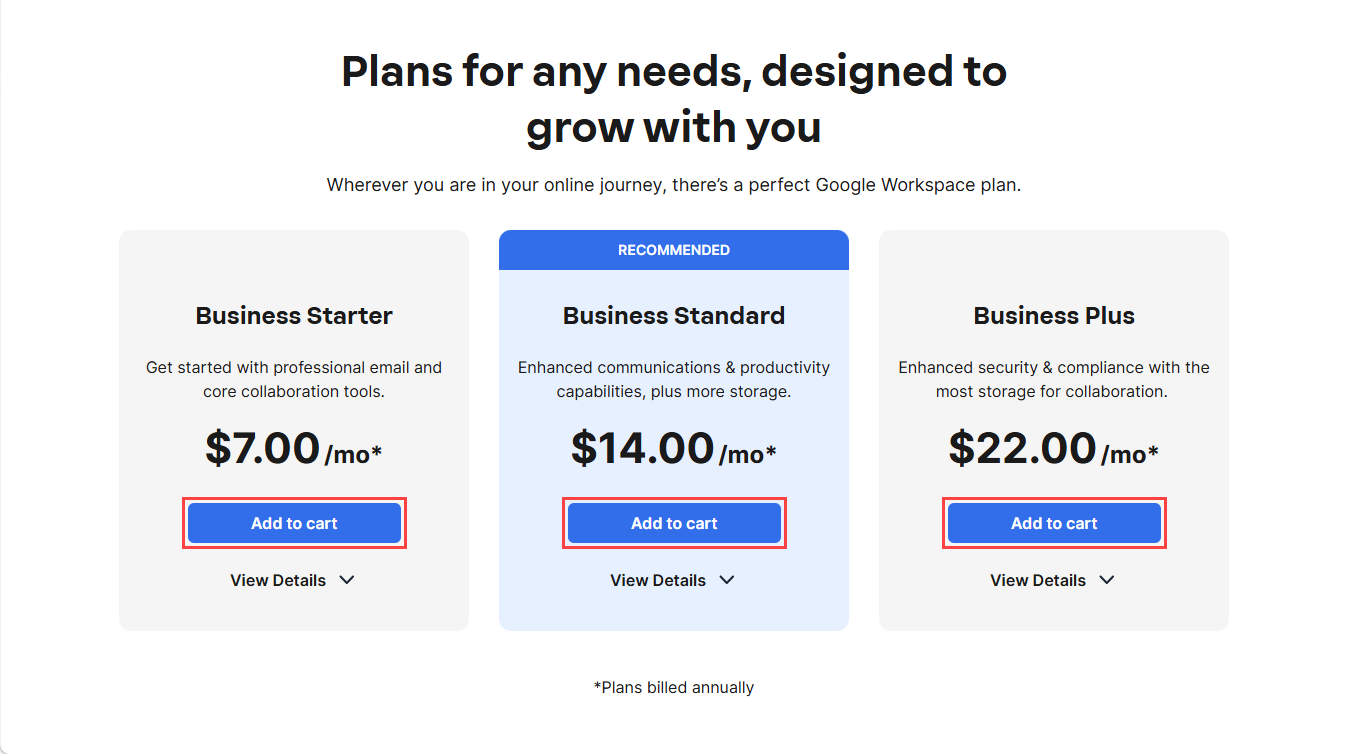
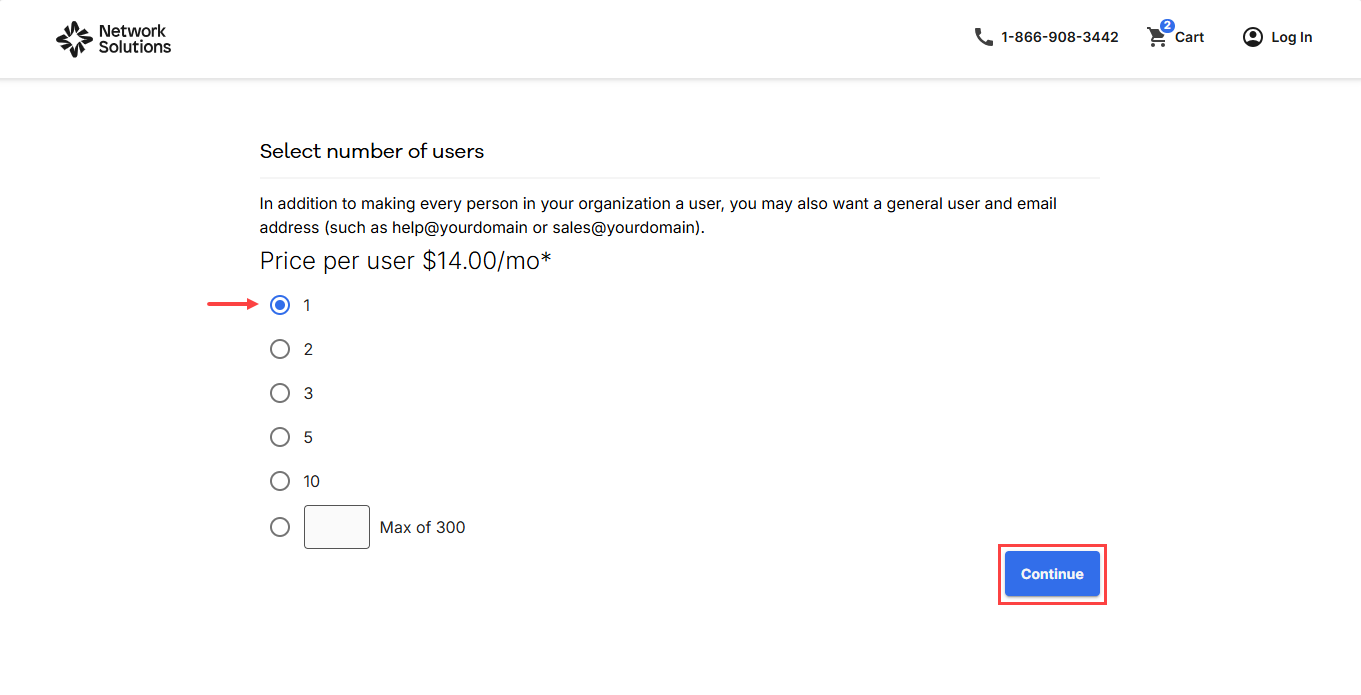
Note: Pricing is subject to change. Visit the Network Solutions website for the most up-to-date pricing. - Select how many users you need, then click on Continue.
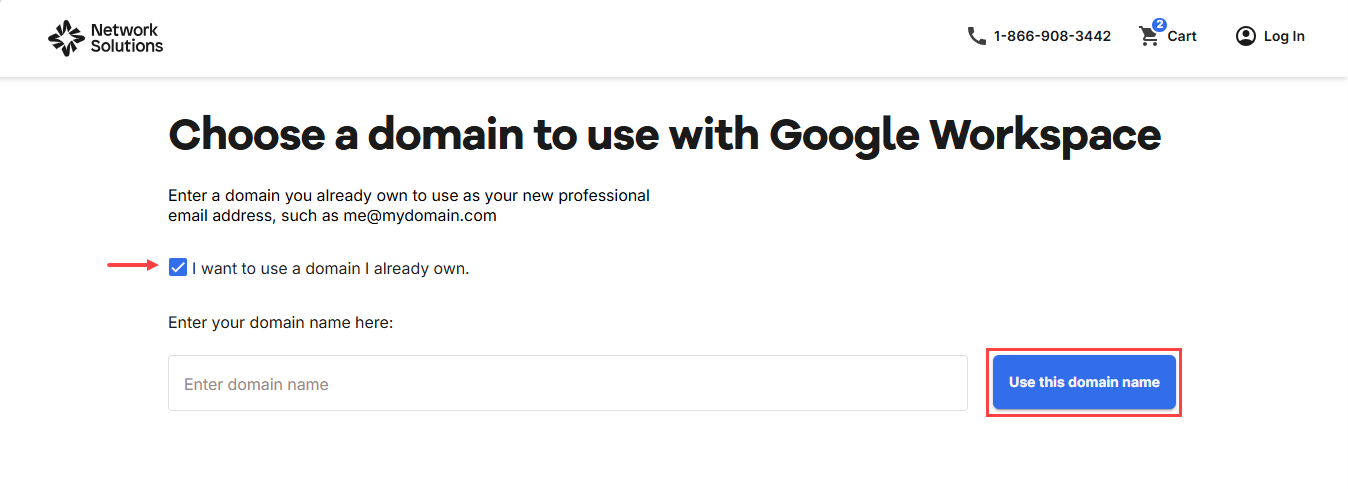
- Check the box I want to use a domain I already own, then click Use this domain name to use an existing domain name.
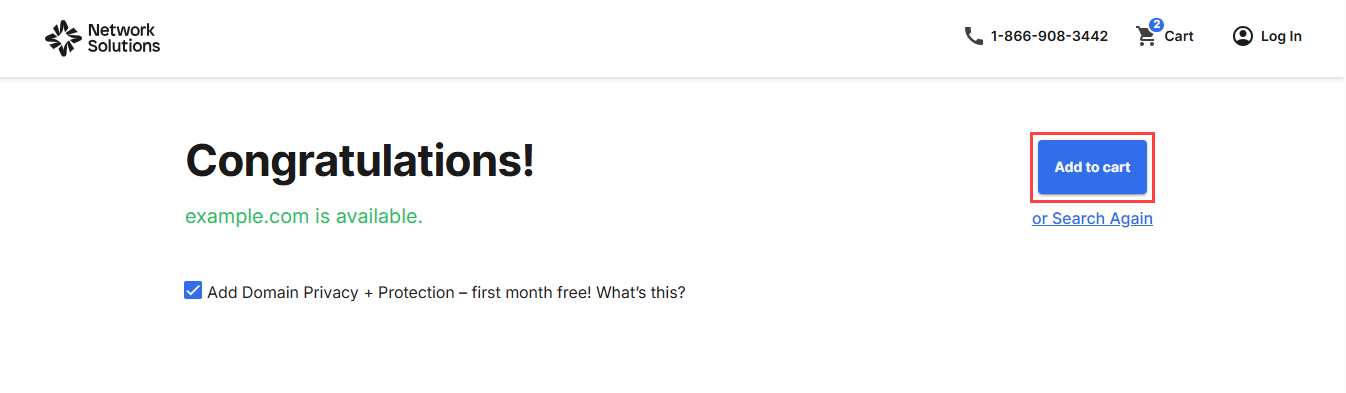
- Click Add to cart to proceed to checkout.
Note:
- If the domain name is eligible for Google Workspace, you will see a message indicating that it is available.
- If the domain name is not eligible, you will see a message that it is not a qualified domain name. Choose another domain name or purchase a new domain name.
- Complete the purchase in the Order summary page, and then your new Google Workspace account will start provisioning afterward.
Via the account manager
- Log in to your account via https://www.networksolutions.com/my-account/login.
- In the account manager, go to the Google Workspace tile and click Get Started.
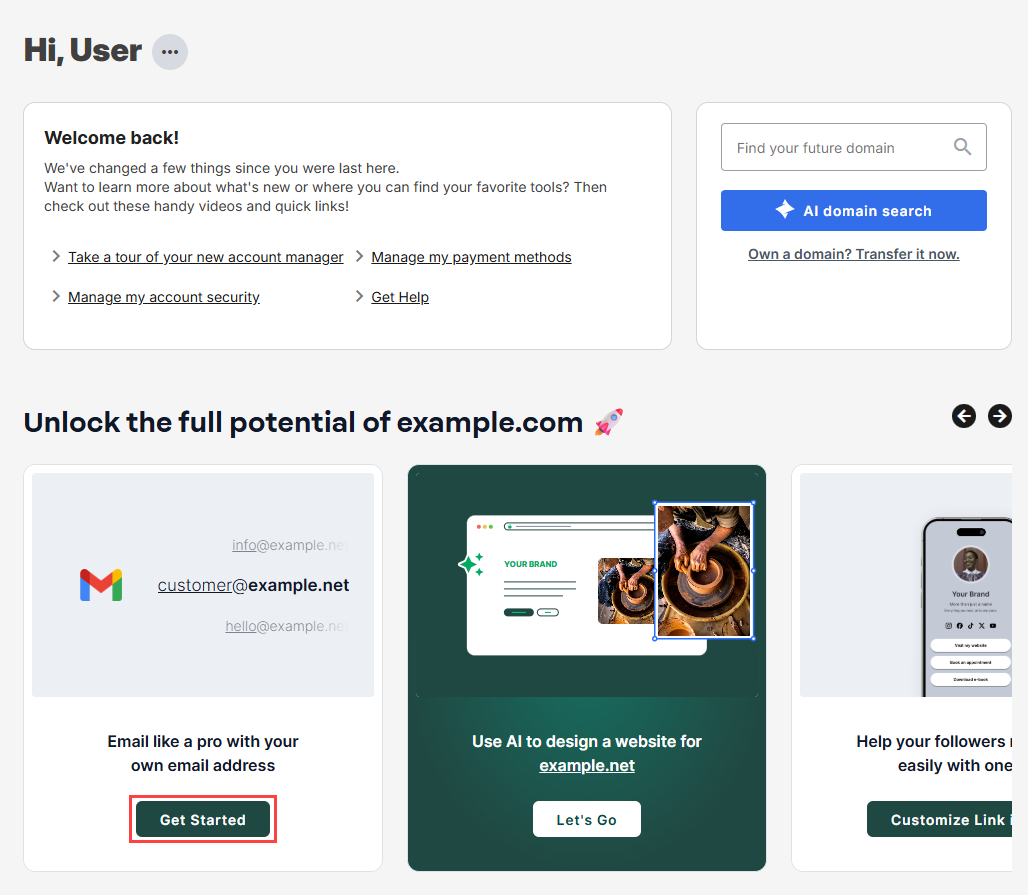
- A pop-up will appear with the following fields:
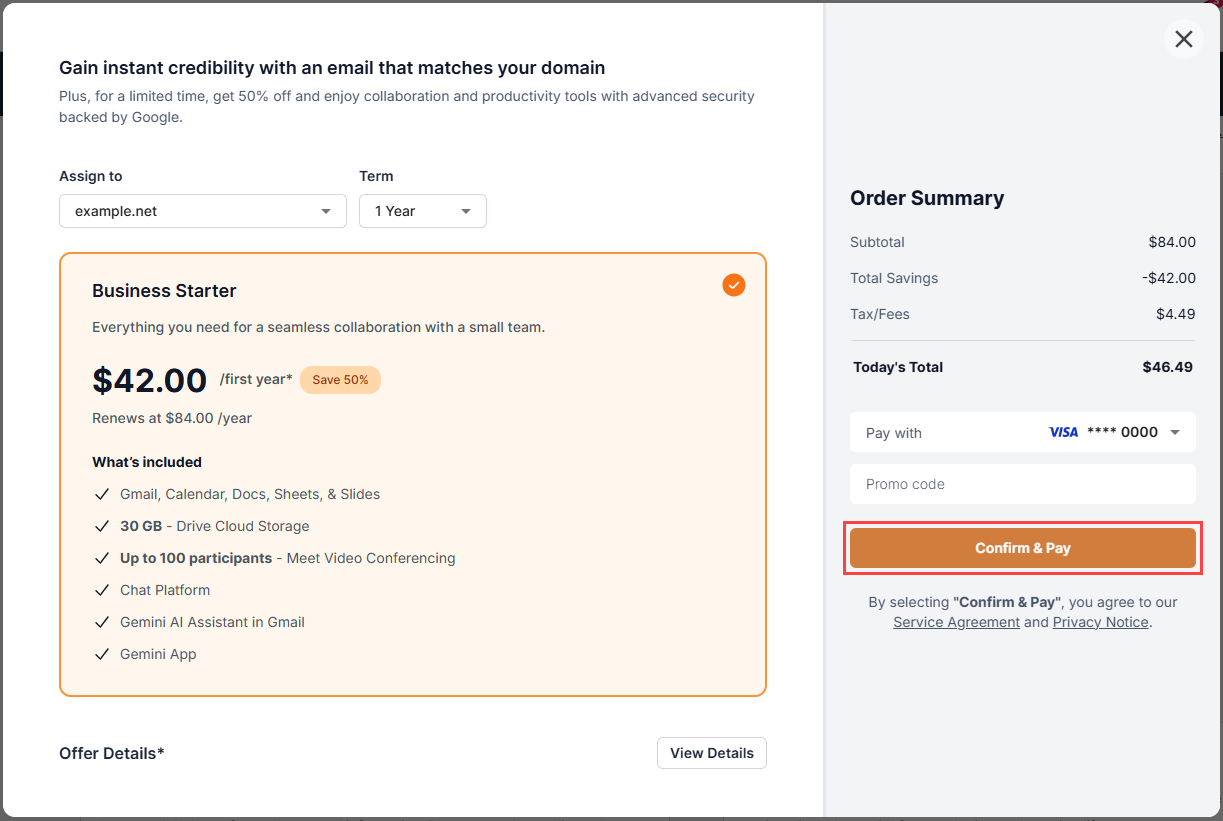
- Assign to: Select the domain you want to assign to your Google Workspace account.
- Term: Choose your preferred term (monthly or annual).
- Pay with: Select your payment method.
- Once you’re all set, click Confirm & Pay to complete your purchase and assign your domain to your Google Workspace plan.
Alternatively, you can also purchase Google Workspace from within the account manager in other ways:
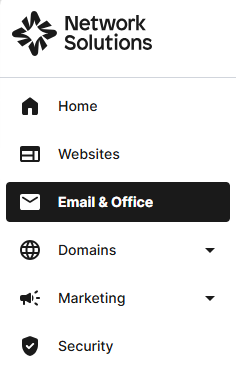
- Go to Email & Office from the left navigation menu.
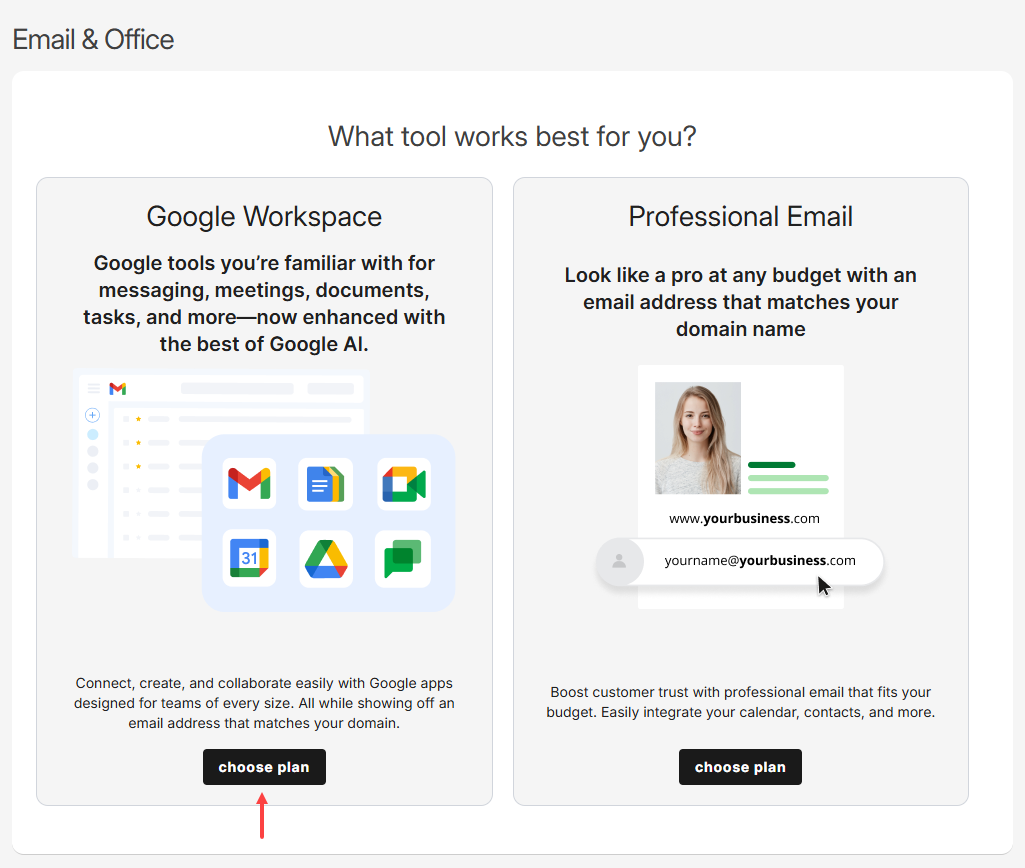
- Select Google Workspace, then tap choose plan to move forward with the purchase process.
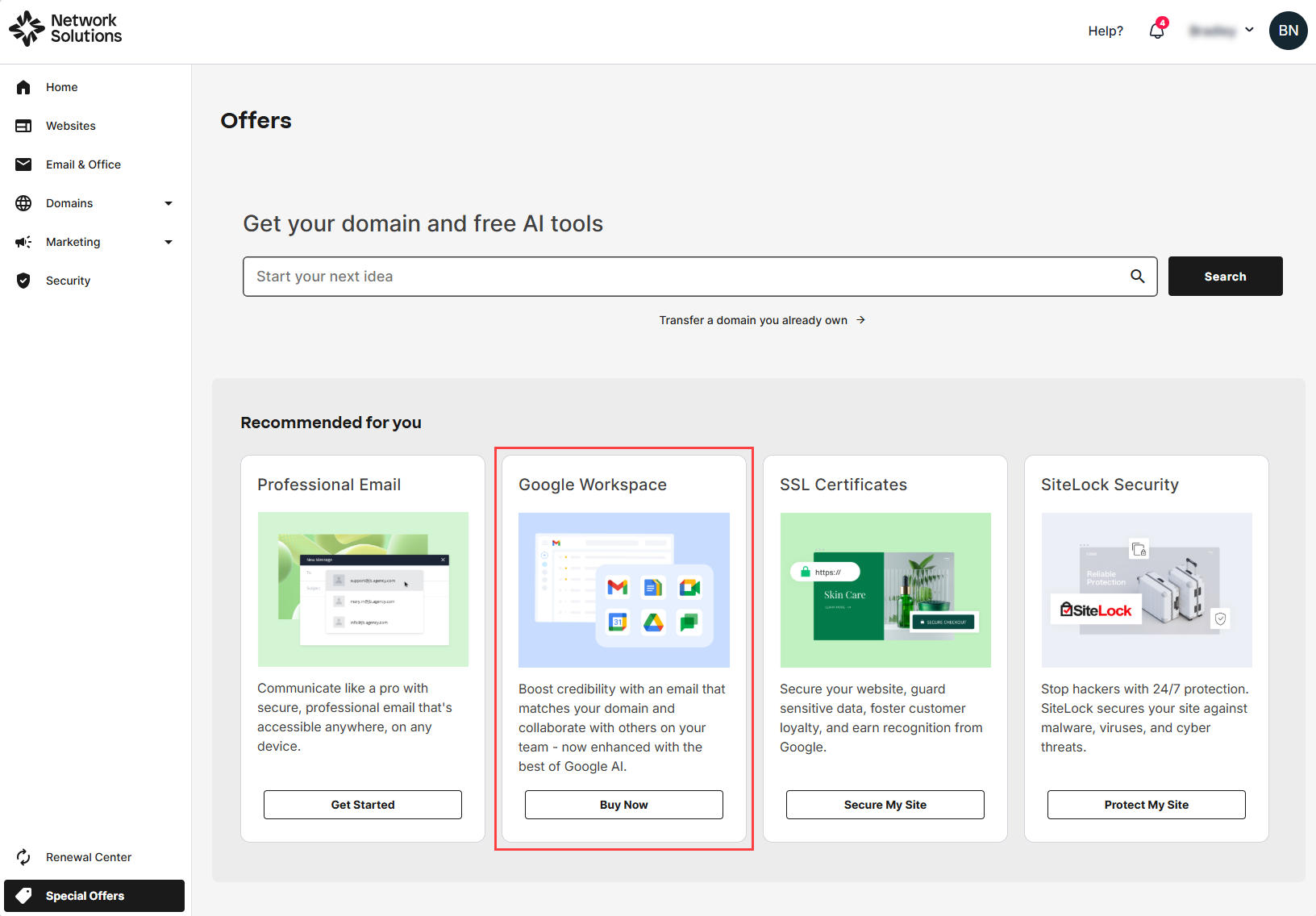
- Navigate to Special Offers from the bottom-left menu and select Google Workspace from the Recommended for you section. Click Buy Now to continue with your purchase.
Review
Adding your existing domain to a new Google Workspace account is a quick way to enable professional email and productivity tools without purchasing a new domain. By following this guide to add an existing domain, you can complete the setup smoothly and start using Google Workspace with your custom domain right away.
Get practical tips and product updates on LinkedIn.
Follow Network Solutions