How to get started with Media Library
Media Library is a centralized image management tool available within Account Manager. It allows users to upload images, import images from a URL, browse stock photos, and organize media across their domains. With built-in editing features, tagging, and download options, Media Library makes it easy to manage and reuse images for marketing and website-related projects.
In this article, we will discuss:
How to access Media Library from your account manager navigation
- Log in to your account via https://www.networksolutions.com/my-account/login.
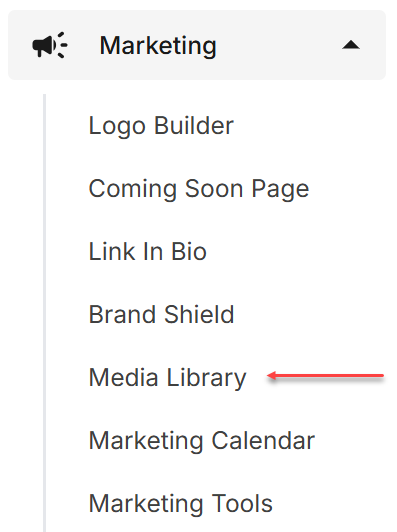
- Click Marketing and select Media Library from the left navigation menu.
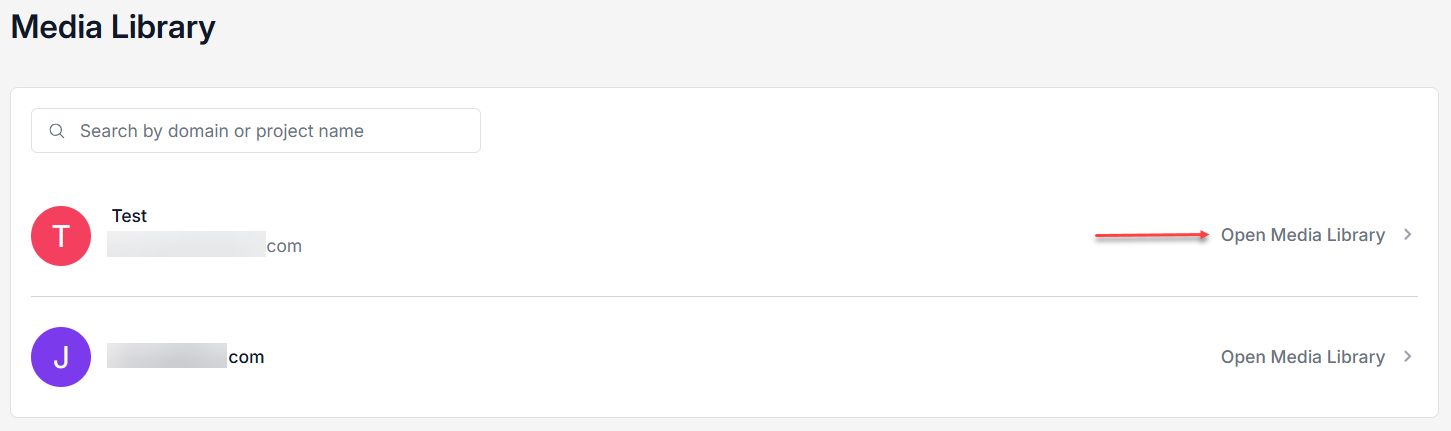
- Choose the domain of the Media Library you would like to work on. Select Open Media Library to proceed.
Note: If you have multiple domains with Media Library, it will allow you to choose which domain to work on. Otherwise, it will direct to the Media Library page.
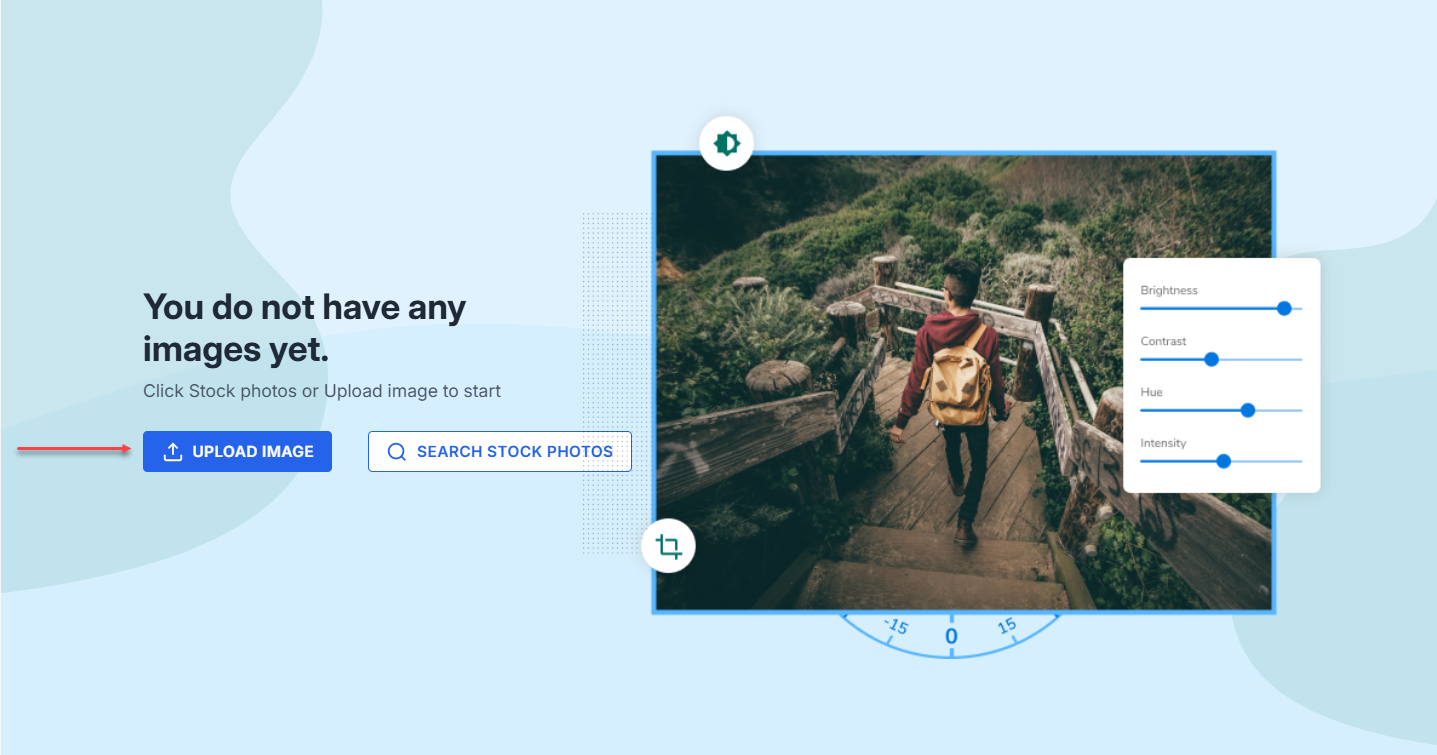
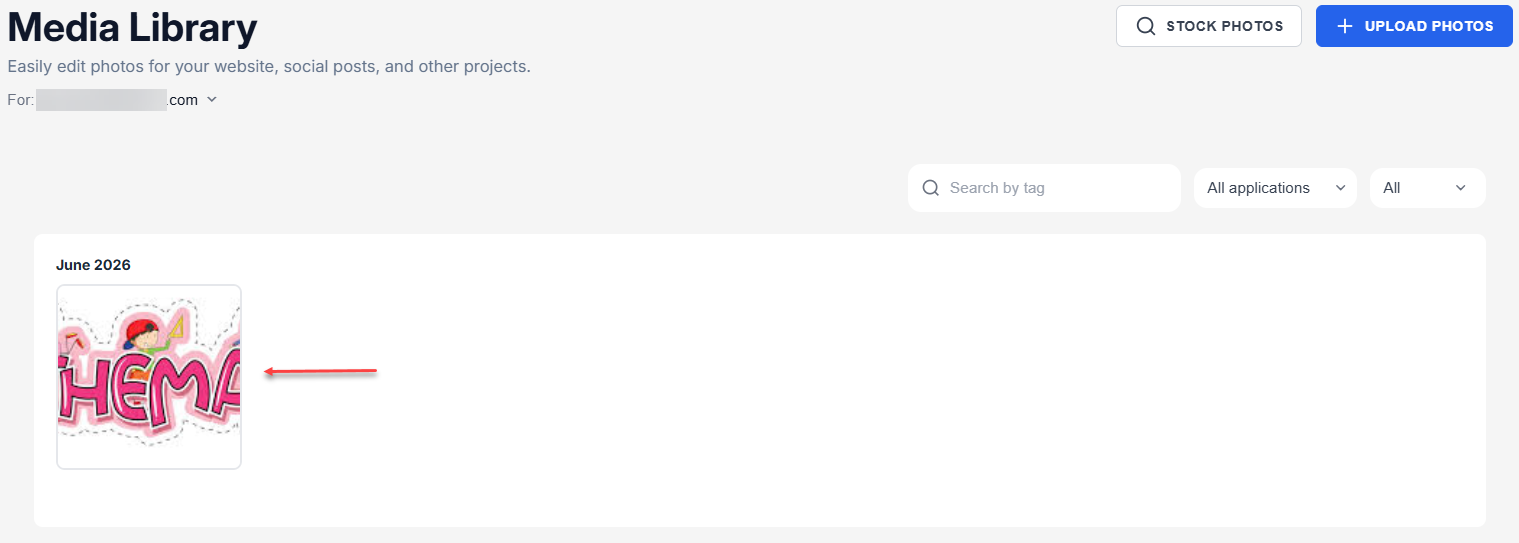
- The Media Library lets you add your own images, and you can search for stock images using our existing stock image library.

- Domain: You will see the domain name you are working on in Media Library, and you can switch to another domain anytime.
- STOCK PHOTOS: You can search for our own stock photos and use them in your Media Library.
- UPLOAD PHOTOS: You can upload your own image from your file.
How to upload an image
From the Media Library panel, you can easily upload your image from your local file.
- Select UPLOAD IMAGE.
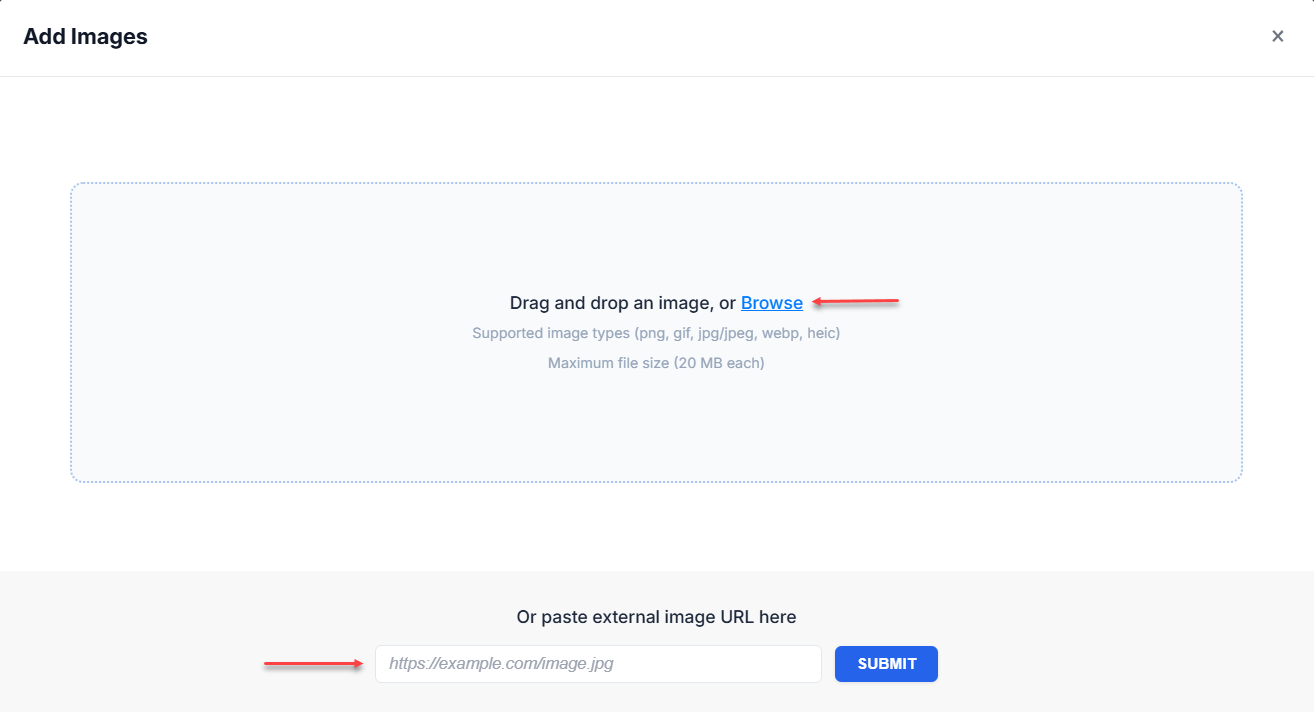
- Select Browse if you have an image you want to use, or copy and paste an external image URL here to use external images. Click SUBMIT to proceed.
- The saved images will be available in the Media Library.
How to search and use stock photos
You can also use the available stock photos.
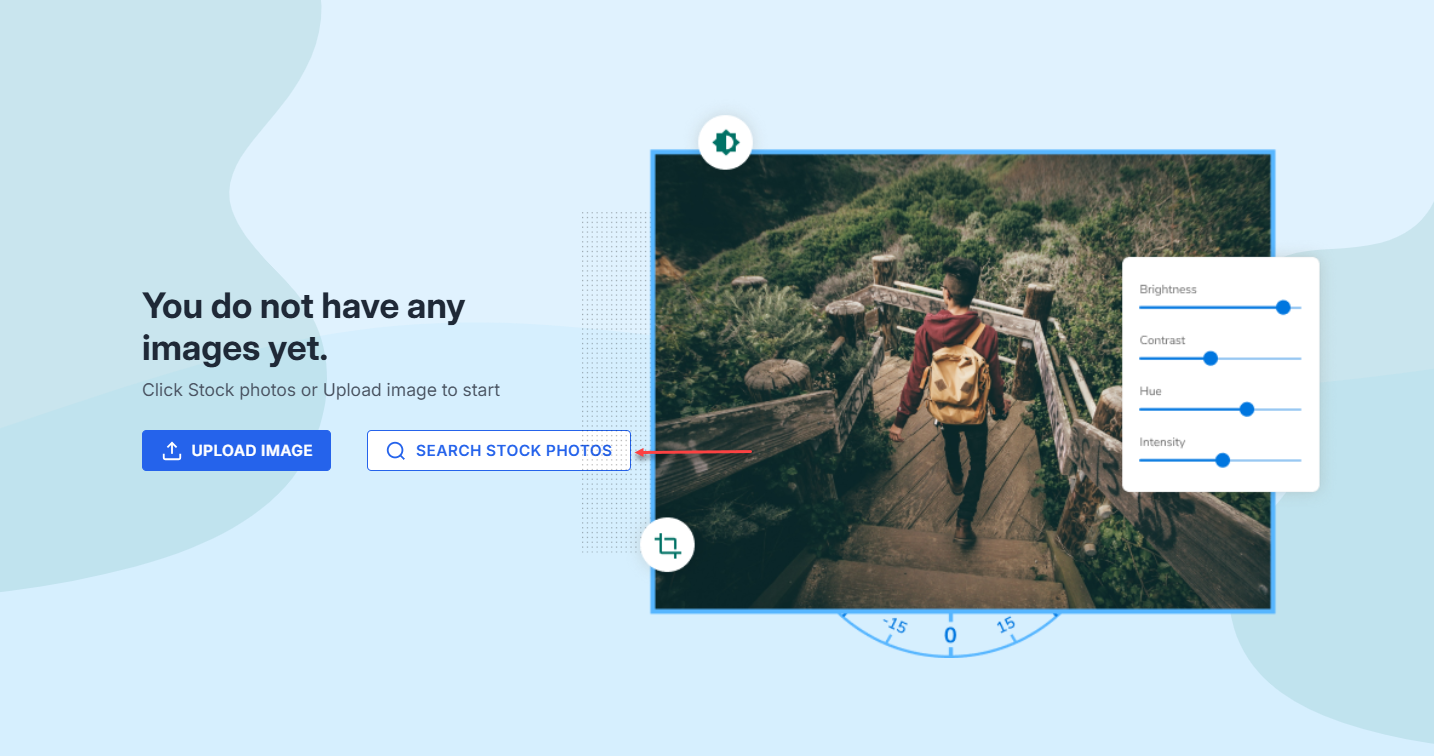
- Select SEARCH STOCK PHOTOS.
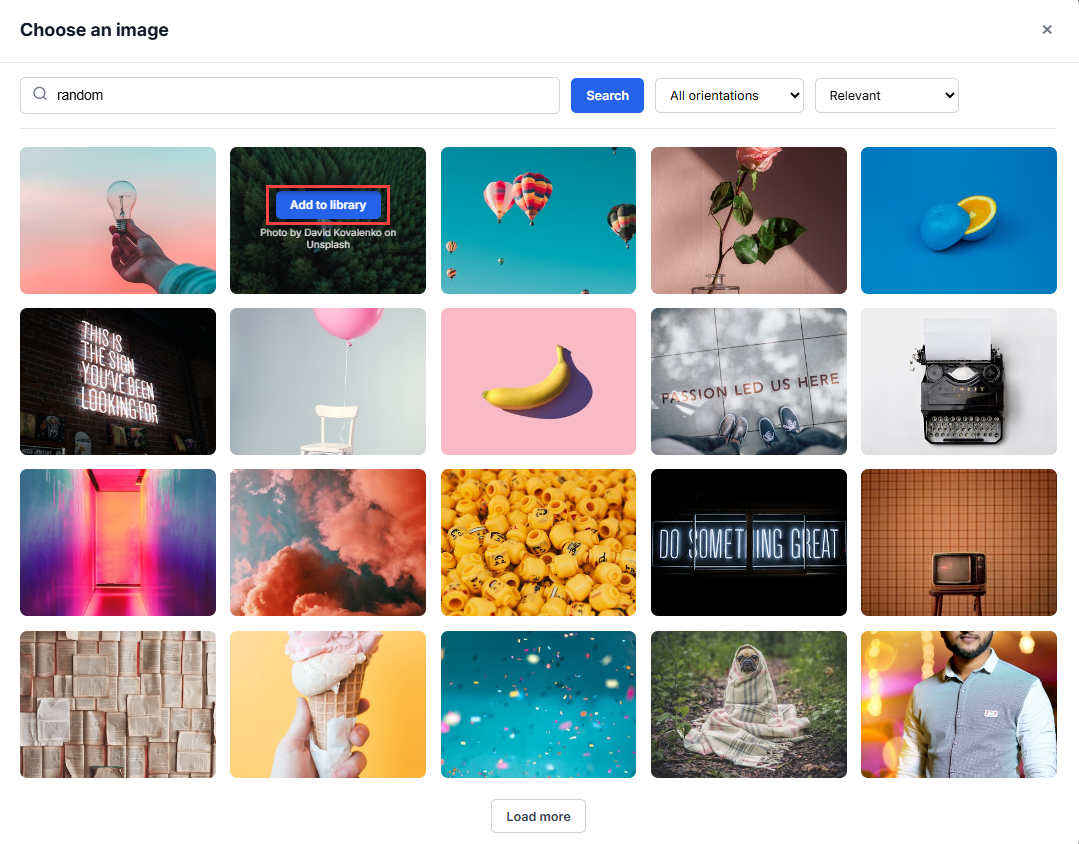
- You can choose from available images or search for images/photos. Once you have decided on the image you want to use, select Add to library.
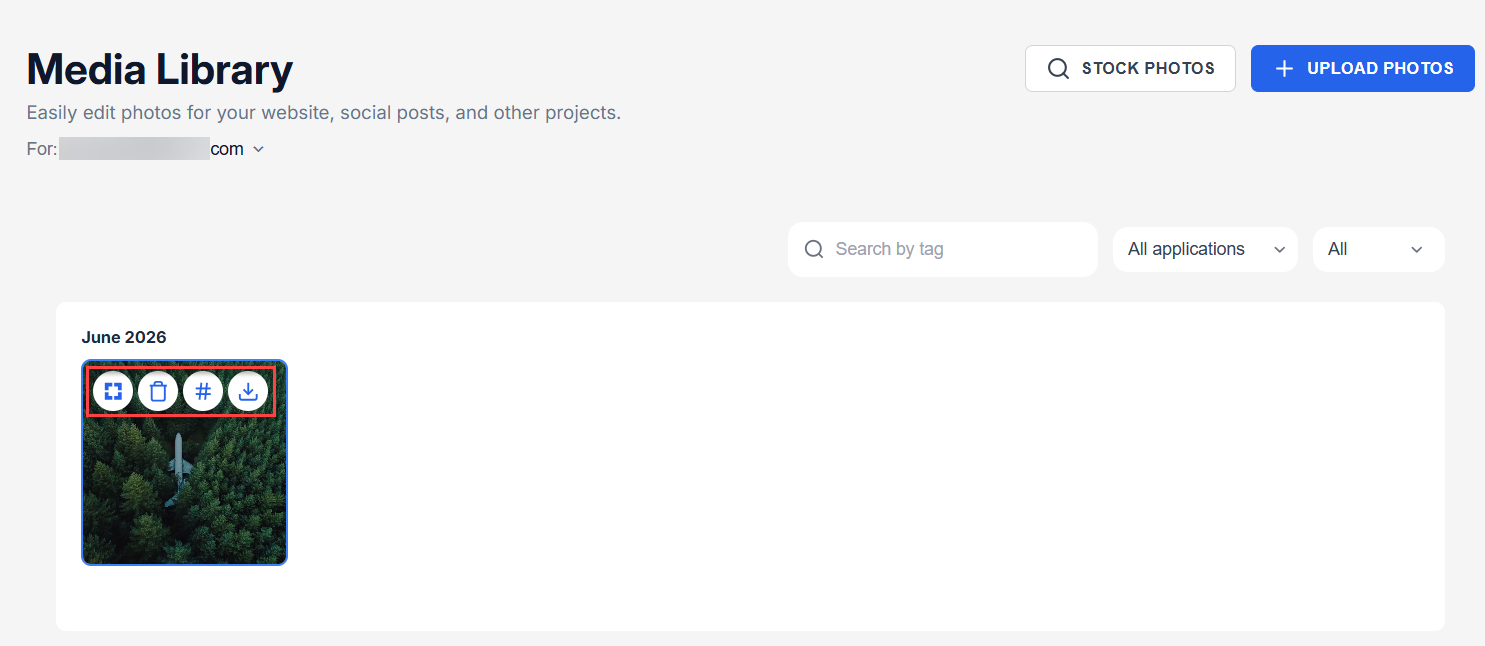
- The saved images will be available in the Media Library.
Edit, delete, add a tag and download an image
From the Media Library tab, you can select the image you want to make an edit, delete, add tag and download image.
Select the image and hover your mouse to see the icon label and choose the appropriate one you want to do. Images in the media library have the following options on hover: Edit image, Delete image, Add tag, and Download image.
Edit image
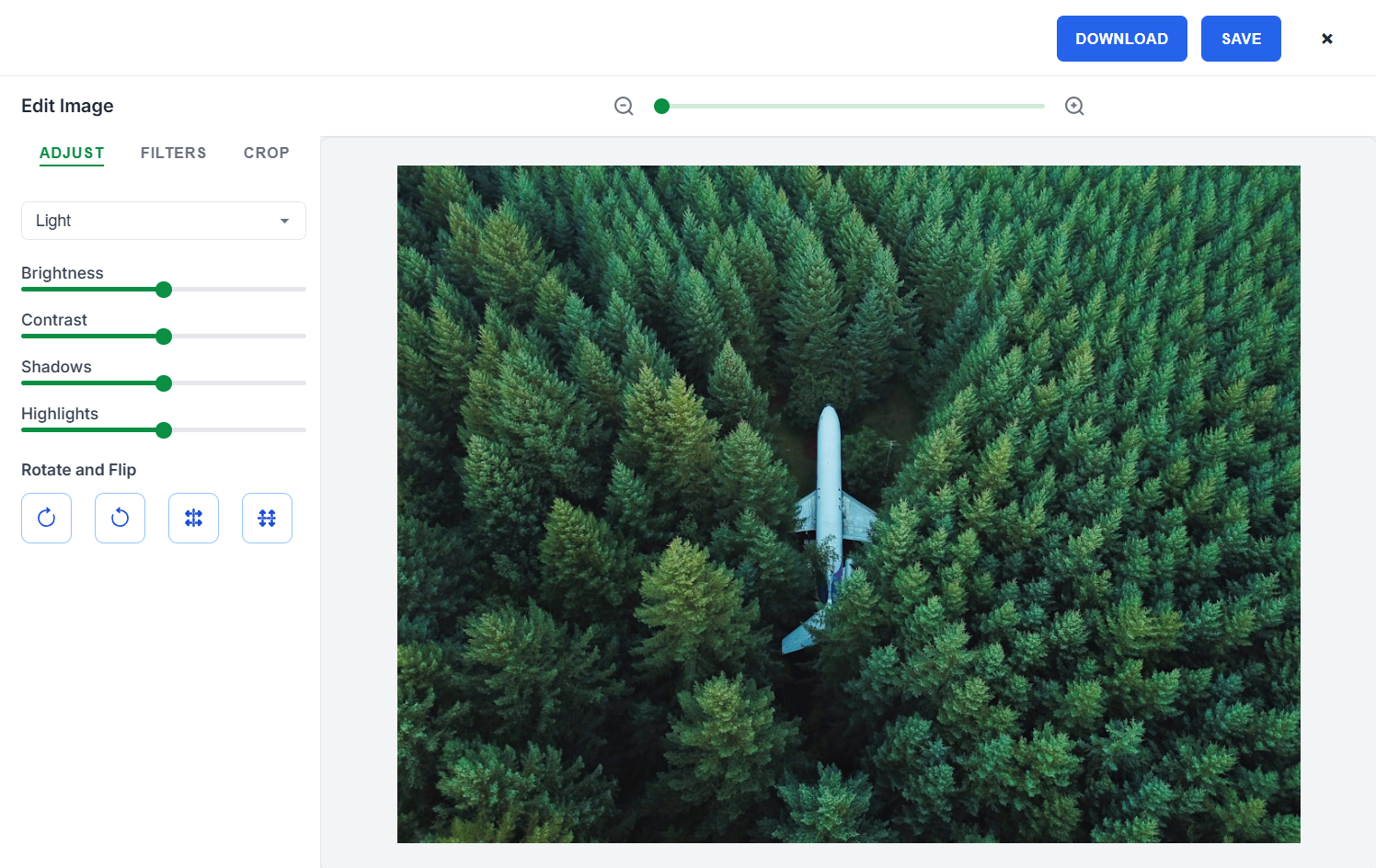
Under the Edit image option, you will be directed to the page to edit it. Main editing options are ADJUST, FILTERS, and CROP.
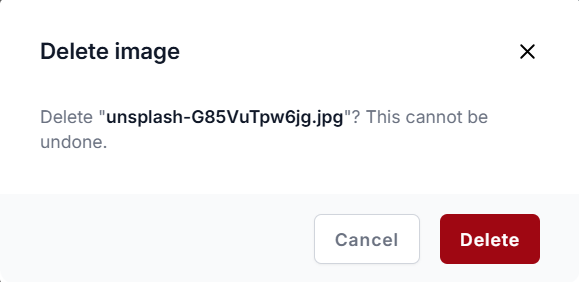
Delete image
Hover to Delete image to delete the existing image from the Media Library.
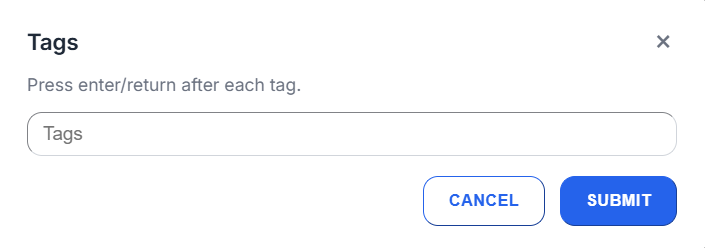
Add tag
Under Add tag, you can add multiple tags to an image to help them locate it in the future.
Download image
The Download image option lets you download the image from the Media Library to your local drive.
How to access Media Library from your Social App
Follow the steps below to access Media Library via Social App.
- Log in to your account via https://www.networksolutions.com/my-account/login.
- Click Social from the left navigation menu.

- If you have multiple domains, select which of the domains from the list you want to manage, then click View Social to proceed.

- Tap Create Post.

- In this section, there are a few key components that all posts must include:
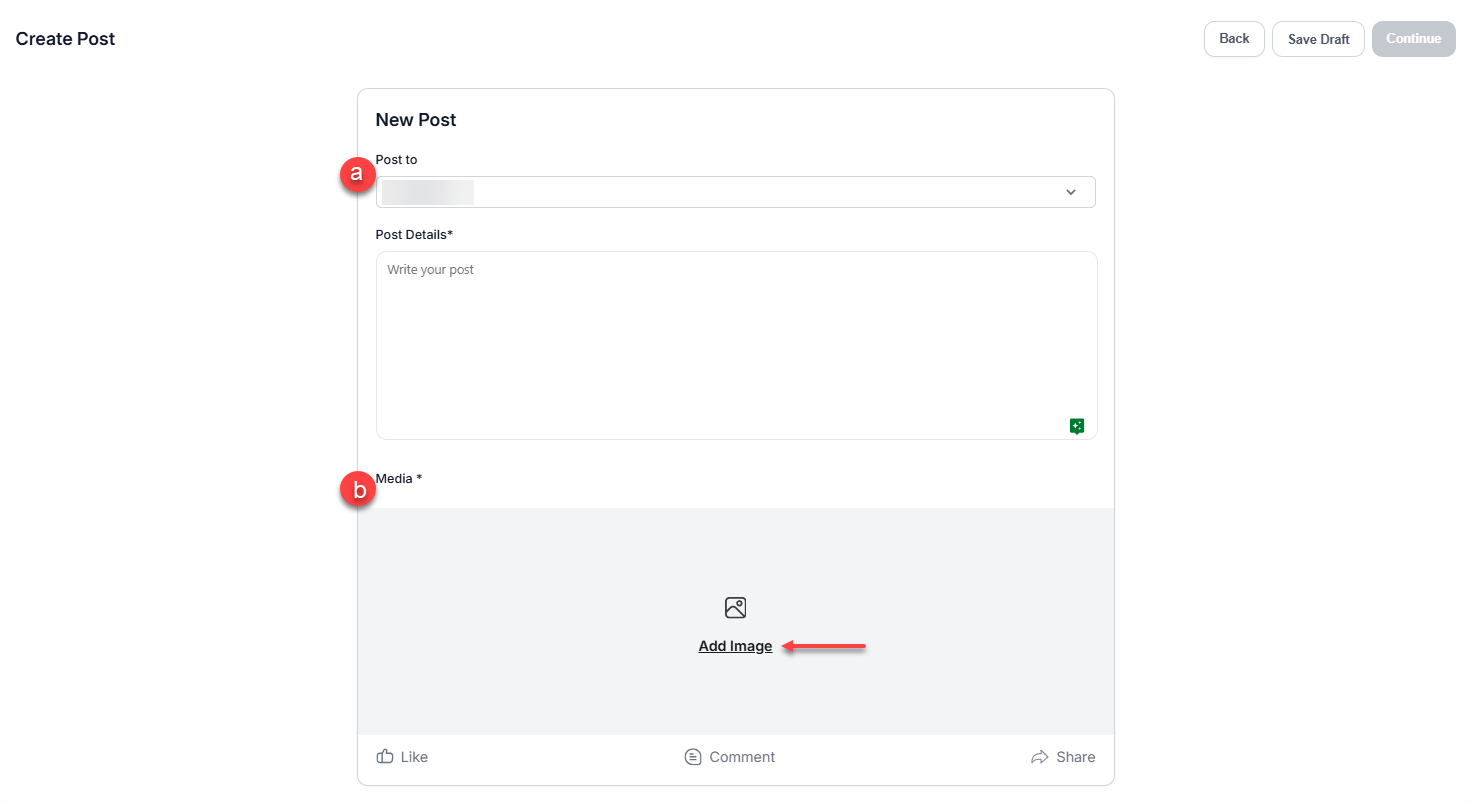
- Post to (Select a page): Choose which social media pages you want to post to.
- Media: Select Add image to access the Media Library.
- Follow the steps on how to upload an image, how to search and use stock photos, and how to edit, delete, add a tag and download an image.
Related articles
- How to create and manage posts in the Social app
- Social app: Importance and benefits
- How to connect your X (Twitter) account to the Social app
- How to connect your Facebook account to the Social app
- How to connect your LinkedIn account to the Social app
- How to connect your Instagram to the Social app
- How to manage page reviews in the Social app
- How to view page messages in the Social app
- How to manage your social accounts the easy way using the Social app
Review
The Media Library provides a centralized way to manage images across domains and marketing tools from within Account Manager. Users can upload, organize, edit, and reuse images with features such as tagging, filtering, stock image search, and built-in editing tools. The app also simplifies domain management by allowing users to switch between eligible domain instances from a single interface.
Get practical tips and product updates on LinkedIn.
Follow Network Solutions