Powered by Network Solutions: How to upgrade to Google Workspace (formerly G Suite)
This guide provides step-by-step instructions on how to upgrade to Google Workspace (formerly G Suite) from an existing standard mailbox. An upgrade gives you professional email, online storage, shared calendars, video meetings, and powerful collaboration tools for your team.
In this article, we will cover the process of upgrading to Google Workspace from start to finish.
Key benefits
Google Workspace gives you a professional email, online storage, calendars, video meetings, and more. Google Workspace improves team collaboration as it allows you and your team to work on the same documents simultaneously. You will have the ability to share calendars, spreadsheets, and documents, create video conferences with Google Meet, and use instant messaging. With Google Workspace, you will have access to some of the best tools for collaboration, organization, and security.
Before you upgrade
- Please bear in mind that when you upgrade to Google Workspace, mail, contacts, and folders are NOT automatically transferred over to the new account. You must move these items manually or contact us to have our Professional Services move them for you.
- You cannot connect a domain name to your Google Workspace account if the domain name also has Cloud Mail, Microsoft 365 mail, or an existing Google Workspace email.
Upgrading to Google Workspace
This section will walk you through the complete upgrade process. Use the links below to navigate:
Accessing your email in the account manager
- Log in to your account via https://www.networksolutions.com/my-account/login.
- Click Email & Office, then select Standard Email from the left navigation menu.

- The Email Management will open in a separate window, where you can manage your emails.
Upgrading an existing mailbox
Once you have accessed the Standard Email and you are already on the Email Management page, please follow the steps below to upgrade to Google Workspace.
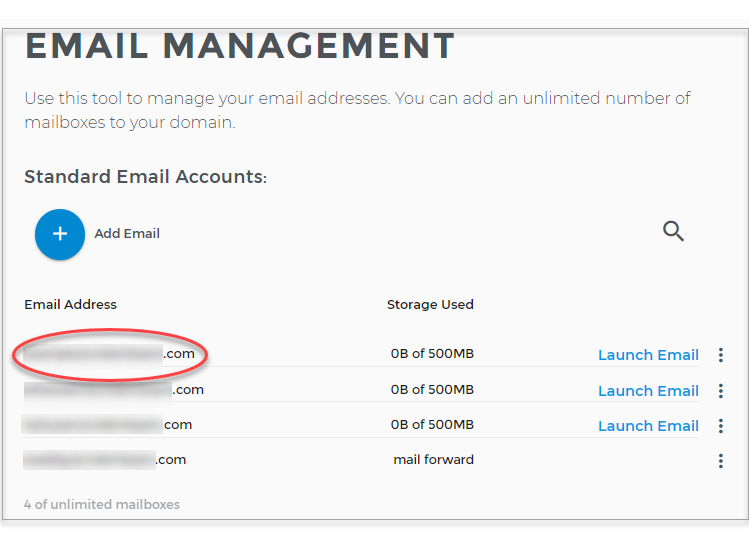
- Look for the email address you want to upgrade to Google Workspace to confirm it exists.
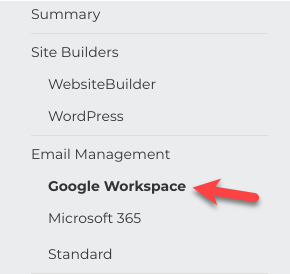
- Click Google Workspace on the left sidebar.
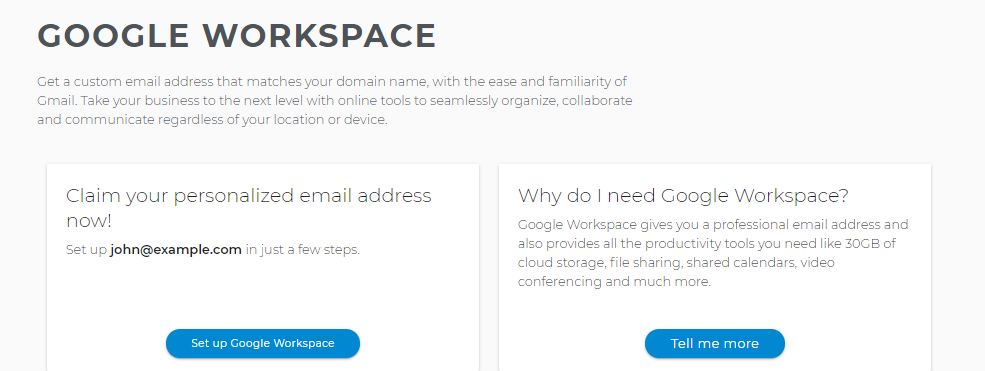
- Tap the Set up Google Workspace button.
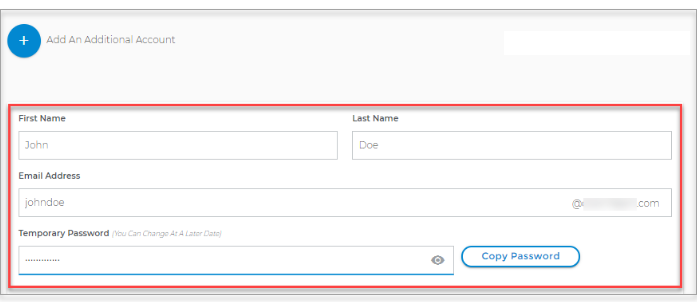
- Enter all necessary information for the mailbox user and copy the Temporary Password.
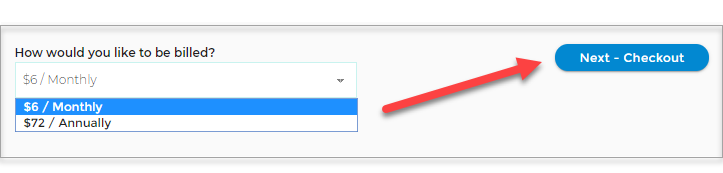
- Select how you would like to be billed from the drop-down menu. If you have an available license, you will skip the payment part. Note that it is one license per user.
- Click Next - Checkout to continue.
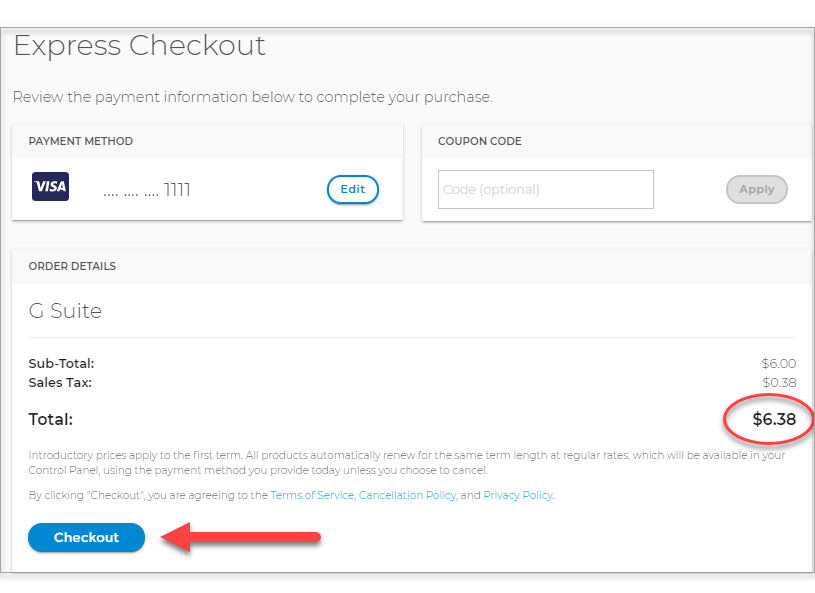
- Review the payment method and the amount to pay, then click the Checkout to complete your purchase.
- The new license will be available for use after a few moments.
- If this is your first Google Workspace account, it will become your Google Workspace Admin account. You will also be required to verify the domain you plan on using.
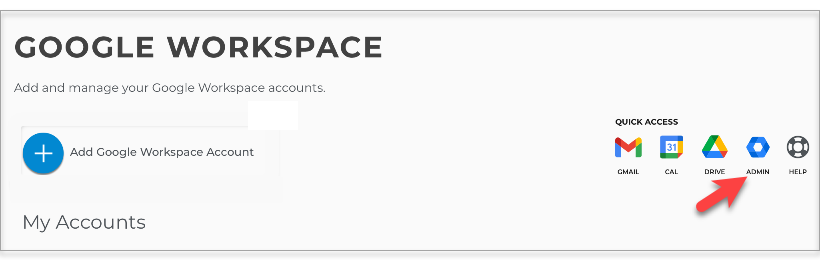
- Click the ADMIN icon on the confirmation page.
- Log in to your new Google Workspace account and agree to the terms of service.
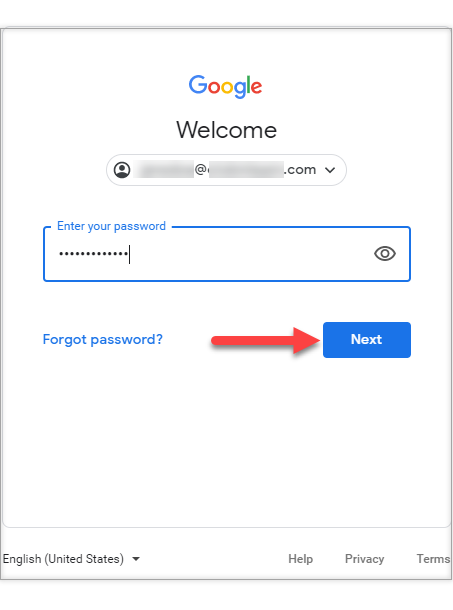
- Click Accept.
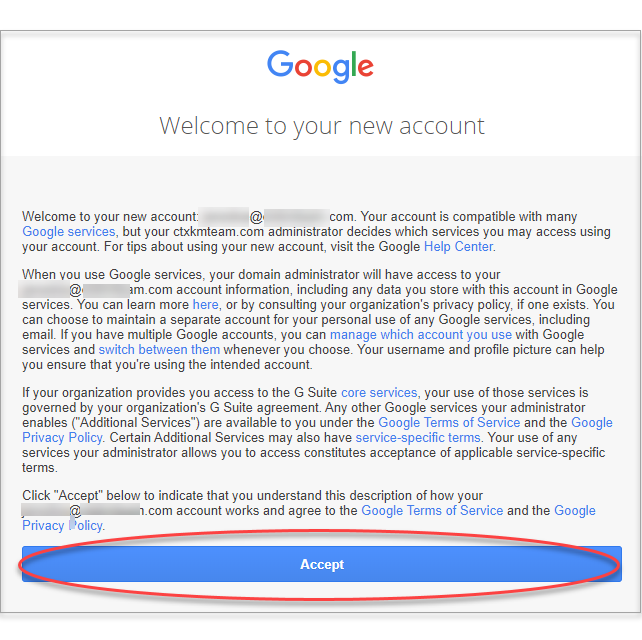
- Finish the process for verifying your domain from inside your Google Workspace admin panel if prompted.
- Go through the initial Google setup process inside your Google Workspace account.
Upgrading mailbox to Google Workspace FAQs
Are existing mailbox upgrades refunded when upgrading to Google Workspace?
We do not have an automated pro-rated refund system. If you have any mailbox upgrades associated with your account, please contact us for help.
Are messages, calendars, and contacts automatically moved into the new Google Workspace account?
We currently do not offer a feature that migrates this data for you automatically. You must migrate your data manually in order to preserve it on your new account.
When I upgrade to Google Workspace, what happens to the original mailbox?
The mailbox will continue to exist until you cancel or delete it. However, the original mailbox will not receive any new incoming messages because all new mail for that address will be routed to Google Workspace instead.
Will my existing emails be transferred automatically when I switch to Google Workspace?
Definitely, you can purchase a Google Workspace service and switch your domains to point to Google, but your existing email data will need to be transferred manually. Please contact us for help.
Related articles
Review
This guide has provided a comprehensive walkthrough on how to upgrade to Google Workspace from a standard mailbox. We covered the key benefits, important considerations like manual data migration, and the step-by-step process with your account manager. By following these instructions, you can successfully transition your email service and take advantage of Google's powerful collaboration tools.
Get practical tips and product updates on LinkedIn.
Follow Network Solutions