
Key takeaways:
- Website accessibility makes your site easier for everyone to use, including people with disabilities.
- Putting accessibility first helps you avoid ADA issues and keeps your website more user-friendly.
- Basic accessibility features like screen readers, keyboard navigation, and captions help more visitors get what they need.
Picture someone who is excited to learn about your business. They click around, try to read your content, and want to stay a little longer. Then the text turns out too small or their screen reader cannot access the content, and they leave. Moments like this happen quietly, and you may never know they occurred. That’s why you need improved website accessibility to keep that visitor engaged and give them a better experience from the start.
A good place to start is to see how your site supports different needs. Ask yourself a few quick questions:
- Can people with disabilities use your site without difficulty?
- Can visitors with low vision rely on a screen reader?
- Can users who are hard of hearing access captions or transcripts?
- Can people with limited fine motor control move through your pages?
These checks give you a better sense of what to improve and show you where users may run into issues. Recent 2025 WebAIM data also reveals that home pages keep growing in size, which leads more elements and more accessibility barriers. Keeping an eye on these insights helps you maintain better web accessibility standards across your site.
What is website accessibility?
Website accessibility means making your website easy for everyone to use, including people with disabilities. It helps visitors read your content, move through your pages, and interact with your business without getting stuck. When your site works for people on first look, you create a smoother and more welcoming experience for everyone.
And that support matters for many people, including those with:
- Visual impairments. Includes conditions that affect a person’s ability to see or perceive visual content, such as blindness, low vision, and color blindness.
- Hearing impairments. Includes conditions such as deafness or difficulty hearing, which often require alternative methods of accessing auditory content.
- Motor impairments. Includes conditions like paralysis, muscular dystrophy, or arthritis that affect a person’s ability to control their movements and interact with digital devices.
- Cognitive impairments. Covers various conditions, including intellectual disabilities, learning disabilities, and memory disorders, which may affect information processing, comprehension, and problem-solving abilities.
As more of our important daily activities go online, it’s important that everyone gets the same access to the internet. That’s why many countries enacted laws and regulations that urge website accessibility.
As a website owner, it’s your responsibility to make sure individuals with disabilities also have equal access to your content.
Why website accessibility matters for your business
Website accessibility matters because it helps you reach more users and support people with disabilities who need a fair experience online. It also strengthens web accessibility across your site, which improves trust and performance.
Here are the main ways it benefits your business:
- Expanded user base and increased engagement
- Better user experience
- Legal compliance
- Enhanced SEO
- Positive brand image and customer relations
Expanded user base and increased engagement
When parts of your website are hard to use, visitors leave before they can learn about your business. But when your site works well for more people, especially those using assistive technology, you reach a wider audience and keep them engaged longer.
Better user experience
Accessibility improves the experience for everyone. When your site is easy to read, navigate, and understand, people can move through your pages with less effort. This helps visitors using assistive tools and also makes the whole site feel smoother for every user.
Legal compliance
Many countries now enforce web accessibility through laws that protect the rights of people with disabilities. These rules set clear accessibility requirements so websites remain fair and usable for everyone.
In the United States, the United States ADA defines how public spaces should support equal access. This also applies to websites that serve the public because both private groups and federal agencies must remove barriers that lead to discrimination. The Rehabilitation Act Section 508 also requires the federal government to keep their digital content in an accessible design that people can use without difficulty.
Other regions follow similar laws. The European Accessibility Act and the EU Web Accessibility Directive guide organizations toward strong web accessibility legislation so users can access online services without barriers. These rules help prevent accessibility problems and encourage website owners to build better long-term practices.
Enhanced SEO
Fixing accessibility issues helps search engines understand your web pages more easily. Simple practices like properly structured headings and meaningful alt text support better search engine optimization as they describe your content in a way that tools can read. These improvements also help people with disabilities browse your site on phones and mobile apps without extra effort. When your site meets basic web accessibility needs, more people can find you and stay longer.
Positive brand image and customer relations
Strong web accessibility shows customers that your business values fairness and inclusion. When your site follows key accessibility guidelines, it sends a clear message that you care about creating web pages everyone can use. This builds trust, especially among people who rely on screen readers or depend on smoother mobile accessibility to interact with your content. Visitors notice when a company invests in real accessibility solutions, and that positive impression strengthens your brand image and customer relationships.
Understanding WCAG 2.1 compliance standards
The World Wide Web Consortium (W3C) created the WCAG 2.1 to improve web accessibility for everyone. These web accessibility guidelines show you how to structure your web content so people with disabilities can use your site comfortably. They also guide your development process by helping you build pages that work well with screen readers, assistive tools, and different devices.
Here’s a quick look at the four Web Content Accessibility Guidelines (WCAG) principles:
- Perceivable
- Operable
- Understandable
- Robust
Perceivable
Users should be able to see, hear, or sense your web content. People have different needs, so your text and media must be easy to understand on different devices. You can use an evaluation tool to check if your pages meet basic perceivable standards and to describe accessibility solutions when issues appear.
Here are some practical examples to guide you:
- Add alternative text for images and other non-text content (WCAG 1.1.1).
- Include captions for videos (WCAG 1.2.2).
- Apply sufficient contrast for text readability.
Operable
This principle focuses on how users interact with your website. Your controls, menus, and buttons must be easy for everyone to use, including people who rely on keyboards or assistive tools. This is also where authoring tool accessibility guidelines help, since they encourage you to design navigation that lets more visitors move through your site easily.
To support operability, WCAG recommends practices such as:
- Providing full keyboard navigation (WCAG 2.1.1)
- Avoiding flashing or time-based content (WCAG 2.3.1)
- Including visible focus indicators for active elements
Understandable
Content should be clear and easy to follow, so your website should be structured in a way that feels intuitive for all users. People should know what to expect as they navigate your site, which helps people with disabilities and strengthens your overall digital accessibility. Simple language and a predictable layout make it easier for visitors to understand instructions and interact with forms or menus without confusion.
Here are a few ways to keep your content easy to navigate and understand:
- Use consistent navigation patterns so users can interact with your site with ease.
- Simplify language and avoid jargon to support clear web content.
- Provide clear labels and instructions for form fields.
- Use an evaluation tool to check if the page structure supports easy reading for different needs.
Robust
Your website should function properly on various browsers, devices, and assistive technologies. It must stay functional as technology changes so more users can view and use your content without running into problems. Accessible rich application features and dependable embed accessibility help keep your pages reliable for everyone.
You can make your site more dependable with a couple of simple steps:
- Use semantic HTML elements for structure (WCAG 4.1.1).
- Add proper ARIA labels when needed (WCAG 4.1.2).
Once you know the POUR principles, it helps to see how WCAG measures accessibility in practice. The conformance levels indicate how well your site aligns with the guidelines and where you can make improvements.
WCAG conformance levels
WCAG conformance levels act as a guide for how closely your site follows the content accessibility guidelines. They help website owners, government sites, and businesses check if they’re supporting people with permanent or temporary disabilities. Hitting the right level also aligns with the United States ADA expectations and offers valuable business benefits.
If you’re unsure which level suits your site, this quick breakdown can help you make an informed decision.
| Level | What it means | Who should aim for it |
|---|---|---|
Level A | Fixes the most serious barriers that block users from viewing pages or interacting with dynamic content | Basic starting point for own websites that are new to web accessibility |
Level AA | Addresses common issues and meets many legal expectations, including requirements followed by state and local governments | Standard target for most businesses that want a reliable and accessible experience |
Level AAA | Highest support level, and offers the best experience for all users on all devices, including those who rely on advanced tools | Often used by organizations that focus on full inclusivity, such as large agencies and specialized services |
ADA website compliance: What you need to know
The ADA requires both public sector websites and businesses open to the public to make their online content usable for people with disabilities. In simple terms, your site should let everyone access information, services, and digital tools without barriers.
To make that happen, your website needs a few accessibility basics, such as:
- Content that works with screen readers
- Full keyboard access for menus, buttons, and forms
- Clear alt text and readable contrast
- Helpful ARIA labels and organized web content
The easiest way to cover these essentials is to follow WCAG 2.1 AA, which the DOJ recommends as the most reliable path to resolving accessibility issues and achieving compliance.
Sites that aren’t accessible face complaints or legal action. Most cases stem from simple gaps, such as missing alt text, hard-to-read content, or forms that assistive technologies can’t use.
WCAG outlines the steps you can take to address these issues, and the ADA ensures that everyone can access your site fairly. Now, let’s look at how you can put all of this into action on your own site.
ADA website compliance checklist for small businesses
Ignoring accessibility options can lead to losing site visitors, or worse, lawsuits.
Here’s a helpful checklist to help you keep your website accessible and provide people with disabilities a smoother experience with your content and tools.
Task | Quick fix | Time estimate |
|---|---|---|
Add descriptive alt text | Add short alt text for meaningful images; mark decorative ones as empty | 5–10 minutes per page |
Ensure sufficient color contrast | Adjust text/background colors to meet WCAG contrast ratios | 5 minutes per page |
Make all content keyboard-accessible | Test every page with Tab + Enter + Space; fix elements that trap focus | 10–15 minutes |
Use proper headings (H1–H3) | Reorder headings logically so screen readers follow the right structure | 10 minutes per page |
Provide captions and transcripts | Add closed captions to videos and transcripts to audio files | 10–30 minutes depending on length |
Label form fields clearly | Add form labels, ARIA labels and error messages | 10–20 minutes |
Allow text resizing | Use responsive styles so text scales up to 200% without breaking | 10 minutes |
Add a “Skip to content” link | Insert a skip link at the top of each page | 5 minutes |
Use descriptive link text | Replace “Click here” with meaningful link text | 5 minutes |
Make interactive elements accessible | Add ARIA roles and keyboard support for menus, pop-ups and sliders | 20–30 minutes |
Fix inaccessible PDFs/downloads | Tag headings, add alt text and set document language | 15–30 minutes |
Test with assistive tools | Try a screen reader (NVDA/VoiceOver) and keyboard-only navigation | 10–15 minutes |
Disclaimer: This checklist is a starting tool, not a guarantee of legal compliance.
These tasks follow WCAG 2.1 AA, the World Wide Web Consortium’s (W3C) content accessibility guidelines. They help private and public sector websites, including those of state and local governments, achieve compliance and address common accessibility issues.
12 accessibility features every website should have
A more accessible website helps every visitor read, watch, and interact with your pages without difficulty. These features also adhere to the WCAG, which many teams use to create inclusive web experiences.
As you work on accessibility, these features deserve your attention early on:
- Screen reader compatibility
- Text alternatives for multimedia
- Resizable text and zoom support
- Color contrast and color blind friendly design
- Accessible forms
- Captions and transcripts for multimedia
- Visual alternatives to audio cues
- Keyboard navigation and alternative input
- Touch-friendly design
- Clear content structure
- Simple language
- Assistive technology compatibility
Screen reader compatibility
Screen readers turn on-screen text into speech, so your website needs a clear and simple structure. Clear headings, organized layouts, and descriptive links help these tools read your web content in the right order. You can try NVDA or VoiceOver to hear how someone with visual disabilities experiences your pages.
Text alternatives for multimedia
Alternative text helps people understand images, charts, or videos when they cannot see the visuals. It’s a short line that explains the important details, giving people with disabilities the same context as everyone else. This feature supports accessibility for individuals with disabilities and adheres to the WCAG used across the public and private sectors.
Resizable text and zoom support
Some visitors need larger text to read comfortably. Your site should allow users to zoom up to 200 percent without breaking the layout. This helps people with cognitive disabilities and low vision follow your web content with ease. This also supports the WCAG for readable designs.
Color contrast and color-blind friendly design
Good contrast makes words easy to read for everyone. People with low vision or color blindness depend on sufficient color contrast to understand your message. A quick check using tools like the WebAIM contrast checker helps you fix small issues fast. Strong contrast supports WCAG success criteria for visible text.
Accessible forms
Forms should be simple to complete for all users. Clear labels, helpful instructions, and visible error messages guide people through each field. Forms must allow full keyboard access and work smoothly with screen readers to support people with different disabilities access needs.
Captions and transcripts for multimedia
People who cannot hear the audio in a video need a different path to the information. Captions let them follow along with the spoken words. Transcripts help users who prefer written text. These features follow the content accessibility guidelines WCAG for inclusive media across both the public sector and private sector.
Visual alternatives to audio cues
Some websites use sound to signal alerts or updates. People with hearing disabilities can miss these moments. A simple visual cue provides the same message. Icons, short text notes, or message boxes help everyone keep up with important updates in your digital tools.
Keyboard navigation and alternative input
Many people cannot use a mouse. Full keyboard access gives them a clear path through your site. Users should reach every link, button, and form by pressing keys like Tab and Enter. This practice follows the WCAG for movement through web applications.
Touch-friendly design
Touch screens are common on phones and tablets. People with limited mobility need large, well-spaced buttons so they can tap without difficulty. Touch-friendly controls help users complete tasks and interact with web content on any device.
Clear content structure
A clear structure helps people understand information faster. Simple headings, short paragraphs, and predictable navigation create a path users can follow. This supports visitors with cognitive disabilities and helps screen readers describe the layout accurately.
Simple language
Simple words make content easier for everyone. Many readers prefer direct sentences without extra jargon. Clear language helps visitors understand instructions and complete tasks without confusion. This guideline also appears in WCAG as part of readable and user-friendly content.
Assistive technology compatibility
People use many tools to browse the web. Some use magnifiers. Some use screen readers. Others use special user agents. Your site should work smoothly with these tools. You can run quick tests with WAVE, NVDA, VoiceOver, or browser accessibility checkers to fix accessibility issues that appear.
With these features, you’re already on your way to a more welcoming website. It’s one thing to read about accessibility, though, and another to see how it works in real settings.
Real-world examples of accessible websites
Here are a few websites that show what web accessibility looks like in practice. These examples come from different industries, so you can see how accessibility features work across e-commerce, non-profits, government, and content-heavy sites.
1. BBC News
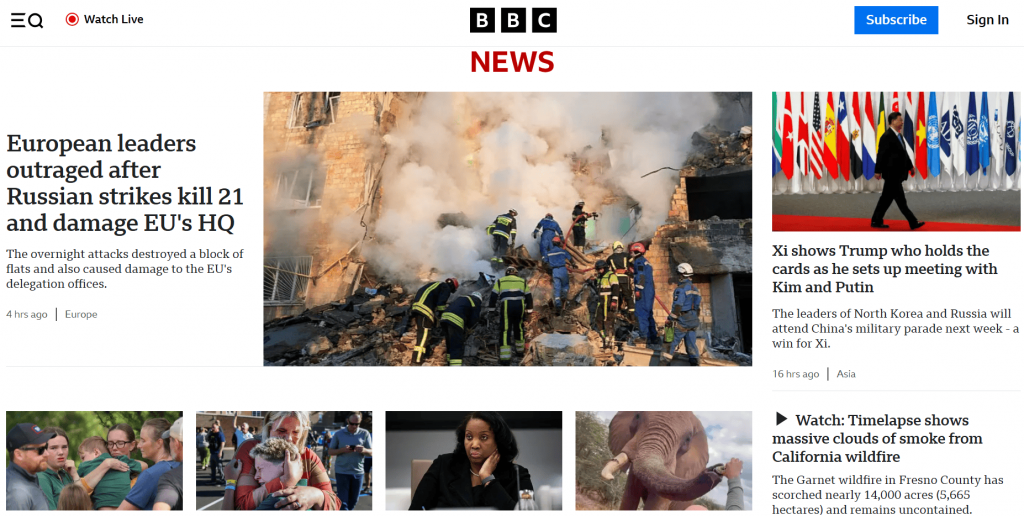
BBC News is a global news platform that delivers articles, videos, and live updates to millions of visitors. The site supports full keyboard access, clear focus states, and smooth screen reader reading order. These features help people with disabilities move through headlines and navigation menus without confusion.
2. Scope (UK Charity)
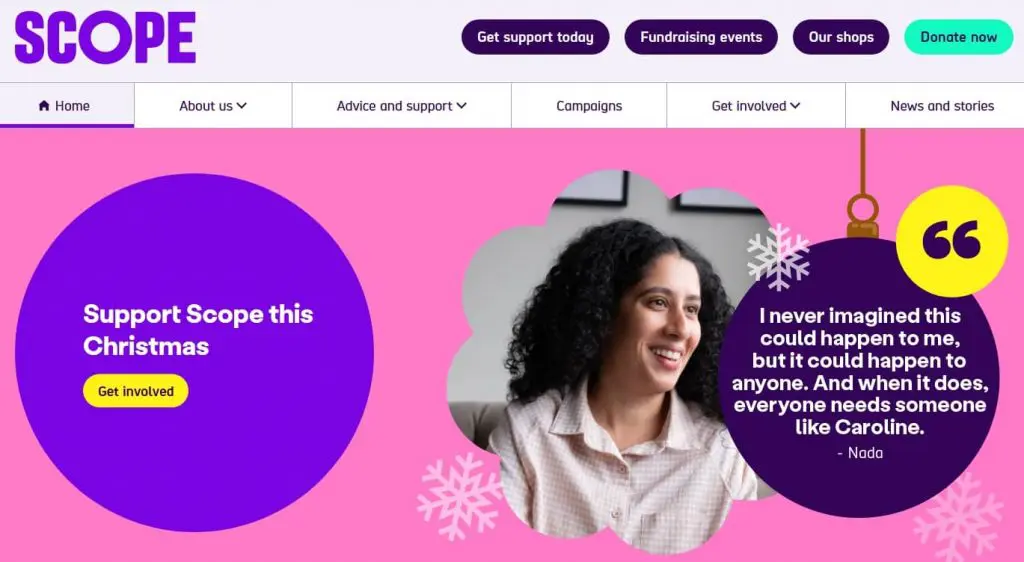
Scope is a disability non-profit that offers support and resources for people with disabilities. The site uses strong color contrast, simple language, and well-structured content that works cleanly with assistive tools. These choices help visitors follow tasks and understand information without visual or cognitive barriers.
3. World Wildlife Fund (WWF)

WWF uses a clean layout with clear headings, alt text, and accessible forms. The site works well with screen readers and other user agents that people with disabilities rely on. This structure helps visitors read articles, donate, or explore wildlife projects without accessibility issues.
4. 2Gether-International

2Gether-International supports disabled entrepreneurs through programs and resources. Their website uses simple menus, readable text, and strong contrast that helps visitors follow content with ease. These features reflect WCAG principles that support people with disabilities across different devices.
5. Peanut Butter & Co.

This e-commerce site sells peanut butter products through a clean, friendly online store. The pages offer good spacing, high contrast, and clear product descriptions that pair well with screen readers. These design choices help shoppers complete tasks without barriers, even when they use assistive technology.
6. United States Department of Education
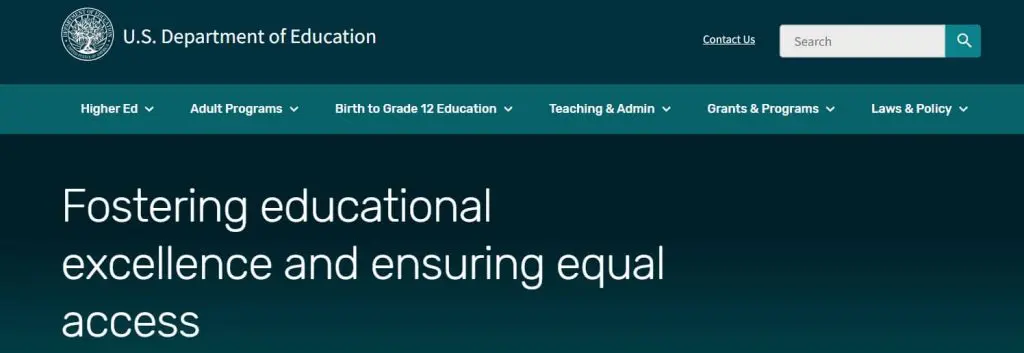
This government site serves millions of users who need education updates, forms, and federal resources. Pages follow strong content accessibility guidelines, with organized headings and accessible PDFs. This structure supports both state and local governments looking for models of accessible public sector design.
How to test your website for accessibility
Testing your website for accessibility helps you catch issues before they affect real users. You can start with two approaches that give you a clear picture of how your pages work for people with different needs:
- Automated testing tools. Use WAVE, axe DevTools, Google Lighthouse, or Accessibility Insights to identify issues such as missing alt text or weak contrast. These tools work quickly and help you identify common issues, but they cannot confirm full accessibility on their own.
- Manual testing methods. Try simple tasks, such as keyboard navigation and screen reader checks, with NVDA or VoiceOver. You can also follow W3C’s basic checks for headings, link text, and zoom. These steps help you catch issues that automated tools miss.
Once you combine both methods, you get a clearer view of your site. This provides a stronger starting point for addressing accessibility issues that impact real users.
Common website accessibility mistakes (and how to fix them)
These everyday issues can hold people back more than you might expect, especially those who rely on assistive tools or different communication technology to browse the web. Here are the most common accessibility problems and the simple steps that help keep your websites accessible and aligned with digital accessibility standards:
Accessibility issue | Quick fix |
|---|---|
Missing alt text: Screen readers can’t describe images. | Add short alt text that explains the key detail. |
Poor color contrast: Low contrast makes text difficult to read for many users, including those with disabilities. | Choose text and background colors that meet accessibility requirements. |
Keyboard traps: Some visitors get stuck when a page requires a mouse. | Apply user testing with the Tab and Enter keys to catch issues early. |
Auto-playing media: Unprompted sound can distract or confuse users. | Let visitors choose when to start or stop media. |
“Click here” links: Vague links confuse screen readers and hurt navigation. | Use descriptive link text. |
Form fields without labels: Screen readers can’t identify blank or unlabeled fields. | Add clear labels or ARIA labels to support accessible rich internet applications. |
Inaccessible PDFs: Many PDFs don’t work with screen readers or older web browsers. | Create tagged PDFs with headings and alt text. |
These updates may seem small, but together they help ensure web accessibility, support expectations under the Disabilities Act, and make your site easier for everyone to use.
How can you increase accessibility on your website?
You can increase your website’s accessibility by improving everyday design choices and building habits that help more people use your web content without difficulty. This process works best when you treat accessibility as an ongoing practice, not a single task.
To guide you through the steps, here are the main areas to focus on:
- Conduct an accessibility audit.
- Follow accessible design and development practices.
- Test your website regularly.
- Help your team learn accessibility basics.
Conduct an accessibility audit
An accessibility audit helps you see how your website performs for people with disabilities. It also shows where you can improve accessibility through simple checks on headings, alt text, link labels, and keyboard access.
Follow accessible design and development practices
Small design choices can remove barriers for many visitors. Semantic HTML, clear labels, readable contrast, and responsive layouts help people navigate your website with different devices and assistive tools. These practices also support the WCAG that many teams follow.
Test your website regularly
Regular testing helps you catch issues early. Tools like WAVE, axe, and Lighthouse point out problems in seconds, while simple checks like keyboard navigation and screen reader testing show you how real users move through your pages. A mix of both gives you the most accurate picture.
Help your team learn accessibility basics
Accessibility becomes stronger when everyone understands it. Short training sessions or shared guidelines help writers, designers, and developers make better choices. When your whole team uses the same practices, your website stays accessible as it grows.
Frequently asked questions
Accessibility features are design elements that make websites user-friendly for all, including those with disabilities. These features include things like screen reader compatibility, keyboard navigation, and alternative text for images.
The four principles of web accessibility are: perceivable, operable, understandable, and robust (POUR). These principles guide how content should be presented, navigated, and used by all users, including those with disabilities.
Web accessibility standards are guidelines that help websites work for people of all abilities. The main standard is the WCAG, which follows the POUR principles mentioned above. Many organizations also follow ADA website compliance and Section 508 requirements to support users across different devices and assistive tools.
Common accessibility features include screen reader compatibility, text alternatives for multimedia, keyboard navigation, color contrast adjustments, resizable text, and accessible forms.
Accessibility in a website means designing pages that people of all abilities can use, including visitors with visual, auditory, physical, or cognitive disabilities. It follows web accessibility standards like WCAG compliance and supports ADA website compliance so users can read content, move through pages, and use tools with ease. This approach helps everyone complete tasks without barriers.
Build a website that works for every visitor
Building an accessible website helps more people use your content and complete tasks without difficulty. If you want an easy way to start, you can use our Website Builder to create pages that are simple, readable, and friendly for every visitor.
No time to DIY? Our professional Website Design Services team can build your website to be easily accessible for all users.