
Key takeaways:
- WordPress plugins work like add-on tools that instantly extend what your website can do without hiring a developer.
- Safe, updated plugins keep your site secure, stable, and running efficiently.
- Small businesses benefit most from essential plugin types: SEO, security, performance, backups, and form builders.
If you manage a small business WordPress website on WordPress, understanding plugins is one of the fastest ways to improve your site without learning how to code. They let you add features, increase speed, tighten security, and support your customers with a few clicks. For busy small business owners, understanding how plugins work can save time, reduce costs, and help your website grow in tandem with your business.
Whether you want to set up a contact form, optimize your SEO, or secure your site, plugins make WordPress flexible enough to support almost any need. Let’s breakdown what are WordPress plugins and how they can help with your business.
What is a WordPress plugin and how does it work?
A WordPress plugin is software that you add to your WordPress site to give it new features or extend what it can already do. WordPress comes with a basic set of functions, but plugins let you customize your site without needing to edit code. They’re usually made up of PHP code, but can include CSS or JavaScript.
Think of the website WordPress gives you as a house. You’ve got the space and the basics down like electricity and water, but that’s it. Plugins are like installing appliances: a washing machine, router, security alarm, or heating system. Each addition performs a specific job without you needing to hire anyone.
It’s the same when you install plugins to add new functionality to your WordPress site without hiring a developer or writing any code.
- Need a contact form? Add a form builder plugin.
- Want your site to load faster? Install a caching plugin.
- Need stronger security? Use a firewall or malware scanning plugin.
This flexibility is what makes WordPress so useful for small business owners. You can start simple and add features only when your business needs them.
How WordPress plugins work
WordPress has built-in connection points, called hooks, that let plugins “attach” themselves to your website. Once a plugin is activated:
- It runs its own small program inside your site.
- It adds or changes features, like blocking spam, improving SEO, compressing images, or displaying a gallery.
- You control everything from the Plugins area in your WordPress dashboard.
You don’t need to understand how the code works; WordPress handles that part behind the scenes. Your job is simply to install, activate, and configure the plugin.
Free vs. premium plugins
Most WordPress plugins come in two versions: a free version and a premium version. Both can be valuable depending on what your website needs, but they offer different levels of functionality, support, and long-term reliability.
Free plugins are a great starting point for small business websites, especially when you’re still building out core features. Premium plugins, on the other hand, offer more advanced tools, professional support, and long-term stability—which can become increasingly important as your website grows.
Here’s a simple comparison:
| Free WordPress plugins | Premium WordPress plugins |
|---|---|
Found in the official WordPress plugin directory | Paid versions with extra features |
Great for basic features | Updated more often |
Supported by the community | Offer dedicated support |
— | Usually more reliable for business use |
Free plugins are ideal when you’re just getting started and need simple functionality. They often provide everything you need for basic tasks, such as forms, image sliders, SEO suggestions, or performance boosts. But as your website becomes more important to your business, especially if you’re handling customer data, selling products, or relying heavily on certain features, premium plugins offer the added stability and support that can save you time and prevent issues.
Many small businesses start with free plugins and upgrade only when they need advanced capabilities or stronger support. This “start small, scale up” approach helps keep costs manageable while still giving your website room to grow.
Why use WordPress plugins
WordPress alone provides a solid foundation, but plugins are what make it adaptable. They allow you to shape your site around the specific needs of your business. Let’s break down exactly how WordPress plugins can benefit you:
- Add new features quickly and affordably: Most small businesses don’t have the budget for custom development. Plugins let you add essential features, like contact forms, appointment scheduling, live chat, or photo galleries, with just a few clicks. This gives you professional-level functionality without paying for custom builds.
- Improve your site’s performance and speed: Plugins that handle caching, image compression, and performance optimization can significantly boost load times. Faster websites improve SEO and create a smoother browsing experience, which helps increase traffic.
- Strengthen your website security: Security plugins help scan for malware, block attacks, and protect customer information. This is especially valuable for small businesses with limited IT resources, helping safeguard your site and customer data.
- Automate important tasks: Plugins can automate website backups, SEO checks, spam filtering, and performance monitoring. This saves time and reduces the risk of errors or data loss, allowing you to focus on running your business.
- Support customer communication and lead generation: With plugins, you can easily set up forms, newsletters, chat widgets, and pop-ups to capture leads and stay connected with your customers. These tools help turn website visitors into customers.
- Scale your website as your business grows: As your business evolves, plugins let you expand your site with features like e-commerce, memberships, multilingual support, and advanced analytics without rebuilding your website from scratch.
How to choose safe and reliable plugins
Choosing the right plugins keeps your WordPress site secure, stable, and running smoothly. Because plugins come from many different developers, the quality can vary. A careful selection process helps you avoid security risks, performance issues, and unnecessary site problems.
Before installing anything, start with these steps:
- Check the last update date
- Look at active installs
- Read user reviews
- Confirm developer support or a dedicated website
- Avoid pirate plugins
- Back up your site before adding new plugins
Step 1: Check the last update date
A trustworthy plugin should be updated regularly. Look for plugins updated within the last 3–6 months. Outdated plugins may not work well with recent versions of WordPress and can expose your site to security vulnerabilities.
If you’re planning on adding an appointment booking plugin for your website and notice it hasn’t been updated in two years, that’s a red flag. WordPress updates frequently, so outdated plugins can break your checkout forms or expose your customers’ data.
Step 2: Look at active installs
Active installations are a strong indicator of reliability. Plugins with 10,000+ installs generally have a stronger user base, more community feedback, and higher-quality development standards. Popular plugins typically receive more consistent updates and support.
Let’s say you want a gallery plugin to showcase your photography. You find two options:
- One with 500 installs
- Another with 200,000 installs
Those larger numbers usually mean it’s proven, tested, and maintained. Choosing the more widely used plugin reduces your risk of bugs or feature issues.
Step 3: Read user reviews
Reviews give you insight into real-world performance. Look beyond the star rating and check what users are saying about:
- Bugs or conflicts
- Slowdowns
- Poor customer support
- Security concerns
- Ease of setup
Recent reviews matter most, as they reflect the plugin’s current version. Maybe you’re adding a pop-up plugin to promote your newsletter. A quick scan of reviews shows several recent comments like:
- “This slowed down my site.”
- “Conflicts with my theme.”
- “No response from support.”
Even if the plugin looks great on paper, those issues mean it’s not worth risking your site’s performance or stability.
Step 4: Confirm developer support or a dedicated website
Reputable plugins usually have clear documentation, FAQs, tutorials, and active support forums. A dedicated website, or evidence of ongoing development, shows that the plugin is maintained by a team or developer who provides help when needed.
If you’re installing an SEO plugin and the developer has an active website with tutorials and a support team, that’s a strong sign of a plugin built for long-term use. On the other hand, if all you see is a single page with no helpful information, you may struggle if something goes wrong.
Step 5: Avoid pirate plugins
Never download premium plugins from unofficial or “free” sources. These often contain hidden malware designed to steal data, insert spam links, or compromise your website’s security. Always install plugins from the WordPress.org directory or directly from the official developer.
If you run an online store and install a pirated version of a premium e-commerce plugin, it could send your customers’ data to third parties — putting your business at legal and financial risk.
Stick to reputable sources: WordPress.org, the developer’s official site, or known marketplaces.
Wondering about the difference between WordPress.com and WordPress.org? Read all about it in our guide WordPress.org vs WordPress.com: Guide for Beginners
Step 6: Back up your site before adding new plugins
Even well-built plugins can conflict with your theme or other tools. Backing up your site ensures you can restore everything quickly if something breaks during installation.
If you add a new shipping calculator plugin to your e-commerce store and it breaks your product pages, a recent backup lets you restore your site in minutes, instead of scrambling to fix page templates while customers see errors.
How to install WordPress plugins
Installing a plugin is a simple process, even if you’re new to managing a website. Most WordPress plugins only take a few clicks to add, and once installed, you can immediately enable new features or tools your business needs. Below are the steps you’ll follow every time you want to install a plugin safely.
Here are the steps to install a plugin on WordPress:
- Log in to your WordPress dashboard
- Go to Plugins and click Add New
- Search for the plugin you want
- Click Install Now
- Click Activate
- Configure the plugin settings
1. Log in to your WordPress dashboard
Go to [yourwebsite].com/wp-admin and enter your username and password.

2. Go to Plugins and click ‘Add New’
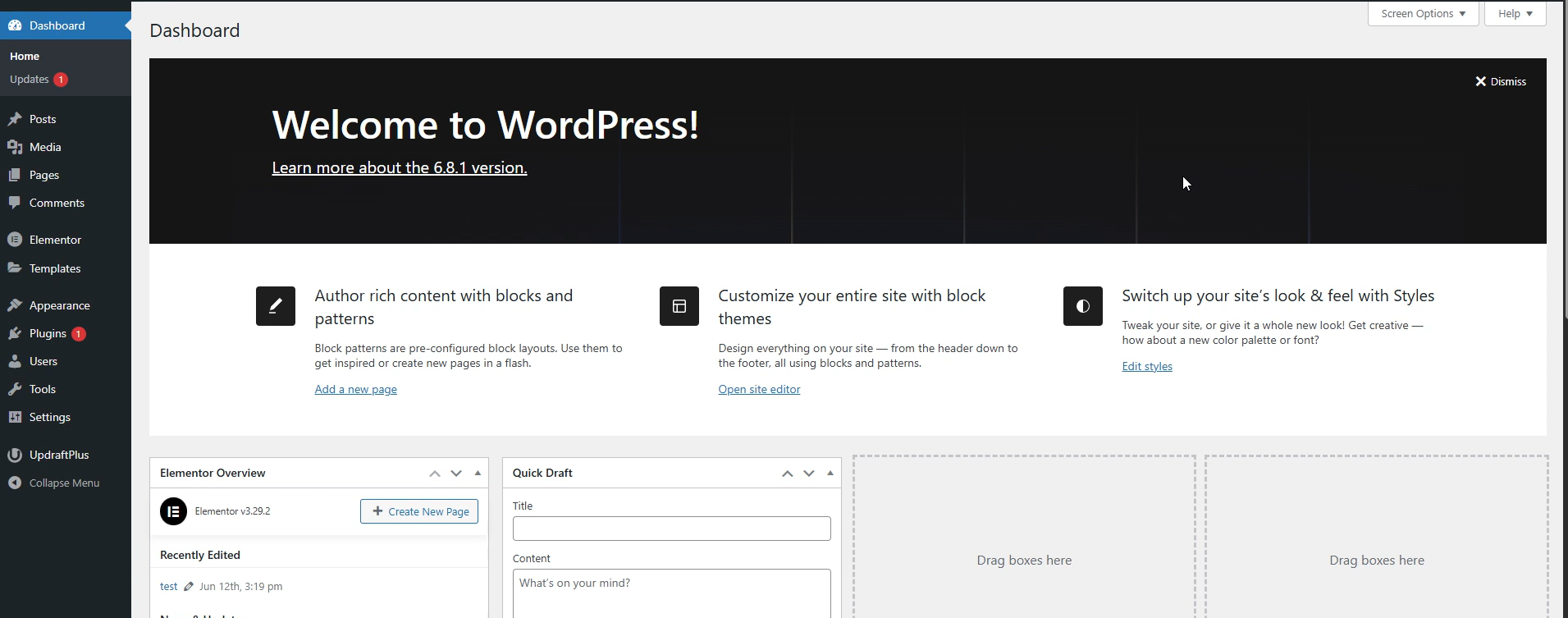
Once you’re in your WordPress site, you’ll see something like on the image below:
Go to the left-hand menu, click Plugins.
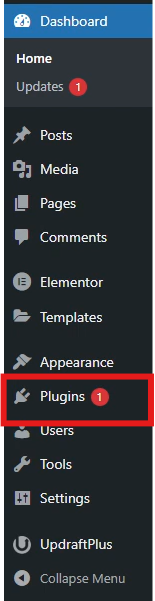
Then, select Add New. This will take you to the WordPress Plugin Directory inside your dashboard.

3. Search for the plugin name
Use the search bar at the top-right to look for the plugin you want — for example, “WPForms,” “Rank Math,” or “Wordfence.” WordPress will display results instantly.

4. Click ‘Install Now’
Once you find the plugin you want, click the Install Now button. WordPress will automatically download and install the plugin files for you.
5. Click ‘Activate’
After installation, the button changes to Activate. Clicking this turns the plugin on and adds its features to your website.

6. Configure the plugin settings
Most plugins will prompt you to set up key options right away. Settings may appear:
- In a new menu item on the dashboard
- Inside ‘Settings’
- Inside ‘Tools’
- On a welcome/setup page
Take a moment to follow any setup wizard provided by the plugin. This ensures everything is configured correctly.
How to update WordPress plugins
Updating your plugins is essential to keeping your website secure, fast, and functioning properly. Plugin updates often include security patches, bug fixes, performance improvements, and new features. If you skip updates, your site may become vulnerable to attacks or experience compatibility issues, especially after WordPress core updates.
Keeping plugins up to date is one of the simplest ways to protect your small business website.
- Log in to your WordPress dashboard
- Go to Plugins and click Installed Plugins
- Look for plugins with an available update
- Click Update Now
- Review your site to make sure everything works normally
1. Log in to your WordPress dashboard
Go to [yourwebsite].com/wp-admin and enter your username and password.

2. Go to ‘Plugins’ and click ‘Installed Plugins’
In the left menu, click Plugins and then Installed Plugins. This page lists every plugin currently active or installed on your site.

3. Look for plugins with an available update
Plugins that need updating will display a message such as: “There is a new version available.” You may also see a number next to the Plugins menu indicating how many updates you have.

4. Click ‘Update Now’
Next, click the Update Now button under each plugin that requires an update. WordPress will automatically download and install the new version. This usually just takes a few seconds.

Tip: Update one plugin at a time. If an issue occurs, you’ll know exactly which update caused it.
5. Review your site for changes or issues
After updating, visit a few pages on your website to ensure everything loads correctly. Check features related to updated plugins, such as forms, galleries, SEO settings, or security tools. If something breaks, you can deactivate the plugin, roll back to a previous version, or restore your last backup.
How to remove WordPress plugins
There may come a time when you no longer need a plugin. Maybe you’ve switched tools, found a better alternative, or discovered that a plugin is slowing down your site. Sometimes a plugin may even cause errors or conflict with your theme. In these cases, it’s best to remove the plugin to keep your website clean, secure, and running efficiently.
Removing a plugin in WordPress is simple, and the process always begins with deactivation.
- Log in to your WordPress dashboard
- Go to Plugins and click Installed Plugins
- Deactivate the plugin
- Click Delete
- Confirm the deletion
1. Log in to your WordPress dashboard
Go to [yourwebsite].com/wp-admin and enter your username and password.
2. Go to ‘Plugins’ and click ‘Installed Plugins’
In the left-hand menu, click Plugins, then choose Installed Plugins. This page will show every plugin currently active or installed on your site.

3. Deactivate the plugin
Before removing a plugin, you must deactivate it. Click the Deactivate link under the plugin name. Then the plugin will stop running immediately.

Tip: If you’re troubleshooting an issue, deactivating may be enough. You don’t have to delete the plugin unless you’re sure you no longer need it.
4. Click ‘Delete’
Once deactivated, a Delete link will appear under the plugin name. Click it to permanently remove the plugin files from your website.

5. Confirm the deletion
Once you’ve completed all the steps above, WordPress will prompt you to confirm. Click OK, and the plugin will be fully removed.
How to troubleshoot WordPress plugin issues
Plugins make WordPress flexible, but they can sometimes conflict with your theme, other plugins, or newer versions of WordPress itself. When something suddenly stops working such as a page breaking, a form disappearing, or your site loads strangely, it’s often caused by a plugin. Fortunately, most issues can be fixed with a few beginner-friendly troubleshooting steps.
Steps to troubleshoot plugin problems
- Deactivate the last plugin you installed
- Clear your cache
- Reactivate plugins one by one
- Check for updates or conflicts
1. Deactivate the last plugin you installed
If your website was working normally and only broke after adding a plugin, start here.
- Go to Plugins and click Installed Plugins
- Find the plugin you recently installed
- Click Deactivate
If the issue disappears, you’ve found the root cause. If not, you need to search further for the problem.
Why this works: New plugins can conflict with your theme or other plugins, especially if they perform similar tasks like two image optimization plugins.
2. Clear your cache
Sometimes your browser or caching plugin stores older versions of your site, making it look “broken” even after the issue is fixed. Tryin clearing your:
- Browser cache
- Caching plugin’s cache (if you use one)
Why this works: Caching can hide updates or changes, causing pages to appear broken when they’re actually fine.
3. Reactivate plugins one by one
If you’re not sure which plugin is causing the problem:
- Deactivate all plugins temporarily
- Check if the issue goes away
- Reactivate plugins one at a time
Reload your website after enabling each plugin. When the problem returns, you’ve identified the culprit.
Why this works: Some plugin conflicts are subtle. This method isolates the exact source.
4. Check for updates or conflicts
A plugin may malfunction because it’s outdated or recently updated to a version that conflicts with your setup. Check for:
- Plugin updates
- Theme updates
- WordPress core updates
Many plugins include a “View details” link showing known issues or conflicts.
Why this works: Compatibility issues are one of the most common causes of unexpected website errors.
If plugin problems persist, your hosting environment may also play a role. Stable, well-managed hosting can reduce plugin conflicts and improve overall performance.
Do you really need WordPress plugins?
You don’t need WordPress plugins to run a basic website, but they’re the easiest way to add new features, improve performance, and customize your site without coding. WordPress works perfectly well on its own. Meaning, you can publish pages, write blog posts, and manage your content right out of the box. However, most small businesses eventually need extra functionality, and plugins make that possible.
When to use plugins
Use plugins when you need features that WordPress doesn’t include by default, such as:
- SEO optimization
- Performance improvements
- Backups and security scanners
- Contact or booking forms
- E-commerce tools
- Marketing integrations
These are all tasks small businesses rely on to operate and grow.
When not to use plugins
You may not need a plugin if:
- Your theme already includes the feature
- Your page builder (like Elementor or Divi) already handles it
- You would be duplicating functionality from another plugin
Using too many plugins for the same task can slow down your site or cause conflicts.
When to use a website builder instead
If plugins feel overwhelming or you prefer an all-in-one setup, a website builder might be a better fit — especially for beginners who want simplicity. If plugins feel overwhelming, try our Website Builder; it comes with built-in tools for forms, images, and SEO, no installs required.
8 necessary types of WordPress plugins for small business websites
Plugin type | What it does | How SMBs benefit | Examples |
|---|---|---|---|
SEO plugins | Improve search visibility, optimize content, fix technical SEO issues | Higher Google rankings, easier optimization, no developer needed for SEO setup | Yoast SEO, Rank Math |
Security Plugins | Protect against malware, spam, hacks, and vulnerabilities | Safeguard customer data, reduce downtime, receive alerts about suspicious activity | Wordfence Security, Sucuri Security |
Speed & performance plugins | Speed up site loading through caching, file optimization, and compression | Lower bounce rates, better user experience, improved SEO performance | WP Rocket, W3 Total Cache |
Image optimization plugins | Compress, resize, and convert images automatically to reduce file size | Faster pages, improved Core Web Vitals, less storage usage, better SEO | Smush, ShortPixel |
Backup plugins | Create automatic backups of your site’s files and database | Quick recovery from errors, prevent data loss, minimize downtime | UpdraftPlus, BackupBuddy |
Form builder plugins | Add contact forms, quote forms, booking forms, surveys, and more | Capture leads, streamline communication, reduce manual email handling | WPForms, Formidable Forms |
E-commerce plugins | Add online store features such as product listings, carts, checkout, and payment gateways | Sell products or services online, manage inventory, expand revenue channels | WooCommerce, Easy Digital Downloads |
Analytics plugins | Track traffic, user behavior, conversions, and marketing performance | Better business decisions, clearer insights, simple analytics setup | MonsterInsights, ExactMetrics |
The right WordPress plugins can help your business grow without increasing your workload or requiring technical skills. Here are the essential types of plugins every small business should consider, along with real-world examples:
1. SEO plugins
SEO plugins help improve your website’s visibility on search engines — a major advantage for small businesses trying to reach local customers or compete online. They give you guidance on how to structure your content so Google and other search engines can understand it more easily.
How SMBs benefit:
- Improve your Google rankings: Many SEO plugins highlight issues that might hold your site back in search results, such as missing meta titles, thin content, or broken links.
- Add meta descriptions and keywords easily: Instead of editing code, you can fill in SEO fields directly in the page editor, helping your pages appear more attractive in search results.
- Fix technical SEO issues without a developer: Features like XML sitemaps, canonical URLs, and schema markup are handled automatically or with simple toggles.
Examples:
- Yoast SEO: Provides on-page SEO suggestions, readability analysis, XML sitemaps, and built-in tools to control how your pages appear in search results.
- Rank Math: Offers advanced schema markup, keyword tracking, and automated SEO improvements, plus an easy setup wizard for beginners.
2. WordPress security plugins
Security is essential for protecting customer data and preventing downtime. Security plugins help block malware, spam, and attacks that target small business sites, which are often seen as “easy targets” due to limited IT support.
How SMBs benefit:
- Keep customer information safe: Security plugins monitor suspicious activity and help stop attacks that could compromise contact forms, logins, or payment pages.
- Meet basic security best practices without an IT team: Many security plugins harden your WordPress installation automatically, so you don’t need to know technical security settings.
- Get alerts when something suspicious happens: You can receive notifications about failed logins, malware scans, or file changes, so you can act quickly if something looks off.
Examples:
- Wordfence Security: Includes a firewall, malware scanner, login protection, and live traffic monitoring so you can see blocked attempts in real time.
- Sucuri Security: Monitors site changes, scans for threats, and offers security hardening options and post-hack cleanup tools.
3. Speed and performance plugins
Fast-loading websites make a strong first impression and can increase conversions. Performance plugins help optimize your site automatically, so visitors don’t get stuck waiting for pages to load.
How SMBs benefit:
- Reduce bounce rates: When pages load quickly, visitors are less likely to leave before viewing your content or offers.
- Improve search rankings: Page speed is a known ranking factor, and performance plugins help you meet basic speed recommendations.
- Deliver a smoother browsing experience: Faster sites feel more professional and trustworthy, which supports your brand and customer perception.
Examples:
- WP Rocket: A premium caching plugin that improves load times with page caching, file optimization, and database cleanup, all with minimal setup.
- W3 Total Cache: A free caching plugin that enhances speed through browser caching, minification, and content delivery network (CDN) integration.
4. Image optimization plugins
Website imagery makes a website more dynamic, but large images are one of the biggest causes of slow websites, especially for small businesses that upload photos of products, spaces, or portfolios straight from a phone or camera. Image optimization plugins automatically compress and resize images so pages stay fast without noticeable loss in quality.
How SMBs benefit:
- Increase website speed without manual editing: Every new image you upload can be optimized automatically, saving you time in editing tools.
- Improve Core Web Vitals and SEO: Smaller image sizes help your pages load faster, which can positively impact both user experience and search visibility.
- Reduce storage and bandwidth usage: Optimized images take up less space on your server and can help keep hosting costs predictable.
- Keep your site looking sharp on all devices: Many image plugins support next-gen image formats (like WebP) and responsive image sizes.
Examples:
- Smush: Compresses and resizes images automatically, offers bulk optimization, and can lazy-load images to speed up page rendering.
- ShortPixel: Uses advanced compression and WebP conversion to significantly reduce file sizes while keeping images visually clear.
5. Backup plugins
Backups are your safety net. If something breaks, either from a bad update, server error, or plugin conflict, backup plugins let you restore your site instantly, rather than starting over or paying for emergency help.
How SMBs benefit:
- Prevent permanent data loss: Regular backups ensure your pages, posts, and settings aren’t lost if something goes wrong.
- Recover from errors quickly: If a new plugin causes problems or an update breaks your layout, you can roll back to a working version.
- Reduce downtime during unexpected issues: Faster recovery means fewer hours (or days) where customers can’t access your site.
Examples:
- UpdraftPlus: Lets you schedule automatic backups and store them remotely on services like Google Drive, Dropbox, or Amazon S3.
- BackupBuddy: Offers full-site backups, including database and files, plus migration and restore tools.
6. Form builder plugins
Forms help businesses capture leads, handle customer inquiries, accept bookings, and more. A reliable form plugin can become central to how you gather and manage incoming requests.
How SMBs benefit:
- Collect leads directly from your website: Simple contact forms, quote requests, and newsletter signups keep potential customers from dropping off.
- Streamline customer support: Forms can route questions to the right inbox or team member, making responses more organized.
- Reduce manual email handling: Entries are stored in your WordPress dashboard or integrated with your CRM or email marketing tool.
Examples:
- WPForms: A beginner-friendly drag-and-drop form builder with templates for contact, quote, booking, and feedback forms.
- Formidable Forms: Better suited for advanced forms like calculators, multi-step forms, or applications that need conditional logic.
7. E-commerce plugins
If your business plans to sell products, services, or digital downloads online, e-commerce plugins turn your site into a fully functional store.
How SMBs benefit:
- Accept payments online: E-commerce plugins integrate with payment gateways like PayPal, Stripe, and others so customers can pay securely.
- Manage inventory, orders, and shipping: You can track stock, process orders, and set shipping options from your WordPress dashboard.
- Expand revenue streams without needing a separate platform: You don’t have to maintain a separate storefront; your main site and shop can live in one place.
Examples:
- WooCommerce: The most popular WordPress e-commerce plugin, offering product listings, cart and checkout, coupons, shipping rules, and more.
- Easy Digital Downloads: Ideal for selling digital goods like e-books, music, templates, or software licenses.
8. Analytics plugins
Understanding how visitors use your site helps you make better decisions and spend your marketing budget more effectively. Analytics plugins simplify the process of connecting to tools like Google Analytics and presenting the data in a clear and easy-to-understand format.
How SMBs benefit:
- Track page views, traffic sources, and user behavior: See where visitors are coming from and which pages they spend time on.
- Identify your best-performing content: Learn which services, blog posts, or landing pages attract the most interest.
- Measure marketing results without technical setup: You can see how campaigns or promotions perform without digging through complex analytics dashboards.
Examples:
- MonsterInsights: Simplifies Google Analytics integration and displays key reports directly in your WordPress dashboard.
- ExactMetrics: Provides detailed reports on traffic, engagement, and conversions, with beginner-friendly summaries.
Frequently asked questions
An example of a WordPress plugin can be WPForms for contact forms or Yoast SEO for search optimization.
A plugin connects to WordPress through built-in hooks and adds its own features or functions without requiring you to change code.
No, but most business websites use plugins to add features like forms, SEO tools, backups, or security.
Both exist. Many plugins offer free versions, while premium versions include more advanced features.
Yes. Poorly coded or excessive plugins can affect performance, so use only what you need.
There’s no set limit, but most small business sites run smoothly with 10–20 well-chosen plugins.
Yes, as long as you choose reputable, updated plugins from trusted sources like WordPress.org.
Make your WordPress site work smarter
Plugins give your WordPress site the power and flexibility to grow alongside your business. With the right tools, you can improve performance, strengthen security, capture leads, and add features your customers expect, all without needing technical skills. Just remember: choose plugins carefully, update them regularly, and always keep a backup of your site.
Your website should work with you, and the right plugins make that possible.
If you want your WordPress site to run smoothly, pair the right plugins with reliable hosting. Get secure, managed WordPress hosting with Network Solutions. Or, if you refer a faster, simpler way to build, you can create your site with AI—no plugins required.