

Key takeaways:
- A 400 Bad Request error happens when a server can’t understand the request your browser sent, even though the server is working.
- Most 400 errors are client-side issues caused by things like invalid URLs, corrupted browser data, or browser extensions, not server outages.
- Starting with simple fixes like checking the URL, clearing cache and cookies, or trying another browser often resolves the issue quickly.
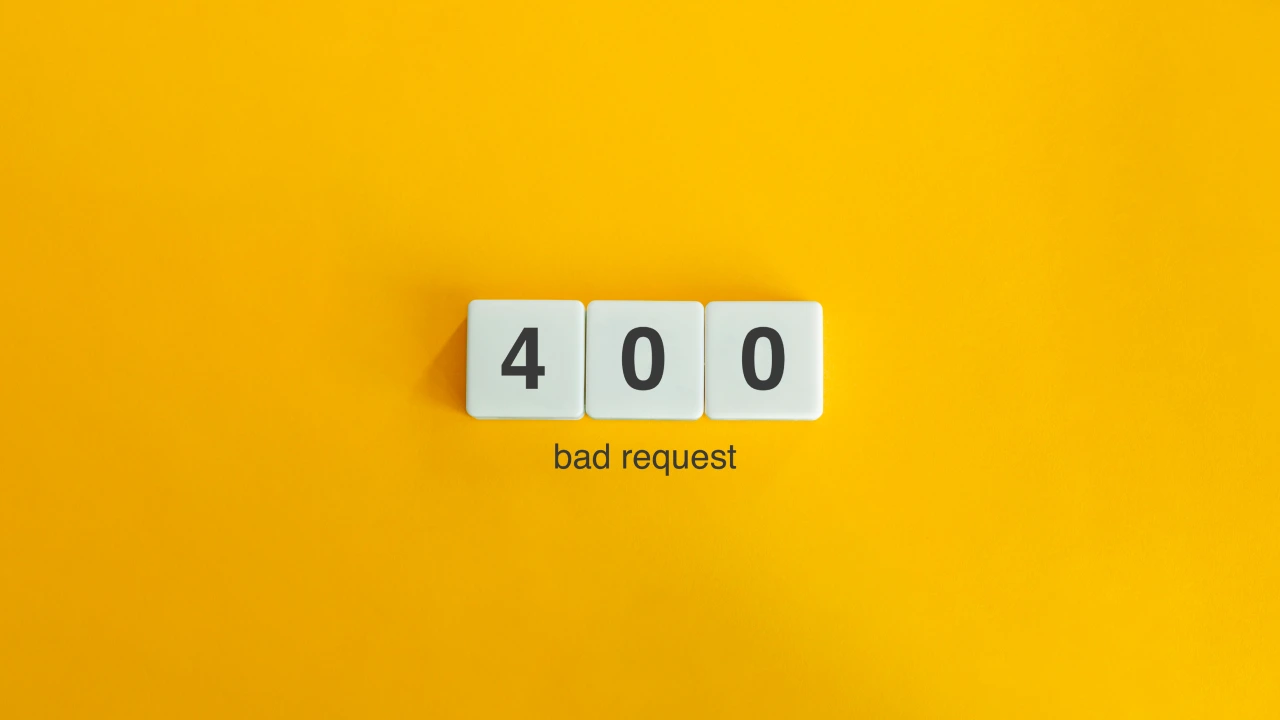
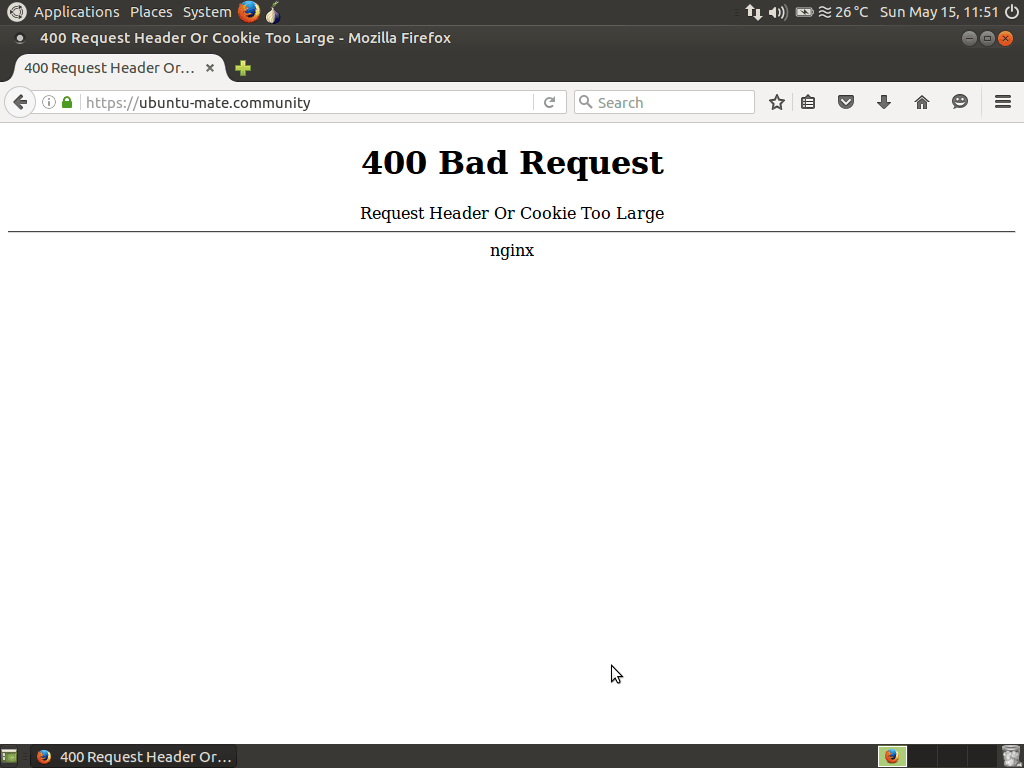
A 400 Bad Request error means the server couldn’t understand the request your browser sent. You’ll often see it when a page won’t load, a form won’t submit, or a file upload fails; usually without much explanation.
While it’s frustrating, this is a common client-side error and is often easy to fix without technical expertise. This guide is for everyday website users and small business owners who manage websites, dashboards, or online forms and need clear, fast solutions.
We’ll start with quick fixes you can try right away. If the issue persists, we’ll explain what’s happening behind the scenes and what to check next.
What is a 400 Bad Request error?
A 400 Bad Request error means the server couldn’t understand the request your browser sent. It’s something about the request that was missing, broken, or written in a way the server couldn’t process.
Every time you visit a page, submit a form, or upload a file, your browser sends a structured request to the website’s server (which may include the page address, cookies, form details, file information, and other browser data). If part of the request includes invalid syntax, unexpected characters, or an incorrect URL, the server can stop processing it and return a 400 Bad Request error instead.
For example, a copied link such as https://example.com/products?item=123%% contains extra special characters that can turn it into a malformed URL. A corrected version would be https://example.com/products?item=123. In many cases, checking for typos, duplicate spaces, extra characters, or broken links is enough to find the problem.
A 400 Bad Request is usually a client error, meaning the issue is tied to the browser, URL, request, or device rather than the website’s server. The server may be working normally, but it can’t proceed because it doesn’t understand what it received. Repeating the same request without fixing the incorrect URL, cache issue, or browser problem will likely bring back the same error.
You’ll often see 400 errors grouped with other 4xx HTTP status codes, all of which point to request-related problems. For example:
- 401 errors relate to authentication or login issues
- 403 errors mean access is blocked
A 400 error is different: the server received your request but couldn’t understand it well enough to proceed.
Common reasons you’re seeing a 400 Bad Request error message
Most 400 Bad Request errors come from a small set of issues. In many cases, the error message appears because something about the request does not match what the server expects. These common causes usually start in the browser, the URL, the network connection, or the file being sent to the website.
The most common causes include:
- Invalid or malformed URL
- Browser cache or cookies
- Browser extensions
- DNS or network issues
- File upload size or format limits
- Malformed requests in advanced scenarios
Invalid or malformed URL
A small issue in the web address can trigger a 400 error. This includes typos, extra characters, broken query strings, special characters, or outdated links that no longer match the server’s request processing. Even copying and pasting a URL from another source can introduce hidden characters that cause problems.
For example, https://example.com/products?item=123&% may fail because the extra percent signs make the URL malformed. A corrected URL would be https://example.com/products?item=123.
Browser cache or cookies
Browsers store cached files and cookies to speed things up, but outdated or corrupted data can interfere with new requests. When this happens, the server receives incomplete or conflicting information, which can result in a 400 error.
Browser extensions
Some browser extensions modify web requests before they’re sent. Ad blockers, password managers, and your most recently enabled extension can sometimes block fields, alter headers, or strip data the server needs, causing the request to fail.
DNS or network issues
Your device relies on DNS to translate website names into server/IP addresses. If the DNS cache is outdated or your network connection is unstable, requests may be routed incorrectly or incompletely, leading to a 400 error.
File upload size or format limits
Many websites set server limits on file size, type, or request length. If you’re uploading files that exceed those limits (or use an unsupported format), the server may reject the request and return a 400 error instead of processing it.
Malformed requests (advanced cases)
In more advanced situations, a 400 error can come from improperly structured data or invalid syntax. This often affects APIs, embedded forms, or third-party integrations where required fields are missing, incorrectly named, or contain invalid JSON.
These cases are less common for everyday browsing, but can affect site owners and form managers.
Give visitors more confidence in every click
Help protect your website with SSL certificates from Network Solutions, so customers can browse, submit forms, and connect with your business with more trust.

How to fix a 400 bad request error: Step-by-step
Start with the simplest troubleshooting steps first and work your way down. In many cases, the issue is resolved early, and you won’t need to try every option. Since a 400 bad request error often starts with the browser, URL, cache, extensions, or device, it helps to test the easiest browser-side fixes before looking for website or server-side issues.
Here’s how to fix 400 bad request errors step-by-step:
- Double-check the URL
- Clear browser cache and cookies
- Deactivate browser extensions
- Flush DNS or restart your network
- Compress or reduce file size
- Try incognito mode, private browsing, another browser, or another device
Step 1: Double-check the URL
Carefully review the URL in your browser. Look for an incorrect URL, typos, extra characters, special characters, broken parameters, or incomplete links. If the link you’re trying to access is bookmarked or saved, manually type the address instead to make sure it’s correct.
Sometimes websites update their pages, which can affect the links on those pages. If you encounter a 400 Bad Request error after clicking a link, the issue may be a malformed URL or an outdated path. Try going to the site’s homepage and navigating to the correct page from there.
If you’re a website owner, make sure you follow website navigation best practices so visitors aren’t sent to outdated or broken links.
Step 2: Clear browser cache and cookies
Your browser cache stores files from websites you’ve visited, while cookies store site-specific information such as preferences, session data, and login details. When that stored data becomes outdated or corrupted, your browser may send information that the server no longer accepts. Deleting cache and cookies gives the browser a fresh start, which can fix a 400 Bad Request error caused by outdated or mismatched site data.
Clear cached files and cookies for the affected site in your browser settings. Then refresh the page or close and reopen your browser. If the error persists, clear the browser’s cache and cookies, then try loading the page again.
For a detailed walkthrough, see our guide to clearing your browser cache. This can help whether you use Google Chrome or another browser, since each browser stores cache and cookies that may affect how a website loads.
Step 3: Deactivate browser extensions
Temporarily disable browser extensions, especially ad blockers, password managers, and security add-ons. Then reload the page to see if the error clears.
Recently added or enabled extensions can modify a browser request before it’s sent and interfere with how the server processes it. If the error clears after you disable extensions, turn them back on one at a time to find the extension causing the issue and fix it.
Step 4: Flush DNS or restart your network
Restart your router or modem, or refresh your device’s network connection. If you’re comfortable doing so, you can also flush your DNS cache through your operating system’s network settings.
Here’s how you can flush your DNS on different devices:
On Windows 7, 8, 10, and 11
- In the Windows search bar, type cmd to access the Command Prompt.
- Open the Command Prompt.
- Type ipconfig /flushdns in the Command Prompt and press Enter.
- Reload the website.
On macOS 11 Big Sur and later versions
- Use Spotlight to search for the Terminal app.
- Open the Terminal app.
- On the Terminal app, type sudo dscacheutil -flushcache; sudo killall -HUP mDNSResponder
- Type your administrator password. Note: Your password will not be visible when you type.
For older macOS versions, try the following command:
| MacOS version | Command |
|---|---|
| MacOS Catalina | sudo killall -HUP mDNSResponder |
| Mojave | sudo killall -HUP mDNSResponder |
| High Sierra | sudo killall -HUP mDNSResponder |
| Sierra | sudo killall -HUP mDNSResponder |
| El Capitan | sudo killall -HUP mDNSResponder |
| Mavericks | sudo killall -HUP mDNSResponder |
| Mountain Lion | sudo killall -HUP mDNSResponder |
| Lion | sudo killall -HUP mDNSResponder |
| macOS 10.10 Yosemite | sudo discoveryutil mdnsflushcachesudo discoveryutil udnsflushcache |
Network or DNS issues can misroute requests or send outdated information, resulting in a 400 error.
Step 5: Compress or reduce file size
If the error appears during an upload, try reducing the file size or changing the file format. Consider using free online tools, such as compressor.io or Adobe’s Compress a PDF, or built-in compression software to reduce the size of your files, making them easier for the server to process.
Upload one file at a time if possible. Servers often limit upload size and request length. Exceeding those limits can result in the request being rejected.
Step 6: Try incognito mode, private browsing, another browser, or another device
Open the page in incognito mode or private browsing first. This quick test loads the page without reusing the cache, cookies, or some browser extensions from your regular browsing session. If the specific site loads there, the 400 Bad Request error is likely due to cached browser data or an extension.
Next, try opening the page in a different browser. For example, if the error appears in Google Chrome, test it in another browser. You can also try a different device, such as a phone, tablet, or another computer.
If the page loads correctly in incognito mode, in private browsing mode, in another browser, or on a different device, the issue is likely tied to settings or data in your original browser. If the error continues and you manage the website, form, or integration, the issue may involve how requests are being sent or validated.
What a 400 Bad Request means for website, form, and API owners
This section is optional and only applies if you manage a website, online forms, or system integrations. If you’re just browsing the web and hit a 400 error, the steps above are usually enough.
For site owners, a 400 Bad Request error often means the server received a request but rejected it before processing. Here are some of the most common reasons why the request was rejected:
- Request formatting issues
- Form or data validation problems
- Testing requests with developer tools
- Server-side limits
Request formatting issues
Websites expect submitted data in a specific structure. If required fields are missing, named incorrectly, or sent in the wrong format, the server may return a 400 error because it can’t properly interpret the request.
This often affects custom forms, APIs, and third-party integrations rather than standard web pages.
Form or data validation problems
Many forms and systems check data before accepting it. If a field is empty, contains special characters, includes invalid information, or fails validation, the request may be rejected immediately.
In these cases, the server is preventing incomplete or incorrect data from being processed. The error usually means the form, checkout page, embedded tool, or integration received a request it could not process as submitted.
Testing requests with developer tools
When troubleshooting more complex issues, developers may use tools like Postman to test requests outside a browser. These tools help verify whether the request structure, data, and parameters are valid before they reach the server.
You don’t need to use these tools yourself, but knowing they exist can help when working with a support team. For example, a developer or support specialist may compare the browser request with server logs to see where the troubleshooting path should go next. This can help confirm whether the error is due to missing data, invalid parameters, or a request the server cannot process.
Server-side limits
Servers commonly enforce limits on file size, request length, or the number of requests that can be sent in a short period. If those limits are exceeded, the web server may respond with a 400 error instead of processing the request.
These server-side issues are especially relevant when uploading large files, submitting long forms, or using automated integrations.
How 400 Bad Request errors differ from SSL and security errors
SSL or TLS errors happen when a secure connection between your browser and the website can’t be established.
In simple terms, a 400 error means the request reached the server but didn’t make sense. An SSL error means the connection never became secure enough to begin with. These are different problems, with different causes and different fixes.
When security settings can indirectly cause a 400 error
Security tools don’t typically cause 400 errors on their own. However, they can sometimes change or block parts of a request, which may trigger one.
Examples that affect small business websites include:
- A firewall or security plugin is blocking certain form fields
- A web application firewall rejects specific characters in a submission
- Security rules limiting upload size or request length
These situations are edge cases. In most situations, a 400 error is still caused by the request itself, not a security failure.
Signs you may be dealing with a different type of error
If the error message mentions:
- SSL certificates
- HTTPS warnings
- “Secure connection failed”
…then the issue is likely not a 400 Bad Request error and will require different troubleshooting. In those cases, the problem concerns secure connections rather than the request’s format.
Frequently asked questions
In many cases, yes. A 400 Bad Request error is often caused by temporary issues such as outdated browser cache, a malformed URL, or a failed form submission, and can be resolved quickly with basic troubleshooting.
Repeated 400 errors usually indicate a recurring issue, such as corrupted browser cookies, a browser extension interfering with requests, or a form or URL that consistently sends incorrect data. If the error keeps appearing on one site or action, it’s a sign that something specific needs attention.
– If you’re seeing a loop or pages refreshing endlessly, you may be dealing with a Too Many Redirects error.
– If your website is timing out rather than rejecting the request, you may instead be seeing an Error 522.
– Server issues such as Error Code 521 indicate the server isn’t responding, unlike 400 errors, which stem from malformed requests.
A 400 Bad Request usually occurs due to outdated cache cookies. To fix this on Google Chrome, open the kebab menu > Settings > Privacy and Security > Delete Browsing data > Clear Data.
Yes, clearing cookies can fix a 400 error in many situations. Cookies store site data, and if that data becomes outdated or corrupted, the server may reject your request.
An HTTP error 400 occurs when the server can’t understand the request it receives. This is usually caused by issues like an invalid URL, corrupted browser data, upload limits, or improperly formatted form or API requests.
You can fix a 400 Bad Request error by ensuring your URL is correct, clearing your browser’s cache and cookies, temporarily disabling your browser extensions, flushing your DNS, and making sure you have a stable internet connection.
You can encounter a 400 Bad Request when there’s a problem with your request. Sometimes, your browser can send an invalid request due to malformed message framing, usually caused by misspellings or missing characters in a URL. This causes the site’s server to refuse to process your request.
A 400 Bad Request error on a particular site usually indicates an issue with that site’s URL, cookies, cache, form, upload settings, or server rules. Start by clearing the browser cache and cookies for that site, then try the page again.
Yes. Browser extensions can cause a 400 error if they block, change, or remove part of the request before it reaches the server. Ad blockers, privacy tools, password managers, and security extensions are common places to check.
Ensure a smooth browsing experience with Network Solutions
A 400 Bad Request error can interrupt a visit, form submission, or upload, but it is typically temporary and fixable. A few targeted checks are often enough to find the issue, whether it lies with the browser, the URL, cached data, or how the website handles requests.
If you manage a business website, your next step is to review the pages, forms, and uploads where visitors are seeing the error. Then check whether your hosting, request limits, SSL certificates, and security settings support the way people use your site. Network Solutions can help you keep your website’s foundation steady with reliable hosting, SSL certificates, website security, and domain tools built to support your online presence.
If you purchased your domain through Network Solutions, you also have access to free apps that can help you manage and build from that domain. With the right checks in place, you can fix the current issue and help reduce future errors