
Key takeaways:
- DNS_PROBE_FINISHED_NXDOMAIN means your browser can’t find the domain’s DNS records, often treating the domain as non-existent.
- Most fixes are simple: check for typos, clear your cache, restart, or switch DNS servers.
- If the problem is with the domain, check registration, nameservers, or A/AAAA records to find the cause.
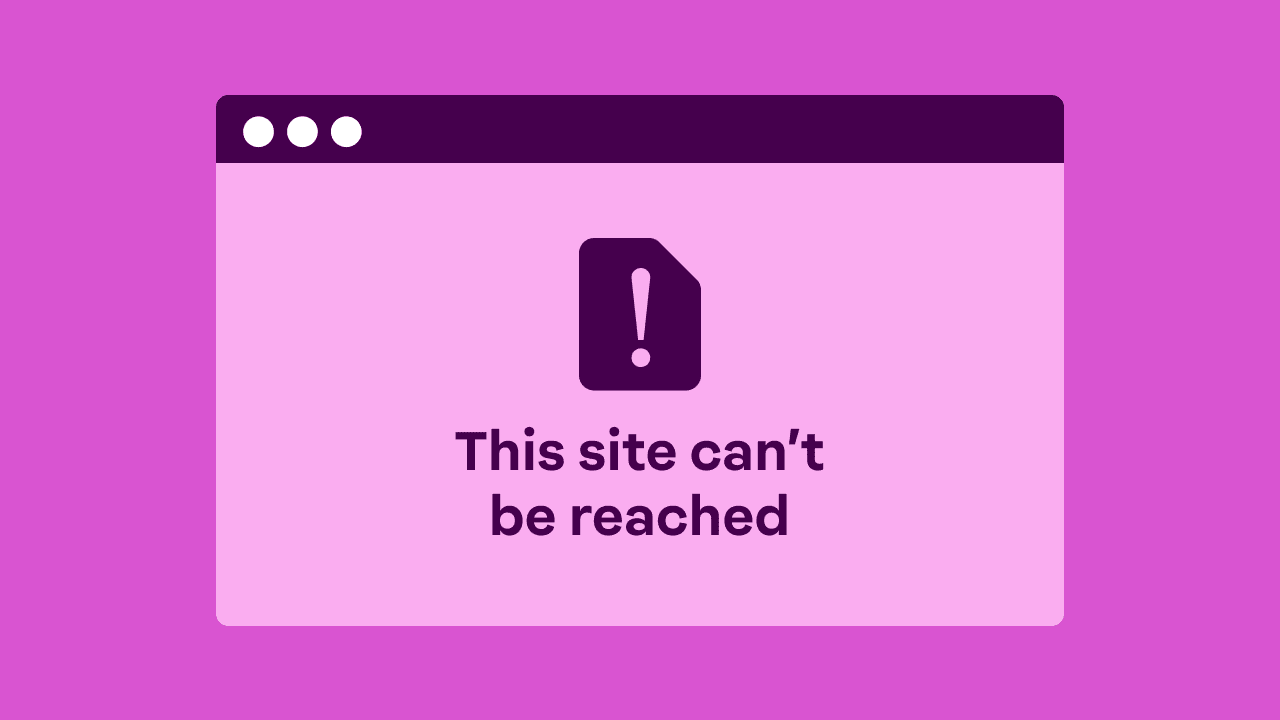
The DNS_PROBE_FINISHED_NXDOMAIN error shows up without warning. One moment, your site is working, and the next, it shows “This site can’t be reached.” For business owners, it can be stressful to see your website suddenly become inaccessible, especially if getting a consistent volume of visitors.
This error often appears during website setup, after a domain name change, or when the Domain Name System (DNS) settings have been recently updated. The good news is that it’s fixable, and in some cases, the solution is simpler than it looks.
This guide covers what the error means, the reasons it appears, and the practical steps you can take to fix it.
What is DNS_PROBE_FINISHED_NXDOMAIN?
The DNS_PROBE_FINISHED_NXDOMAINerror happens when your browser can’t find the domain you’re trying to visit. This error means the domain can’t be located; the NXDOMAIN in the error message suggests a “non-existent domain.”
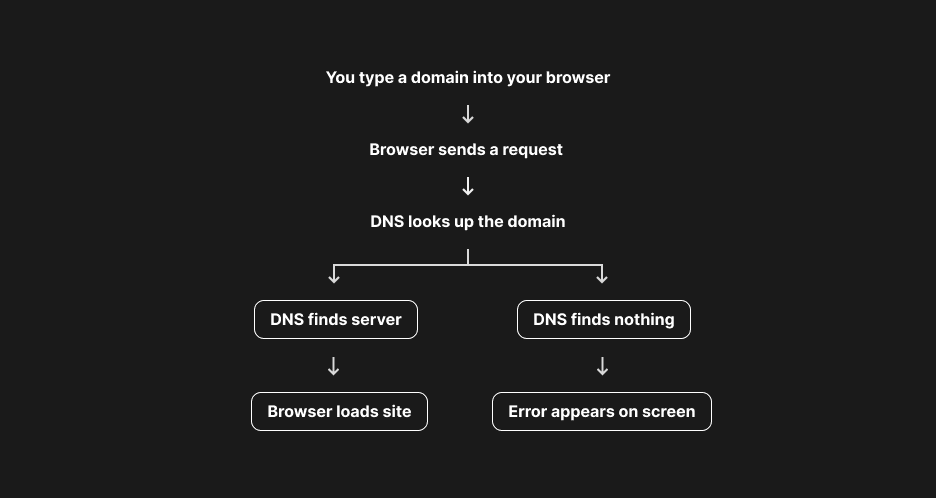
When you type a domain into your browser, it asks the DNS where that domain is located. The DNS then looks for the correct server that hosts the website. If the DNS finds the right information, your browser loads the site. If it can’t find anything, the page won’t open, and an error will be displayed.
For a quick refresher on how DNS works, refer to our guide on the Domain Name System.
Common causes of the DNS_PROBE_FINISHED_NXDOMAIN error
The DNS_PROBE_FINISHED_NXDOMAIN error usually appears when something disrupts the path between your browser and the domain’s DNS records. Most of the time, it’s triggered by small issues that are easy to overlook.
Here are the most common reasons this error shows up:
- Typo in the URL
- Corrupted browser cache or DNS cache
- Incorrect DNS server settings
- Expired or unregistered domain
- Missing or incorrect DNS records (A/AAAA/CNAME)
- Firewall, VPN, or antivirus blocking requests
- ISP or router DNS failure
Typo in the URL
A small spelling mistake can point you to a domain that doesn’t exist. This is one of the simplest and most overlooked causes, especially when entering unfamiliar uniform resource locators (URLs).
Corrupted browser cache or DNS cache
Old or conflicting data stored by your browser or device can prevent DNS from loading the correct information for your domain. Clearing this data often resolves the issue quickly.
Incorrect DNS server settings
Using outdated, unavailable, or misconfigured DNS settings can prevent your device from locating the correct web page. Switching to reliable DNS servers usually fixes the problem.
Expired or unregistered domain
If your domain lapses due to non-renewal, all the domain’s functionality will cease to work, including DNS lookups. This makes the domain unreachable until it is renewed.
Missing or incorrect DNS records (A, AAAA, or CNAME)
These DNS records tell the system where your website is hosted. If they’re missing or pointing to the wrong address, the website won’t load. Even a small typo in an IP address can trigger the issue.
Firewall, VPN, or antivirus blocking the request
Security tools sometimes block DNS traffic, especially if they detect unfamiliar networks or use strict filtering rules. Disabling them for a moment can help identify whether they are causing the problem.
ISP or router DNS failure
If your network equipment or internet provider’s DNS servers aren’t responding, websites may fail to load. This often affects multiple sites at once, not just one domain.
Note: If you recently updated your nameservers, switched hosting providers, or made DNS changes, the system may still be updating worldwide. DNS propagation can temporarily trigger the DNS_PROBE_FINISHED_NXDOMAIN error, even if everything is configured correctly. Wait until the change is resolved, typically after 24-48 hours.
Quick Fixes: The fastest way to fix DNS_PROBE_FINISHED_NXDOMAIN
- Double-check the domain URL for typos.
- Try another website to check if the issue is specific to that domain.
- Restart your browser or try Incognito Mode.
- Restart your router and your device.
- Flush your DNS cache.
These quick steps often resolve the issue before you try more advanced solutions. They help you rule out the most common and easiest-to-fix causes.
- Double-check the domain URL for typos: A single incorrect letter can cause an NXDOMAIN error. Ensure the domain is spelled correctly.
- Try loading another website: If other sites work, the issue is likely specific to the domain you’re trying to reach. If nothing loads, the problem may be network-related.
- Restart your browser or try Incognito Mode: Browsers store temporary data that can interfere with DNS lookups. A fresh session helps clear that out quickly.
- Restart your router and your device: A full restart refreshes your network connection and clears temporary glitches that may cause DNS errors.
- Flush your DNS cache: Your device may be storing outdated DNS information. Clearing it forces the system to request fresh data.
If these quick fixes don’t resolve the issue, the next steps offer more detailed solutions that address deeper DNS and device settings.
Step-by-step fixes for DNS_PROBE_FINISHED_NXDOMAIN
Quick fixes are only meant to rule out simple problems. If the error persists, the steps below help you investigate settings that often trigger DNS_PROBE_FINISHED_NXDOMAIN.
- Clear your browser cache
- Flush your DNS cache
- Release and renew your IP address
- Change your DNS server (Google or Cloudflare)
- Check local hosts file for incorrect entries
- Temporarily disable your VPN, firewall, or antivirus
- Reset your browser settings
Step 1: Clear your browser cache
Your browser stores temporary files to load websites more quickly. However, outdated or corrupted data can interfere with the DNS and prevent pages from loading properly. Clearing this cache often resolves the issue, especially if the DNS_PROBE_FINISHED_NXDOMAIN error appears only in one browser.
Here’s how to clear the cache in the most commonly used browsers.
Google Chrome
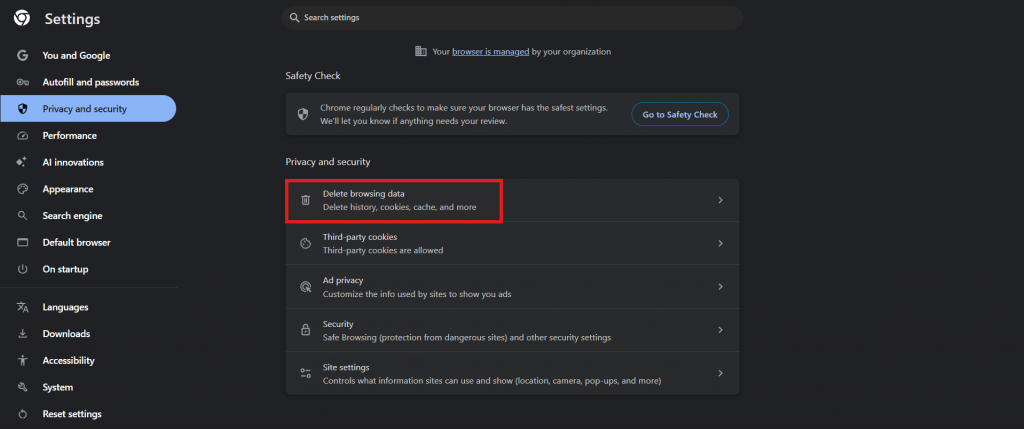
- Open the menu (three-dotted button) and select Settings.
- Go to Privacy and security.
- Select Delete browsing data.
- Choose Cached images and files and click Delete from this device.
- Visit chrome://net-internals/#dns and click Clear host cache. (optional)
Microsoft Edge
- Open the menu (three-dotted button) and select Settings.
- Choose Privacy, search, and services.
- Under Clear browsing data, select Choose what to clear.
- Select Cached images and files and click Clear now.
Mozilla Firefox
- Open the menu (three lines) and go to Settings.
- Select Privacy & Security.
- Scroll to Cookies and Site Data and click Clear browsing data.
- Select Cached Files and Pages and confirm.
Step 2: Flush your DNS cache
Your device stores DNS information to speed up browsing, but outdated entries can also cause the DNS_PROBE_FINISHED_NXDOMAIN error. Flushing the DNS cache forces your system to refresh this data.
Here’s how to flush your DNS cache for Windows and Mac:
Windows
- Open the Start menu and type Command Prompt.
- Right-click it and select Run as administrator.
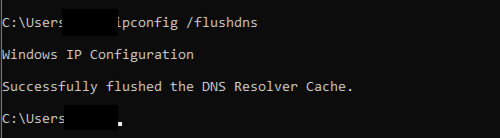
- Enter the command:
ipconfig /flushdns - You should see a message confirming the DNS cache was cleared.
Mac
- Open Terminal from Applications > Utilities.
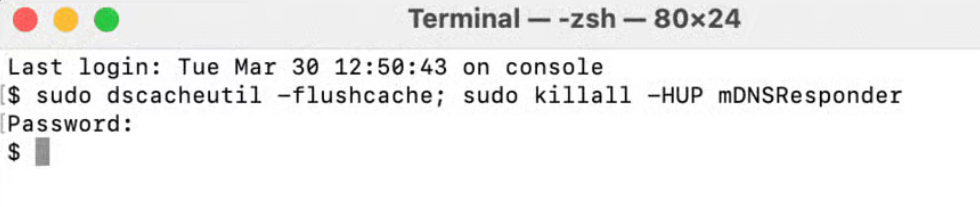
- Enter the following command:
sudo dscacheutil -flushcache; sudo killall -HUP mDNSResponder - Enter your device password if prompted.
- You won’t see a confirmation message—this is normal.
Step 3: Release and renew your IP address
Releasing and renewing your IP address gives your device a fresh network configuration. This helps resolve the DNS_PROBE_FINISHED_NXDOMAIN error when the issue is caused by outdated or conflicting network information.
Here’s how to release and renew your IP address:
Windows
- Open Command Prompt as an administrator.
- Enter the following commands one at a time:
ipconfig /release ipconfig /renew - Wait for the process to finish, then try loading the website again.
Mac
- Open System Settings and click Network.
- Select your active network connection.
- Click Details in the upper-right corner.
- Go to the TCP/IP section.
- Click Renew DHCP Lease to request a new IP address from the DHCP server.
- Once renewed, try opening the website again.
Step 4: Change your DNS server (Google or Cloudflare)
If your current DNS server is slow or unresponsive, your device won’t be able to find the domain you’re trying to visit. Switching to a reliable alternate DNS server is one of the most effective ways to resolve the NXDOMAIN error.
Here are the recommended DNS servers:
- Google DNS: 8.8.8.8 and 8.8.4.4
- Cloudflare DNS: 1.1.1.1 and 1.0.0.1
Windows
- Open Control Panel and go to Network and Internet.
- Select Network and Sharing Center and select Change adapter settings.
- Right-click your active network connection and choose Properties.
- Select Internet Protocol Version 4 (TCP/IPv4) and click Properties.
- Choose Use the following DNS server addresses.
- Enter the preferred and alternate DNS addresses.
- Click OK to save your changes.
Mac
- Open System Settings and go to Network.
- Select your active network connection.
- Click Details in the upper-right corner.
- Go to the DNS tab.
- Click the + icon to add a new DNS server.
- Enter the DNS addresses you want to use.
- Click OK or Apply to confirm.
Step 5: Check local hosts file for incorrect entries
Your device’s hosts file can override DNS lookups. If an entry in this file blocks or redirects a domain, it can trigger the DNS_PROBE_FINISHED_NXDOMAIN error. Malware, manual edits, or old configurations are common reasons for unexpected entries.
Windows
- Open Notepad as an administrator.
- Go to File > Open and navigate to:
C:\Windows\System32\drivers\etc\ - Set the file type to All Files and select hosts.
- Look for any lines that reference the domain you’re trying to access.
- Remove only entries you know shouldn’t be there, then save the file.
Mac
- Open Terminal.
- Enter the command:

- Enter your device password if prompted.
- Review the file for entries related to the affected domain.
- Delete any incorrect or unnecessary lines, then press Control + O to save and Control + X to exit.
A host’s file entry is likely incorrect if:
- It lists the domain you’re trying to access with an unfamiliar IP address: For example, if yourdomain.com points to an IP you don’t recognize, it may be overriding your real DNS settings.
- It redirects a domain to 0.0.0.0 or 127.0.0.1: These IPs block the site from loading. This is sometimes used by malware or old blocking tools.
- It references domains you didn’t manually add: If you don’t remember creating the entry, it’s best to remove it.
- It contains outdated IP addresses from previous hosting providers: Old entries can conflict with your current DNS setup.
A clean hosts file usually contains only default system lines and no custom domains. Anything beyond that should be reviewed carefully.
Step 6: Temporarily disable your VPN, firewall, or antivirus
Security tools can sometimes block DNS requests, especially if they detect unfamiliar networks or enforce strict filtering rules. Temporarily turning them off helps you confirm whether they’re causing the error.
VPN
- Disconnect from your VPN using the app or system settings.
- Try loading the website again.
- If the site works, the VPN may be redirecting DNS traffic in a way that’s causing conflicts.
Firewall
- Open your firewall settings.
- Temporarily turn off the firewall (only for testing).
- Reload the website to see if the error goes away.
Antivirus
- Open your antivirus dashboard.
- Disable real-time protection for a moment.
- Test the website again.
Important: Re-enable your VPN, firewall, or antivirus immediately after testing. They play an important role in keeping your device secure.
Step 7: Reset your browser settings
If none of the earlier steps work, resetting your browser can help clear out extensions, settings, or configurations that may be causing the DNS_PROBE_FINISHED_NXDOMAIN error. This should only be done after trying other solutions, since it reverts your browser to its default state.
Chrome
- Open Settings.
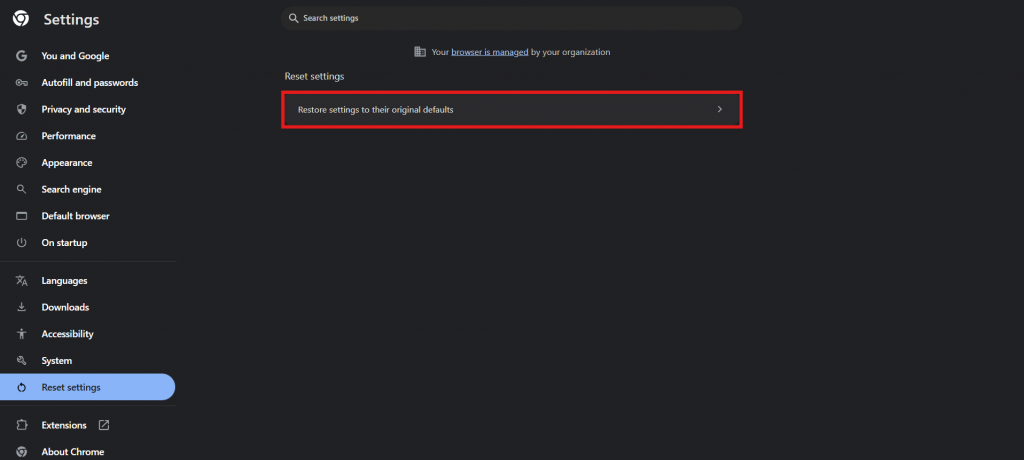
- Scroll down and select Reset settings from the left menu.
- Click Restore settings to their original defaults.
- Confirm the reset when prompted.
- After the reset, try loading the website again.
Note: A reset will disable extensions, clear temporary settings, and revert custom configurations. Your saved passwords and bookmarks remain intact.
If it’s your business website: Check your domain and DNS settings first
If the DNS_PROBE_FINISHED_NXDOMAIN error appears only on your website, the issue is likely related to your domain or DNS settings. The following steps will help you confirm whether your domain is active, pointing to the right address, and properly set up.
- Check if your domain is still registered and has not expired.
- Confirm your nameservers are pointing to the correct provider.
- Verify A/AAAA records are correct.
- If you recently switched hosts or website builders, check DNS propagation.
- Ensure your domain isn’t suspended for verification or billing issues.
Check if your domain is still registered and not expired
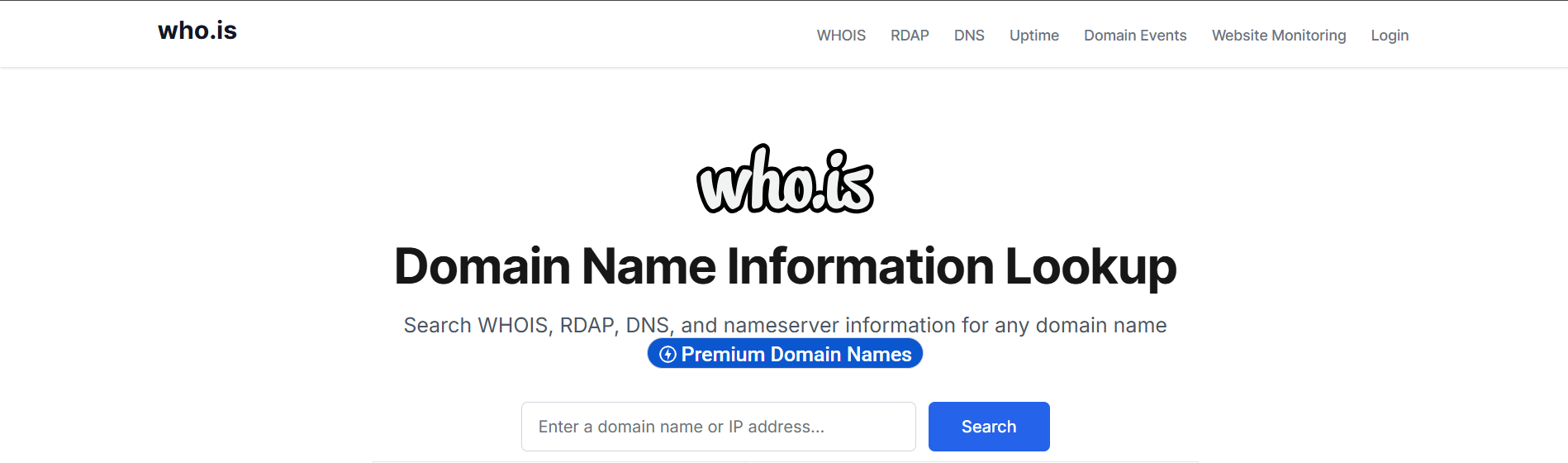
Your domain has to be active for DNS to function properly. If it has expired, your website becomes unreachable until you renew the registration. You can confirm its status through your registrar account or a WHOIS lookup.
If your domain has expired, you can renew it through Network Solutions to restore full DNS functionality.
Confirm your nameservers are pointing to the correct provider
Nameservers tell the internet where your website files are hosted. If your domain is using incorrect nameservers, the DNS cannot direct visitors to your website, and their browser will display the NXDOMAIN error. Ensure you’re using the nameservers provided by your website hosting service provider.
Verify A/AAAA records are correct
A and AAAA records act like the street address of your website. If these records are empty, incorrect, or pointing to an outdated IP address, your site won’t load, and the browser will return a NXDOMAIN error. Check that the records match the hosting IP provided by your website platform.
Here are examples of IP addresses used in A and AAAA records:
- A record (IPv4): 206.188.192.234
- AAAA record (IPv6): 2001:0db8:85a3:0000:0000:8a2e:0370:7334
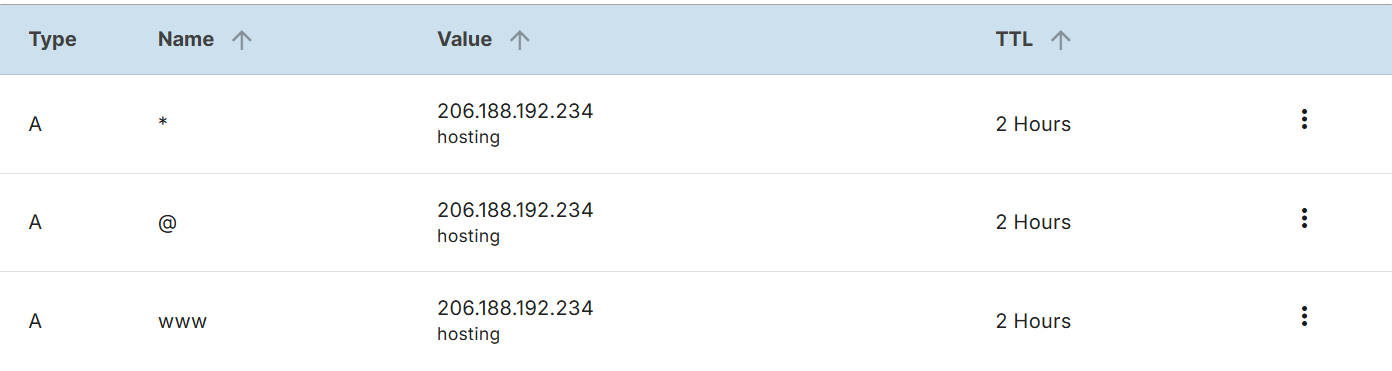
An A record uses an IPv4 address, the older and more common format made of four number groups. An AAAA record uses an IPv6 address, a newer format that supports more devices and includes both numbers and letters.
If you recently switched hosts or website builders, check DNS propagation
When you update nameservers or move your site to a new hosting provider, the changes in your DNS settings don’t reflect right away across global servers. This process is called DNS propagation, which can take up to 48 hours as servers worldwide update their records with the new information.
During this time, it’s normal for your website to load on some devices but show the DNS_PROBE_FINISHED_NXDOMAIN error on others. If you’re in the middle of a migration, seeing this error doesn’t necessarily mean something is wrong. It may just need more time for the changes to fully take effect.
Ensure your domain isn’t suspended for verification or billing issues
Domain registrars send verification emails to confirm domain ownership and contact details. If these steps aren’t completed, the domain may be suspended, which prevents DNS from functioning and results in the error. The same can happen when there are billing issues on your domain, or you missed its renewal.
Ensure the email address linked to your domain registration is active and able to receive messages. Check for any verification requests or notices from your registrar, and review your account to confirm that all payments are up to date.
When the error happens on every device: Router and network fixes
If you’re getting the DNS_PROBE_FINISHED_NXDOMAIN error on every website you visit and it appears on multiple devices connected to the same network, the issue is likely tied to your router, modem, or internet service provider.
The following will help you confirm whether the network itself is causing the problem.
- Restart your router and modem: A hard reset clears temporary network glitches. Unplug your router and modem, wait at least 30 seconds, then plug them back in. Once the internet connection is restored, try opening the website again.
- Check your router’s DNS settings: Open your router dashboard and review the DNS settings. Make sure they aren’t blank or set to outdated, unreachable DNS servers. Switching to reliable DNS servers, such as Google’s or Cloudflare’s public DNS servers, can help if the default ones aren’t responding.
- Update your router’s firmware: Outdated firmware can cause network instability, including DNS failures. Check your router manufacturer’s dashboard for available updates. If you’re unsure, refer to your router’s support documentation before making changes.
- Contact your internet service provider (ISP): If none of these steps fix the issue, your ISP may be experiencing DNS-related problems. Contacting them can confirm whether there are issues on their end.
How to prevent DNS_PROBE_FINISHED_NXDOMAIN in the future
A few simple practices can help prevent the DNS_PROBE_FINISHED_NXDOMAIN error from happening. These steps ensure that you keep your domain active, maintain consistent DNS settings, and enable smoother device operation.
- Keep your domain on auto-renew: This ensures your domain doesn’t accidentally expire. An expired domain immediately disables its DNS, so auto-renewal removes that risk.
- Use reliable DNS and hosting: A stable provider reduces DNS downtime. It also helps ensure your DNS changes propagate correctly when you update settings.
- Avoid switching DNS providers too often: Frequent changes can cause inconsistencies with the DNS settings or prolong its propagation times. Stick with one setup unless you have a clear reason to change.
- Keep your device software updated: Outdated operating systems or browsers can cause network and DNS issues. Regular updates help maintain compatibility and security.
- Use secure, reputable antivirus tools: Reliable security software prevents unwanted changes to your DNS settings and detects malicious software to reduce the risk of modification to your hosts file.
- Properly configure your DNS settings. Ensure your A, AAAA, CNAME, and nameserver records remain accurate. Review them if you move hosting providers or make major website changes.
Frequently asked questions
Start by checking for simple issues, such as typos in the URL, testing another website, restarting your browser, or rebooting your router. If the error persists, try clearing your browser cache, flushing your DNS, renewing your IP address, or updating your DNS server settings. For website owners, checking domain registration, nameservers, and DNS records is important.
This error indicates that your browser was unable to find the domain’s DNS records, so it treats the domain as non-existent, hence the NXDOMAIN in the error message. It usually happens when DNS information is missing, outdated, or blocked.
A DNS server issue can originate from your internet service provider, your router, or your device’s network settings. Misconfigured DNS servers, temporary outages, outdated DNS cache, or incorrect DNS settings are common reasons behind these problems. On Windows devices, issues with the DNS Client Service can also interrupt DNS lookups, since this service manages how your system handles DNS requests.
If other websites load normally, the issue is likely specific to your domain. Common causes include expired domains, incorrect nameservers, missing A or AAAA records, or DNS changes still propagating. Checking your domain and DNS setup usually reveals the source.
Yes. When a domain expires, all DNS functions stop working. The domain becomes unreachable, and visitors will see the DNS_PROBE_FINISHED_NXDOMAIN error until the domain is renewed.
Try opening the site on another browser, then on another device, and finally on a different network.
– If it works on another browser, the issue is browser-related.
– If it works on another device, the issue is local to your device.
– If it fails everywhere, it’s likely a domain or network issue.
Yes. When you update nameservers or change DNS records, the updates need time to spread across global DNS servers. During this period, some users may access your website, while others may encounter the NXDOMAIN error. This usually resolves within 24 to 48 hours.
Keep your website accessible with a reliable DNS setup
The DNS_PROBE_FINISHED_NXDOMAIN error can be disruptive, but it’s often caused by simple issues that you can quickly resolve. When the problem is on the domain side, checking your registration and DNS records usually points you in the right direction. When the issue occurs on the device or network side, steps such as clearing your cache, flushing DNS, or restarting your connection usually resolve it.
Your website becomes far more stable and less likely to run into DNS-related errors once everything is configured correctly. A reliable DNS setup provides your business with the consistency it needs.
If you want a dependable domain foundation with built-in DNS management, you can register or renew your domain and keep your website accessible at all times. Pair it with our reliable web hosting service to ensure your site performs consistently, providing your visitors with a smooth and uninterrupted experience.