



Key takeaways:
- Enabling HTTPS starts with installing a valid SSL certificate and configuring your website to use the secure version of each URL.
- HTTPS helps protect visitor data, strengthens trust, and supports SEO by giving search engines a secure version of your site to index.
- Use a 301 redirect from HTTP to HTTPS and verify the certificate chain so browsers can recognize the connection as secure.
If your website still runs on HTTP, you’re putting visitors at risk. Browsers can mark non-HTTPS sites as “Not Secure,” which may discourage people from staying on your website or sharing information with you.
Search engines also use HTTPS as a ranking signal, so moving to a secure connection supports both user trust and SEO. When HTTPS is active, browsers indicate that the connection is secure, helping visitors feel more confident using your site.
HTTPS is the secure version of HTTP. It uses SSL/TLS encryption to protect data as it travels across the internet between a visitor’s browser and your web server, helping prevent unauthorized parties from reading or changing that information. Only the intended browser and server should be able to access the decrypted data.
If you’re wondering how to get HTTPS on your website, the process starts with an SSL certificate and a few configuration changes. Here, we’ll walk you through the step-by-step process, from getting and installing your certificate to redirecting traffic, fixing mixed content, and checking your setup after installation.
Secure your site. Build more trust.
Protect visitor data and show customers your website is ready for secure connections with an SSL certificate from Network Solutions.

How to get HTTPS on your website
If you’re ready to learn how to get HTTPS and how to make your website HTTPS, the process comes down to six main steps:
- Get an SSL certificate
- Install the SSL certificate
- Update website configuration
- Fix mixed content issues
- Test and verify HTTPS setup
- Update Google and SEO settings
Note: The process of installing and configuring HTTPS may vary depending on your hosting provider.
1. Get an SSL certificate
The first step is to get an SSL certificate. An HTTPS certificate verifies your website’s identity and lets browsers establish a secure, encrypted connection with your server. Without a valid certificate, visitors may see a “Not Secure” warning.
Choose a certificate from a trusted provider so browsers can verify your site. We offer Xpress, Basic, Advanced, Wildcard, and Extended SSL certificate options for different websites and business needs.
To verify ownership, a CA may require HTTP, DNS, or email validation methods. Once the certificate is issued by a trusted CA, major browsers and devices can recognize the certificate and establish a secure connection.
2. Install the SSL certificate
Once you have an SSL certificate, the next step is to install it on your server. The exact process depends on where your website is hosted.
If you use shared hosting with Network Solutions:
- Log in to your control panel.
- Go to the Security tab.
- Upload or activate your SSL certificate.
- If you purchased the certificate through your provider, use the available one-click installation option.
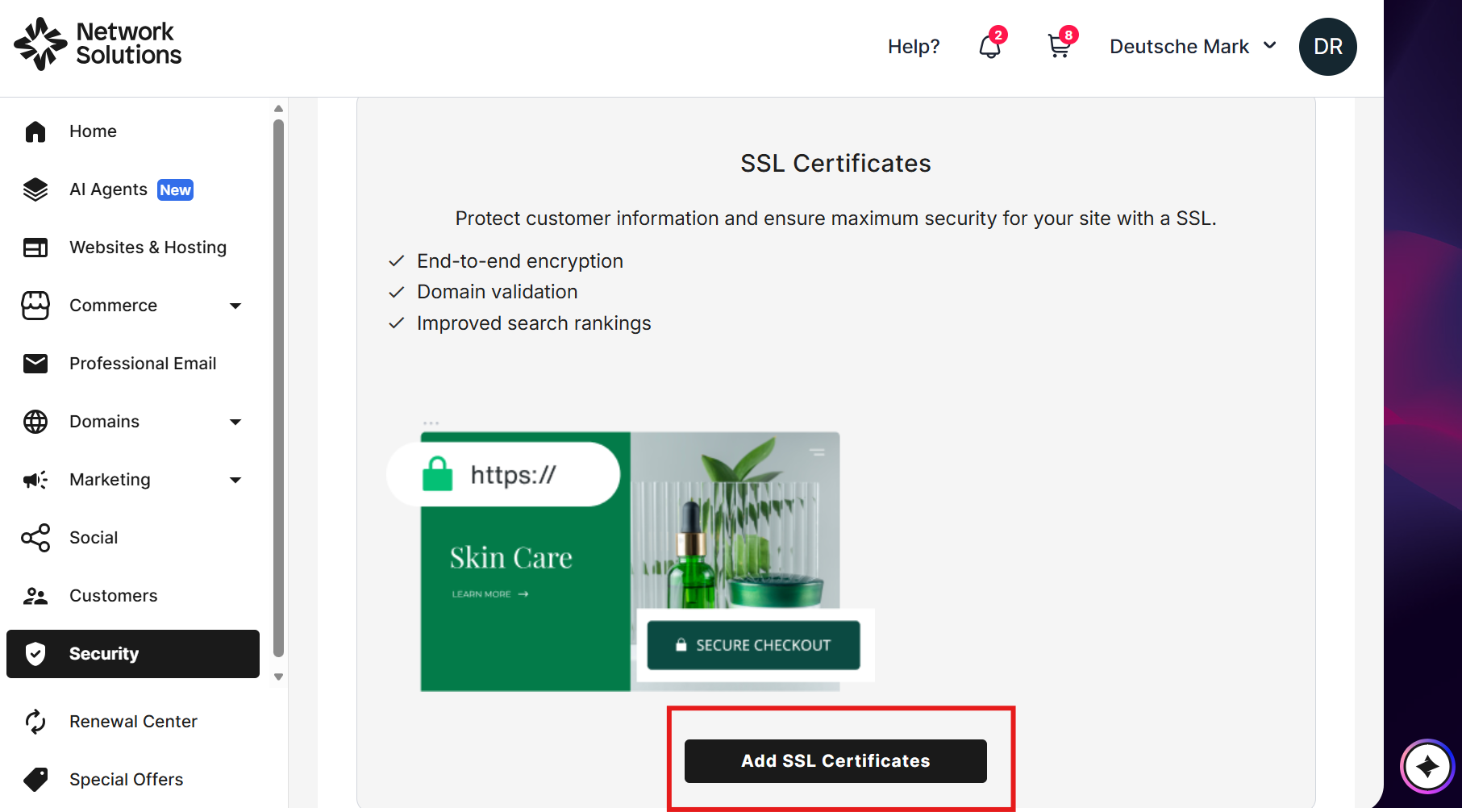
If you use managed WordPress hosting or another website builder: These platforms often include built-in SSL controls, so you can enable HTTPS from the dashboard.
After installation, open your website using https:// and confirm that the browser shows a secure connection indicator. If it does, your certificate is active.
3. Update website configuration
Installing the SSL certificate isn’t enough. You also need to direct visito the HTTPS version of your site so they don’t land on unsecured pages or create duplicate HTTP and HTTPS versions.
To add HTTPS to your website, update your WordPress or CMS site URL to use https://. You can also use a redirect plugin to send HTTP traffic to HTTPS automatically.
For a manual Apache setup, add a 301 redirect to your .htaccess file:
RewriteEngine On
RewriteCond %{HTTPS} !=on
RewriteRule ^ https://%{HTTP_HOST}%{REQUEST_URI} [L,R=301]
Afterward, enter the HTTP version of your domain and confirm that it redirects to HTTPS.
Tip: Use a 301 redirect instead of a 302. This tells search engines the change is permanent and helps preserve your SEO rankings.
4. Fix mixed content issues
After enabling HTTPS, some pages may still load images, scripts, stylesheets, or other resources over HTTP. These mixed content errors can trigger browser warnings and keep your site from showing as fully secure.
To fix mixed content:
- Update internal links: Replace http:// with https:// in your code, database, or CMS settings.
- Check external resources: Make sure third-party scripts, fonts, and plugins load over HTTPS.
- Use tools and plugins: WordPress users can use Better Search Replace to update database URLs. Browser developer tools can also identify files that still load over HTTP.
Example: If an image is linked as http://example.com/image.jpg, change it to https://example.com/image.jpg.
Once all resources load over HTTPS, recheck your pages in the browser and confirm that they show as secure without mixed content warnings.
5. Test and verify HTTPS setup
After installing your SSL certificate and fixing mixed content, confirm that everything works correctly. A proper test helps make sure visitors and search engines see your site as secure.
- Check in the browser: Visit your site using https://, confirm the secure connection indicator appears, and check for warnings. Depending on the browser, you may see a padlock icon or another secure connection indicator.
- Use SSL testing tools: Run your domain through tools like SSL Server Test and Why No Padlock to review your SSL configuration.
- Verify redirects: Enter the http:// version of your site and confirm it redirects automatically to the secure https:// version.
- Test on multiple devices: Open the site on desktop and mobile to check that pages load correctly.
If you see errors, review your SSL installation, redirects, and mixed content settings.
6. Update Google and SEO settings
Switching to HTTPS changes how search engines and analytics tools recognize your website, so update your SEO settings after the move.
Key actions to consider:
- Update Google Search Console: If you use a URL-prefix property, add and verify the HTTPS version, then submit a sitemap containing HTTPS URLs.
- Update Google Analytics: In GA4, update your web data stream URL so it uses https://.
- Update robots.txt and canonical tags: Make sure they reference HTTPS URLs.
- Update backlinks and internal links: Point menus, footers, blog posts, and other links to the secure version.
- Check plugins and integrations: Update payment processors, email services, and third-party apps to use HTTPS URLs.
These updates help reinforce HTTPS as your site’s preferred version and reduce duplicate indexing issues.
Understanding the SSL certificate chain
An SSL certificate is part of a larger trust structure called a certificate chain. Your website’s certificate sits at one end of that chain, followed by one or more intermediate certificates, which connect it to a trusted root Certificate Authority (CA). Browsers rely on that chain to confirm that the certificate presented by your site is valid and trustworthy.
During the TLS handshake, the process works like this:
- The browser sends a ClientHello message to request a secure connection.
- The server responds with a ServerHello message and sends its SSL/TLS certificate.
- The browser checks the certificate chain, following the intermediate certificate or certificates back to a trusted root CA.
- Once verification succeeds, the browser and server generate a session key that encrypts the data exchanged during that visit.
Your server also uses the certificate’s corresponding private key during the TLS process. Data encrypted with the public key can only be decrypted with the corresponding private key, which is why the private key must remain secure.
If an intermediate certificate is missing or the chain can’t be verified, the browser may show a security warning even when the site has an SSL certificate installed. That’s why installing the full certificate chain correctly is an important part of creating a secure HTTPS connection that browsers can trust.
Types of SSL certificates
SSL certificates come in several types, each designed to meet different security needs and validation requirements:
- Domain validated (DV) certificates
- Organization validated (OV) certificates
- Extended validation (EV) certificates
- Wildcard certificates
- Multi-domain certificates
Now that you understand how an SSL certificate works and how the certificate chain supports trust, you can compare the main certificate types and choose the one that fits your website.
Domain validated (DV) certificates
These are the most basic SSL certificates. They provide encryption and only verify that you own the domain. DV certificates are ideal for personal blogs, portfolios, or small websites that don’t handle sensitive data.
Organization validated (OV) certificates
OV certificates provide a higher level of security by verifying both domain ownership and the organization’s identity. This type of SSL certificate is recommended for business websites, as it reassures visitors that your company is legitimate.
Extended validation (EV) certificates
EV certificates provide the highest level of trust and security. The certificate authority conducts a thorough vetting process to confirm your organization’s legal, physical, and operational existence. EV certificates are ideal for eCommerce, financial, and healthcare websites where user trust is vital.
Wildcard certificates
If you need to secure a main domain and all its subdomains, a wildcard certificate is the best choice. With a single certificate, you can secure an unlimited number of subdomains, making management simple and cost-effective.
Multi-domain certificates
Also known as Server Name Indication (SAN) or Unified Communications Certificate (UCC) certificates, these allow you to secure multiple domains and subdomains with a single certificate. This is ideal for organizations managing several websites or brands.
Each type of SSL certificate serves a specific purpose, so consider your website’s structure and the level of validation your visitors expect when choosing between different types of SSL. Securing your site with the right SSL certificate is the first step toward establishing a safer and more trustworthy online presence.
Why you need HTTPS for your website
HTTPS helps protect your website, build trust with visitors, and support your search visibility. Here’s why:
- It protects user data: SSL/TLS encrypts information sent between a visitor’s browser and your website, including form submissions, login details, and payment information.
- It builds trust with visitors: HTTPS gives browsers a secure connection to your site. Without a valid SSL certificate, visitors may see a “Not Secure” warning that can make them less confident about continuing.
- It supports SEO: Google has used HTTPS as a ranking signal since 2014. It’s a lightweight signal, so HTTPS alone won’t determine rankings, but keeping your site secure supports Google’s preference for HTTPS URLs.
- It supports modern web features: Technologies such as HTTP/2, progressive web apps, and browser APIs that handle sensitive capabilities commonly depend on secure HTTPS connections.
Frequently asked questions
A free SSL certificate can provide basic encryption and may be enough for a simple website. Paid certificates can add options such as organization validation, broader domain coverage, warranties, and support. We offer paid DV, OV, EV, and Wildcard SSL certificate options rather than a free SSL plan.
Yes, in many cases. HTTPS supports modern protocols such as HTTP/2, which can improve how efficiently browsers load website resources. Actual speed gains still depend on your hosting, website configuration, and content.
Google uses HTTPS as a ranking signal. It’s a lightweight signal, so HTTPS alone won’t produce higher rankings, but keeping your website secure supports Google’s preference for HTTPS URLs.
An expired SSL certificate can trigger browser security warnings and prevent visitors from reaching your site normally. Monitor the expiration date, keep your billing information current, and use SSL renewal settings when available to reduce the risk of interruption.
Turn on auto-renew through your hosting provider or registrar if the option is available. Network Solutions customers can manage auto-renew in the Renewal Center. Keeping auto-renew enabled helps prevent expiration-related security warnings, but you should still monitor renewal notices and payment details.
No. Every website benefits from HTTPS because it protects connections, supports visitor trust, and helps prevent browser security warnings.
Secure your site with SSL
Adding HTTPS helps protect user data, build trust with visitors, and support your website’s search visibility. Once your SSL certificate is installed and your site is configured correctly, visitors can connect through a secure, encrypted connection.
You can get your SSL certificate through Network Solutions. We offer certificate options for different websites and business needs, so you can choose the level of validation and coverage that fits your site.