


Key takeaways
- ERR_SSL_PROTOCOL_ERROR happens when a browser cannot complete a secure connection with a website.
- Common causes include SSL certificate issues, outdated browser data, antivirus settings, and web server misconfigurations.
- The right fix depends on the cause. Users can try browser and device troubleshooting, while site owners may need to check their SSL certificate and server settings.
An ERR_SSL_PROTOCOL_ERROR can stop you from loading a website in Google Chrome or another browser. The error usually means the browser tried to create a secure connection but couldn’t complete the SSL process. For users, that can be frustrating when they simply want to open a page. For website owners, it can be more serious because visitors may leave before they ever reach your content.
The good news is that you can usually fix ERR_SSL_PROTOCOL_ERROR with a few clear troubleshooting steps. The issue may come from your browser, system date, antivirus software, SSL certificate, website settings, or web server configuration.
This guide explains what the error means, what causes it, and how to fix it whether you own the website or are only trying to visit it.
Find the perfect domain
Ready to register a domain name? Check domain availability and get started with Network Solutions today.
What is ERR_SSL_PROTOCOL_ERROR?
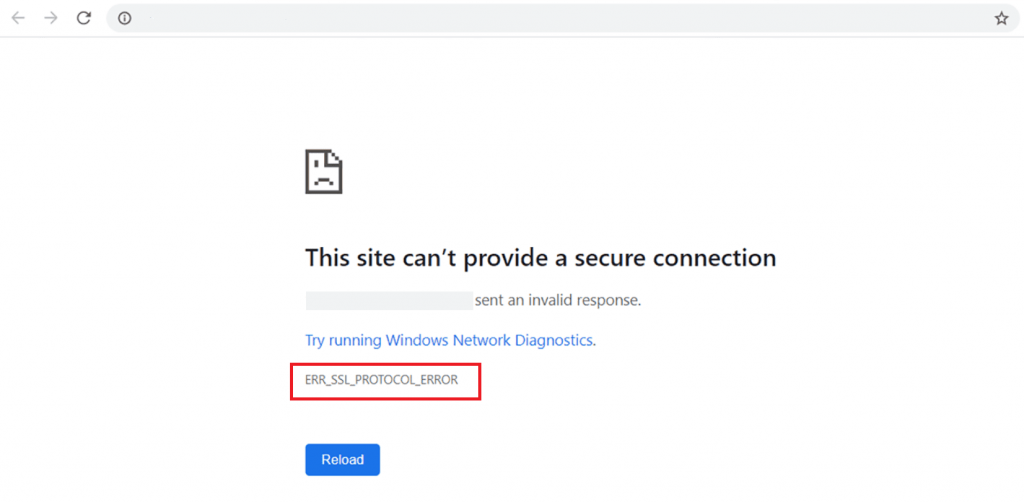
The ERR_SSL_PROTOCOL_ERROR means your browser tried to establish a secure HTTPS connection but couldn’t complete the SSL handshake with the server. In other words, it’s an SSL connection error that prevents the browser from safely loading the website. It’s a sign that something went wrong in the process of setting up a secure connection.
This error usually comes with a message like:
“This site can’t provide a secure connection”
ERR_SSL_PROTOCOL_ERROR
What causes ERR_SSL_PROTOCOL_ERROR?
There isn’t just one cause, but here are the most common ones: SSL certificate issues, browser data, outdated settings, security tools, and server configuration. Here they are explained in more detail:
- Misconfigured SSL certificate: If the website’s SSL certificate has expired or is not correctly set up in the server, web hosting or in the control panel settings, perhaps it’s missing intermediate certificates or pointing to the wrong domain, browsers won’t trust the connection. This leads to a failed SSL handshake.
- Corrupted browser cache or cookies: Outdated or corrupted browser data can interfere with how your browser processes secure connections. This is especially true if previous SSL configurations were cached and conflict with the current setup.
- Antivirus or firewall software is blocking the connection: Some security software includes HTTPS scanning or network filters that may block SSL certificates that seem suspicious, even when they’re valid. Temporarily disabling these features can help troubleshoot the issue.
- Outdated browser or OS settings: Browsers and operating systems are constantly updated to support new TLS/SSL protocols. If you’re using an old version, it may not support the minimum requirements for the SSL certificate in use.
- Outdated website or unsupported SSL protocols: If the site is configured to use older versions of SSL (like SSL 2.0 or SSL 3.0), or weak cipher suites, modern browsers will reject the connection for security reasons.
- Misconfigured server: If the web server isn’t configured correctly for HTTPS, or the CDN has an SSL mode that doesn’t match the origin server, the browser will block the connection. This includes incorrect redirection settings, port configuration issues, or protocol mismatches.
How to fix ERR_SSL_PROTOCOL_ERROR as a developer or site owner
Sometimes the issue can be on the user side or on the server side. As a website owner, you don’t want your site to produce errors, or else your viewers won’t be able to browse your content. We’ll show you how to resolve the error as a developer in this section.
Mainly, there are two things to keep in mind:
- Check your SSL certificate
- Check your server
Check your SSL certificate
- Is it expired?
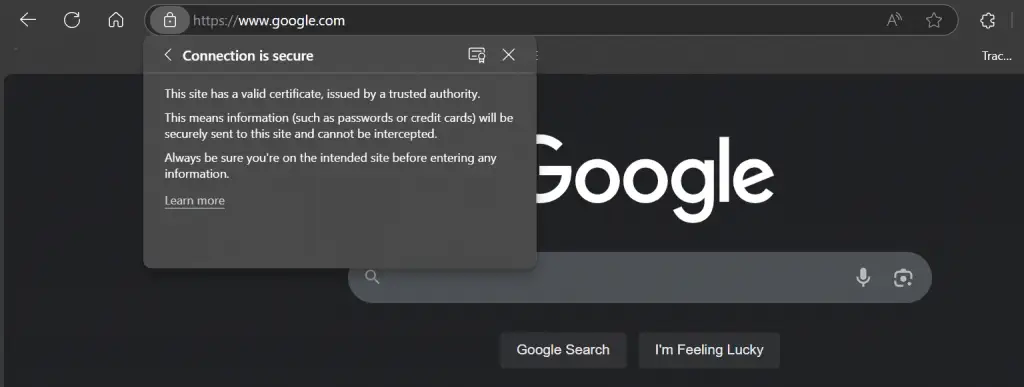
- How to check: You can check the expiration date by clicking on the padlock icon in the browser’s address bar and viewing the certificate details. Alternatively, use an online tool like SSL Labs’ SSL Test to analyze the certificate.
- What to look for: Ensure that the certificate hasn’t expired. If it has, you’ll need to renew it from your SSL provider.
- Is the domain correct?
- How to check: Review the domain listed on your certificate by accessing it via the browser’s certificate information window. Use a tool like OpenSSL for server-side verification if needed.
- What to look for: The certificate must match the domain name exactly. If the domain is incorrect, you’ll need to issue a new SSL certificate with the correct domain.
- Are intermediate certificates included?
- How to check: You can use SSL tools like SSL Checker or inspect the certificate chain directly in your browser. SSL Labs’ test also provides a detailed breakdown of the certificate chain.
- What to look for: Make sure all intermediate certificates are installed properly. Without these, browsers may fail to establish a trust connection.
- Is your SSL certificate using SHA-2?
- How to check: SHA-2 is a security method that creates a unique code for data to ensure it hasn’t been altered or tampered with. You can check this by viewing the certificate details in the browser or through SSL verification tools.
- What to look for: If it uses SHA-1, you’ll need to get a new certificate as SHA-1 is no longer supported by modern browsers.
- Are you using the correct certificate chain?
- How to check: An SSL certificate chain is a group of certificates that link a website’s SSL certificate to a trusted authority, helping to prove the website is secure. Use tools like SSL Labs to inspect your certificate chain.
- What to look for: Your certificate must be linked to intermediate certificates, leading to a trusted root certificate authority (CA). If the chain is broken or missing, it can lead to SSL errors. .
- Is the certificate installed correctly on the server?
- How to check: On the server side, ensure the SSL certificate files are placed in the appropriate directory and that your web server is properly referencing them in its configuration.
- What to look for: For Apache, check the SSLCertificateFile and SSLCertificateKeyFile directives in your Apache config (httpd.conf or ssl.conf). For NGINX, check the ssl_certificate and ssl_certificate_key directives in your nginx.conf.
- Did you configure your web server to point to the correct certificate and private key files?
- How to check: Open the web server configuration files (Apache: httpd.conf, ssl.conf; NGINX: nginx.conf), and verify that the certificate paths are correctly configured.
- What to look for: Ensure that the full certificate chain, not just the domain certificate, and the corresponding private key are properly referenced.
Check your server
Now, there are two popular servers that can be configured to handle SSL connections: NGINX and Apache.
NGINX is known for being lightweight and efficient at handling high traffic with asynchronous processing, while Apache is more flexible and widely used for its extensive configuration options and module support. They both support SSL certificates to ensure that information transferred between the server and users’ browsers is protected.
We’ll give you steps on both servers:
- Force HTTPS redirection properly
- How to do it: In your server configuration, ensure that all HTTP requests are redirected to HTTPS. This can be done by adding the following lines in Apache’s .htaccess or NGINX’s configuration:
- Apache (add to .htaccess):
RewriteEngine On RewriteCond %{HTTPS} off RewriteRule ^ https://%{HTTP_HOST}%{REQUEST_URI} [L,R=301] - NGINX (add to nginx.conf):
server { listen 80; server_name yourdomain.com; return 301 https://$server_name$request_uri; }
- Apache (add to .htaccess):
- What to look for: Check that your redirection doesn’t cause an infinite loop (check server logs). Make sure both HTTP and HTTPS are enabled for all site pages.
- Disable unsupported SSL versions like SSLv3
- How to do it: In your server configuration, ensure that only supported SSL versions like TLS 1.2 or TLS 1.3 are enabled.
- For Apache, use this in ssl.conf:
SSLProtocol all -SSLv2 -SSLv3- For NGINX, use:
ssl_protocols TLSv1.2 TLSv1.3; - What to look for: Ensure older versions like SSLv3 are not active as they are vulnerable and unsupported in modern browsers.
- Use strong ciphers and protocols
- How to do it: Ensure your server uses strong ciphers and disables weaker ones.
For Apache, configure this in ssl.conf:
SSLCipherSuite HIGH:!aNULL:!MD5 SSLHonorCipherOrder on For NGINX, add to nginx.conf:
ssl_ciphers ‘ECDHE-ECDSA-AES128-GCM-SHA256:ECDHE-RSA-AES128-GCM-SHA256’; ssl_prefer_server_ciphers on; - What to look for: Make sure you don’t have weak ciphers like RC4 or DES enabled.
- Ensure your server block is listening on port 443 for HTTPS
- How to do it: In NGINX or Apache, check that your server is listening for HTTPS traffic on port 443.
- What to look for: NGINX should have listen 443 ssl; in your server block. Apache should have Listen 443 in the httpd.conf.
- Check for syntax errors or incorrect SSL directives in config files
- How to do it: After making changes to configuration files, always test the server config for errors. For Apache, use apachectl configtest. For NGINX, use nginx -t.
- What to look for: Any errors returned during config testing may indicate misconfigured SSL directives.
- Confirm that your server supports TLS 1.2 or 1.3
- How to do it: You can test your server using an SSL test (like SSL Labs) to verify TLS version support.
- What to look for: Make sure your server supports at least TLS 1.2. If it doesn’t, you’ll need to upgrade your server’s SSL/TLS software.
- Review your .htaccess or nginx.conf for rewrite conflicts or redirect loops
- How to do it: Check these files for conflicting rewrite rules or improper redirects.
- What to look for: Ensure that your HTTP to HTTPS redirections are properly set and that there is no conflicting configuration that would lead to redirect loops.
- Restart the server after applying SSL-related changes
- How to do it: Restart your Apache or NGINX server after making SSL changes.
- What to look for: Ensure your web server restarts without errors
For Cloudflare users:
- Make sure SSL mode is set to Full or Full (strict)
- Avoid SSL mismatches between origin and proxy
- Purge cache and re-enable Universal SSL if needed
- Check that the origin server has a valid SSL certificate (even when behind Cloudflare)
- Review DNS settings in Cloudflare to ensure no conflicts with SSL resolution
Additional troubleshooting for developers:
- Check for mixed content warnings (HTTP content loaded over HTTPS)
- Test your server with SSL Labs or OpenSSL tools
- Enable logging for TLS handshake errors
- Restart your web server after making configuration changes
How to fix ERR_SSL_PROTOCOL_ERROR for users
If you do not own the website and only want to open the page, start with the easiest fixes first. ERR_SSL_PROTOCOL_ERROR may come from your browser, browser cache, system date, antivirus software, network, or saved SSL state.
Try these steps in order:
- Check your system date and time.
- Clear browser cache and cookies.
- Disable your antivirus or firewall temporarily.
- Use a different browser or incognito mode.
- Flush DNS and clear SSL state.
- Check the website’s SSL certificate.
If the error appears on one website only, the issue may be on the website owner’s side. If it appears across many sites, the issue is more likely related to your device, browser, security tools, or network.
1. Check your system date and time
SSL certificates rely on accurate time for validation. If you have incorrect system date or time settings, the SSL handshake might fail, triggering the error.
- How to check:
- Windows: Right-click the time in the taskbar, click Adjust date/time, and make sure Set time automatically is on.
- Mac: Go to System Preferences > Date & Time, and ensure Set date and time automatically is checked.
- What to look for: Ensure the date, time, and time zone are accurate. If they aren’t, adjust them to the correct date and time settings and refresh the page.
2. Clear browser cache and cookies
Outdated or corrupted browser cache and cookies can interfere with secure connections, especially after updates or changes to a website. Clearing browsing data helps remove old cached images, files, cookies, and other site data that may be causing the error.
- How to clear in Chrome:
- Open Settings > Privacy and security > Clear browsing data.
- Select Cookies and other site data and Cached images and files.
- Click Clear data.
- Restart Chrome and try visiting the website again.
- What to look for: After you clear browser data, refresh the website. If the error was caused by outdated browser cache, cached images, or conflicting cookies, this should help resolve it.
3. Disable your antivirus or firewall temporarily
Some antivirus software, firewall settings, or other security tools can block SSL connections if they flag a website or certificate as suspicious. This can sometimes trigger ERR_SSL_PROTOCOL_ERROR even when the website itself is working.
- How to test it:
- Open your antivirus program or firewall settings.
- Look for web protection, HTTPS scanning, SSL scanning, or firewall controls.
- Temporarily disable the setting that may be blocking the connection.
- Restart your browser and try opening the website again.
- Turn the setting back on after testing.
- What to look for: If the website loads after you disable the security tool, your antivirus settings or firewall may be causing the error. Keep the change temporary and adjust the specific setting instead of leaving your protection turned off.
4. Use a different browser or incognito mode
Browser extensions, saved settings, or corrupted browser data can sometimes interfere with secure connections. Testing the website in incognito mode or other browsers, such as Firefox or Microsoft Edge, can help you see whether the issue is limited to Chrome.
- How to test it:
- Open the website in an incognito window.
- If the error still appears, try opening the same website in Firefox, Microsoft Edge, or another browser.
- If the website loads in another browser, go back to Chrome and disable browser extensions one at a time.
- Restart Chrome and try visiting the website again.
- What to look for: If the website works in incognito mode or other browsers, the problem may come from a Chrome extension, saved settings, or a browser-specific issue.
5. Flush DNS and clear SSL state
DNS cache and SSL state can both affect how your browser connects to a website, but they are not the same thing. DNS refreshes website lookup data, while SSL state clears saved certificate or secure session data.
- How to flush DNS on Windows:
- Open Command Prompt.
- Type ipconfig /flushdns.
- Press Enter.
After you hit Enter, Windows should confirm that the DNS resolver cache was successfully flushed. This gives your browser fresh lookup data the next time it tries to connect.
- How to clear SSL state on Windows:
- Open Control Panel or use Windows Search.
- Search for Internet Options or Internet Properties.
- Select the Content tab.
- Look for the certificates or security section.
- Click Clear SSL state.
- Restart your browser and try the website again.
What to look for: If the error was caused by outdated DNS data or saved SSL session information, flushing DNS and clearing the SSL state may help the browser rebuild a fresh secure connection.
6. Check the website’s SSL certificate
If ERR_SSL_PROTOCOL_ERROR appears on one website but other websites load normally, the problem is likely on the website owner’s side. The browser may be blocking the secure connection because it cannot verify the website’s SSL certificate.
- How to check it:
- Select the icon in the browser address bar.
- Open the certificate or connection details.
- Check the SSL certificate’s expiration date.
- Confirm that the certificate matches the website’s domain.
- Look for certificate warnings, such as missing intermediate certificates or a self-signed certificate.
- What to look for: If the SSL certificate is expired, issued for a different domain, missing part of the certificate chain, or self-signed, the website owner may need to renew, reinstall, or replace the certificate. As a visitor, avoid entering personal information until the SSL errors are fixed and the browser confirms a secure connection.
Fixing ERR_SSL_PROTOCOL_ERROR on mobile devices
This error can happen on mobile devices for several reasons, ranging from network issues to outdated software. Here’s a more detailed guide, including what to look for and how to fix the error.
- Insecure public Wi-Fi
- Outdated Android system WebView
- Cache/data issues in Chrome App
- Switching networks
- Clearing browser data (Chrome App)
- Updating WebView and Chrome
1. Insecure public Wi-Fi
Public Wi-Fi networks can sometimes interfere with a secure connection. Some networks use login pages, filters, firewall rules, or unstable connection settings that prevent your browser from completing the SSL process.
- How to test it:
- Disconnect from the public Wi-Fi network.
- Switch to mobile data or another trusted network.
- If you use a VPN, turn it off briefly and test the website again.
- Reopen your browser and try loading the website.
- What to look for: If the website loads on another network, the public Wi-Fi connection may be causing the SSL errors. Try reconnecting after signing in to the Wi-Fi portal, switching networks, or using a more secure connection.
2. Outdated Android system WebView
Android System WebView is a system app that allows apps to display web content. If it’s outdated, it might not support the latest SSL/TLS standards, causing errors when visiting secure websites.
- What to look out for. If your WebView is out of date, it can lead to SSL/TLS incompatibility. Check your WebView version to see if it needs updating.
- Steps to solve:
- Go to Settings > Apps > Android System WebView.
- Tap Google Play Store to open the app page and click Update (if available).
- Also update Chrome: Open the Google Play Store, search for Chrome, and tap Update.
Once both WebView and Chrome are updated, restart your phone. Try accessing the site again. If it loads without the error, WebView was the issue.
3. Cache/data issues in Chrome App
Corrupted or outdated cache and cookies in your browser can interfere with SSL connections, especially if the data is conflicting with the site’s current SSL configuration.
- What to look out for. If clearing the browser’s cache doesn’t solve the problem, the data stored in the app might still be causing issues, especially if you’re experiencing the error after updates or changes to the website.
- Steps to solve:
- Clear Chrome’s cache and cookies:
- Go to Settings > Apps > Chrome > Storage.
- Tap Clear Cache and Clear Data.
- Relaunch Chrome and visit the website again.
If the error was due to old or corrupted data, this step should fix it. The website should now load properly.
4. Switching networks
A poor or insecure network connection can lead to SSL errors, as SSL certificates may not be properly validated over unstable or slow connections.
- What to look out for. If you’re on a network with poor signal, or one that’s known for security issues (like public Wi-Fi), SSL connections might fail.
- Steps to solve
- Switch to a different network: Try using mobile data (4G/5G) or a different Wi-Fi network.
Switching networks helps confirm whether the connection is causing the error. If the error disappears after switching networks, the problem was likely related to the network you were initially using.
5. Clearing browser data (Chrome App)
Sometimes, the issue could be a result of old or corrupted data stored in the browser that’s causing conflicts with SSL handshakes.
- What to look out for. If clearing the cache and cookies doesn’t fix it, the app’s data might be affecting the connection.
- Steps to solve
- Go to Settings > Privacy > Clear browsing data.
- Select Cookies, site data and Cached images and files.
- Tap Clear data.
If this solves the issue, the SSL handshake issue was likely caused by stale data. Try visiting the site again.
6. Updating WebView and Chrome
Android System WebView and Chrome both help Android devices load web content. If either app is outdated, your browser or other apps may have trouble creating a secure connection, which can lead to SSL errors.
- How to update both apps:
- Open the Google Play Store app.
- Tap your profile icon in the upper-right corner.
- Select Manage apps & device.
- Under Updates available, tap See details.
- Look for Android System WebView and Chrome.
- Tap Update next to each app, or tap Update all.
- Restart Chrome and try opening the website again.
- What to look for: If the error was caused by an outdated browser or outdated system web component, updating these apps may help restore the secure connection. If no update appears, your apps may already be current.
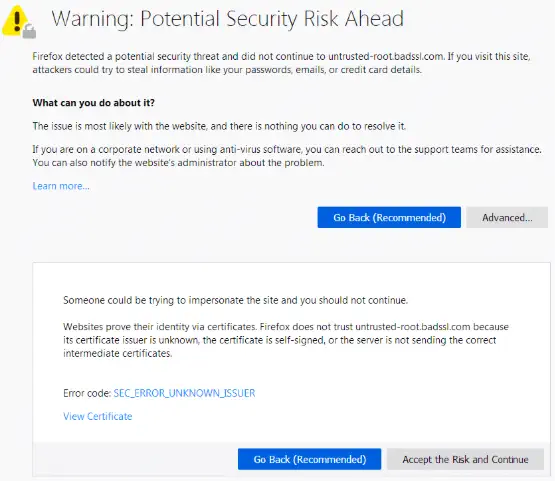
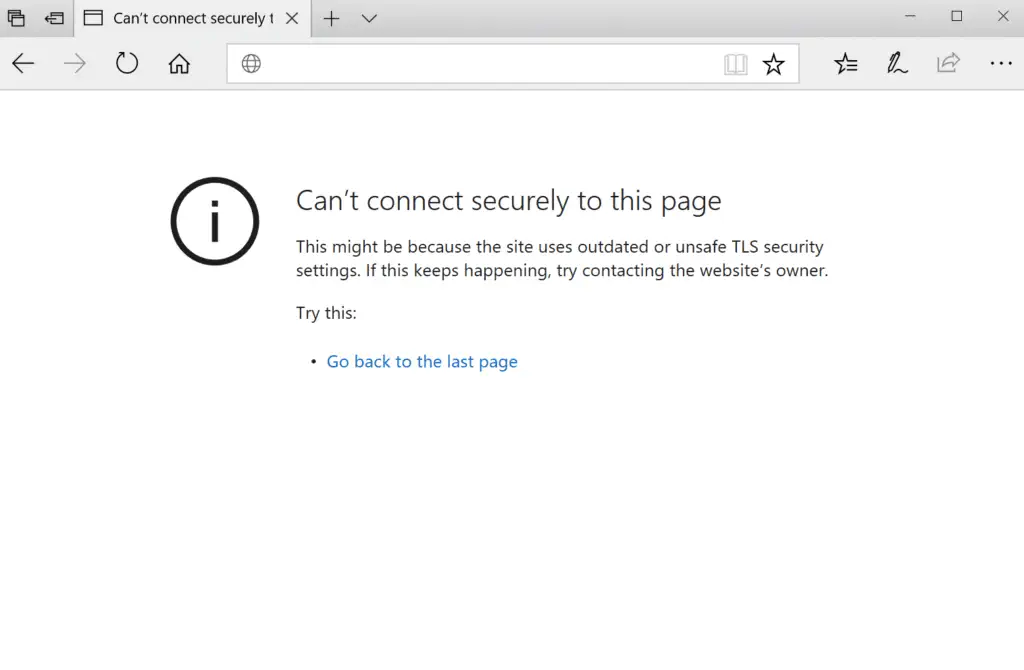
ERR_SSL_PROTOCOL_ERROR in different browsers
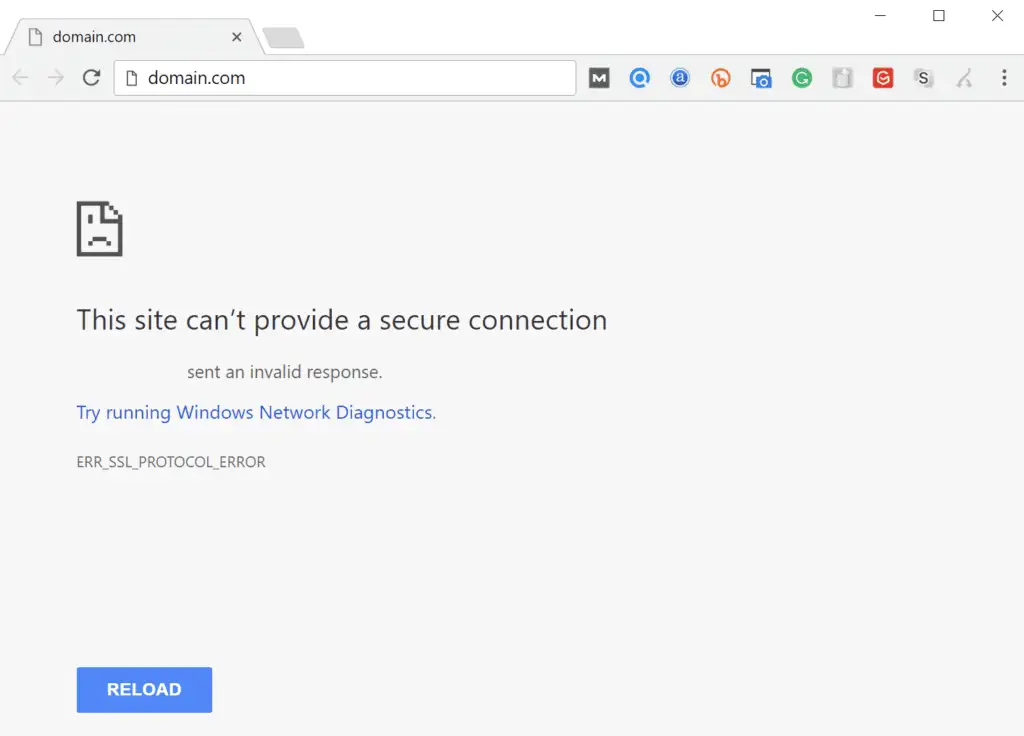
This error message shows up in multiple ways depending on the browser:
Google Chrome: ERR_SSL_PROTOCOL_ERROR
Mozilla Firefox: “Secure Connection Failed”
Microsoft Edge: “Can’t connect securely to this page”
Does ERR_SSL_PROTOCOL_ERROR affect SEO?
Yes, ERR_SSL_PROTOCOL_ERROR can affect SEO if the error prevents users or search engines from accessing your website. When a page fails to load because the browser cannot complete a secure connection, visitors may leave before they see your content. Search engines may also have trouble crawling or evaluating the page if the SSL issue blocks access to the site.
For website owners, the impact goes beyond rankings. SSL errors can damage visitor trust, interrupt traffic, and make customers question whether the site is safe to use. If key pages are affected, your business may lose visits, leads, and sales while the issue remains unresolved.
To reduce the risk, keep your SSL certificate active, confirm that it matches your domain, install the full certificate chain, and check your server settings. A working SSL setup helps your website stay accessible, trustworthy, and ready for search engines to crawl.
Frequently asked questions
Chrome often shows this error when your system clock is incorrect, SSL is misconfigured, or the connection is being blocked by antivirus software.
Not, it just means the browser can’t secure a connection. But if it’s your website, it’s dangerous for SEO and user trust.
Make sure you’re using https://localhost, and that your self-signed SSL certificate is properly configured. Google Chrome can block unsecured local connections.
Secure your website by addressing an SSL protocol error
An SSL protocol error can keep visitors from reaching your website, so it’s important to fix the issue as soon as possible. Start by checking your SSL certificate status, expiration date, domain match, certificate chain, and server settings. These steps help restore a secure connection and keep your site accessible to customers.
For website owners, this is also about trust. If visitors see SSL warnings, they may leave before viewing your products, services, or contact information. A valid SSL certificate helps protect customer confidence and supports a safer browsing experience.
Network Solutions can help you secure your website with SSL certificates, domains, and hosting that support a stronger online presence. When you purchase a domain, you can also access free apps such as our customer app, marketing calendar app, and social app.
Grow your website with us and get the right support on your security and marketing.
Secure your site with SSL
Protect visitor trust and keep your website connection secure with Network Solutions SSL certificates.