

Key takeaways:
- A Gmail custom domain name lets you send and receive email through Gmail using your own domain name, giving you a more professional custom email address.
- The most reliable way to set this up for business use is through Google Workspace, which connects your domain to your Gmail account and other Google tools.
- To get started, you’ll need a custom domain, access to your DNS settings, and a Google Workspace account.
Switching from a personal Gmail address like [email protected] to a custom one like [email protected] can instantly make your business feel more credible. A branded email builds trust, keeps your messaging consistent, and still lets you use the Gmail interface you’re already familiar with.
You can make this possible by connecting your Gmail account to your own domain. Many small businesses use this setup because it combines a professional email address with Google’s tools for email, storage, and collaboration. While there are a few ways to make this work, Google Workspace is the most reliable option for business use.
In this guide, we’ll closely examine what a Gmail custom domain name is, what you need before you start, how to set it up step by step, and what to watch out for along the way.
What is a Gmail custom domain name
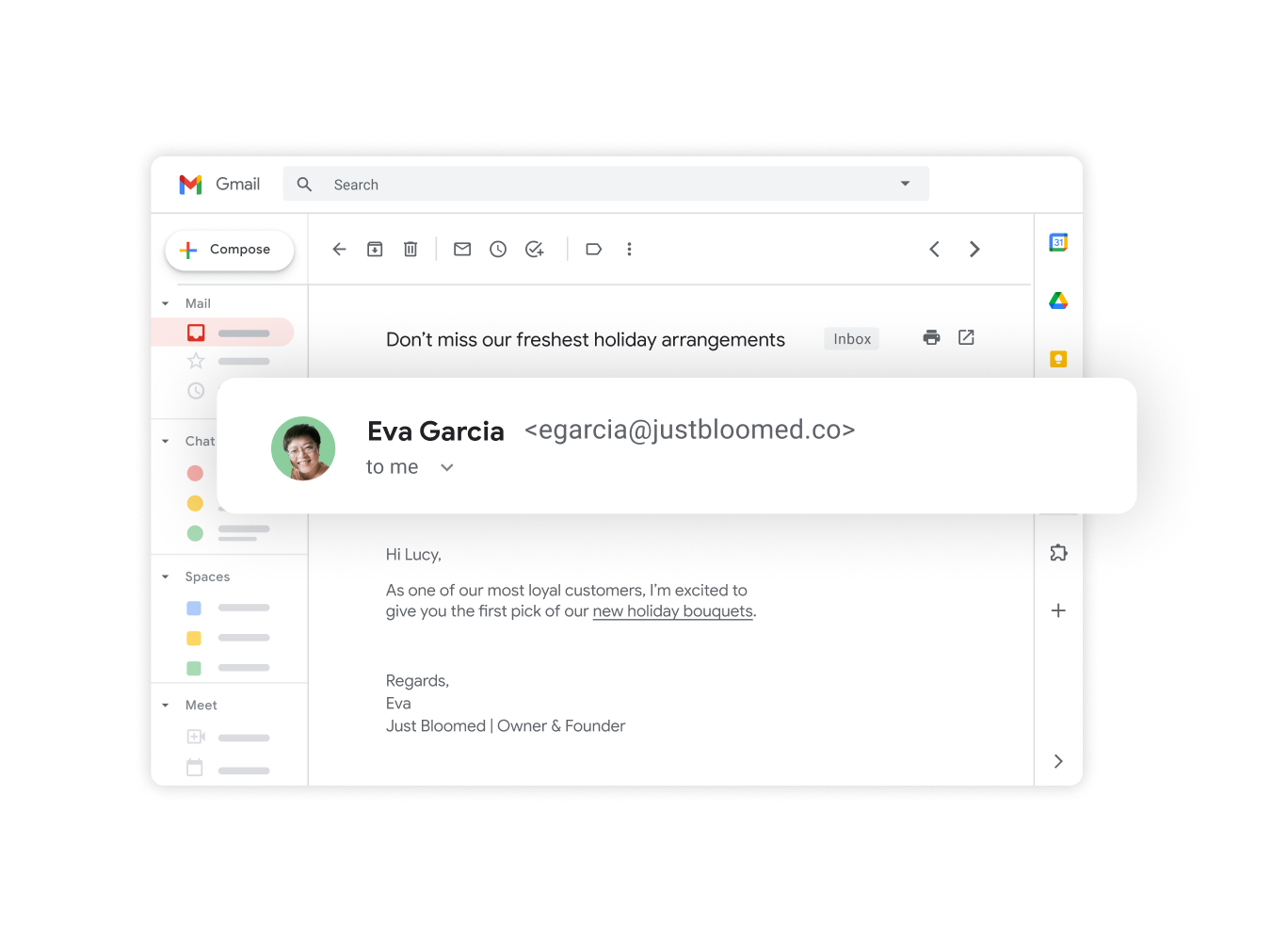
A Gmail custom domain name lets you use Gmail to send and receive emails using a custom email address ([email protected]) instead of Gmail’s generic address ([email protected]). You’re still using Gmail as your email platform, but your email identity is tied to your own domain.
There are a few ways to set this up, including lower-cost workarounds like email forwarding paired with a Simple Mail Transfer Protocol (SMTP) configuration. However, for most business use cases, the most reliable and complete option is a Google Workspace account, which is the method we’ll focus on in this guide.
This works by connecting your domain name to Google’s email service through a Google Workspace account. Instead of creating a separate email system, you’re essentially pairing your custom email domain with Gmail’s interface and infrastructure. That means you can manage your inbox, send messages, and organize communication just like you would with a regular Gmail account.
Why it matters for your business
Having a professional email address matters to your business because when someone gets an email from [email protected] instead of a generic Gmail address, they’re a lot more likely to take you seriously. That first impression matters, especially when you’re trying to get a response from someone who doesn’t know you yet.
It also ties your branding together. From your website and emails to your marketing materials, your domain email consistently showing up is how people start to recognize and remember you. If you’re competing with many similar businesses, that kind of consistency is one of the simplest ways to stay on someone’s radar.
The practical side is worth mentioning as well. You’re still using Gmail—same inbox, same interface—but now it’s connected to Google services like Google Drive for online storage, Calendar for scheduling, and Meet for video conferencing. So instead of jumping between different apps, everything is in one place. If you’re already in the Google ecosystem, the transition is pretty seamless.
And as your business grows, it grows with you, too. You can add email accounts for new team members, assign roles, and manage everything as an admin.
What you need before you start
Before you start setting up Gmail with your custom domain, you’ll need a few things ready. Getting these in place early makes the setup smoother and helps you avoid running into issues halfway through.
The good news is you don’t need anything too technical. As long as you have the following, you’re already most of the way there:
- A domain name you own
- Access to your domain DNS settings
- A Google Workspace account
A domain name you own
Before anything else, you need a domain name that you own. This is what makes your email address unique and what you will connect to your email service.
If you already have a domain, you can use that and move on to the next step. If not, you’ll need to register one through a domain registrar. Try to choose a name that matches your business as closely as possible and is easy to spell and remember.
Owning your domain gives you full control over how you use and set up your email.
Take control of your business email.
Own your domain and set up a professional email that works the way you need it to.

Access to your domain DNS settings
You’ll also need access to your domain’s DNS settings. This is where you manage your domain, and it’s where you’ll make a few changes to connect your email to Gmail.
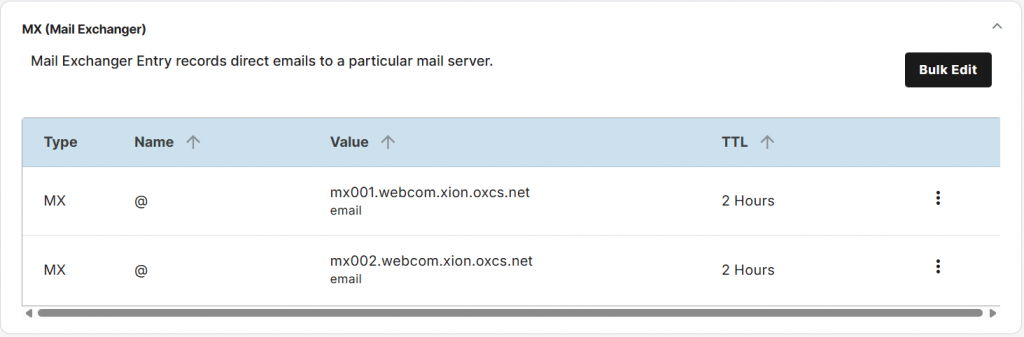
At some point in the setup, Google will ask you to add or update specific DNS records. This usually includes a TXT record to verify your domain and MX records to route your incoming email to Google. It might sound technical, but most domain providers make this fairly straightforward to update.
If you’re not sure where to find your DNS settings, it’s typically in the control panel of the service where you registered your domain. Once you have access, you’ll be able to seamlessly follow along with the setup.
A Google Workspace account
To use Gmail with your own domain for business, you’ll need a Google Workspace account. This is what allows your custom domain email to work fully in Gmail.
When you sign up for Google Workspace, you’ll connect your domain during the setup process and create an admin account. This is where you’ll manage your email accounts, add users, and control how your email is set up across your business.
Everything is in one place, including Google’s business and productivity tools, making it easier to manage your day-to-day operations. If you’re setting this up for your business, you can get started with Google Workspace and connect your domain in one place through Network Solutions.
How to set up Gmail with your own domain name
Once you have everything ready, setting up Gmail with your own domain is straightforward. You’ll connect your domain to Google Workspace, verify ownership, and update a few settings so your email starts working properly.
None of these steps is overly complicated, but they do need to be done in the right order. The sections below walk you through how to get your custom email address up and running without too much headache.
- Register or choose your domain
- Sign up for Google Workspace
- Verify your domain ownership
- Update your MX records to route email to Google
- Create your custom email address
- Start using Gmail with your branded address
Step 1: Register or choose your domain
Start by choosing the domain you want to use for your email. If you already have a domain for your business, you can use that and move on to the next step.
If you don’t have one yet, you’ll need to register a new domain through a domain registrar. It’s worth going with a trusted provider so you can manage your domain and DNS settings without issues later on. If you need help getting started, you can follow this guide on how to register a domain name.
When choosing a domain, make sure it matches your business name, is easy to remember, and is easy to spell. This is the same name your customers will see in your email address, so it should feel natural and recognizable. If you’re unsure what works best, this domain name guide for small businesses can help you make a more confident choice.
Once your domain is ready, you can use it during the Google Workspace setup to connect your email and start creating your custom email address.
Find the perfect domain
Ready to register a domain name? Check domain availability and get started with Network Solutions today.
Step 2: Sign up for Google Workspace
Next, sign up for a Google Workspace account. This is where you’ll connect your domain and set up Gmail, so you can have a custom email address with this provider.
During the signup process, you’ll be asked to enter your domain, choose a plan, and create your admin account. This admin account is what you’ll use to manage your email, add users, and control your setup moving forward.
Once that’s done, Google will start guiding you through the setup, including verifying your domain and configuring your email.
Step 3: Verify your domain ownership
Once your account is set up, you’ll need to verify that you own your domain. This is how Google confirms that you’re authorized to use that domain for your email.
This is done by adding a TXT record to your domain’s DNS settings. Google will give you a specific TXT value to copy, and you’ll paste that into your DNS panel, where your domain is managed.
If your domain is hosted with Network Solutions, here is how to find your DNS settings in your Network Solutions account. The process is essentially the same as with other service providers. If you’re having trouble finding it, you can ask your domain host for help or look for a guide on their knowledge base.
It might look a bit technical at first, but it’s usually just a matter of copying and saving the right information.
You’ll see the instructions during your Google Workspace setup, but you can also review them in this knowledge base.
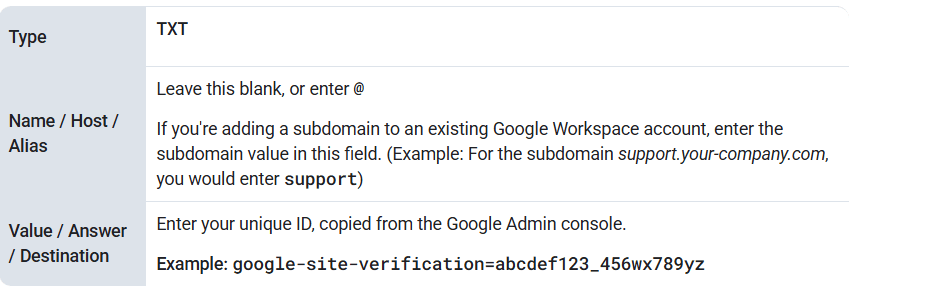
After you add the record, it may take a little time for the changes to go through. Once Google detects it, your domain will be verified, and you can move on to the next step.
Step 4: Update your MX records to route email to Google
Next, you’ll update your domain’s MX records. This is what tells the internet where your incoming email should go.
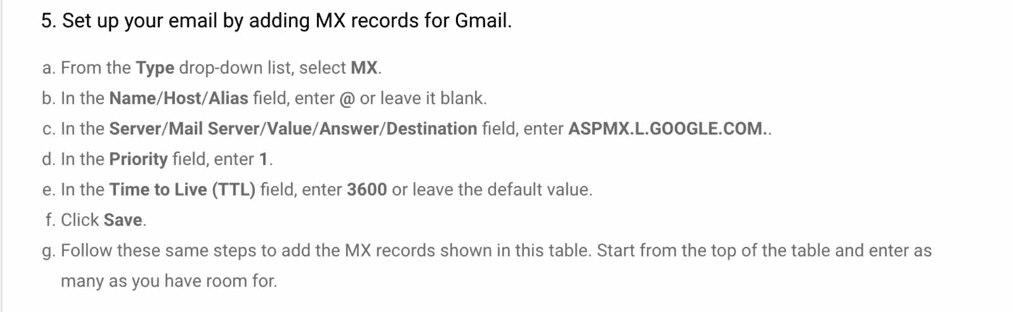
By default, your domain might not yet be set up to handle email through Google. During this step, Google will provide a set of MX records, as shown in the image above, to add to your DNS settings. You’ll either replace existing records or add new ones, depending on how your domain is currently configured.
If your domain is managed through Network Solutions, you can follow this guide to manage your DNS records and add the required MX entries. The steps are similar across most providers, but the settings layout may look slightly different.
Once these records are in place, your email will start routing to Gmail instead of another mail server. If the MX records are entered incorrectly, emails may not be delivered at all, so it’s worth double-checking everything before saving.
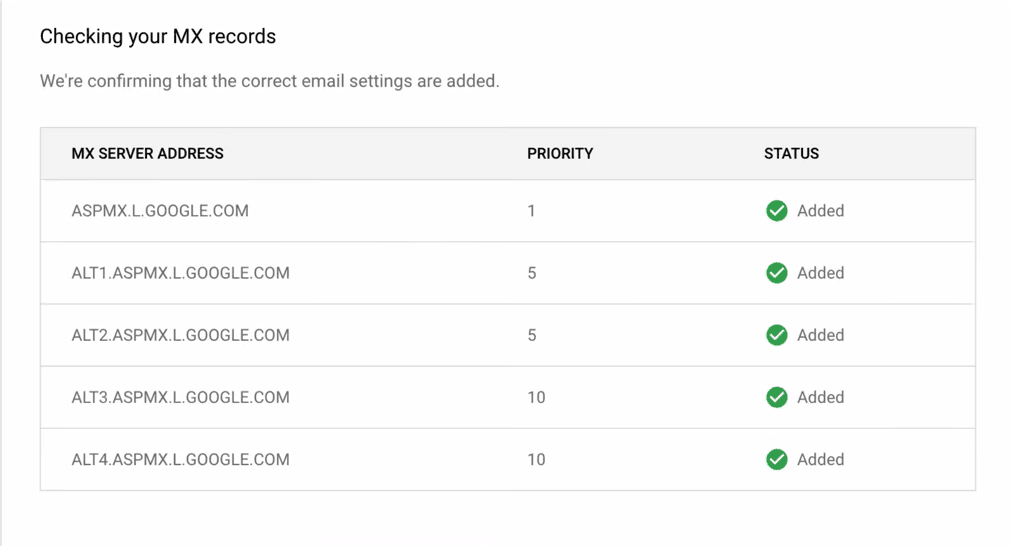
Google also shows a status in the setup process to let you know if your MX records have been added correctly. If something’s off, it will prompt you to review and fix it before moving forward, so you’re not left guessing whether the setup worked.
Like the previous step, changes here don’t always take effect immediately. It can take a few hours, sometimes up to a day, for everything to fully update. Once it’s done, your email will be set up and ready to receive messages in Gmail.
Step 5: Create your custom email address
Once your domain is verified and your MX records are set up, you can start creating your custom email address.
This is where you’ll set up a custom email address ([email protected]) inside your Google Workspace account. If you’re running the business on your own, this will usually be your primary email. If you have a team, you can create additional accounts for different roles or team members.
It’s also a good idea to consider how you want to structure your emails. Some businesses keep it simple with names, while others add addresses like support@ or sales@ to organize communication with different functions within your organization. You can always add more accounts later, so you don’t need to set everything up all at once.
Step 6: Start using Gmail with your branded address
At this point, your setup is complete, and you can start using Gmail with your custom email address.
Before you fully switch over, it’s a good idea to test everything. Send a few emails to and from your new address to make sure messages are being delivered correctly and not landing in spam. This also helps you catch any setup issues early.
To improve deliverability, we suggest setting up Sender Policy Framework (SPF) and DomainKeys Identified Mail (DKIM) records for your domain. These help verify that your emails are coming from a trusted source, reducing the chance that your messages will be flagged as spam. Google Workspace provides the details you need for this inside the admin setup. They also have the following guides:
You can also start updating your email across your business. Add your new address to your website, business profiles, and email signature so customers see the correct contact information moving forward.
If you’ve been using a personal Gmail account before, consider setting up forwarding or an auto-reply to guide people to your new address.
Once that’s in place, you can begin using your branded email as your main point of contact. Over time, this becomes part of how customers recognize and trust your business.
Are there other ways to use Gmail with a custom domain
There are other ways to use Gmail with a custom domain, especially if you’re trying to keep costs low. Some setups involve using the free email forwarding service from your email provider to forward emails to a free Gmail account, then using SMTP settings to send messages from your custom address.
This can work for basic use, but it usually comes with limitations. You may run into issues with replying from your custom address, managing multiple users, or keeping your emails out of spam. In some cases, email authentication may not be properly configured, leading to messages being flagged or filtered. Fixing this often means adding paid email services or going through a more complex setup.
For business use, Google Workspace is the more reliable option. It gives you full control over your email, better deliverability, and an easier-to-manage setup that adapts to your needs.
Common mistakes to avoid
Even though the setup is fairly straightforward, a few small mistakes can prevent your email from working properly.
Most of these issues come down to:
- Skipping domain verification steps
- Entering the wrong MX records
- Expecting DNS changes to work instantly
- Using a free workaround for business-critical email
Knowing what to watch out for ahead of time can save you from having to go back and troubleshoot later.
Skipping domain verification steps
One of the most common issues is failing to complete the domain verification step properly. Google needs to verify domain ownership to confirm that you own the domain and that no one else is using it within Workspace before it can activate your email. This requires adding the correct TXT record that Google provides to your domain host.
If the value is copied incorrectly or placed in the wrong field, the verification will fail, an error message will appear, and you won’t be able to move forward. It’s also easy to overlook small details, such as extra spaces or missing characters, which can cause errors.
Take a moment to double-check the record before saving it, and give it some time to update. Once it’s set correctly, the rest of the setup becomes much easier.
Entering the wrong MX records
Another common issue is entering the wrong MX records or leaving old ones in place. These records control where your incoming email is sent, so even a small mistake can stop messages from reaching your inbox.
When updating your domain’s MX records, make sure you use the exact values Google provides. It’s also important to remove any existing MX records that point to a different mail server, as they can conflict with your setup.
If something doesn’t look right, double-check the priority, time-to-live (TTL), and server address values in your DNS settings. Getting your MX records right is what ensures your email is delivered properly, so it’s worth taking a few extra minutes to review everything before saving.
Expecting DNS changes to work instantly
It’s easy to expect everything to work right after you make changes in your domain management settings. But DNS updates don’t happen instantly.
When you add or update DNS records, like TXT or MX records, it can take some time for those changes to fully propagate across the internet. In most cases, this happens within a few hours, but it can take 24 to 48 hours, depending on your domain host.
If things don’t work right away, it doesn’t always mean something is wrong, especially if you’ve verified that all the values you provided were correct. Give it a bit of time before making changes again, and avoid repeatedly editing your DNS records, as this can reset the waiting period and further slow things down.
Using a free workaround for business-critical email
Free workarounds can seem like an easy way to get started, especially if you’re trying to avoid paying for email hosting. In some cases, forwarding emails to a free Gmail account and sending them through an SMTP server can work for basic use.
But once you start relying on email for your business, these setups can become limiting. You might run into issues with sending from your custom address or keeping your emails out of spam. Since everything isn’t fully integrated, it can also be harder to maintain as your business grows.
Another issue to watch out for is email authentication. With these setups, SPF and DKIM aren’t always configured properly, which can cause your emails to be flagged as spam or rejected altogether. While Gmail may work without SPF and DKIM initially, Google strongly recommends setting them up to avoid spam issues. Fixing this usually means manually adding DNS records or bringing in third-party tools, which adds complexity to a setup you chose specifically to keep things simple.
If email is an important part of how you communicate with customers, it’s usually worth using a setup that’s designed for it. A Google Workspace account gives you more control and a smoother experience without the need for extra workarounds.
Frequently asked questions
Yes, it’s possible to use Gmail with your own domain name for free, but it usually involves workarounds. Some users set up email forwarding from their domain to a free Gmail account and configure SMTP for sending.
While this can work for basic use, it’s not the same as a full business-ready setup. You may run into limitations along the way, especially when using it for a full-time business. For a more reliable and professional setup, most businesses use Google Workspace.
You don’t strictly need Google Workspace to create a Gmail custom domain setup, but it’s the most complete option. It allows you to fully connect your domain to Gmail and manage everything through a Google Workspace account.
To connect Gmail to your domain, you’ll need to update a few DNS records. The most important ones are the TXT record and MX records. The TXT record is used to verify your domain ownership, while the MX records are what route incoming email to Gmail. Google provides the exact values during setup, so you’ll just need to copy and add them to your domain host’s DNS settings.
The initial setup can be done fairly quickly, especially once you’re inside the Google Admin Console. Creating your custom email and connecting your domain usually only takes a short time.
However, changes to your DNS settings after adding the required MX and TXT records can take longer to apply. In some cases, it may take a few hours or up to 24 to 48 hours for everything to fully propagate. It’s best to wait a bit before troubleshooting if things don’t work right away.
Yes, you can create multiple email accounts using the same domain. This is useful for businesses that want separate inboxes for different business functions or company team members. For example, you can set up addresses such as [email protected] and [email protected], or individual email accounts for each team member.
Get ready to start using Google Workspace
A Gmail custom domain name isn’t just a small upgrade. It changes the entire image of your business. When your email matches your domain, people take you more seriously and see your business as something established.
The setup itself is straightforward, but the approach you choose matters. You can rely on workarounds or set things up properly from the start. With your own domain and a Google Workspace account, you get a setup that’s easier to manage and more reliable as your business grows.
If you’re ready to move forward, start by securing your domain and setting up Google Workspace through Network Solutions. It’s a direct step toward a more professional setup that keeps everything connected and ready as your business moves ahead.
Set up your business email the right way.
Connect your domain to Gmail and manage your business email with tools designed for how you work.
- Get Gmail with your domain name, plus access to Google’s business tools.
- Manage email, storage, calendars, and docs in one place.
- Collaborate with your team in real time from anywhere.
- Experience custom-branded Gmail with reliable support from Network Solutions.