


Key takeaways:
- You need a personal Facebook account to access a Facebook Business Page. Business Pages don’t have separate login information or passwords.
- Make sure you’re logged in to the right Facebook account before looking for your Business Page on desktop or mobile.
- You can access your Facebook Business Page through Facebook’s Pages section, the menu panel, or the Meta Business Suite app.
Do you need help with your Facebook page login so you can access your Facebook Business Page from home, work, another country, or another device? This guide is for small business owners and employees who need a simple way to log in and manage a business Page without getting lost in Facebook’s menus.
Here is a list of devices that will be covered in this article:
- Desktop, Mac
- Desktop, Windows
- Mobile, iPhone
- Mobile, Android
This guide also covers how to access your Facebook Business Page in different regions from desktop or mobile.
Regardless of which device you’re on or where you are, to access your Facebook page, you have to:
- Log in to your personal Facebook account
- Have permission to access the Business Page, either as the Page’s administrator or through access granted by an administrator
If you don’t have a Facebook account, you won’t be able to create a Facebook Business Page or access anyone else’s.
Disclaimer: Steps are current at the time of writing, but may change at any time without prior notice.
Find the perfect domain
Ready to register a domain name? Check domain availability and get started with Network Solutions today.
How to create a Facebook page
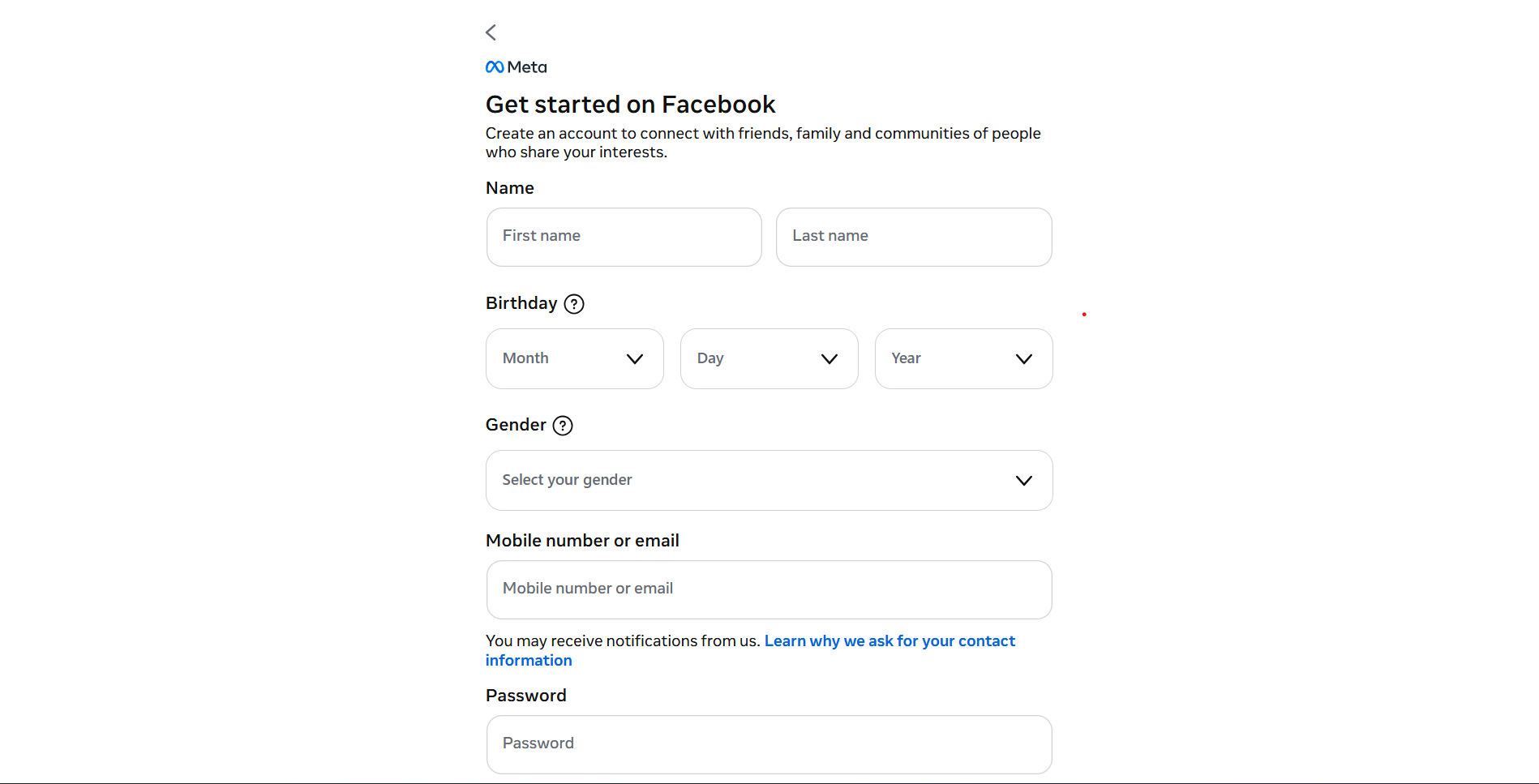
If you don’t have a personal Facebook profile yet, you can create one for free by following these easy steps:
- Go to Facebook.com.
- Complete the following information and then click Create new account button:
- First name
- Last name
- Email or mobile number
- New password
- Birthday (Month, Day, Year)
- Gender
Once you’ve set up a Facebook page, you might need to gain access to an existing Facebook Business page—either for yourself or on behalf of your employer. The following are ways you can get access:
How to access your Facebook page on desktop – Mac or PC (Chrome browser)
There are three ways to access your Facebook business pages once you log into your account on the Facebook website.
- Option 1: Via the Home tab dropdown menu.
- Option 2: Through the Explore section in the left-hand column.
- Option 3: Using the menu panel.
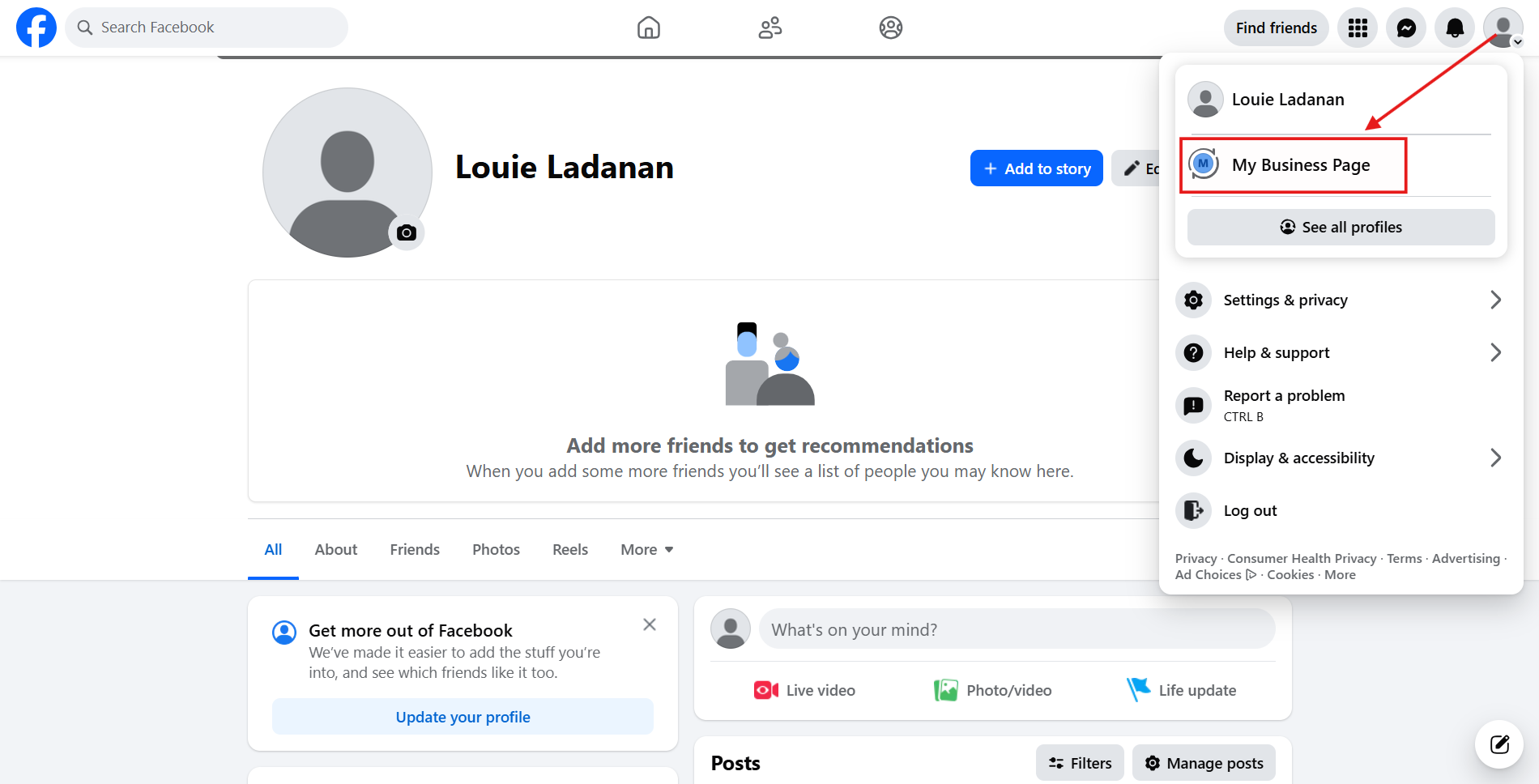
Option 1: Via the Home tab dropdown menu
If you are already logged into Facebook, go to the Hometab and click the arrow in the top right corner. When the drop-down menu expands, you’ll see the pages to which you have admin access.
Option 2: Through the Explore section in the left-hand column
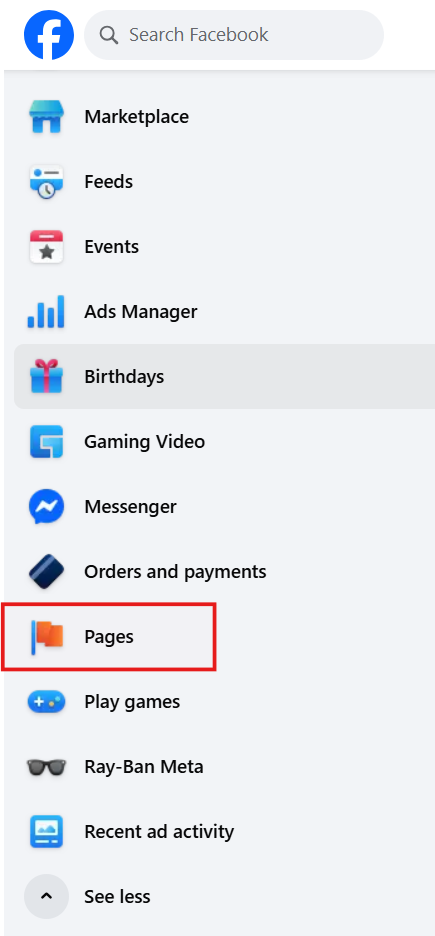
Another way to access your pages is on the left-hand column of your Facebook interface. Make sure you’re on your Facebook Home page first. If you can’t see Pages, click See more.
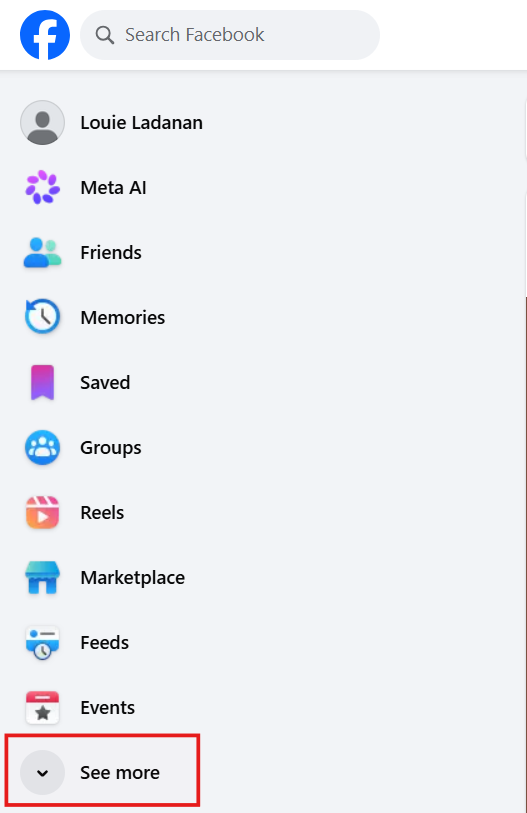
Then, click on Pages, with the little flag icon, and it will list all of them for you:
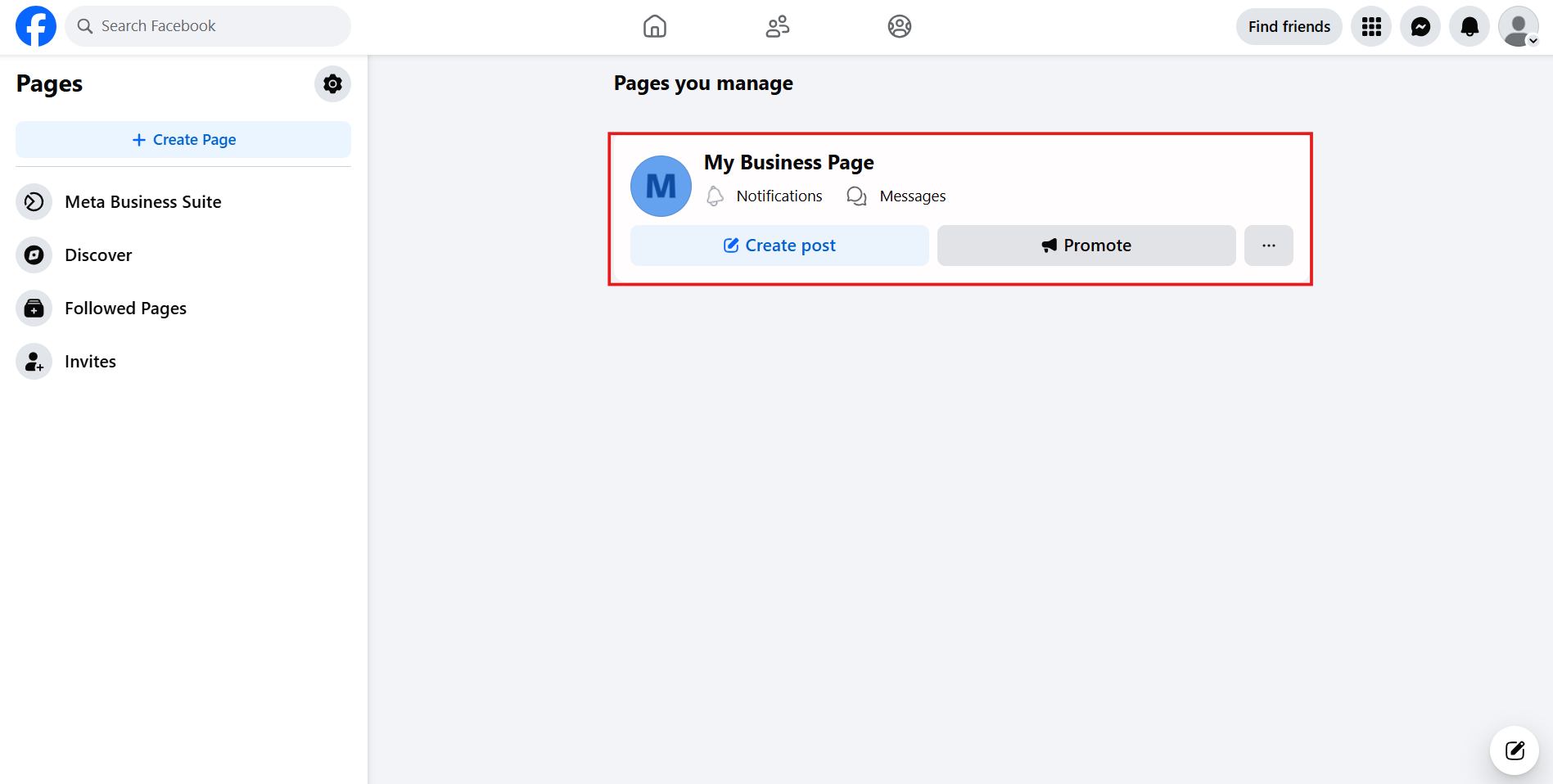
You will see the page shown below. Click on whichever Facebook Business page you want to access.
Option 3: Using the menu panel
You can also access your Facebook Page by clicking on the menu icon (the nine-dot grid) in the upper-right corner of your screen. A panel will slide out or pop up with various options. Look for and select Pages, represented by a small flag icon. This will direct you to a page displaying all the Facebook Business pages you have access to.
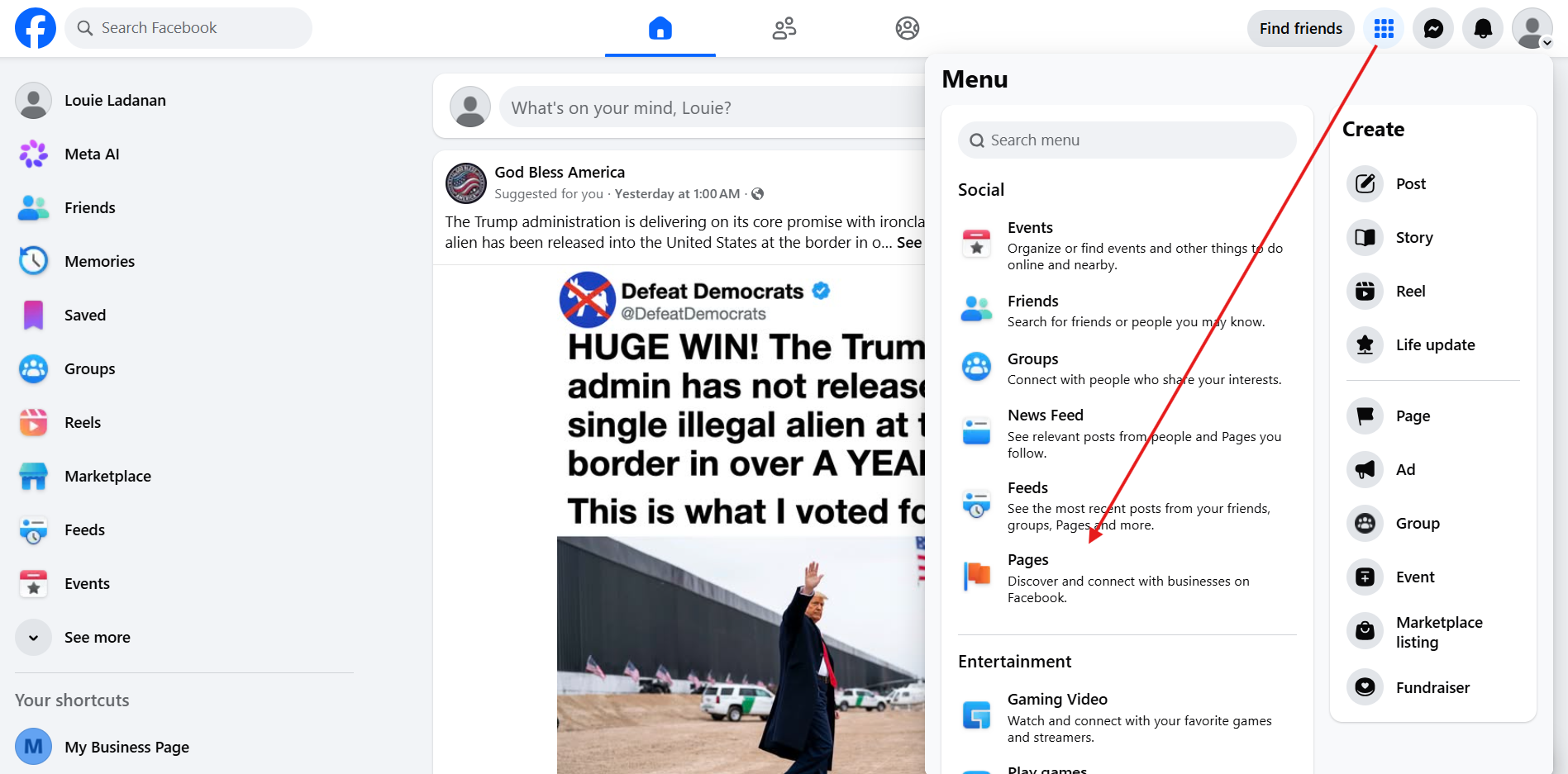
If you can’t find the Pages option immediately, scroll through the menu list or use the search bar at the top for quick access.
How to access your Facebook Business page on a mobile device (iPhone instructions)
To access and manage your Facebook Business page directly through the standard Facebook app on your iPhone, follow these steps:
- Open the Facebook app on your iPhone.
- Ensure you’re logged in to the personal account with administrative access to your business page.
- Tap the Menu icon (three horizontal lines) in the bottom-right corner of the screen.
- A list of pages you manage will appear. Tap the business page you wish to access.
- Once on your business page, you can:
- Create and share posts.
- Respond to comments and messages.
- View notifications related to your page.
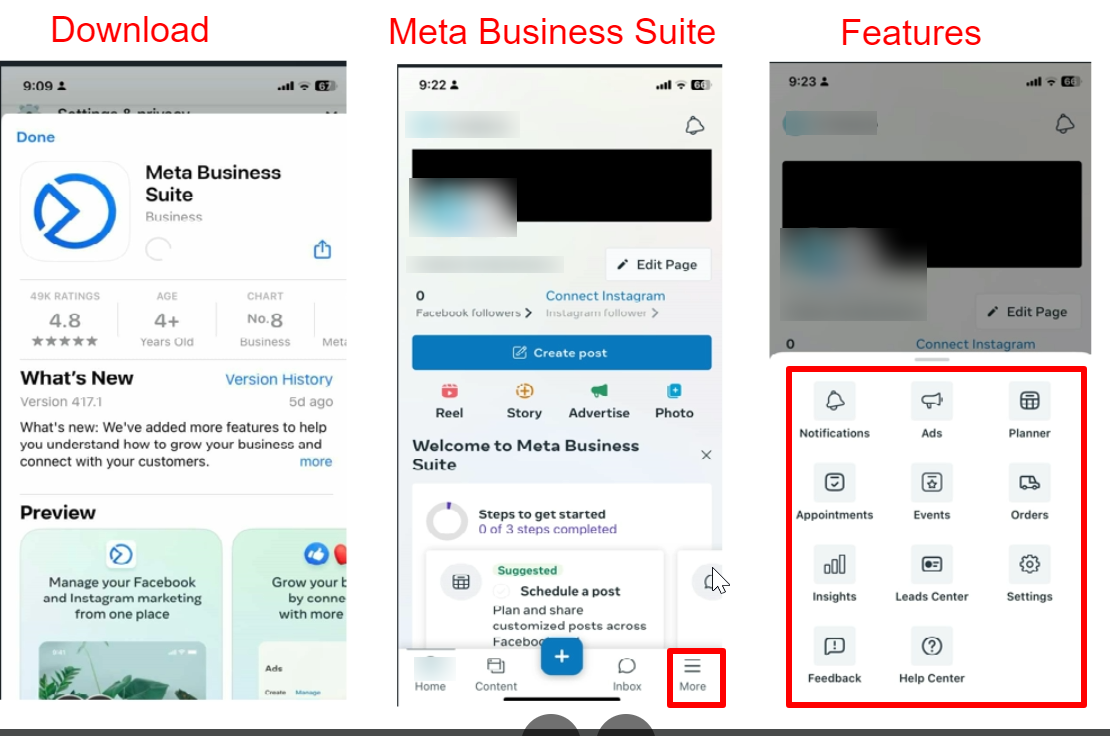
While the Facebook app allows basic management of your business page, for a more comprehensive set of tools—including scheduling posts, detailed insights, and cross-platform management with Instagram—it’s recommended to use the Meta Business Suite app. The steps below are also applicable for Android Users.
Here’s how:
- Open the App Store on your iPhone or the Play Store on Android and download the free Meta Business Suite app.
- Log in using your personal Facebook login information. Ensure that this account has administrative access to your business page.
- Once logged in, you’ll see a list of pages you manage. Then tap on the business page you wish to access.
- From here, you can:
- Create and schedule posts.
- Respond to messages and comments.
- View insights and analytics.
- Manage settings and roles.
The Meta Business Suite app provides a comprehensive platform for managing your business presence on Facebook and Instagram.
How to access your Facebook Business page on mobile (Android instructions)
If you’re using an Android device, you can access your Facebook Business Page through the Facebook app as long as you’re logged in to the account with the right Page permissions. Follow these steps to find and open your Business Page.
- Open the Facebook app.
- Log in to your personal Facebook profile.
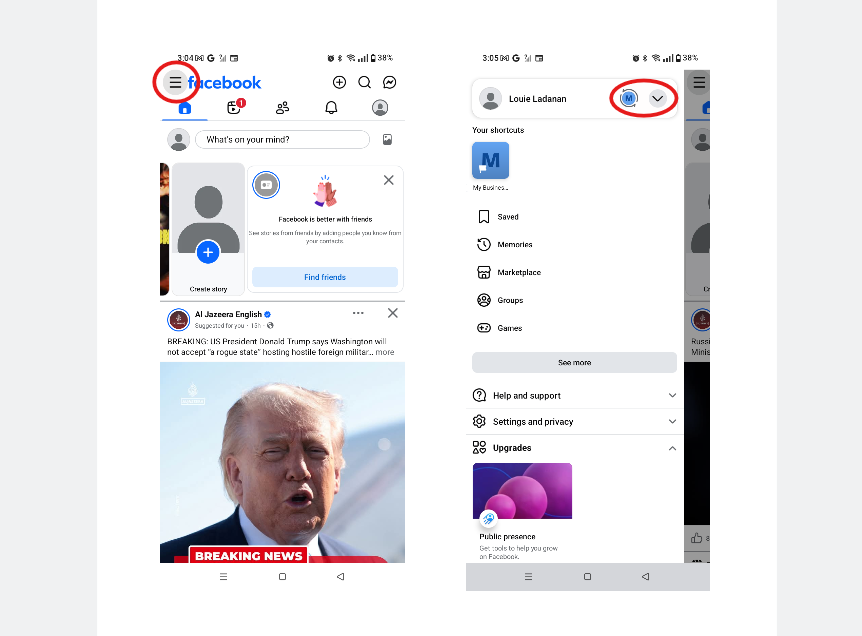
- Click the hamburger menu on the upper left side of your phone’s screen.
- You can access your Business Page in two ways: click the page icon if it appears on your screen, or open the dropdown menu and select the page from the list.
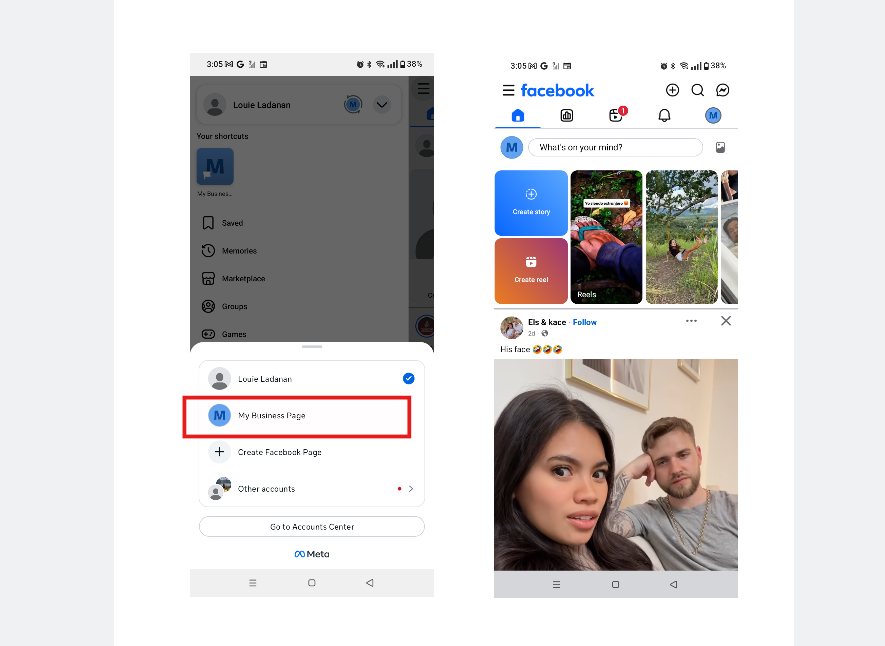
- Select your page from the list to open your Facebook Business page.
If you didn’t create the page you’re trying to access, you might have some problems performing certain actions. Check out Facebook’s article on how to request access to a Page in Meta Business Suite or Business Manager.
How to access a Facebook Business page for a different region (Desktop instructions)
Global brands often tailor their Facebook pages to resonate with local audiences, leading to different versions of the same page across regions. The Facebook page you encounter in one country might feature different content, promotions, and customer interactions than what you’d see in another. Each version is customized to reflect local preferences, cultural nuances, audience behavior, and the community it serves.
If you manage a Business Page, this is a good reminder that strong Facebook content isn’t one-size-fits-all. The posts that work best often depend on who you’re speaking to, where they’re located, and what kind of message feels relevant to them. For more practical tips, check out our guide on how to get better results from your Facebook posts.
The version of the Facebook Business page you select on the desktop will be the version you see in your Facebook mobile app. You’ll be able to see it in your news feed and on the business page itself.
To see your country’s version of a page on Facebook on a desktop computer:
- Click ••• (the three dots) below the page’s cover photo.
- Select Switch Region.
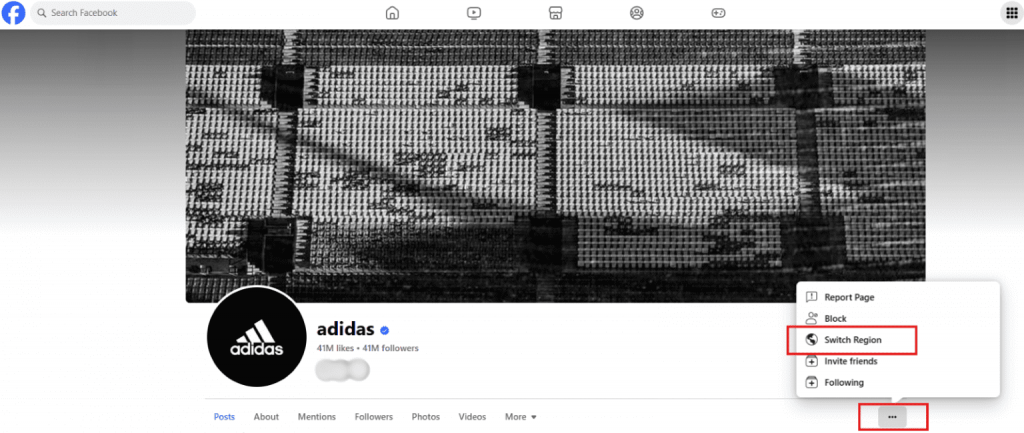
- Select the country you want as your default for the page.
- Click Save Preference.
Please note that if you ‘like’ a page while abroad, you may continue to receive updates tailored to the country you visited even after returning home. To stop these updates, simply follow the instructions provided above to switch the page back to your home country’s version.
If the Switch Region option isn’t available on your page, it could be due to the following reasons:
- Global pages structure: The Switch Region feature is typically available only for Facebook’s Global Pages, which offer localized versions for different regions. If your page is not part of this structure, the option won’t appear.
- Page settings: If your page was created as a single, local page, it won’t include region-switching options. Global Pages are generally available to larger companies with multi-region reach and often require coordination with Facebook.
- Limited access: Only brands with a significant international presence can access the Global Pages feature. Local or national businesses may not qualify for this option.
To enable Global Pages, you may need to contact Facebook support or work with a Facebook account manager if your business meets the criteria for international targeting.
Frequently asked questions
To log in to a Facebook Business Page, sign in to the personal Facebook account that has access to the page. From there, go to Pages on desktop or tap the Menu icon on mobile, then select the Business Page you want to manage. If the page doesn’t appear, check that you’re using the right account and that an administrator has granted you access.
Your Facebook Business page doesn’t have a separate password. Instead, access it through your personal Facebook account. If you forgot your username, email, or phone number connected to your personal account, use Facebook’s account recovery steps:
1. Click Forgot Password on the Facebook login page.
2. Follow the recovery steps using your email or phone number.
3. Once logged in, you can access your business page using any of the methods described above.
Yes. A Facebook Business Page does not have its own separate login. You access it through the personal Facebook account that has permission to manage the Page.
No, you must be logged into your personal Facebook account to access your business page. This is a Facebook requirement for security and management purposes.
After logging in, open the Menu or Pages section on Facebook, then choose the Business Page you want to manage. You can also use Meta Business Suite if the Page is connected to a business portfolio.
1. Go to your Facebook Business page.
2. On the top right drop-down menu, click Settings & privacy. Additional options will appear. Click Settings again.
3. Select Page Setup from the left sidebar menu, then click Page Access.
4. Click Add New and choose the person you want to grant access to your page.
5. Turn on the allow button. Then, click Give Access.
Note: The person you grant access to will have full control of your Facebook page and can also remove your admin access.
If you can’t see your page on mobile:
1. Ensure you’re logged into the correct Facebook account.
2. Check if you have the proper admin permissions.
3. Try reinstalling Meta Business Suite.
4. Clear your app cache and data.
5. Check your internet connection.
Not always. You can often access your Business Page directly through Facebook, but Meta Business Suite gives you more tools for managing posts, messages, insights, ads, and permissions from one place.
Build a stronger online presence beyond Facebook
Once you know where to find your Facebook Business Page, managing it from any device gets easier. Just make sure you’re logged in to the right personal Facebook account, have the correct Page access, and choose the right Business Page.
From there, you can spend less time finding your page and more time building your business online. Your Facebook Business Page helps you stay visible, while your website provides a stronger foundation for your business to grow from.
If you’re ready to strengthen that foundation, we can help with the next steps. You can transfer an existing domain, set up professional email, or choose hosting for your website. Plus, every domain purchase comes with marketing tools like the Link in Bio, Social App, and Marketing Calendar to help you plan posts, organize campaigns, and promote your business more consistently.
Bring your domain, website, and business tools together.
Transfer your domain to Network Solutions and manage everything from DNS and security to hosting and email in one place.