

Key takeaways:
- An SSL certificate error appears when a browser can’t verify a website’s security certificate.
- Common SSL certificate errors can be resolved by identifying their cause, which is typically indicated by the browser error message.
- Proactive monitoring and using trusted SSL providers reduce the risk of recurring SSL certificate errors.
Trust can disappear in a matter of seconds. One security warning is all it takes for a visitor to question whether your website is safe to use.
SSL certificate errors trigger those warnings. Even when the issue is minor or temporary, browsers and users take it seriously. For website owners, that can mean lost credibility before a page even loads.
Here, you will learn what causes SSL certificate errors, how to fix them as a site owner or visitor, and how to prevent them from happening again.
What is an SSL certificate error?
An SSL certificate error occurs when a browser cannot verify that a website has a trusted, correctly configured, or valid SSL certificate. When this happens, the browser warns users that the connection may not be secure.
In other words, the browser is checking whether your website can safely encrypt data between the visitor and the server. This check verifies that the certificate originates from a trusted authority, matches the website’s domain, and has not expired or been tampered with.
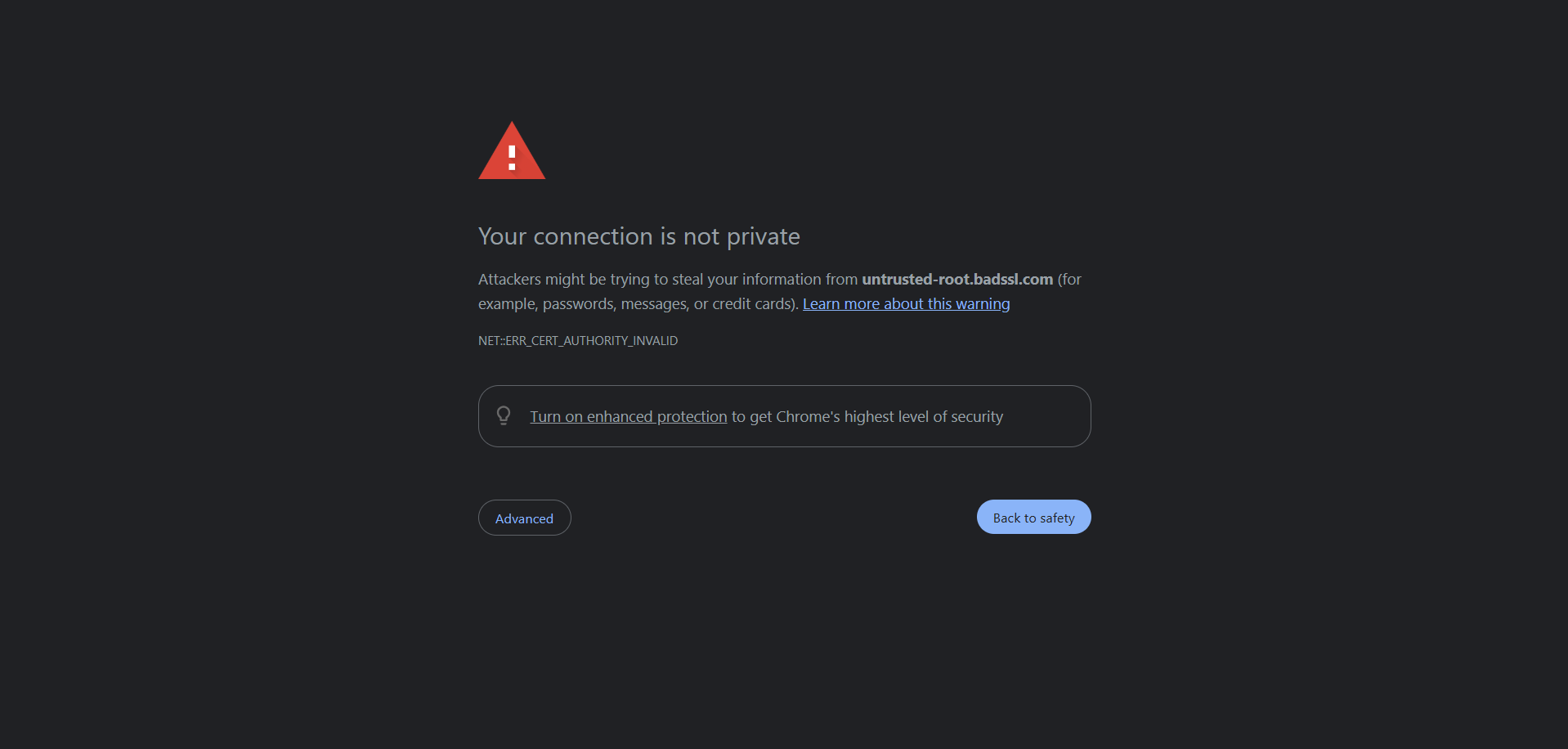
When any of these checks fail, users may see messages such as “Your connection is not private,” “This site is not secure,” or “SSL certificate not trusted.” The wording varies per browser, but the message is clear: something about the website’s security cannot be confirmed.
Why SSL matters for your website
SSL matters because it enables secure, encrypted connections between your website and its visitors. Without SSL, sensitive information such as passwords, personal details, and payment data submitted on a website can travel in plain text, making it easier for attackers to intercept or tamper with that data.
SSL certificates help prevent these kinds of security threats and allow browsers to confirm that a site is legitimate and safe to use.
Beyond security, SSL affects how users perceive the reliability of your site. Most modern browsers display clear warnings when a connection isn’t secure, and users often take those messages seriously, abandoning sites that trigger them. An SSL certificate error can therefore damage first impressions and reduce engagement, even if your content or service is valuable.
Search engines also factor HTTPS (the “secure” version of Hypertext Transfer Protocol (HTTP) enabled by SSL) into their ranking signals. This update means that sites with valid certificates benefit from better visibility compared to those with unsecured ones. For these reasons, maintaining a trusted SSL certificate is important for establishing trust, enhancing user experience, and maintaining overall credibility.
What causes an SSL certificate error?
An SSL certificate error happens when a browser detects an issue with a website’s security certificate. While the warning may look serious, the underlying causes are often common configuration problems.
Below are the most common reasons SSL certificate errors occur:
- Expired certificates
- Self-signed or untrusted authorities
- Mismatched domain names
- Incomplete installation or chain errors
Expired SSL certificates
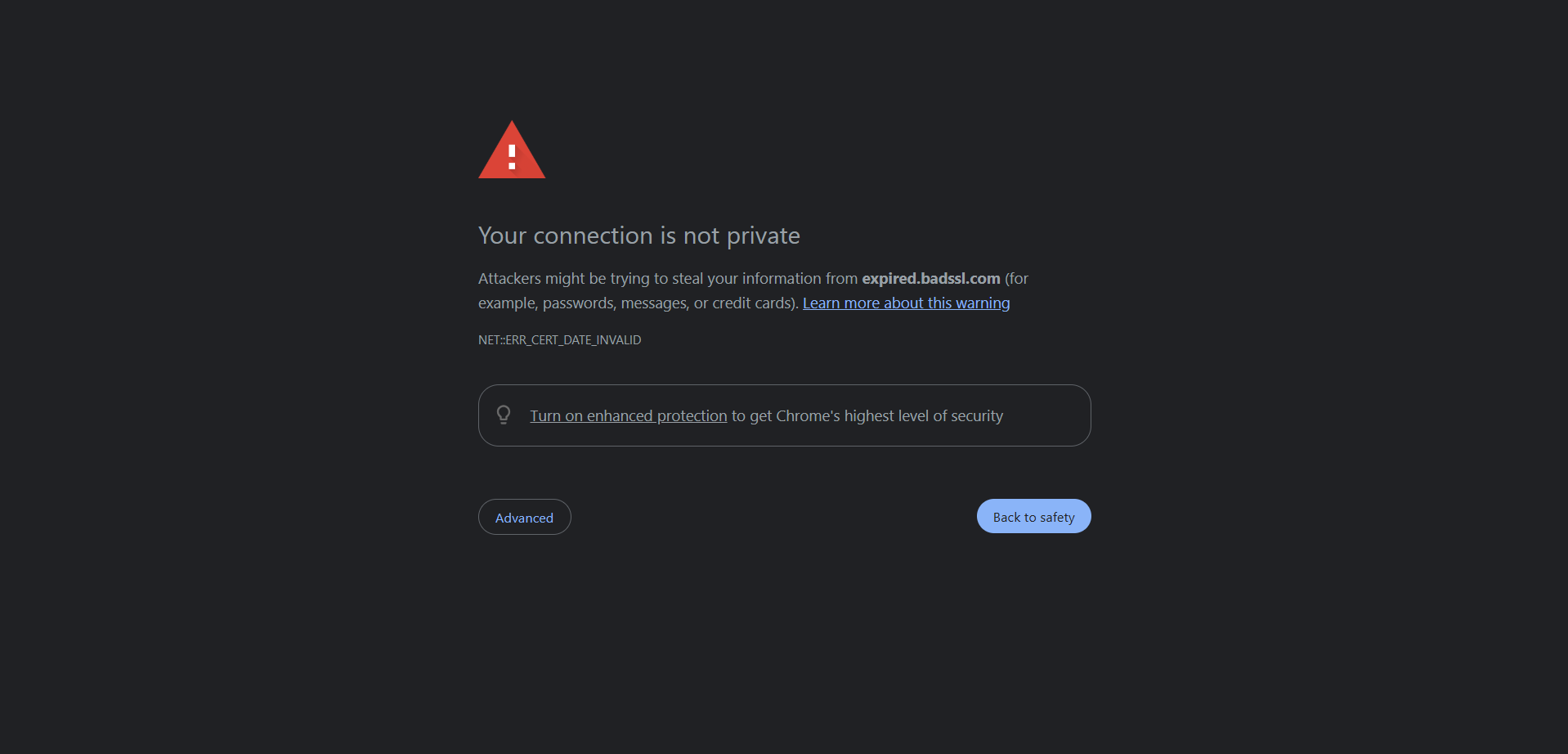
SSL certificates are only valid for a specified period. If a certificate expires and is not renewed, browsers will no longer trust it, and visitors will be displayed a warning.
Self-signed or untrusted certificate authorities
Browsers trust certificates issued by recognized certificate authorities. If a site uses a self-signed certificate or one issued by an authority the browser does not recognize, users will see an “SSL certificate not trusted” warning or a variation of this warning, even if the site itself is legitimate.
Mismatched domain names
An SSL certificate must match the exact domain it is intended to protect. If the certificate is issued for one version of a domain but the site loads a different version, the browser will flag it as a mismatch and block the connection.
For instance, if the certificate covers example.com but the website loads www.example.com, the browser will treat this as a mismatch and display an SSL warning. This can also happen if a visitor types a different domain extension, makes a spelling mistake in the URL, or if the certificate does not include all public-facing versions of the site.
In some cases, outdated web server settings can contribute to these errors by preventing the browser from matching the correct certificate to the requested domain.
Incomplete installation or chain errors
SSL certificates rely on a chain of trust made up of supporting certificates that help browsers verify a site’s legitimacy. An incomplete installation occurs when these intermediate certificates are missing, outdated, or installed incorrectly.
SSL certificates rely on intermediate certificates to connect your site’s certificate to a trusted root certificate. If that connection is incomplete, browsers can’t verify the certificate and will display a security warning.
This often occurs during setup or renewal, but it’s a common issue that is usually fixable with the right configuration updates, which we’ll cover later in this guide.
Common types of SSL certificate errors
There are several common SSL certificate errors that browsers display when issues arise during certificate validation. Each one points to a specific issue with how the SSL certificate is configured or maintained.
Understanding these error types makes it easier to identify what’s causing the warning message and decide which fix applies to your situation.
Below are the most common SSL certificate errors you may encounter, along with what each one typically means:
- SSL certificate not trusted
- Name mismatch
- Expired certificate
- Mixed content
- SSL protocol error
SSL certificate not trusted
This error indicates that the browser cannot verify that the certificate was issued by a trusted certificate authority.
It often occurs when the website uses a certificate that browsers don’t automatically trust. For example, a self-signed certificate created by the user, instead of one issued by a recognized authority. It can also occur when the server fails to send all the supporting certificates (called intermediates), so the browser can’t verify the full trust chain.
As a result, browsers warn users that the site’s identity cannot be confirmed, even if the site itself is legitimate.
Name mismatch error
A name mismatch error occurs when the domain name in the browser does not match the domain listed on the SSL certificate.
For example, if a certificate is issued for example.com but the site loads www.example.com, the browser treats this as a mismatch and blocks the connection. This can also happen when domain variations, subdomains, or public-facing URLs are not included in the certificate.
Expired SSL certificate error
An expired certificate error occurs when an SSL certificate has expired and has not been renewed.
Browsers check certificate expiration dates automatically. Once a certificate expires, users will see a security warning until it is renewed or replaced, even if nothing else on the website has changed.
Mixed content warning
Mixed content warnings occur when an HTTPS page loads resources, such as images, scripts, or stylesheets, over an unsecured HTTP connection.
This is common on older sites or blogs where links were never updated after SSL was enabled. Even though the page itself uses HTTPS, loading insecure elements can still trigger browser warnings.
SSL protocol error
An SSL protocol error typically indicates a server-side configuration issue. It can happen when the server uses outdated security protocols, unsupported encryption settings, or incorrect SSL configurations.
How to fix SSL certificate errors (for website owners)
If you manage a website, SSL certificate errors typically indicate a configuration, renewal, or setup issue rather than a serious security breach. The key is to identify what’s causing the warning message and apply the right fix based on that cause.
The steps below walk through the most common fixes website owners can apply to resolve SSL certificate errors and restore a secure connection.
- Check SSL installation.
- Renew or reissue the certificate.
- Resolve domain mismatch.
- Install intermediate certificates.
- Fix mixed content.
- Upgrade hosting/server settings.
Step 1: Check if your SSL is installed and valid
Start by confirming that your SSL certificate is properly installed and currently valid. You can do this using an SSL checker tool. The tool displays the expiration dates, issuing authorities, and indicates the full certificate chain.
If the tool detects an error, it will provide a hint on where the issue lies and what you should do to resolve it.
Step 2: Renew or reissue your SSL certificate
An expired certificate will trigger a “ERR_CERT_DATE_INVALID” error in the browser. SSL checker tools will also detect this issue. If your certificate has expired, been revoked, or was issued incorrectly, renewing it is the fastest fix.
The steps may vary slightly depending on your certificate provider or the server where the certificate is installed. But the general steps include:
- Logging into your certificate or hosting account
- Selecting the affected domain or SSL certificate
- Generating or confirming a certificate signing request (CSR)
- Renewing or reissuing the certificate
- Installing the updated certificate on your server
- Verifying the installation to confirm the error is resolved
You can reach out to your provider for the specific steps or check their knowledge base, such as DigiCert’s or GlobalSign’s documentation.
Step 3: Fix domain mismatch issues
Check that your SSL certificate covers all public-facing versions of your domain. This includes variations such as www and non-www versions, subdomains, or alternate domain extensions you actively use.
If needed, set up proper redirects or use certificates that support multiple domains, such as SAN or wildcard SSL certificates, to prevent mismatch errors.
Step 4: Install intermediate certificates
SSL certificates rely on intermediate certificates to complete the trust chain between your site and a trusted authority. If these are missing or installed incorrectly, browsers will display “not trusted” or “incomplete chain” warnings.
Installing the correct intermediate certificates on your server allows browsers to verify your certificate without errors. These certificates are usually provided by your SSL certificate issuer or hosting provider and can be downloaded as part of a CA bundle or installation package for your domain.
Step 5: Fix mixed content issues
Mixed content errors occur when HTTPS pages load resources, including images, scripts, and stylesheet links, over HTTP. Review your site for any embedded content, links, or assets with HTTP URLs and update them to HTTPS.
For content-heavy sites, search-and-replace tools or CMS plugins can speed up this process. For instance, on WordPress, you can use a search-and-replace plugin to scan your database for HTTP URLs and update them to HTTPS in bulk.
Before making changes, it’s a good idea to back up your database so you can restore it if anything doesn’t update as expected.
Step 6: Upgrade hosting or server config
Some SSL errors, such as generic SSL protocol errors, are caused by outdated server settings, unsupported security protocols, or limitations in how SSL is handled at the hosting level. In these cases, adjusting server configurations, using a dedicated IP address, or upgrading your hosting environment may be necessary.
Web hosting with built-in SSL support can help reduce these issues, since certificate installation, updates, protocol compatibility, and IP-level requirements are often managed at the platform level. This lowers the risk of misconfiguration and helps prevent protocol-related SSL errors.
How to fix SSL errors as a site visitor
If you’re seeing an SSL certificate error as a visitor, the issue isn’t always caused by the website itself. Sometimes, local device or browser settings can interfere with how SSL certificates are checked and validated.
The steps below cover simple checks you can try to resolve SSL errors on your end before assuming the problem is with the site.
- Check device clock
- Clear browser cache
- Update browser
- Try another network
Step 1: Check your device’s date and time
Browsers rely on your device’s clock to verify whether an SSL certificate is valid. If your date or time is incorrect, even a valid certificate can appear expired or untrusted.
Ensure your device is set to automatically update the date and time, then refresh the page.
Step 2: Clear your browser cache and cookies
Outdated or corrupted cached data can cause browsers to load old SSL information. Clearing your cache and cookies forces the browser to recheck the site’s certificate.
After clearing your data, restart the browser and then revisit the site.
Step 3: Update or switch browsers
Older browser versions may not support newer security protocols or encryption standards. Updating your browser ensures it can properly validate modern SSL certificates.
If the error persists, try accessing the site using a different browser to see if the issue is browser-specific.
Step 4: Try a different connection
Some SSL errors are caused by network-level issues, such as restrictive firewalls, proxy servers, or public Wi-Fi configurations. Switching to another connection, such as mobile data or a trusted private network, can help confirm whether the issue is network-related.
How to prevent SSL certificate errors in the future
SSL certificate errors are often avoidable with the right configuration and follow-up checks. Paying attention to certificate status and validation can help reduce unexpected browser warnings.
The methods below focus on practical ways to maintain a properly configured SSL setup and prevent common certificate issues before they affect your site.
- Monitor expiration dates
- Validate after installation
- Use trusted providers
Monitor your SSL certificate
SSL certificates expire on a fixed schedule, and missed renewals are one of the most common causes of SSL errors. Regularly monitoring your certificate’s status helps you catch expiration issues early, before browsers start displaying warnings.
Many hosting platforms and certificate providers offer dashboards that make it easier to track expiration dates and take proactive action.
Validate SSL after installation
Whenever you install, renew, or reissue an SSL certificate, it’s important to verify that it’s functioning as expected. Running a quick validation check ensures the certificate is trusted, matches your domain, and includes the full certificate chain.
This extra step helps catch configuration issues early and gives you confidence that visitors will see a secure connection.
Choose a reliable certificate authority
Using SSL certificates from a trusted provider reduces the risk of validation errors and compatibility issues across browsers. Reliable hosting and certificate services also simplify installation, renewal, and updates, making it easier to maintain a secure setup over time.
When SSL management is built into your hosting environment, routine tasks such as renewals are easier to handle, allowing you to stay focused on running your website rather than troubleshooting security warnings.
Frequently asked questions
An SSL certificate problem means a browser can’t verify that a website’s security certificate is valid or trustworthy. This usually happens when the certificate has expired, is incorrectly installed, is issued by an untrusted authority, or doesn’t match the website’s domain. As a result, the browser shows a warning to protect users from potentially unsafe connections.
An SSL certificate may appear “not secure” if it has expired, is misconfigured, or if the website loads mixed content over HTTP. Browser warnings can also appear when the certificate isn’t trusted or when server settings don’t meet current security standards. Fixing the underlying issue usually restores the secure connection.
Fixing an SSL certificate error depends on the cause of the issue. Common fixes include renewing an expired certificate, correcting a domain mismatch, installing missing intermediate certificates, or updating server and hosting settings. If you’re a site visitor, checking your device’s date, clearing your browser cache, or switching networks can also help resolve the error.
Resetting an SSL certificate usually means reissuing or reinstalling it. Website owners can do this through their SSL provider or hosting account by generating a new certificate and installing it correctly on the server. This process helps resolve issues caused by expired, revoked, or misconfigured certificates.
SSL on iPhone email refers to encryption that protects emails as they are sent and received. When enabled, SSL ensures that email credentials and content are secure. If you see an SSL-related email error on an iPhone, it’s often due to incorrect mail server settings or an expired certificate.
A certificate error occurs when a browser or app can’t verify a website’s security certificate. Common causes include expired certificates, untrusted certificate authorities, domain name mismatches, missing intermediate certificates, or incorrect device date and time settings.
To make an SSL certificate trusted, it must be issued by a recognized certificate authority and installed correctly on your server. This includes matching the certificate to your domain, installing all required intermediate certificates, and keeping the certificate up to date. Once properly configured, browsers can verify the certificate and establish a secure connection without warnings.
Build trust with a secure website connection
SSL certificate errors can be disruptive, but they’re a sign that something needs attention. In most cases, they can be resolved by renewing certificates, fixing domain mismatches, completing the certificate chain, or adjusting server configurations.
By understanding what causes SSL errors, you’re better equipped to address issues quickly and prevent them from happening again.
If managing SSL certificates feels time-consuming, confusing, or tedious, working with a reliable provider can make a difference. We offer SSL certificates and web hosting with built-in SSL support, making installation and renewal easier. When issues arise, our technical support team is available to help resolve SSL problems promptly and ensure your site runs smoothly.
Get the SSL support you need to keep your website secure and accessible!