


Key takeaways:
- The “Your connection is not private” message points to a connection problem, not always an unsafe website.
- Most “your connection is not private” fix steps take only a few minutes and start with your browser, device, or network.
- A valid SSL certificate keeps your website secure and gives visitors more confidence every time they visit.
Ever see a “Your connection is not private” warning pop up and wonder what’s going on? You might question whether the website is safe, whether your data is at risk, or whether it’s only a temporary glitch.
Your browser shows this error message when it can’t verify a secure connection. Usually, that comes down to a problem with the website’s SSL certificate, or sometimes, the issue is on your device. The good news is that many of these problems are easy to fix.
Whether the warning starts with your browser or the website, the right fix depends on what’s causing it. For website owners, repeated warnings can reduce visitor confidence. This guide explains what the warning means, why it appears, and how both users and website owners can fix it.
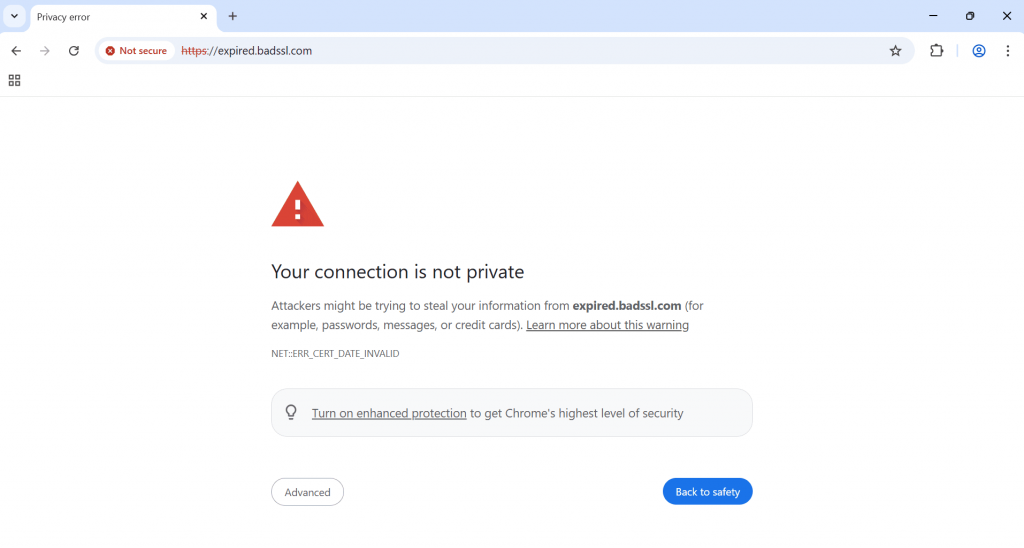
What does the “your connection is not private” error mean?
When you see the “Your connection is not private” warning, your browser is telling you it can’t confirm the website is really who it says it is, or that your information can travel through a secure, encrypted connection. Until it can verify that, it shows you the warning to protect your personal data.
One of the main things your browser checks is the website’s SSL certificate, also called a security certificate. It works like a digital ID card, proving the site’s identity and enabling HTTPS. A valid certificate lets your browser:
- Verify the website’s identity
- Create an encrypted connection
- Confirm the website is using HTTPS
- Protect your personal data while it’s being sent
That’s why it helps to know the most common reasons this verification fails, whether the cause is on your device or the website itself.
Give visitors one less reason to leave
A missing or expired SSL certificate can trigger browser warnings before visitors even reach your website. Network Solutions SSL Certificates help enable HTTPS, encrypt customer data, and keep your site ready for every visit.

How to fix “your connection is not private” errors
Before trying anything more advanced, start with a few simple checks. If you’re visiting a website, begin with the user fixes below. If you’re a website owner, skip to the second section to troubleshoot your site’s SSL certificate and HTTPS setup.
For users
Work through these steps one at a time. After each one, reload the page to see if the warning disappears.
- Reload the page: Sometimes the “Your connection is not private” warning is caused by a temporary glitch. Refreshing the page may be all you need to do.
- Check your computer’s date, system time, and time zone: An incorrect date or time can prevent your browser from verifying a website’s security certificate. Turn on automatic date and time if it’s available.
- Try Incognito mode or InPrivate mode: Open the website in an Incognito window or InPrivate mode. If it works there, your browser cache, cached data, or browser extensions may be causing the issue.
- Clear data from your browser cache: Old or corrupted cached data can trigger connection errors. After you clear the browser cache, reload the page and try again.
- Disable extensions: Some browser extensions, such as ad blockers, VPNs, or security tools, can interfere with secure connections. Temporarily disable extensions and test the website again.
- Try a different browser: Open the website in a different browser, such as Google Chrome or Microsoft Edge, to see if the problem is browser-specific.
- Update your browser: Make sure Google Chrome, Microsoft Edge, or your default browser is running the latest version to avoid compatibility issues.
- Check public Wi-Fi or network login pages: Some public Wi-Fi networks ask you to sign in before you can access the internet. Complete the login page or review your network settings if the warning appears on a public connection.
- Restart your device or router: A quick restart can fix temporary connection problems that prevent your browser from creating a secure connection.
Before you continue: Don’t enter passwords, payment details, or other personal information while the warning is displayed. Only choose Advanced or Proceed if you fully trust the website and understand the risks.
For website owners
If the warning is coming from your website, these checks can help you identify the cause. Go through them one at a time.
- Confirm your SSL certificate is installed: Make sure your certificate is active and correctly installed. Without a valid SSL certificate, visitors will see browser security warnings instead of your website.
- Check the certificate’s expiration date: An expired certificate is one of the most common causes of this error. Renew it before it expires to keep your website accessible and valid.
- Make sure the certificate matches your domain: Your website’s SSL certificate should cover the exact domain visitors use, including any subdomains if needed.
- Avoid self-signed certificates for public websites: Most browsers don’t trust self-signed certificates because they aren’t verified by a trusted certificate authority.
- Confirm your HTTPS redirects are working: Every page on your website should automatically redirect visitors from HTTP to HTTPS to maintain secure connections.
- Review your hosting and web server settings: Problems with your hosting account, web server, or content delivery network can affect encryption and prevent browsers from verifying your website.
- Contact your hosting provider or SSL provider if the issue continues: If you’ve checked everything and the warning is still there, your provider can help identify configuration issues and get your website working again.
Why it matters: Repeated browser warnings can send visitors elsewhere before your website even loads. If you want to prevent certificate-related warnings before they affect your business, Network Solutions SSL Certificates help keep your website secure and accessible.
Common causes of the “your connection is not private” error
The “Your connection is not private” warning isn’t always caused by the same thing. It could be something as simple as the wrong date on your device, time settings, or an expired SSL certificate on a website. Here’s where to look first.
User-side causes
Sometimes the problem is as simple as a setting on your device or browser. Before assuming the website is unsafe, check these common user-side causes.
Some of the most common user-side causes include:
- Incorrect date, time, or time zone: An incorrect clock on your laptop, phone, or computer can make a valid security certificate appear expired.
- An outdated browser or operating system: Older software may not support the latest website security standards.
- A corrupted browser cache or cache: Stored website data can become outdated and interfere with secure connections.
- Problematic browser extensions: VPNs, ad blockers, and some security tools can interrupt the connection between your browser and the website.
- Public Wi-Fi login pages: Some public networks require you to sign in before you can browse, which can trigger security warnings.
- Network settings issues: Your browser may show this warning if there’s a problem with your internet connection or network settings.
These issues can make a legitimate website look unsafe to your browser, even when the website itself isn’t the problem.
Website-side causes
If you’ve ruled out problems on your device, the website’s security setup is the next place to look. Issues with its SSL certificate, web server, or HTTPS configuration can prevent secure connections from working properly.
Some of the most common website-side causes include:
- An expired SSL certificate: Every certificate has an expiration date. Once it expires, browsers no longer consider it valid.
- A missing website’s SSL certificate: If a website doesn’t have an SSL certificate, it can’t provide the encryption needed for secure browsing.
- A certificate for the wrong domain: The certificate must match the website’s domain. If it doesn’t, browsers will display a warning.
- A self-signed certificate: Unlike certificates issued by a trusted certificate authority, self-signed certificates aren’t trusted by most browsers.
- HTTPS configuration problems: Broken redirects or mixed HTTP and HTTPS settings can prevent secure connections from working properly.
- Web server configuration issues: Problems with the web server can stop browsers from verifying the website’s identity.
If you’re a website owner, it’s best to fix these issues as soon as possible. Security warnings can reduce visitor trust, limit access to your website, and affect conversions.
What do connection errors look like in different browsers?
The wording may change depending on the browser, but the message means the same thing. Your browser can’t verify that the website is safe, so it blocks the connection to help protect your information.
Here’s how the warning usually appears:
- Google Chrome: Displays the “Your connection is not private” warning. You may also see a private error with more details below it.
- Microsoft Edge: Usually displays “Your connection isn’t private.” The layout is slightly different, but the warning works the same way as Google Chrome.
- Firefox: May show messages about a secure connection or certificate problem, such as “Warning: Potential Security Risk Ahead.”
- Safari: Often displays “This Connection Is Not Private” and may suggest reviewing the website before continuing.
No matter which browser you’re using, avoid entering passwords or payment details until the warning has been resolved. If you aren’t sure what the error message means, check the text shown in your address bar or on the warning page before continuing.
Why it’s important to fix connection privacy errors quickly
People expect a secure browsing experience. When your website shows a connection privacy warning, some visitors may leave before they even see what you offer.
“SSL is configured and you have the level of SSL to establish appropriate trust.”
– Anthony Matera, Senior Director, Email Products
Here’s why fixing the problem quickly matters:
- Protect your visitors: A valid HTTPS connection creates an encrypted connection that helps keep data safe while people browse, sign in, or make a purchase.
- Keep customer trust: A browser warning can make even a legitimate website look suspicious. Visitors may leave before they learn more about your business.
- Avoid losing leads or sales: If customers can’t safely access your site, they may choose another business instead.
- Build long-term credibility: A working HTTPS connection shows that you take security seriously and gives users more confidence every time they visit your site.
Whether you’re browsing a website or managing one, it’s worth fixing connection privacy errors as soon as they appear. A secure website helps protect your visitors and gives them confidence to keep exploring.
Frequently asked questions
If Chrome keeps showing the “your connection is not private” warning, the cause could be an incorrect date or time, outdated browser cache, browser extensions, network issues, or a problem with the website’s SSL certificate. Start with the basic fixes before assuming the website is unsafe.
Usually, no. Only bypass the warning if you fully trust the website and know why it appears. If your browser can’t verify a secure, private connection, don’t enter passwords, payment details, or other personal data until the issue is resolved.
Look for HTTPS and the padlock icon in your browser’s address bar. Check the web address carefully to make sure it matches the website you meant to visit and doesn’t show a browser security warning. While HTTPS is a good sign, always double-check that you’re on the correct website before entering passwords, payment details, or other sensitive information.
A website can still use HTTPS and show this warning if its SSL certificate has passed its expiration date, doesn’t match the domain, or isn’t configured correctly. In some cases, the problem comes from your device or browser instead of the website. If you own the site, renew or replace the certificate to restore a valid connection.
Sometimes. A VPN can help if the problem is caused by a public or restricted Wi-Fi network. However, if the VPN itself is interfering with the SSL certificate check, turning it off may resolve the issue instead. If you’re using a VPN, try testing the website with it both on and off.
Browsers don’t all handle cache, browser extensions, cookies, updates, and settings the same way. That’s why a website may show the warning in Google Chrome but open normally in Microsoft Edge, or the other way around. Trying a different browser can help narrow down the cause, but you should still check the underlying issue.
Stay in control of your website security
The “Your connection is not private” warning doesn’t always mean a website is unsafe. In many cases, the fix is simple, whether it’s clearing your browser cache, correcting your device’s settings, or renewing an SSL certificate.
If you own a website, maintaining a valid SSL certificate is one of the most important steps you can take to protect visitors and build trust online. Our SSL Certificates help enable HTTPS, encrypt sensitive data, and reduce the risk of certificate-related browser warnings. For broader website protection, pair SSL with cWatch to help defend your site against malware and other online threats.