


Key takeaways:
- An SSL certificate error means your browser can’t confirm that a website’s security certificate is valid.
- Common SSL errors come from expired certificates, incorrect website settings, or problems with your device.
- Website owners can fix certificate problems, while visitors can check their devices and internet connections.
A Secure Sockets Layer (SSL) certificate error appears when your browser can’t verify a website’s security certificate. Instead of opening the page, it may show a warning such as “Your connection is not private.” with a code such as NET::ERR_CERT_DATE_INVALID.
It can be unsettling, especially when a customer sees it on your website. It doesn’t automatically mean the site has been hacked, but it does mean the browser can’t confirm the connection is safe to continue.
An expired or otherwise invalid SSL certificate is one possible cause. The certificate may cover the wrong website address, come from an untrusted issuer, or be missing supporting certificates.
An SSL connection error can also involve SSL/TLS settings. Transport Layer Security (TLS) is the newer technology that replaced SSL.
Sometimes the problem comes from a device, browser, network, or antivirus program. Start by finding where the error happens. In this guide, we’ll help you identify the cause, choose the right fix, and keep your secure connection working afterward.
Why SSL matters for your website
An SSL certificate helps create a secure connection between your website and each visitor’s browser. It enables HTTPS, which visitors expect to see when they enter passwords, payment details, or other private information on your site.
SSL is the familiar name, while TLS is the technology commonly used today. Together, SSL/TLS encrypts information as it travels between the browser and your server. This makes the information difficult for someone to read if they intercept it.
A valid certificate also helps the browser confirm that your visitor reached the website address they requested. Certificates come from a trusted certificate authority, which completes required checks before issuing them.
However, basic certificates usually confirm that you control the domain. They don’t guarantee that a business is trustworthy or protect your website from every security threat.
When your certificate works correctly, visitors see HTTPS and the browser’s expected security indicators. These signs can strengthen trust in your website. If an SSL error interrupts the connection, the browser may show a warning that stops visitors from continuing. You could lose purchases, sign-ins, or other important actions as a result.
Even valid certificates are only one part of protecting your website. Other security measures still matter. Therefore, your next step is to learn to identify the warning and its cause so you can choose the right fix.
How to diagnose an SSL certificate error
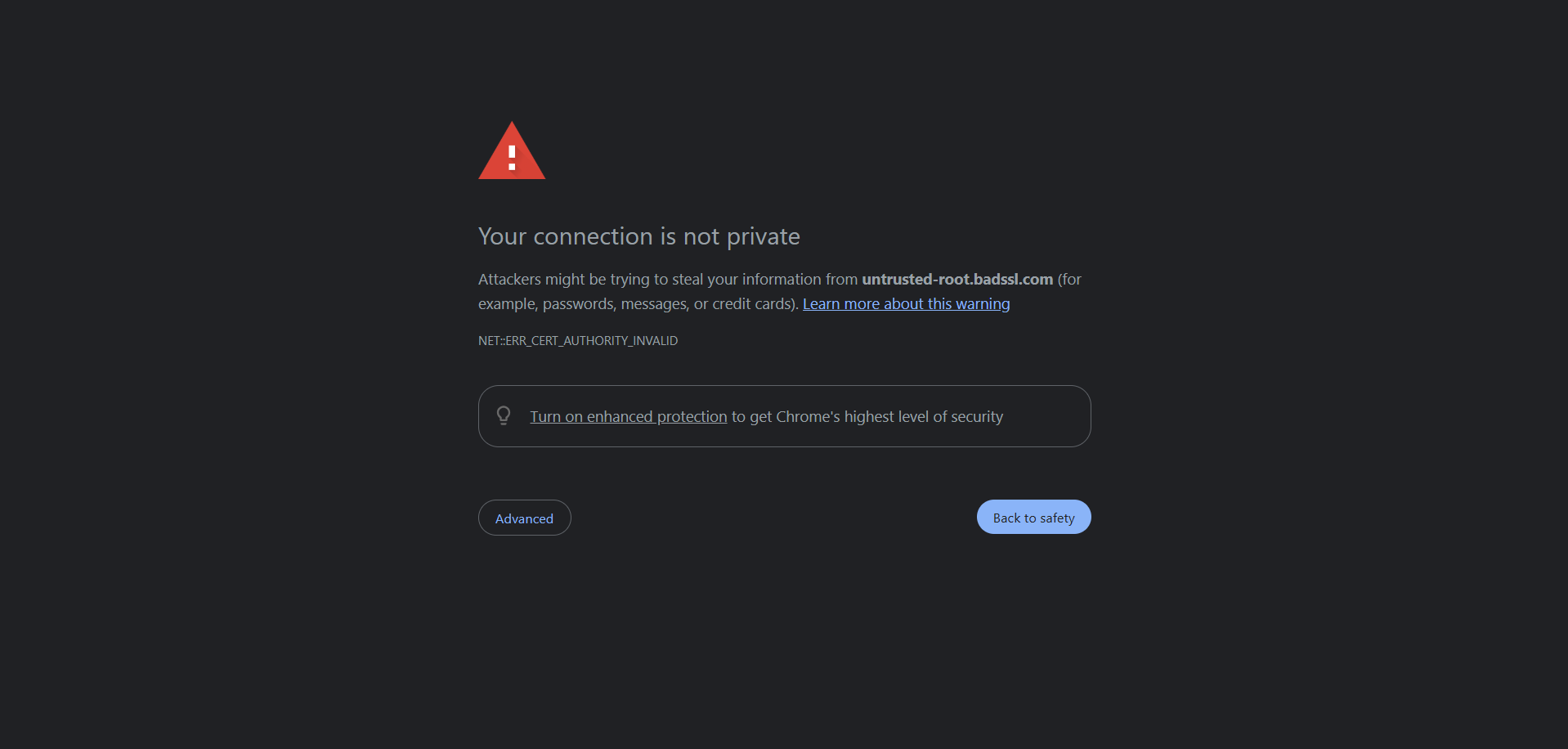
First, collect a few clues before changing anything. You don’t need to understand every error code; copying it accurately helps you or your hosting provider find the right fix. Follow these checks:
- Save the message and address: On the warning page, select Advanced, if available, to see detailed error messages. Record the code and website address without proceeding. These specific error messages help your host investigate.
- Check the certificate’s dates: Open the browser’s certificate details, usually through the icon beside the address. Compare its start date and expiration date with the correct time. A wrong clock can affect checks of the certificate’s validity.
- Check the website name: Compare the address you entered with the certificate’s covered names. Include any subdomain, such as shop.example.com.
- Look for missing certificates: A website certificate uses supporting certificates to show who issued it. Note any warning about a missing or incomplete chain; a future expiration date alone doesn’t confirm SSL certificate validity.
- Try another device and network: Open the same address in another browser, then try another device and a separate connection, such as mobile data.
- Use an SSL checker: Enter your domain into a tool such as SSL Labs’ SSL Server Test. It checks certificate status, certificate expiry, and connection settings. Save the results.
- Check server logs if you own the site: Server logs are records of website activity and errors. Ask your host to review them if you’re unsure where to find them.
| Where the warning appears | Likely starting point |
|---|---|
| One device only | Browser or device settings |
| One network only | Wi-Fi, proxy, firewall, or traffic inspection |
| All tested devices and networks | Website certificate or server |
These patterns suggest a cause; they don’t prove it yet.
Build trust from the first visit
An SSL certificate helps your website provide the secure connection visitors expect.

Common SSL certificate errors and how to fix them
Now, match your warning to one of these errors below. Browser wording varies, and the same code can have several causes:
- Expired SSL certificate
- Untrusted certificate or certificate authority error
- Certificate name mismatch
- Incomplete SSL certificate chain
- Revoked SSL certificate
- SSL/TLS handshake or server configuration error
- Mixed content warning
Expired SSL certificate
Chrome may show: NET::ERR_CERT_DATE_INVALID
An expired certificate has passed its expiration date. Every certificate has a defined validity period, with a start and an end date. Browsers reject certificates outside those dates, even when the rest of your website works normally.
Before assuming certificate expiry, check your device’s time and date. An incorrect device clock can make a working certificate appear expired or not yet valid.
If your website’s certificate has expired:
- Request a replacement: In your certificate or hosting account, choose the renewal option or request a new SSL certificate. Follow any steps to confirm that you control the domain.
- Install it: Follow your provider’s instructions to add the new certificate to your website. If your host manages SSL for you, ask whether this happens automatically.
- Check the live website: Open the address again and view its certificate details. Confirm that the correct certificate appears, its expiration date is in the future, and the warning’s gone.
Renewing the service doesn’t always install the certificate. If the old one still appears, ask your host to check SSL certificate validity and confirm the installation finished.
Untrusted certificate or certificate authority error
Chrome may show: NET::ERR_CERT_AUTHORITY_INVALID.
This means the browser can’t build a chain of trust from the server certificate to a trusted certificate authority.
A certificate authority (CA) checks requests and issues certificates. Browsers and devices maintain trusted root certificates. Each root certificate represents an authority they accept, while the root certificate authority sits at the top of the chain.
Common causes include:
- Self-signed certificate: You create and sign this certificate yourself. Browsers don’t trust a self-signed certificate by default.
- Untrusted issuer: The certificate comes from an untrusted certificate authority that the browser doesn’t recognize.
- Missing intermediate certificate: The server lacks a supporting certificate needed to connect the website certificate to a trusted root.
A self-signed certificate differs from one issued by a publicly trusted CA because it doesn’t rely on an independent CA to verify the website’s identity. It may work for internal testing but not for public websites that require browser trust.
To fix the error:
- Replace untrusted or self-signed certificates when browser trust is required.
- Confirm that modern browsers trust the issuing CA.
- Install required intermediate certificates.
Then, test the site in an updated browser and an SSL checker. If the warning appears on one device or work network, review visitor troubleshooting before buying a replacement.
Certificate name mismatch
Chrome may show NET::ERR_CERT_COMMON_NAME_INVALID.
A name mismatch error means the website address doesn’t match the names the website’s SSL certificate covers. You may also see it called a hostname mismatch or common-name mismatch.
Common causes include:
- Wrong domain: The certificate was issued for a different domain. For example, the browser requests example.com, but the certificate covers anotherexample.com.
- Missing subdomain: The certificate covers example.com but not www.example.com or shop.example.com.
- Incomplete coverage: The website uses multiple domains, but the certificate doesn’t cover all of them. For instance, the certificate covers example.com but not example.net.
To fix the mismatch error:
- List your website addresses: Include the versions with and without www, any subdomains, and other addresses if you use multiple domains.
- Update the coverage: Ask your provider to reissue the certificate for the right names. A subject alternative name (SAN) certificate can cover several listed names; choose domain coverage that fits your site.
- Check each address: After installation, confirm that the server’s certificate covers every address visitors use.
You can add server-side redirects after HTTPS works on the starting address. Redirects alone can’t fix the error because the browser checks the certificate before following the redirect.
Need another domain for your business?
Find an additional address, then check that your SSL certificate covers it alongside the addresses you already use.

Incomplete SSL certificate chain
Chrome may show: NET::ERR_CERT_AUTHORITY_INVALID; an SSL checker may report an incomplete chain.
An SSL certificate chain connects your website’s certificate to an authority the browser trusts. The primary certificate may be installed correctly and still have the right name and valid dates.
However, if one or more intermediate certificates are missing, the browser can’t build a valid certificate chain and establish trust.
Here is how the chain works:
- Server certificate: Also called the website or leaf certificate, it identifies your website address.
- Intermediate certificate: Connects the server certificate to a trusted root. Some chains require more than one.
- Trusted root certificate: Represents an authority the browser or device already trusts.
To fix the error:
- Install the complete certificate bundle supplied by your certificate authority CA. This bundle contains the required intermediate certificates.
- Ask your hosting provider to install the matching bundle in the correct order.
- Use an external SSL checker to verify that all the certificates required for the chain are present.
The server usually doesn’t need to send a root certificate because browsers already store trusted root certificates.
After installation, use an external SSL checker to confirm that all the certificates needed for the chain are present. One browser may have saved a missing intermediate from an earlier visit, so test beyond your own browser.
Revoked SSL certificate
Chrome may show: NET::ERR_CERT_REVOKED.
A revoked certificate is one the issuer has canceled before its expiration date. This can happen if the certificate was issued incorrectly or its private key was exposed. This key should stay secret because it helps prove the server’s identity.
A certificate’s revocation status tells you whether the issuer has withdrawn it. Browsers and other checking tools use revocation checks, such as lists of canceled certificates or the Online Certificate Status Protocol (OCSP), to check certificate status. The method varies by browser.
To fix:
- Ask your provider why the certificate was revoked, then replace it: Renewing your subscription won’t reactivate the canceled certificate. If someone obtained the private key, ask your host to create a new key as part of the replacement.
- Install the new certificate and its supporting certificates: Your host should also remove the revoked one from use and check any other servers handling your website.
- Finally, reopen the site and rerun the SSL check: Confirm that the replacement is in use and that visitors receive valid certificates. Keep the provider’s explanation with your website records.
SSL/TLS handshake or server configuration error
Chrome may show: ERR_SSL_PROTOCOL_ERROR or ERR_SSL_VERSION_OR_CIPHER_MISMATCH.
An SSL handshake is the first exchange between a browser and server as they agree on how to secure the connection. It can fail even when the SSL/TLS certificate is valid and unexpired. These errors often point to SSL configuration problems, not certificate-expiration problems.
Common causes include:
- Unsupported TLS versions: The browser and server can’t agree on a TLS protocol. For example, the server offers only TLS 1.0 or 1.1.
- Incompatible cipher suites: The available cipher suites don’t overlap. This can happen when the server uses only weak cipher suites or outdated encryption protocols.
- Incorrect server configuration: The server uses conflicting settings or the wrong certificate for the website.
- Certificate and key mismatch: The installed certificate doesn’t correspond to the correct private key.
Ask your hosting provider to review the server’s SSL configuration and:
- Enable TLS 1.3 and TLS 1.2 where compatibility requires it.
- Keep older TLS versions disabled and remove obsolete security settings.
- Confirm that the certificate matches its private key and the intended website.
- Recheck the server configuration and test the supported secure protocols after making changes.
If you use managed hosting, send support the browser error and SSL checker results. This gives them a practical starting point for identifying the failed setting.
Mixed content warning
The browser’s Console may show “Mixed Content” followed by an affected web address
Mixed content is a related HTTPS problem, not strictly an SSL certificate error. It happens when an HTTPS page requests images, scripts, stylesheets, or other resources over HTTP.
For example, https://example.com may load an image from http://example.com/photo.jpg.
A valid certificate can coexist with a mixed-content warning. The warning comes from insecure requests for individual resources, not the certificate. Therefore, replacing the certificate won’t fix these SSL-related errors.
Browsers may switch some requests to HTTPS and block others to protect the secure connection. An image may disappear, or a page feature may stop working.
To fix the warning:
- Open your browser’s developer tools and check the Console for affected addresses and error messages.
- Update insecure resource URLs to HTTPS after confirming they support HTTPS.
- Remove or replace resources that can’t load securely.
- Reload and retest the page to confirm the warnings are gone, and the content works.
On WordPress, old HTTP addresses may remain in pages or theme settings. Back up the site before making bulk updates.
How visitors can troubleshoot an SSL connection error
Your visitors can also see an SSL connection error because of a problem with their device, browser, network, or security software. The following steps can help them determine whether the issue is on their side or requires the website owner’s help.
They may experience one of these situations:
- If the error only happens on one device
- If the error only happens on one network
- If antivirus or security software is inspecting HTTPS traffic
- If the error appears on every device and network
If the error only happens on one device
If the site opens on another device, start with the one showing the warning. An incorrect clock can make a valid certificate look expired or not yet valid. This happens because the browser uses the device’s date and time to check the certificate’s validity and expiration date.
Try these steps:
- Check the device’s date, time, and time zone, then enable automatic time updates.
- Update the browser and device software.
- Open the site in a private or incognito window.
- If the site works in private mode, disable browser extensions one at a time to identify the cause.
- Clear the browser cache and saved data for the affected site.
These steps can’t repair a website’s certificate. Modern browsers still check certificates in private mode. See if the error occurs in every browser on that device, then check its security software next.
If the error only happens on one network
If the same site works on mobile data but not your Wi-Fi, the network may be causing the problem. Use the same device and website address for this comparison.
Possible causes include:
- Proxy: Routes your connection through another server and may affect SSL connections
- Firewall: Controls network access and may interrupt the connection
- Captive portal: Requires you to sign in before using public Wi-Fi
- HTTPS or SSL inspection: Examines encrypted traffic and may interrupt the SSL handshake
Open the network’s sign-in notification and complete that step if needed. On a work or school network, send the error code to the person who manages it. They can check whether network settings or SSL inspection are interrupting the SSL handshake.
While they investigate, use another trusted network if one is available. Don’t bypass the browser warning or leave a firewall disabled to get a secure connection working.
If antivirus or security software is inspecting HTTPS traffic
Some security software uses SSL inspection to check encrypted website traffic for threats. It temporarily presents the browser with a replacement certificate signed by the software’s own certificate authority. If the browser doesn’t trust that authority, SSL connections may show certificate warnings.
Check whether the software is the cause if:
- The error began after a security software update.
- It appears on several unrelated websites.
- The certificate issuer names your antivirus product or employer.
Update the security software, then review the vendor’s configuration and support guidance. For a work device, ask your administrator to check the inspection setup. Avoid installing an unfamiliar root certificate yourself.
Support may ask you to disable HTTPS inspection briefly to confirm the cause. Don’t leave protection disabled. Turn it back on after testing, then confirm that the secure connection works without a warning.
If the error appears on every device and network
If the same address fails across several devices and separate networks, the problem is likely with the website. You’ve already gathered useful clues; there’s little value in repeatedly clearing each browser.
As a visitor, let the website owner know through a contact method you already trust. Share the address and exact warning. Wait for the owner to fix the secure connection before entering passwords or payment details, and don’t click through the warning.
If it’s your website, use the relevant fix above to review SSL certificate validity, domain coverage, and the certificate chain. Your host can check the web server and server configuration if the cause is unclear.
For SSL certificate issues that persist, send support your checker results and note any recent website changes.
How to prevent SSL certificate errors
Make SSL checks part of routine website maintenance and every infrastructure change. Add these checks to your website’s routine care, and choose someone to follow up on alerts:
- Enable certificate renewal and expiration alerts
- Recheck SSL after hosting, DNS, or domain changes
- Verify the full certificate chain after installation or renewal
- Keep TLS settings current
Enable certificate renewal and expiration alerts
Turn on automatic renewal and installation where your provider supports them. Keep your payment and contact details current, and watch for failed renewal notices.
Set a reminder about 30 days before the expiration date. Adjust this for shorter certificates and your provider’s renewal schedule so certificate expiry doesn’t catch you out.
Also, annual renewal is no longer enough for every certificate. Publicly trusted certificates issued from March 15, 2026, through March 14, 2027, have a 200-day maximum validity.
After renewal, check the live site’s SSL certificate validity. Confirm that the new SSL certificate is installed, so visitors receive valid certificates rather than an expired one.
Recheck SSL after hosting, DNS, or domain changes
Check HTTPS whenever you move your site or change its addresses. Your certificate must work where visitors arrive.
This includes hosting moves, adding domains or subdomains, and updating the Domain Name System (DNS). DNS helps browsers find the server for your website name. Changes to server configuration should also be part of your check.
If you use multiple domains, open each address and confirm that the SSL certificate covers it. Include both www and non-www versions where you use them, even if one redirects to the other.
Ask your host to confirm that the destination web server uses the correct certificate. Keep a note of the changes to help explain any later warning.
Verify the full certificate chain after installation or renewal
Run an SSL checker after installing, renewing, or replacing a certificate. This helps catch missing intermediate certificates before a visitor runs into them.
Check whether the SSL certificate chain connects your website to a root certificate the browser accepts. Your host can explain warnings about trusted root certificates and confirm that the complete certificate chain is installed on every server your site uses.
You can also monitor certificate transparency logs, public records of certificates issued for domains, to spot unexpected certificates for your website.
A certificate appearing in a log doesn’t show that it’s installed on your site. Keep checking the live website after changes.
Keep TLS settings current
Ask your host to review connection settings regularly and after server software updates. They can compare your TLS protocol versions and cipher suites with current security guidelines.
The goal is to keep secure protocols available and remove weak cipher suites. If an old browser can’t connect, update it instead of restoring older TLS versions for everyone.
Keep server software updated and supported. After changes, reopen your website and try everyday tasks, such as signing in or checking out. A properly configured server should protect the connection while allowing these tasks to work.
Your host can explain which changes need your attention.
Frequently asked questions
An SSL connection error means the browser can’t create a secure connection with a website. It usually happens when the browser can’t verify the certificate or agree with the server’s security settings.
An SSL certificate error occurs when a browser can’t verify a website’s certificate. Common SSL certificate errors involve expiration, an address the certificate doesn’t cover, missing supporting certificates, or an issuer the browser doesn’t trust. A canceled certificate is another cause. SSL certificate issues can also come from a wrong device clock or security software. Where the error occurs helps narrow down the cause.
Fix an invalid SSL certificate by checking why the browser rejected it. Website owners may need to renew it, install the correct certificate for their address, or add missing supporting certificates. An expired or revoked certificate needs a new certificate. After installation, check SSL certificate validity on the live site. Visitors can check their own settings, but only the owner can replace the website’s certificate.
Yes. A wrong device clock can cause an SSL error because browsers compare the certificate’s validity dates with your device’s time. A clock set too far ahead can make the expiration date appear to have passed; one set behind can make a certificate seem not yet valid. Correct your date, time, and time zone, then reload the page to see whether the certificate error clears.
No. Mixed content happens when an HTTPS page tries to load images or other content over HTTP. Its certificate can still be valid, but the browser may upgrade or block those insecure requests. Fix these SSL-related errors by checking that the content addresses support HTTPS and updating them. Replacing the certificate alone will not give those page elements a secure connection.
Stay in control of SSL certificate errors
An SSL certificate error is easier to handle once you know what the warning means. Start with the error code, check where the problem happens, then apply the appropriate fix or solution.
Regular renewal checks and a quick test after website changes help prevent repeat SSL errors. Your hosting provider can help with certificate installation or connection settings when you need support.
If you need a replacement, our SSL certificates offer options for different website addresses and needs. Choose the coverage that fits your site, then confirm that your SSL certificate is installed and your secure connection works.