


Key takeaways:
- Gemini works with Google Workspace apps, making it useful for businesses that already use Gmail, Docs, Sheets, Drive, and Meet.
- Gemini can search the web, explore complex subjects, and show sources that help you check its answers.
- Small businesses can use Gemini to study data, research competitors, summarize meetings, and better understand their customers.
Google Gemini is Google’s AI assistant. You can ask it questions, give it information to review, or use it to complete tasks inside certain Google apps.
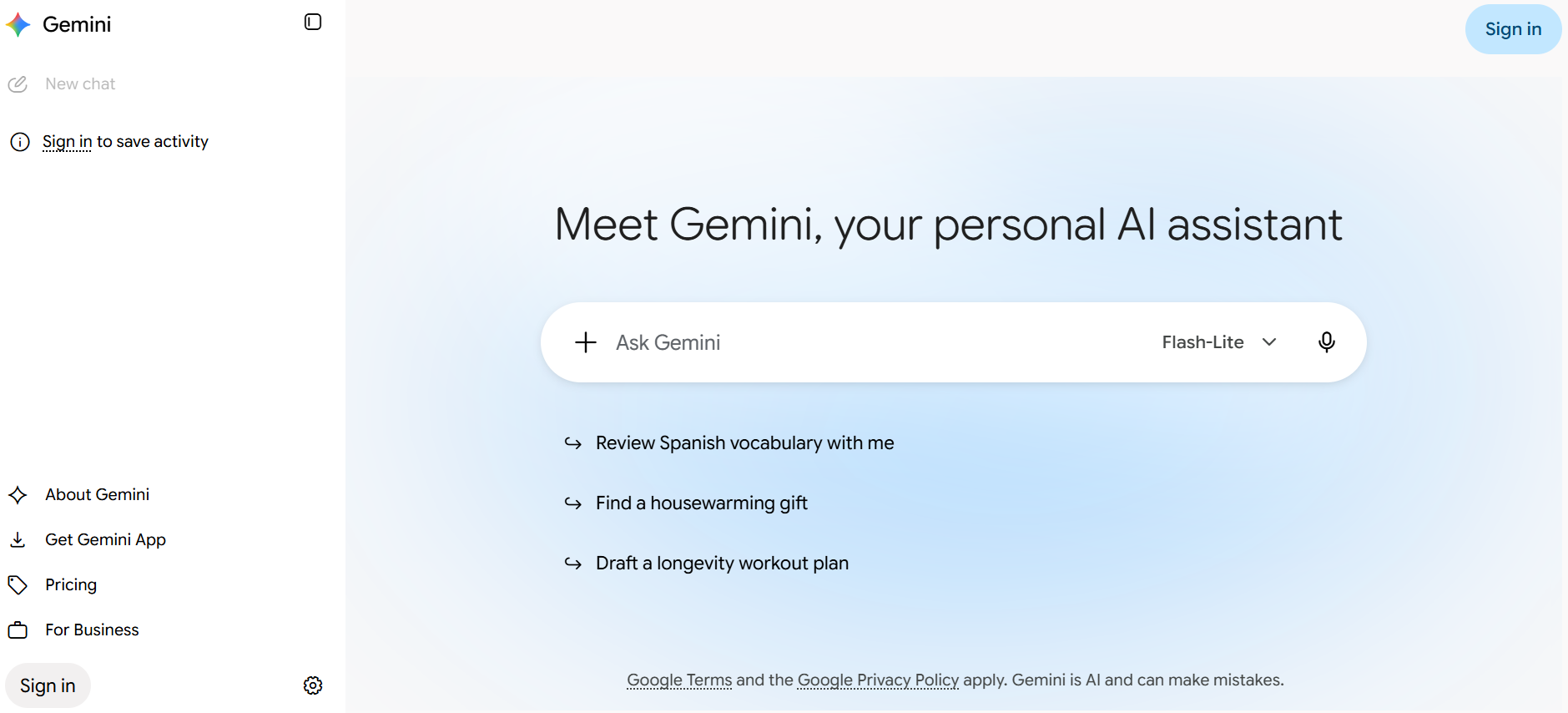
What makes Gemini especially useful in business is its connection to Google tools. It can work with Gmail, Google Docs, Sheets, Drive, and Meet. Its research tools can also search the web, study complex topics, and show where information came from.
These features can help small businesses understand their data, find current information, and work with files already stored in Google Workspace. Other AI tools have different strengths. ChatGPT is useful for everyday planning, Claude for careful editing and analysis, and Grok for brainstorming and fresh ideas.
One place for your favorite AI tools
Use Gemini, ChatGPT, Claude, and Grok from one dashboard and choose the right model for each task.

Here are six practical ways to use Gemini in your business:
- Work directly inside Gmail, Docs, and Sheets without switching tools
- Analyze business data in Sheets using plain-language prompts
- Get source-backed answers to complex research questions
- Research competitors and market trends with live web search
- Summarize meetings and pull action items in Google Meet
- Connect your Google Business Profile for personalized insights
1. Work directly inside Gmail, Docs, and Sheets without switching tools
Gemini works inside several Google Workspace apps, including Gmail, Google Docs, Sheets, and Google Drive. This means you can use AI without constantly copying information into another tool.
For example, you can ask Gemini in Gmail to summarize a long email conversation and list the next steps. In Google Docs, it can summarize a report or answer questions about its contents. Gemini can also review files in Google Drive that you have permission to access.
These connections make multi-app workflows easier. You could find information in Drive, summarize it in Docs, and use it to prepare an email in Gmail.
But don’t worry, because Gemini follows the access permissions already set in Google Workspace. It cannot retrieve a file that the user is not allowed to open. Available features may depend on your plan and settings.
Give your team one connected workspace
Help your team collaborate through business email, shared files, meetings, and AI-powered Google tools.

2. Analyze business data in Sheets using plain-language prompts
Gemini in Google Sheets can help you understand business data without writing code or knowing advanced spreadsheet formulas. You can explain what you need in plain language, just as you would explain it to another person.
For example, imagine that your sales data is stored in a spreadsheet. You could ask:
“Summarize this sales data and identify the three products with the strongest growth.”
Gemini can help organize the data, suggest a formula, create a table, or point out patterns. You can also use it to:
- Categorize customer comments
- Identify duplicate entries
- Build an expense tracker
- Discover changes in monthly sales
The quality of the answer depends on the quality of the information in your spreadsheet. Missing, outdated, or poorly organized data can lead to incomplete insights.
Note: Always check Gemini’s formulas and calculations before using them in a report. It can speed up the first stage of analysis, but a person should still review the final results.
3. Get source-backed answers to complex research questions
Gemini’s Deep Research feature can investigate questions that require information from several places. What it usually does is create a research plan, search for relevant material, and organize its findings into a report.
Google Search is included as a source by default, so Gemini can review current public web pages. You can also choose sources you control, such as uploaded files, Gmail messages, Google Drive documents, or Gemini Notebook (previously NoteBookLLM). Gemini only accesses connected content that you have permission to use.
This process is called grounding. In simple terms, Gemini connects its answer to source material instead of relying only on what its AI model already knows. Its report usually includes citations or links showing which sources support what findings.
For example, you could ask:
“Research recent customer preferences for sustainable packaging and explain the main trends affecting small online stores.”
Gemini could return a summary with links to studies, industry reports, and recent articles. This supports source-informed exploration, but you should still open the citations, check their dates, and confirm important claims.
4. Research competitors and market trends with live web search
Gemini can use Google Search to find current information about competitors, customers, and market trends. This can help your business stay ahead when prices, services, or customer needs change. (But of course, this also means your competitor can use Gemini the same way you do to research publicly available information about your business.)
For example, a local landscaping company could ask:
“Find five landscaping companies in my area. Compare their advertised services, service areas, and publicly listed starting prices. Include a link to each source.”
Gemini can organize the results so they are easier to compare. You might discover a service that competitors commonly offer, a customer need that is not being met, or ideas for improving your sales approach.
It can also research new industry features, product ideas, or changes that may affect your business. Keep the request focused so it can provide a useful answer.
Note: Treat the results as a starting point. Website content, prices, and offers can change, and Gemini may miss important details. Visit the original sources before changing your prices, products, or business plan.
5. Summarize meetings and pull action items in Google Meet
Gemini can save time by taking notes during eligible Google Meet calls. Its “Take notes for me” feature can create a meeting summary and list decisions, follow-up tasks, and other important details.
For example, after a weekly team meeting, Gemini can create a recap in Google Docs. Depending on the meeting settings, the document can be attached to the Google Calendar event and shared with invited participants.
This makes it easier for your organization to stay organized. Your team can focus on the conversation instead of asking one employee to write down every detail.
Just make sure the host tells everyone when AI notetaking is being used. Businesses must also follow any privacy, consent, or recording rules that apply to them.
Note: AI-generated notes can contain mistakes or leave out details. Someone who attended the meeting should review the summary before sharing it or treating it as an official record. The feature also requires an eligible Google Workspace edition or Google AI plan.
6. Connect your Google Business Profile for personalized insights
Google now allows eligible users to connect their Google Business Profile to the Gemini app. This gives Gemini more context about the business, its customers, and its online performance, helping it provide more personalized and brand-aware answers.
For example, you can ask Gemini to:
- Summarize themes in recent customer reviews
- Help draft a response to a review
- Explain changes in profile performance
- Identify gaps in your business information
- Find customer questions that still need answers
Google has also introduced Business notebooks. You can think of it as a Gemini notebook focused on your company. It can bring together your website, Business Profile, Gemini conversations, and other sources. Gemini can then use this information to study trends, suggest next steps, or create materials that better fit your brand.
This is a newer capability worth trying, but availability may depend on your account and location. Always review Gemini’s suggestions before updating your profile or responding to customers.
Google provides more details in its Business Profile and Business notebooks announcement.
Frequently asked questions
Gemini helps businesses research complex topics, analyze data, summarize information, and work inside Google Workspace apps. The Gemini app can also search the web and show sources so you can check its answers.
Neither tool is better for every task. Gemini is strong at Google-connected research, ChatGPT at everyday planning, Claude at careful editing and analysis, and Grok at brainstorming fresh ideas.
Gemini can summarize emails and documents, analyze data in Google Sheets, take notes in Google Meet, and research current topics. These features can help employees find information and complete routine work faster.
Yes. Depending on your plan, Gemini can work inside Gmail, Docs, Sheets, Drive, Meet, and other Google Workspace apps.
Google provides business privacy and security controls for eligible Workspace accounts. But businesses should still follow their data policies and avoid sharing sensitive information without approval.
Pricing depends on the product and plan. As of September 2026, Gemini Enterprise Business starts at $21 per user per month. Note that this is different from Google Workspace plans with Gemini features, and that pricing may vary by plan, subscription, and region.
Get more out of Gemini for your business
Gemini can be helpful for Google-connected research and complex topics, but no single AI model is ideal for every task. ChatGPT may suit everyday planning, Claude can support careful analysis, and Grok can offer fresh ideas.
If your business regularly uses different AI tools, then you can look into the Network Solutions AI All-Access Pack, which provides access to Gemini, ChatGPT, Claude, and Grok through one subscription. It also includes AI agents for longer research and writing tasks.
Keeping these tools in one place makes it easier to compare answers and choose the right model for each project. A Privacy+ option is also available if you want added security features when working with sensitive information.
Whatever option you choose, review AI-generated work carefully and make sure your team follows your business’s privacy and data policies. Whatever option you choose, review AI-generated work carefully and make sure your team follows your business’s privacy and data policies.