



Key takeaways:
- Claude can help you review detailed documents and improve work your business already produces.
- Clear instructions and relevant files make Claude’s responses easier to check and use.
- Review important details before acting on AI suggestions or sharing them with customers.
Running a small business often means switching between many tasks in a single day.
By now, you’ve likely heard about using AI to ease some of that workload, and Claude AI may be one of the tools that came up in your search.
If you’re looking to get started with Claude, start by understanding what it can do. You give it instructions in natural language, or everyday words. Those instructions are called a prompt.
In this guide, you’ll learn more about what Claude AI is, how it works, and how to put those capabilities to work in your business.
Work through documents, research, and content faster
Access Claude and other leading AI models in one place with our AI All-Access Pack.

What is Claude AI
Claude is an AI assistant developed by Anthropic and introduced in March 2023. It uses a large language model (LLM), an AI model trained to recognize patterns in language and generate responses to instructions. Claude supports multiple programming languages and natural language commands.
Claude works with the information in your conversation, including files you provide. It can follow detailed instructions, which makes it useful for comparing documents and explaining complicated materials. But take note that Claude can still misunderstand a passage or produce an incorrect answer. Ask it to explain its reasoning helps you review its logic and spot potential mistakes.
Claude’s key capabilities help you do the following:
- Process complex documents: Claude can handle large documents due to its extensive context window. It can extract information from reports, compare versions, and explain dense wording. Uploading a file allows Claude to read and analyze various document types, while uploading a document enables targeted extraction and analysis by AI.
- Support software development: It explains code and looks for possible bugs, including mistakes in how a program behaves.
- Generate and edit content: You can draft business documents, refine existing work, or handle creative writing and drafting emails while following your requirements.
- Develop visual work: Claude can also help create page layouts and create diagrams, charts, and interactive visuals. Code execution allows AI to create functional documents and presentations.
You can even upload images, PDFs, and Word documents, or paste code, so Claude can analyze the material you want reviewed.
Claude also has specialized tools for specific workflows:
- Claude Code is a separate coding tool that can work with your project’s files and run shell commands with appropriate permission.
- Claude Design provides a visual interface for refining prototypes and presentations through prompts, comments, and direct edits.
Agencies use Claude to check client deliverables. Consultants use its key features to review lengthy reports, while developers can investigate code. Teams that handle extensive documentation benefit from help organizing details. And smaller businesses can use the same approach whenever they need to understand complex information quickly.
Which Claude models are available?
A model is the version of Claude that completes your task. Anthropic’s current lineup as of this writing includes:
| Model | Best for |
|---|---|
| Claude Haiku 4.5 | Quick, narrowly defined tasks |
| Claude Sonnet 5.5 | Routine analysis and coding |
| Claude Opus 5.5 | More involved projects and documents or work |
| Claude Fable 5.1 | Demanding reasoning and longer assignments |
Availability varies by provider and plan. Chat plans also have usage limits. If you’re unsure which model works best for you, start with one available in your plan. Test how Claude performs on real-world tasks you can check, such as comparing prices in two proposals, before using it for more demanding reviews.
For developers: Claude’s API has separate usage-based pricing. Costs depend on the selected model and the amount of text Claude processes. For example, Claude Opus 5.5 costs $4 per million input tokens and $20 per million output tokens at standard rates.
How small businesses can use Claude AI
Small businesses can use Claude as part of their existing workflow to review documents, analyze information, and improve existing content. You may be evaluating customer feedback, checking reports, or refining marketing copy.
The following seven examples show practical ways to get started with Claude for small businesses.
1. Review contracts and policies
Contracts and policies often change over time, and even small revisions can affect costs, responsibilities, renewal terms, or cancellation rights.
Claude can help you understand what changed between contract versions and prepare for a qualified review. It’s also useful for operational policies, such as a cancellation policy or employee handbook, where unclear wording creates confusion.
Before uploading long documents, label each version clearly, such as “original agreement” and “revised agreement.” Also, remove unnecessary personal details and confirm that you’re allowed to share the material.
Then, work through the review:
- Decide what you want to review: This could be payment deadlines, cancellation rights, ownership, or renewal terms. Identify these sections.
- Compare the documents: Ask Claude to compare the documents. Ask what changed between versions—ask for the original wording, revised wording, and section reference for every addition, deletion, or modification.
- Check for required clauses: Provide a list of terms your business expects to see, such as confidentiality requirements, payment terms, etc. Ask Claude to mark anything missing as “not found.”
- Prepare follow-up questions. Ask for plain-language explanations of unfamiliar terms and a list of provisions that may deserve closer review.
Try this prompt:
Compare these two supplier agreements. List changes to payment timing, renewal, cancellation, and ownership. Quote the relevant wording and identify the section in each file. Compare both versions with my attached checklist. Flag questions for a lawyer; do not tell me whether to sign.
A useful result is a review list linked to specific passages. Claude can still miss some context, so have a lawyer assess legal obligations and risks. Use Claude to organize the material for that conversation.
2. Analyze customer feedback
Customer feedback can reveal patterns that are easy to miss when you’re reading reviews one by one. Claude can help organize large volumes of reviews and survey responses, identify common themes, and highlight what customers like and dislike. It can also recognize mixed feedback, such as a customer praising your service but criticizing appointment scheduling.
Gather feedback from a consistent period. You might use survey responses alongside comments collected through review management. Place each response in its own spreadsheet row and assign an ID, such as R001. Remove names and contact information before uploading.
Ask Claude to categorize each response by topic and sentiment. Sentiment describes the attitude expressed, such as positive, negative, mixed, or unclear. Request the words supporting each label, particularly for sarcasm or comments with both praise and criticism.
Try this prompt:
Group these survey responses by issue. For each response ID, identify the topic, sentiment, and a supporting quote. Use “mixed” or “unclear” where appropriate. Summarize recurring concerns, but keep isolated serious complaints visible. Separate what customers said from your suggested actions.
Review a sample of the labels before requesting a deep dive into the largest themes. Iterative refinement encourages conversations for better AI outputs, so if Claude misinterprets a comment, explain the issue and ask it to recheck similar responses.
Finally, choose an issue your team can address and measure customer experience after the change. Keep the original feedback available as you review the results. Claude can help you organize and summarize customer comments, but the customers’ actual words often provide important context for business decisions.
3. Edit important business documents
Claude can help refine a proposal, memo, or executive report. It works alongside your review process, and you decide which changes to accept.
- Provide the draft: Upload a document you’re allowed to share or paste a passage.
- Request a review: Explain the audience and tone, then ask Claude to identify unclear wording before rewriting it. Giving Claude a role and audience to write for produces more consistent tone.
- Review the suggestions: Check Claude’s findings, approve the changes you want, and request comparison.
- Approve the final version: Check whether important details remain clear. Reject any added promises, then save the approved version separately from the original.
Try this prompt:
Review this proposal for a first-time client in a friendly, professional tone. Flag unclear wording and explain why. Keep prices, deliverables, and revision limits unchanged. After I approve your findings, show the original wording beside each suggested edit.
For more complex reviews, some Claude models offer extended ‘Thinking’ settings that spend extra time working through a task before responding. It can provide more detailed document analysis, but it may use more of your available usage.
If you regularly review similar documents, consider using a Claude ‘Project’ to provide persistent context for specific tasks. Claude supports projects to organize chats and retain context across related assignments.
4. Summarize lengthy reports
Running a small business doesn’t always leave time to read lengthy reports. Claude can pull key findings from market research, industry studies, and meeting transcripts, helping you get answers faster.
Before uploading a report, decide what you need to learn from it.
Claude can work with a PDF report, a Word document, or a text transcript. Give it the original material rather than relying on a broad question about the subject. This is especially helpful when reviewing market research that contains qualifications or unfamiliar measurements.
Try this prompt:
Summarize this report for an owner deciding whether to expand weekend opening hours. Use only the uploaded report. Separate findings from recommendations. For each important number, include its unit, time period, and PDF page reference. Mark unanswered questions as “not stated.”
Ask Claude directly for an output you can use, such as a one-page decision brief. For meeting transcripts, request a table of decisions, owners, and deadlines, with timestamps where available. If no one agreed to a deadline, the output should say so.
Check the findings against their source passages to verify facts. Watch for percentages confused with percentage-point changes and figures drawn from different periods. A shorter answer is only helpful if those distinctions survive.
Also check what Claude could actually read. In chat uploads, PDFs over 100 pages receive text-only processing, so charts need separate attention. For a scanned or chart-heavy report, provide the relevant pages separately and ask Claude to identify unreadable material. This is more useful than a confident summary built on missing information.
5. Review code
Claude Code is built for complex coding tasks. It connects with command-line tools for development, making it ideal for large codebases.
To use Claude Code, follow these steps:
- Install and sign in: Use the terminal command for your OS: macOS, Linux, or Windows. Sign in with Claude Pro, Max, or an eligible Team or Enterprise account, or use Claude Console with API usage billing.
- Open your project: Run Claude in your project directory, also called the project root. Ask Claude Code to review relevant code files or analyze error messages for debugging. It can help identify root causes and suggest fixes.
- Improve the code: Ask Claude Code to refactor code for readability, generate structured documentation for codebases, or make multi-file edits within your project. Review the changes and run tests.
- Connect your development tools: Claude Code integrates with GitHub, GitLab, and JetBrains IDEs to support workflow management, code reviews, and version control before a pull request or merge request is merged. Plugins can connect it to external services and API documentation. With additional configuration, Claude Code can also work with CI/CD workflows.
- Automate repetitive tasks: Set up custom hooks with the /hooks command or configure them in .claude/settings.json. Claude Code hooks can run automated tasks, such as formatting code or running tests, after specific events like file edits.
- Queue follow-up instructions: You can queue multiple prompts while Claude Code works. These messages may guide the current task, so don’t assume each one waits until the previous task is complete. Review edits, test results, and permission requests as you go.
6. Identify inconsistencies in business content
Claude can compare statements across documents and flag details that disagree. This is different from editing tone: the goal is to find conflicting information before a customer or colleague relies on it.
Start by choosing an approved reference. This might be your current price list, signed scope of work, or dated employee policy. Label it clearly so Claude knows which document reflects your latest decision.
Upload the material you want checked against it. For example, compare a proposal with its attached schedule, or compare an employee handbook with a revised leave policy. You can also review the wording used in business listings alongside your website information.
Try this prompt:
Use “Approved service details” as the reference. Check these other documents for conflicting prices, deadlines, service names, and cancellation terms. Show both statements with file names and section references. If the reference doesn’t resolve a disagreement, flag it for me instead of choosing an answer.
Review each finding before changing anything. Two different statements may both be correct if they apply to different customers, dates, or service levels. Ask Claude to check those conditions before calling something a contradiction.
Connected tool use means Claude can work with external services when those tools are available and authorized. It doesn’t automatically see every document in your business. Check which files it accessed, and supply missing material yourself.
Finally, verify facts against the approved reference and update each affected location. Keep a dated record of the decision so the next review starts from a clear source.
7. Improve website copy
Claude can help make website content clearer without changing your offer. Start with a page customers already find confusing, such as a service page that generates repeated questions.
Provide the text and explain the page’s purpose. Give Claude more context about the customer, the offer, and what visitors should do next. Include your domain name and approved business details if they appear in the copy.
Note: If you’re outlining seasonal campaigns using our Holiday Marketing Playbook, Claude can help you adapt that strategy into scannable landing page copy.
Try this prompt (to ask Claude for a focused review):
Review this service page for a first-time customer. Keep every price, eligibility condition, and service boundary unchanged. Identify vague claims and questions the page leaves unanswered. Suggest clearer headings and a shorter call to action. Do not invent results, testimonials, or guarantees.
Use the review to answer questions customers actually ask. You can provide anonymized notes from your customer records, rather than asking Claude to guess what matters to them. This keeps the edit connected to real conversations.
Web search capabilities also enable AI to pull current information from the internet. If you provide a page link, confirm that it was accessed; paste the text if it wasn’t. Read any cited source before adding a new claim to your website.
Once you approve the changes, add them to your website builder or other website editor. Preview the page on mobile and test the buttons. Claude’s draft doesn’t publish itself unless you’ve deliberately connected and authorized a tool to do that.
Treat this as a focused part of your AI marketing process: improve one page, then review whether customers find the information they need.
How to get started with Claude
Once you’ve chosen a task, start with one short document where you’re allowed to share, such as a product or service description.
Try your first task:
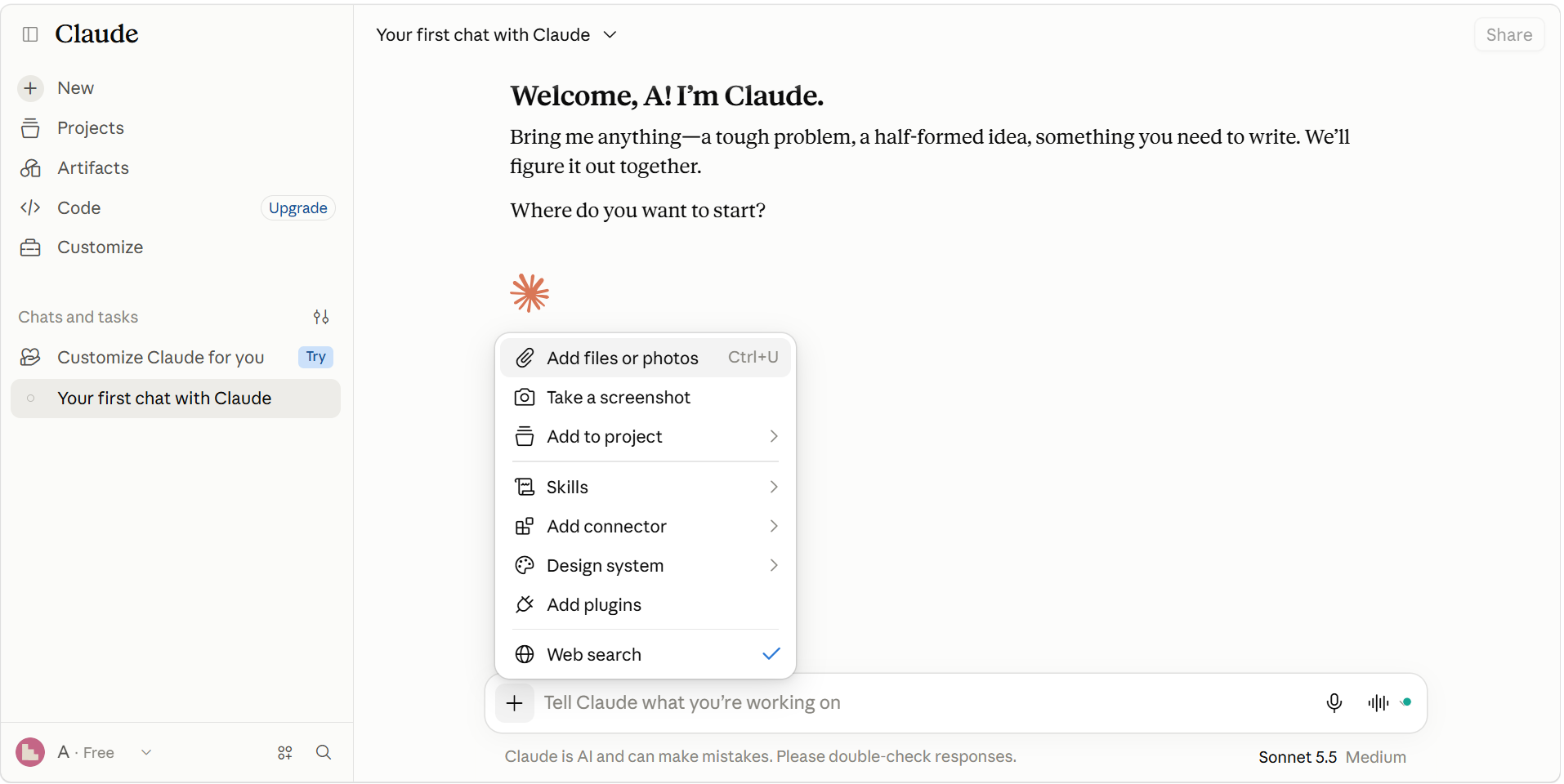
- Open your account: Claude AI is accessible via a web browser and desktop or mobile applications. Create an account or sign in at claude.ai, or use the Claude desktop app.
- Add your materials: In the chat interface or chatbox, select +, then Add files or photos, or paste the relevant text. Remove private information you don’t need Claude to review.
- Explain the job: Ask for a short summary, a comparison table, or suggested edits. Specify any details that must stay unchanged. Using the RCCF framework clarifies prompts for AI: Role, Context, Command, Format.
- Role: Who should Claude act as?
- Context: What background information does it need?
- Command: What do you want it to do?
- Format: How should the result be presented?
- For example: Act as a proposal editor. This proposal is for a first-time client. Flag unclear wording without changing the price. Show the original sentence beside each suggested edit.
- Review and refine: Read the first answer beside your original. Use follow-up questions to correct or improve the response. If Claude responds with an edit that drops a condition, ask it to restore that condition. Copy only approved changes.
Claude responds to your instructions and may display Artifacts, which are generated outputs that can be viewed and edited separately from AI chat. Review the first answer and use the conversation to request changes. Better Claude outputs always start with clear, detailed instructions.
Do you need Claude Pro to get started?
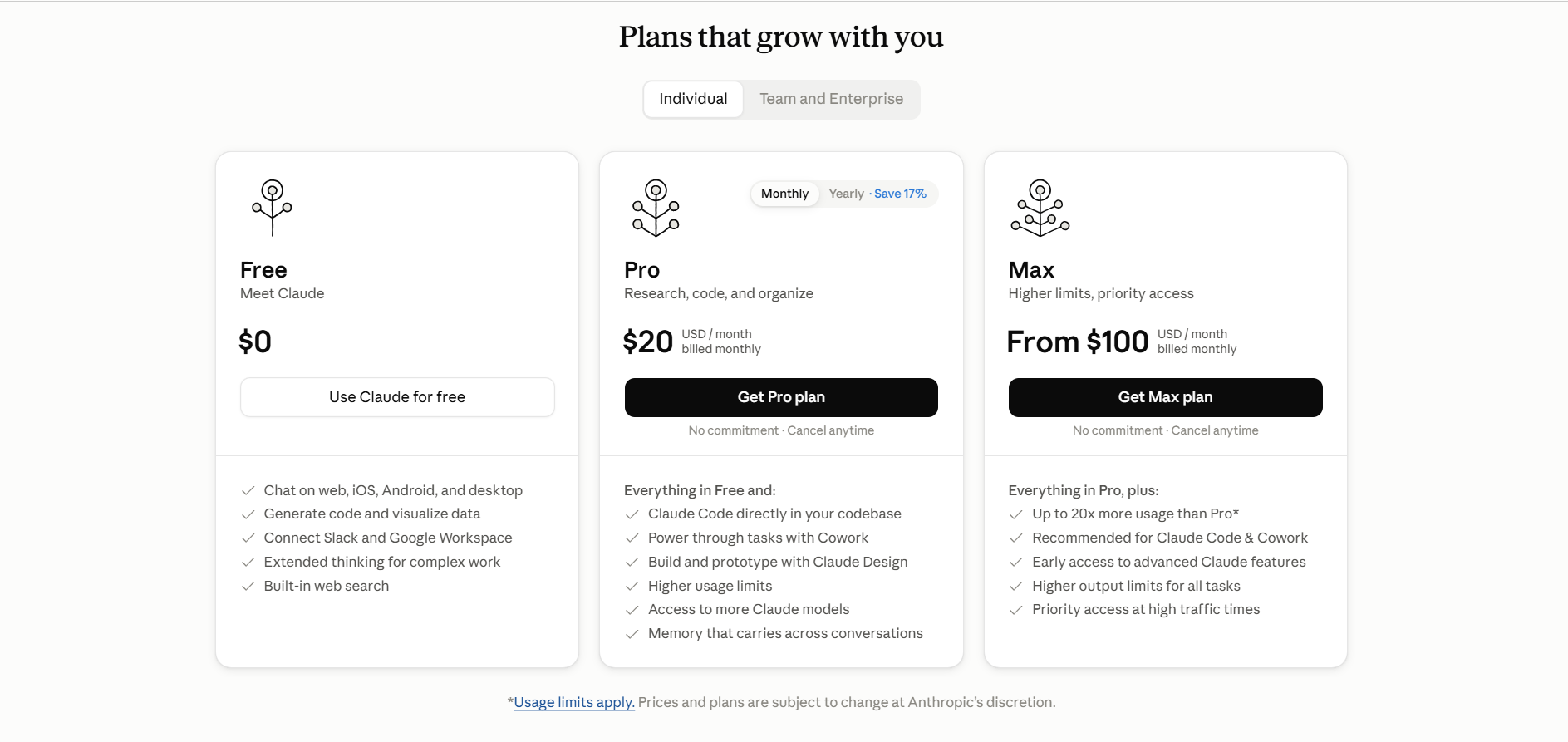
No. You can try a short review or edit with the free Claude plan before deciding whether to pay.
Start with Free to learn the basics and try occasional tasks within its usage limits. Consider Pro if you regularly reach those usage limits, need access to a larger context window, or want included access to Claude Code. Max plans offer higher usage for individuals, while Team and Enterprise plans provide organizational features and administrative controls. Check model-specific document limits before upgrading.
Anthropic’s Pro plan costs $20 per month (at the time of writing). API usage is separate. Regional prices, taxes, and plan details can vary or change.
Best practices for using Claude AI
After identifying where Claude fits into your workflow, follow these best practices to use it more effectively. These habits make AI assistants easier to use responsibly and help you avoid spending more time correcting an answer than the task originally needed:
- Define a small, clear job: Start a new chat for an unrelated task so earlier instructions don’t interfere. State the audience, desired output, and limits. Split a broad request into separate reviews when each part needs different evidence.
- Provide the right source: Attach the approved document and label its version. Ask Claude to identify missing information instead of filling gaps with plausible details.
- Protect private information: Remove unnecessary identifiers and use an account your business approves. Check permission before sharing client documents or connecting company tools.
- Check the important details: Follow source references back to the originals. Verify calculations independently and inspect changes to prices, dates, or commitments before accepting them.
- Keep people responsible for decisions: Decide who reviews the output and which team member can approve publication, code changes, or customer communication. Give other tools only the access the task needs.
- Save what works: Keep a prompt that produces useful results and update it when your process changes. Track the review time as well as the drafting time to judge whether the approach helps.
Frequently asked questions
Yes. Claude offers a free plan, although features, available models, and usage limits vary by plan.
You can access Claude AI via a web browser and desktop or mobile applications. Developers can also connect Claude to software through the API.
Claude uses artificial intelligence to analyze text, documents, images, and other inputs, then generates responses based on the information you provide and the instructions you give.
Claude includes security and privacy features, but you should review your plan’s policies and your organization’s requirements before sharing sensitive business information.
Costs depend on the plan and number of users. Small businesses can start with free or individual paid plans, while teams can choose business-oriented plans with additional features and controls.
Claude can work with PDFs, Word documents, spreadsheets, images, text files, and other supported formats. File size and processing limits depend on the plan and feature used.
No. Most business tasks, brainstorming ideas, and content editing can be completed through natural-language prompts without coding or technical expertise.
No. Claude can help review information and organize work, but people should remain responsible for decisions, and qualified professionals should handle legal, financial, and other specialized advice.
Yes. Claude supports multiple languages and can understand, translate, and generate content in many of them.
You can typically increase usage limits by upgrading to a higher-tier plan or selecting a plan designed for teams, businesses, or developers.
Put Claude AI to work
Choose a document or recurring review that needs your attention. Give Claude a clear assignment, check its work against the source, and keep the parts that help. You can expand your use once you know where it saves time and where your judgment is still needed.
If you want access to several models through one service, our AI All-Access Pack brings Claude, ChatGPT, Gemini, and Grok together with one login and one bill. Review the available models and plan features, then choose a practical starting point for your business.