

Key takeaways:
- Email forwarding automatically sends mail from one address to another inbox, with no mailbox of its own.
- Forwarding only receives, so sending and replying as your domain address needs a hosted mailbox or a sending account.
- Choose forwarding for simple routing and a hosted mailbox when you need storage, sending, and a professional reply address.
A report from the FBI’s Internet Crime Complaint Center (IC3) notes that business email compromise accounted for billions in losses yearly. For small businesses, this shows why email security and customer trust deserve attention from the start.
If you’ve just registered a domain, you’re probably looking to set up a professional email address that matches your business. But you’ll likely come across two terms: email forwarding and email hosting. Both let you receive messages sent to your business address, but do you need a separate mailbox, or can you use the inbox you already have?
What is email forwarding, and is it the right choice for your business? This guide explains how it works, common use cases, how it compares to hosted email, and what happens when you reply from a forwarded address.
What is email forwarding?
Email forwarding is a feature that automatically redirects messages sent to one email address, such as [email protected], to another inbox you already use.
A forwarding-only address doesn’t need its own mailbox or storage. Instead, an email forwarder routes incoming messages to your chosen destination, such as a personal Gmail or Outlook inbox.
Email forwarding can also mean manually clicking the ‘Forward’ button to send an individual message to someone else. The difference is that automatic forwarding uses a rule to redirect incoming emails without requiring you to forward each one yourself.
It’s also different from domain forwarding. While email forwarding redirects messages between email addresses, domain forwarding redirects website visitors from one web address to another.
How email forwarding works
Email forwarding works by routing incoming messages from one email address to another inbox through a forwarding rule. Once you’ve set it up, the process happens automatically, so you don’t have to manually redirect each message.
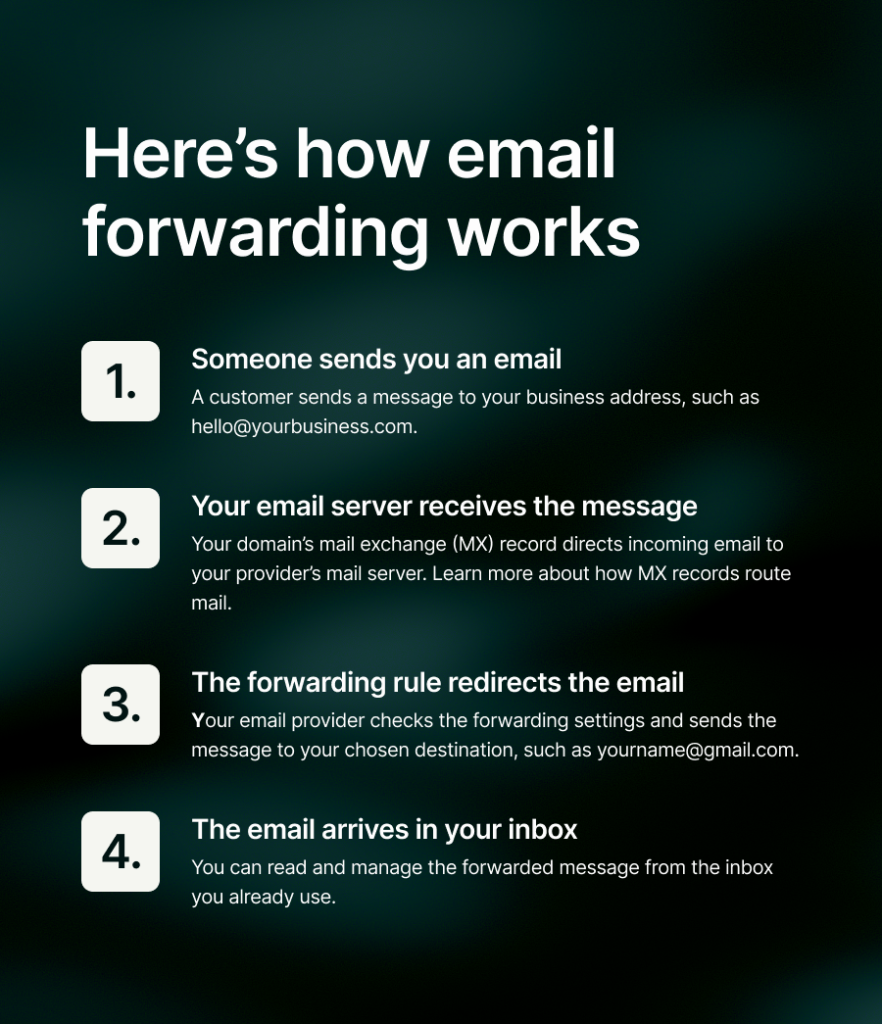
Because a forwarding-only address doesn’t have its own mailbox, it doesn’t store messages. If you’re forwarding from an existing hosted mailbox, your provider may offer an option to keep a copy there. At Network Solutions, our email platforms let you turn on forwarding in webmail and automatically forward messages from one mailbox to up to five email addresses.
As for who can see forwarded emails, anyone with access to your chosen destination inbox can read them. Standard automatic forwarding also doesn’t notify the original sender that their message has been redirected.
Common email forwarding use cases
Email forwarding helps small businesses manage incoming messages without creating a separate mailbox for every address. Here are some common ways to use it:
- Catch-all addresses: Set up a catch-all email address to receive messages sent to any unassigned address at your domain, including typos before the @ symbol, in one inbox. This helps prevent missed inquiries, though it may also attract spam.
- Department aliases: Direct emails sent to sales@, support@, or billing@ to the right team member without paying for a separate mailbox for each address.
- Personal-to-business routing: Forward messages from your new business email address to the Gmail or Outlook inbox you already check regularly while getting started.
- Domain or provider transitions: Keep receiving messages sent to your old email address after changing domains, rebranding, or switching providers, as long as the old address remains active.
- Departed team members: Redirect emails from a former employee’s address to the person taking over their responsibilities so customer inquiries and ongoing conversations aren’t missed.
Email forwarding vs hosted email
Both email forwarding and hosted email let you receive messages sent to your business domain. The main difference is how you manage those messages.
Email forwarding redirects incoming mail to an existing inbox, while hosted email gives you a dedicated mailbox that stores messages and lets you send and reply using your business address. Services like our Professional Email plans provide that full mailbox experience.
Here’s how email forwarding vs hosted email compares:
| Feature | Email forwarding | Hosted email |
|---|---|---|
| Mailbox and storage | No separate mailbox or storage for forwarding-only addresses | Dedicated mailbox that stores messages |
| Sending and replying | Replies come from your destination inbox unless you configure a separate sending service | Send and reply directly from your business email address |
| Setup effort | Usually simple; set a forwarding address and destination inbox | Requires mailbox setup, domain configuration, and possibly email app settings |
| Typical cost | Often included with domain services or available at a lower cost | Usually requires a paid email hosting plan |
| Best for | Individuals and small businesses that only need to receive and redirect messages | Businesses that regularly communicate with customers and need a dedicated inbox |
Both options can help you establish a recognizable business email address. As Anthony Matera, Senior Director of Email Products at Network Solutions, explains, “An email address tied to your domain significantly boosts professionalism, trustworthiness, and brand recognition compared to generic addresses.”
Which should you choose?
- Choose email forwarding if you want to receive business inquiries in an inbox you already use without managing another mailbox
- Choose hosted email if you need to send professional replies from your domain address, store business conversations, and manage email through a dedicated inbox
For a closer look at professional addresses and the features businesses may need, read our guide on what a business email includes.
Email forwarding vs email aliases
An email alias is an additional email address linked to an existing mailbox. For example, you can create [email protected] as an alias for your main business address. Messages sent to either address arrive in the same inbox, without needing a separate mailbox.
Email forwarding works differently. An email forwarder redirects incoming messages to another inbox, often with a different provider, such as forwarding [email protected] to [email protected].
Here’s how they compare:
| Feature | Email alias | Email forwarding |
|---|---|---|
| Where messages go | Directly into the existing mailbox linked to the alias | To a separate destination inbox, often with another provider |
| Mailbox requirements | Usually requires an existing hosted mailbox | Can work without a mailbox for the forwarding address |
Email aliases typically use your existing mailbox without adding another delivery step, although actual implementations may vary per provider. Forwarding can work without a mailbox at the original address, but the extra routing step may affect email authentication checks and cause some messages to land in spam.
If you already have a hosted mailbox and want additional addresses that share the same inbox, an alias is often the better choice. If you want messages delivered to an inbox you use elsewhere, email forwarding may be more suitable.
Manual vs automatic email forwarding
Email forwarding can happen in two ways: manually sending an individual message to someone else or automatically redirecting incoming emails to another inbox. Both serve different purposes, depending on how you want to manage your messages.
Here’s how they compare:
- Manual email forwarding: You open an email, click ‘Forward’, enter the recipient’s address, and optionally add a note before sending it. The subject line usually includes “Fwd:” to indicate that the message was forwarded. You control which emails to share and when, making it useful for passing along customer inquiries, updates, or documents.
- Automatic email forwarding: You set up a rule in your email account or domain settings to redirect incoming messages to another inbox. The rule can forward every message or only emails that match certain filters, such as a specific sender or subject. Once enabled, it works without any action from you.
For small businesses setting up a domain-based email address, automatic forwarding is the option we’re focusing on in this guide. It lets you receive business messages in your preferred inbox, while manual forwarding is something you use when you need to share a specific email with another person.
Can you reply from a forwarded email address?
Yes, you can reply to a forwarded email, but your response will normally come from the inbox receiving it, not the forwarding address. For example, if [email protected] forwards messages to [email protected], clicking ‘Reply’ will typically send your response from your Gmail address.
To reply using your business address, you’ll need a separate sending account with access to a Simple Mail Transfer Protocol (SMTP) server and valid login credentials. Gmail’s “Send as” feature has supported this setup, although you’ll need to configure both your sender and reply-to addresses. According to Gmail send-as settings, changing only the sender address means customer replies will still go to your original Gmail address by default.
Important: Google periodically updates its security standards and third-party email integration policies, which may limit or change how external accounts use ‘Send as’ features. Note that incoming email forwarding and Google Workspace aliases will remain unaffected.
While forwarding to a free Gmail account can work for receiving business inquiries, it has limitations when sending replies. If you regularly communicate with customers and want every response to come from your domain address, a hosted mailbox is the better long-term choice.
Limitations and risks of email forwarding
Email forwarding is a convenient way to manage messages across different addresses, but it comes with a few limitations. Before relying on it for business communications, consider these potential risks:
- Email deliverability issues: Forwarded messages can fail Sender Policy Framework (SPF) checks, which verify that an email comes from a server authorized by the sender’s domain. This happens because the forwarding server may not be on the original sender’s approved list. As explained in Google’s forwarding best practices and the SPF technical standard, even legitimate forwarded emails can fail authentication. DomainKeys Identified Mail (DKIM), which uses a digital signature to verify that an email hasn’t been altered, can help forwarded messages pass authentication.
- Unauthorized forwarding rules: If someone gains access to your email account, they could create a forwarding rule to secretly receive copies of your messages. The MITRE forwarding rule technique documents how attackers use these rules to collect sensitive information. Review your forwarding settings regularly and enable multi-factor authentication to protect your account.
- No built-in storage or backup: A forwarding-only address doesn’t store copies of incoming messages. Unless you have a hosted mailbox configured to retain them, you’ll depend on your destination inbox to keep your email history.
- Multiple forwarding steps: Redirecting messages through several email addresses can increase delivery delays and authentication problems. Keep forwarding chains short and send messages directly to your preferred inbox whenever possible.
Matera also recommends, “Ensure SPF, DKIM, and DMARC records are set up correctly in your domain settings to prevent your domain from being used for phishing.”
Domain-based Message Authentication, Reporting, and Conformance (DMARC) helps receiving servers handle messages that fail email authentication checks. Configuring these records according to Gmail sender guidelines can help protect your domain against impersonation and improve outgoing email deliverability.
However, these settings don’t automatically resolve authentication issues with messages forwarded from other senders.
When should you not use email forwarding?
Email forwarding works well for basic message routing, but it may not be suitable for businesses that need more control over their communications. Consider a hosted email solution instead if:
- You need to reply from your business address: Customers should see your domain-based email address when you respond, rather than the personal inbox receiving forwarded messages
- You need to store and manage business emails: A hosted mailbox lets you keep, search, organize, and back up important conversations under your business domain
- Your team needs separate accounts and collaboration tools: Multiple employees may need individual inboxes, calendars, and shared files instead of relying on one destination inbox
- You handle sensitive customer information: Forwarding messages to personal accounts can make it harder to control access, enforce security policies, and manage where business data is stored
- Your forwarded messages frequently land in spam: Repeated email deliverability problems may call for direct delivery to a hosted mailbox, along with properly configured email authentication
A dedicated business email setup gives you more control over how messages are sent, stored, and accessed as your communication needs grow.
Which email setup fits your business?
The best email setup depends on how you communicate with customers, manage messages, and work with your team. Here are three common business scenarios to help you decide:
- Solopreneur testing a business idea: Choose email forwarding if you mainly need to receive inquiries through your business address. It’s a simple, often lower-cost option that lets you manage messages from an inbox you already use.
- Growing business with regular customer communication: Choose hosted email if you frequently send and reply to customers. You’ll have a dedicated business mailbox for storing conversations, sending professional replies, and managing separate employee accounts.
- Team that needs email and collaboration tools: Choose Google Workspace if your employees need business email alongside shared calendars, cloud storage, and documents to work together.
You can also combine email forwarding and hosted email. For example, you could maintain one hosted mailbox for your business and forward messages from addresses like sales@ or info@ to that inbox. This gives customers multiple ways to contact you without requiring a separate mailbox for every address.
If you’re deciding between a dedicated email service and a collaboration platform, compare email hosting options to see which features make sense for your business.
How to set up email forwarding
Setting up automatic email forwarding is relatively simple, although the exact steps depend on your email provider or domain registrar. Here’s a general overview of the process:
- Open your email or domain settings: Sign in to your email provider’s or domain registrar’s control panel and select the email address you want to forward.
- Find the email forwarding option: Look for a section labeled “Forwarding” or “Email forwarding” and enable the feature.
- Enter your destination address: Add the email address where you want incoming messages delivered, such as your personal Gmail or Outlook inbox.
- Verify your forwarding setup: Complete any required email verification, save your settings, and send a test message to confirm that forwarding works.
Depending on your provider, you may also be able to keep a copy of each message in your original hosted mailbox or create filters that forward only emails meeting certain conditions.
Frequently asked questions
No. A forwarding-only address redirects incoming messages to another inbox without storing them. A hosted email account provides a dedicated mailbox where you can receive, store, send, and reply to messages using your business address. You can also enable forwarding on a hosted mailbox if your provider supports it.
Email forwarding is often included with domain registrations or email plans at no additional cost, but availability depends on your provider. Some services may charge for forwarding or limit how many addresses you can create. If you need to store messages and send replies from your business address, consider a hosted email plan instead.
Standard email forwarding doesn’t notify the original sender when you redirect a message. However, some emails contain tracking pixels that can record when a message is opened, including when someone views a forwarded copy. These tracking methods aren’t always reliable and don’t necessarily reveal that an email was forwarded or who received it.
Yes. Someone who gains access to your email account or its administrative settings could create a forwarding rule that secretly sends copies of your messages elsewhere. Check your forwarding settings for unfamiliar rules, remove any you don’t recognize, and change your password if you suspect unauthorized access. Enable multi-factor authentication for additional protection.
Sign in to your email provider’s or domain registrar’s control panel and open the email forwarding settings. Find the forwarding rule associated with your address, then disable or delete it. Save your changes and send a test email to confirm that forwarding has stopped. The exact steps may vary depending on your provider.
Email forwarding redirects incoming messages from one email address to another inbox. Domain forwarding redirects website visitors from one web address to another, such as yourbusiness.net to yourbusiness.com. Both involve redirecting traffic, but they serve different purposes. Setting up domain forwarding won’t automatically redirect your emails, so you’ll need to configure each service separately.
Choose the right email setup for your domain
The choice between email forwarding and hosted email comes down to how you want to manage your business communications. Forwarding lets you receive messages in an inbox you already use, while hosted email gives you a dedicated mailbox to store messages and send professional replies. You can also combine both options to manage multiple business addresses from one inbox.
At Network Solutions, we help you build your business email setup around your needs. Start by choosing a domain that represents your business, forward incoming messages to your existing inbox, and add Professional Email when you need more control over sending, replying, and storing messages.
Ready to get started? Register a custom domain today and take the first step toward a professional email address that grows with your business.