

Key takeaways:
- Claude can help you create a basic website in under 30 minutes, but polishing the site, setting up hosting, adding SSL, and connecting your own custom domain may take longer.
- Claude is best for planning, copy, prompts, and simple code. Claude Code is better when you want to build and edit real website files inside a project folder.
- A local preview only works on your computer. To make your site public, you need a domain, hosting, and SSL.
Claude can help you build a website faster than starting from scratch. With the right prompt, you can ask it to plan your pages, write starter copy, create code, preview the design, and help you fix problems along the way.
That’s why more people are searching for topics like ‘how to make a website with Claude’ or ‘how to build a website with AI’. In real life, a small business owner, freelancer, or creator can use Claude to build a simple site, landing page, or personal website in under 30 minutes, although actual timelines may vary depending on the project’s complexity and the amount of content to be added.
But take note that a website made with Claude is not automatically live on the internet. Claude can help create the first version, but you still need a domain, hosting, SSL, and final testing before users can access the site.
For this walkthrough, we used Claude’s free plan, and included information on Claude Code (where relevant). This article is for informational and demonstration purposes only. Actual results may vary depending on your Claude version, future Claude updates, subscription access, computer setup, operating system, files, prompts, hosting provider, and the tools you use to publish your site.
Think of Claude as the tool that helps you create the draft. Network Solutions helps with the next part of the process: finding a domain, putting the website online, securing it, and giving your business the tools to grow.
Find a domain that fits your new Claude-built website
Start with a web address that matches your brand or business to launch your website

Claude vs. Claude Code: Which should you use?
Claude and Claude Code can both help with creating websites, but they are not exactly the same. The right tool depends on how comfortable you are with files, code, and setup.
Tool | Best for | Beginner note |
|---|---|---|
Claude | Planning, copy, prompts, and basic code | Start here if you are new |
Claude Code | Creating files and editing a project | Use this when you are ready to work in a folder |
Visual previews or artifacts | Seeing a rough page or layout | Helpful before publishing |
Claude
Claude is the standard chat version of Claude, where you type prompts and get written responses in your browser. It’s the easiest place to start if you want to plan your website, write homepage copy, create your first prompt, explain code, or generate simple HTML, CSS, and JavaScript.
This is good option if you don’t have much code knowledge. You can ask Claude to explain what each part of the code does, rewrite confusing instructions, or help you decide what makes sense for your business.
Claude is useful for:
- Planning the website
- Writing page copy
- Creating prompts
- Explaining code in plain English
- Building simple website sections
- Reviewing page titles and meta descriptions
- Coming up with CTA ideas
Claude Code
Claude Code is Anthropic’s coding tool for working with actual project files, not just chatting about code. It’s better when you’re ready to create and edit website files inside a project folder, start a local preview, and update code across the whole project.
Using Claude Code may feel more technical at first, especially if you are new to folders, files, GitHub, or the terminal. But it can be helpful because Claude works directly on your website project rather than just giving you code to copy.
Claude Code is useful for:
- Creating website files
- Editing HTML, CSS, and JavaScript
- Working inside a project folder
- Helping with a local preview
- Explaining an error message
- Updating multiple files
- Helping connect with other tools like GitHub or deployment platforms
Some users use Claude Code through a desktop app or a setup on a Mac or Windows computer. The exact setup can vary, so follow the instructions for the version of Claude Code you are using.
Claude artifacts and visual previews
Claude can also create visual outputs, simple pages, and code previews in a few ways, depending on the tools and subscription you use. For example, a Claude subscription may include features that make it easier to preview code, create artifacts, or work with larger projects, noting that availability and usage limits can vary depending on your Claude plan and current Anthropic offerings.
These tools can help you see an idea before turning it into a full website project.
What kind of website can Claude build?
Claude works best when the website has a clear goal and simple structure. It can build websites quickly, but some websites are easier to build than others.
Simple websites and landing pages
Claude works best for websites with a clear goal and a simple structure. It is especially useful for:
- Personal websites that introduce who you are, what you do, and how people can contact you
- Landing pages that promote one offer, service, event, or campaign
- Business websites that explain your services, show trust signals, and help customers get in touch
- Portfolios that highlight your work, projects, testimonials, and experience
- Basic blog layouts that organize posts, categories, and author information
- Product or service pages that explain what you offer and guide visitors toward the next step
For example, a freelancer can ask Claude to create a personal website with a short bio, portfolio links, and a contact form. A local business can ask Claude to create a landing page with services, customer reviews, and a quote request button.
This is where Claude is most helpful for beginners. It can turn a rough idea into a first draft in a few minutes, especially when the site only needs a few pages or sections. Once the direction makes sense, Claude can also generate the HTML, CSS, and JavaScript needed to build the page.
More advanced websites and web apps
Some websites need more than just Claude-generated code. E-commerce stores, booking systems, customer accounts, dashboards, payment forms, surveys, and data-heavy apps may require extra tools.
A simple website is often a static site. That basically means the pages mostly stay the same unless you edit them. So, a service page, portfolio, or basic landing page can often work as a static site. In comparison, more advanced sites or web apps adapt to user behavior, so they have to be dynamic. It may save customer data, process payments, connect to a database, or use an API key to pull information from another service.
These advanced projects may need:
- Databases
- Payment tools
- Login systems
- API keys
- Developer support
- AI agents
- Other tools
- More testing
Claude can help explain the process and write some code, but for now, this article focuses on beginner-friendly website creation.
Before you start: Gather what Claude needs
Claude gives better results when you give it clear details. Before you start Claude Code or ask Claude for a prompt, gather the information you want the website to include.
Use this checklist before starting your website project:
- Website goal
- Business name
- Logo
- Brand colors
- Color palette
- Font preferences
- Page list
- Homepage copy
- Images
- Contact details
- Domain idea
- Hosting plan
- Example websites
- Mood board
- Product or service details
- Notes about your tone and brand
You don’t need everything right away. Free placeholder text or sample images can help you test the first version. But before the site goes live, replace placeholder stuff with real business details.
It also helps to keep everything in one project folder. Add your logo, photos, brand notes, copy, and other files there. This keeps the project organized and gives Claude Code the right materials to work with.
For example, instead of saying, “Make me a website,” you could give Claude more detail:
“Create a landing page for a local photography business. Use a calm, modern style, a warm color palette, and a friendly tone. Include a homepage hero, services section, portfolio preview, testimonials, and contact section.”
That gives Claude a much better starting point.
Satyam Mishra, Software Engineering Manager at Network Solutions, notes, “A basic website can be up and running in a couple of hours. The technical side — the code, the layout, the structure — Claude handles that quickly. Where most people slow down is the content side: figuring out what to say, finding the right images, and deciding how to present their business. My advice is always to sort your content before you open Claude. That one step cuts the total time in half.”
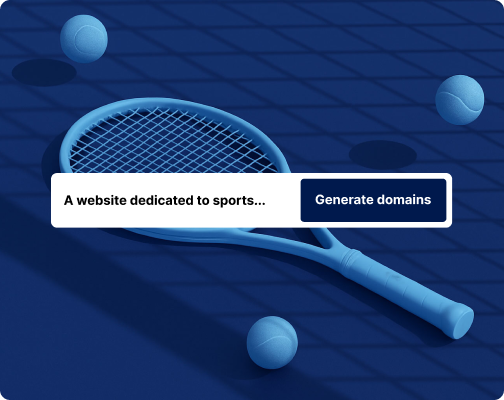
Need a domain idea before you build?
Use Network Solutions’ AI Domain Name Generator to find a name that fits your website and business needs.
How to make a website with Claude
Making a website with Claude starts with a clear idea and ends with a published site that people can visit online. Claude can help with the early work, such as planning your pages, writing copy, creating code, and improving the design. But the final steps, like choosing a domain, setting up hosting, adding SSL, and testing the live site, still matter.
The exact tools you use may vary. Some readers may use Claude to create the first prompt and basic code. Others may use Claude Code to work inside a project folder. Some may publish through GitHub, Vercel, Cloudflare Pages, Network Solutions Hosting, or another hosting setup.
Use these steps as your checklist:
- Create a project folder.
- Give Claude your website goal and starter prompt.
- Feed Claude brand and design direction.
- Let Claude build the first version.
- Preview your site before publishing.
- Ask Claude to improve the design, copy, and responsiveness.
- Choose and connect your domain name.
- Publish the website with hosting.
- Add SSL before launch.
- Run a launch-readiness checklist.
Important: Keep in mind that AI-generated code is not automatically production-ready. Review the output carefully, test key features, and verify form functionality, accessibility, performance, and security before publishing.
Step 1: Create a project folder
Before you start Claude, create an empty folder for your website project where you can create, organize, and edit your website files.
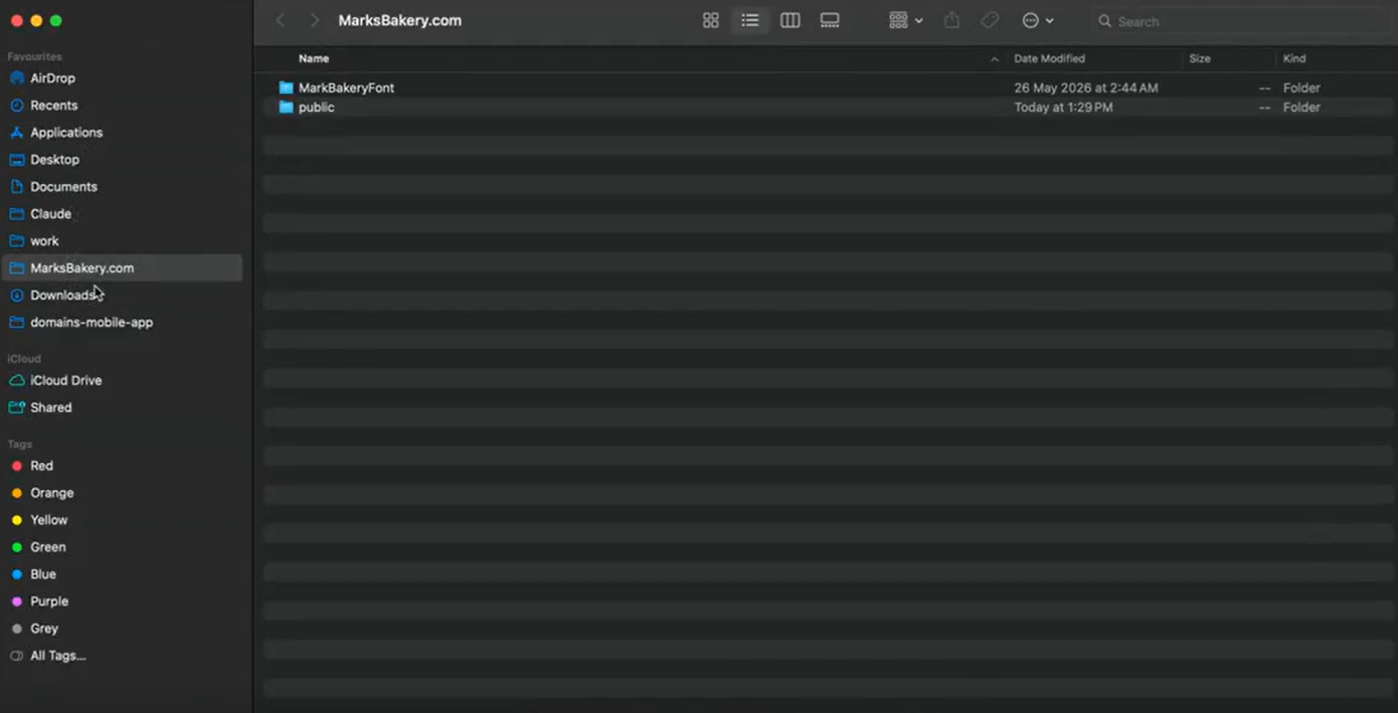
Your project folder will be the home base for your site. It can hold your code, images, logo, brand notes, page copy, and any other files Claude needs to build the website. Keeping everything in one folder makes the project easier to manage, especially if you are new to working with website files.
You can name the folder something simple, such as “my-business-website” or “personal-website”.
This folder becomes your project root, which means it is the main folder Claude uses for the website project. Make sure it runs from this folder, not from a random location on your computer.
A simple website project folder might include:
- index.html
- styles.css
- script.js
- images folder
- logo file
- brand notes
- homepage copy
This setup keeps your website project organized from the start. It also helps reduce confusion by allowing Claude to focus on the website files.
Note: Avoid giving Claude access to unrelated folders, private documents, system files, or anything it does not need. Keep the project in its own folder, so Claude only works with the right files.
Step 2: Give Claude your website goal and starter prompt
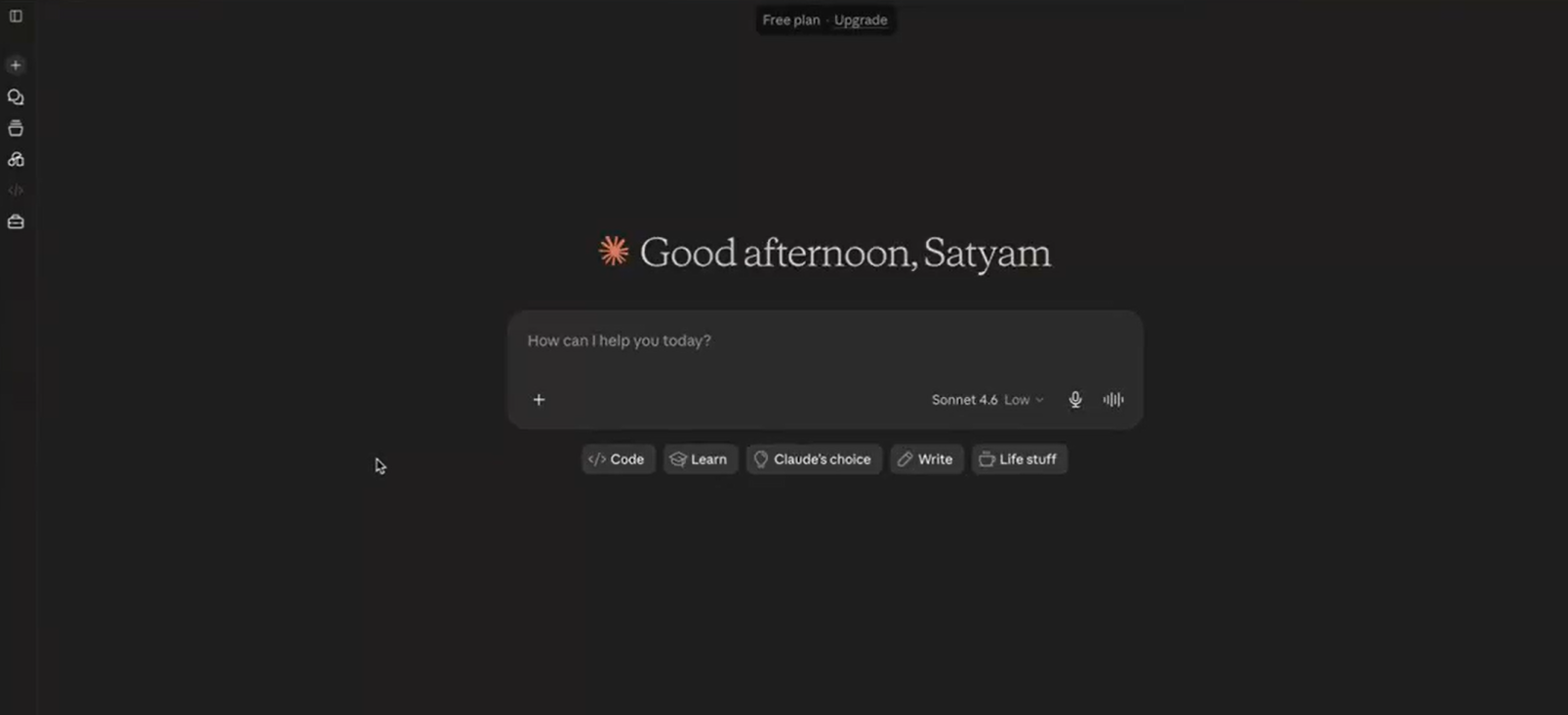
Next, tell Claude what kind of website you want to build. No need to sound technical. Describe the project the way you would explain it to a developer, designer, or helpful assistant.
Start with the basics and answer the following questions:
- What kind of business, brand, or project is the website for?
- Who is the website for?
- What should visitors do after landing on the site?
- What pages or sections do you need?
- What tone should the copy use?
- What colors or style do you want?
Then give Claude your first prompt. You can copy, paste, and customize this starter prompt:
“Create a responsive website for [business type] with a homepage, about section, services section, testimonials, and contact form. Use [brand colors], write in a [tone] voice, and make the design clean, modern, and mobile-friendly.”
Sample prompt (generic version):
“Create a responsive website for a local bakery business with a homepage, about section, services section, testimonials, and contact form. Use soft brown and cream with gold accents as the brand colors, write in a warm and friendly voice, and make the design clean, modern, and mobile-friendly.”
You can modify this prompt to match your preferences, business type, brand, and comfort level. A freelancer may ask for a personal website with a portfolio section. A consultant may ask for a landing page with a clear booking call to action. A local service provider may ask for service areas, reviews, and a quote request form.
Mishra suggests, “Be specific. Tell Claude your business name, what you do, who your customers are, what pages you need, and what you want visitors to do when they land on your site. If you’re too vague — just saying ‘make me a bakery website’ — you’ll get something generic that needs a lot of fixing. The more context you give upfront, the less back-and-forth you’ll have later.”
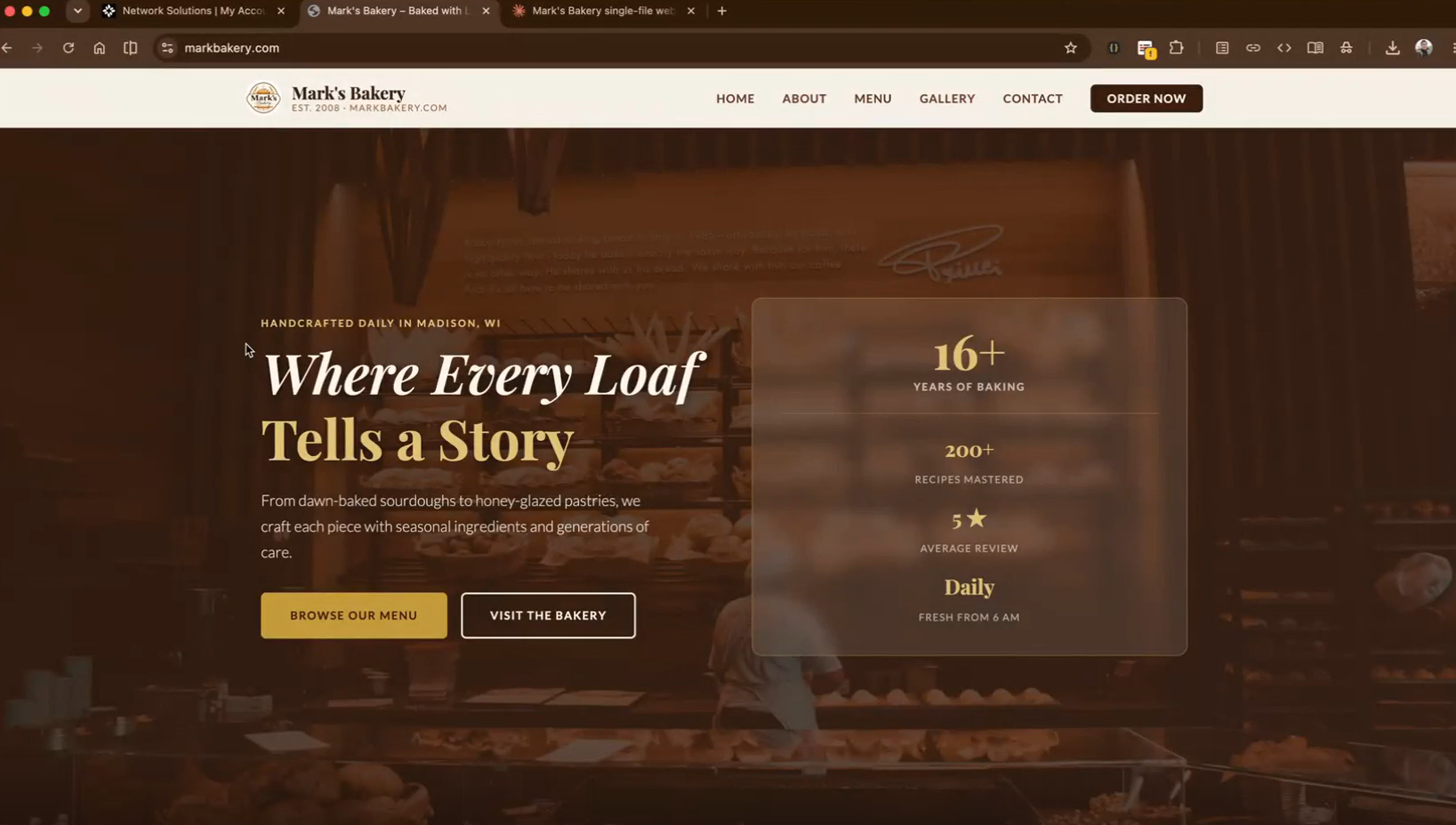
Here’s how it should look on your screen:
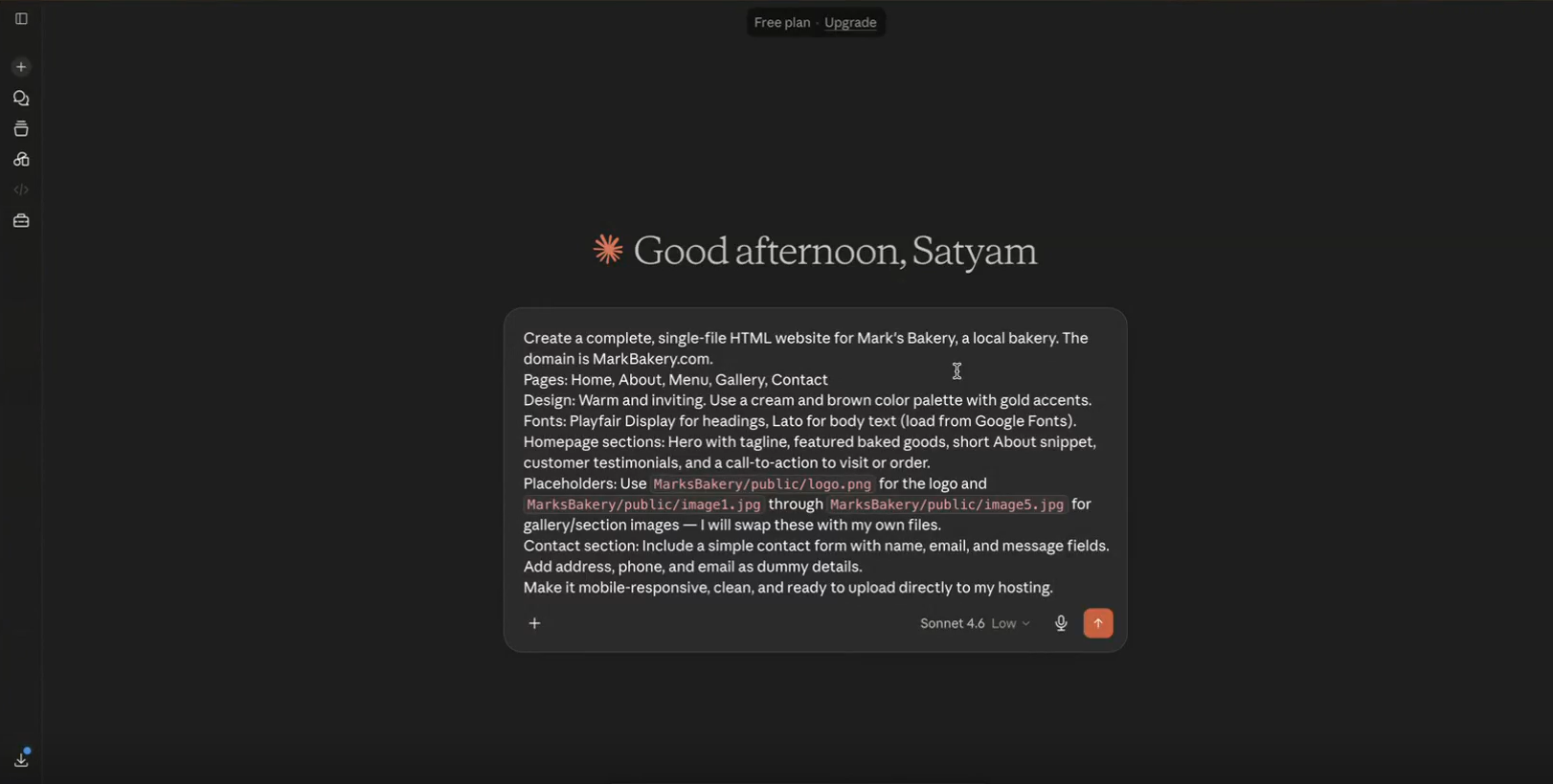
For complete reference, here’s the actual prompt that Mishra used in his demo site above:
“Create a complete, single-file HTML website for Mark’s Bakery, a local bakery. The domain is MarkBakery.com.
Pages: Home, About, Menu, Gallery, Contact
Design: Warm and inviting. Use a cream and brown color palette with gold accents. Fonts: Playfair Display for headings, Lato for body text (load from Google Fonts).
Homepage sections: Hero with tagline, featured baked goods, short About snippet, customer testimonials, and a call-to-action to visit or order.
Placeholders: Use MarksBakery/public/logo.png for the logo and MarksBakery/public/image1.jpg through MarksBakery/public/image5.jpg for gallery/section images — I will swap these with my own files.
Contact section: Include a simple contact form with name, email, and message fields. Add address, phone, and email as dummy details.
Make it mobile-responsive, clean, and ready to upload directly to my hosting.”
Depending on the tool and prompt, Claude may create HTML, CSS, JavaScript, React, Next.js, or another structure. If you are a beginner, ask Claude to keep the code simple and explain what each file does.
Step 3: Feed Claude brand and design direction
Before Claude builds the first version, give it brand and design direction. This step helps your website feel more specific to your business instead of looking like a generic AI-generated page.
Claude can work better when you give it examples, images, and clear preferences. You can upload or reference:
- Logo
- Brand colors
- Font preferences
- Color palette
- Screenshots
- Competitor websites
- Mood boards
- Sample websites
- Product images
- Team photos
- Existing flyers, brochures, or social posts
This is also a good place to mention your design system. A design system is a reusable set of colors, fonts, spacing, buttons, and layout rules. Designers use design systems to keep websites consistent, but beginners can use a simple version too. Even a basic color palette, font choice, and button style can help Claude create a more polished result.
Use this follow-up prompt: “Use the attached logo, brand colors, and reference screenshots to make the website feel more polished and less generic.”
You can also tell Claude what you do not want. For example:
- “Do not make it look too corporate.”
- “Avoid bright neon colors.”
- “Make the design feel warm and local.”
- “Keep the layout simple for mobile users.”
- “Use a clean design with plenty of white space.”
You can also ask Claude to include simple animations, but keep them light. Animations should make the site feel smoother, not distract users from the main message.
Step 4: Let Claude build the first version
Once Claude has your website goal, starter prompt, and design direction, let it build the first version of the site.
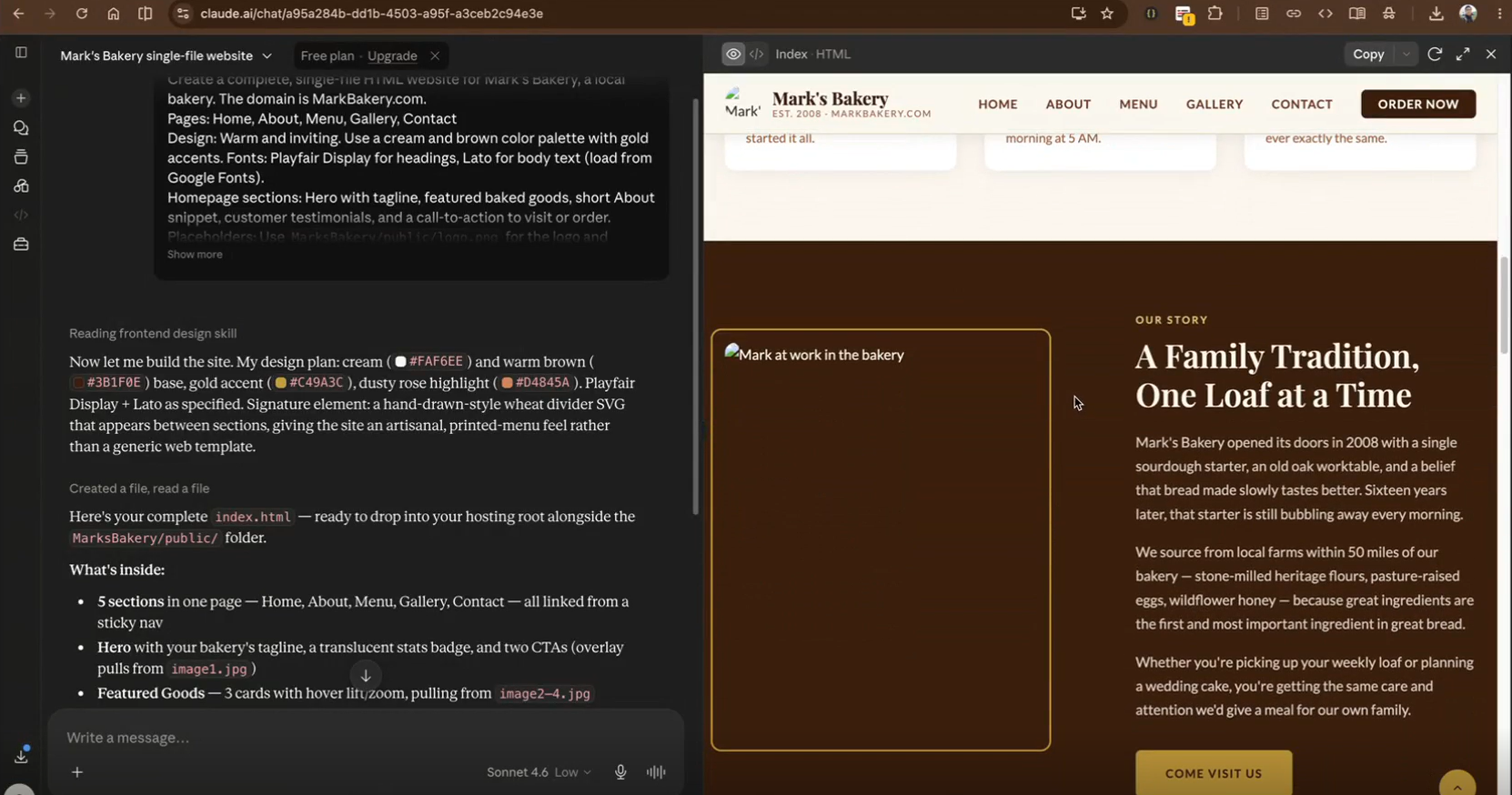
Note: If you are using Claude Code, it may create files such as:
- index.html
- styles.css
- script.js
- package files
- image folders
- framework folders if the project uses React, Astro, or Next.js
No need to understand every file right away, but it’s good to start with the basics:
- HTML controls the page structure, such as headings, paragraphs, sections, buttons, and forms.
- CSS controls the styling, such as colors, fonts, spacing, layout, and mobile design.
- JavaScript controls interactive parts, such as menus, buttons, form behavior, or small animations.
In some cases, Claude may create a simple website in a few minutes, although the quality and completeness depend on the prompt, project complexity, and the version of Claude being used. But generally, it can build a homepage, add sections, create buttons, style the page, and prepare files you can preview.
Note: If Claude asks permission before creating or editing files, review the request before approving it. Make sure Claude is working inside the right project folder and only changing files related to your website project.
The first version doesn’t need to be perfect. At this point, the goal is to create something that makes sense. You can improve the design, copy, layout, responsiveness, and code in the next steps.
Step 5: Preview your site before publishing
After Claude creates the first version, preview the site before publishing it. This helps you see how the website looks and catch problems while it’s still private.
There are two common ways to preview the site:
- Open the generated HTML file in a browser.
- Ask Claude Code to start a local dev server.
For a simple HTML website, you may be able to double-click the HTML file and open it in your browser. For a more advanced project, Claude Code may help start a local preview so you can view the site on your computer.
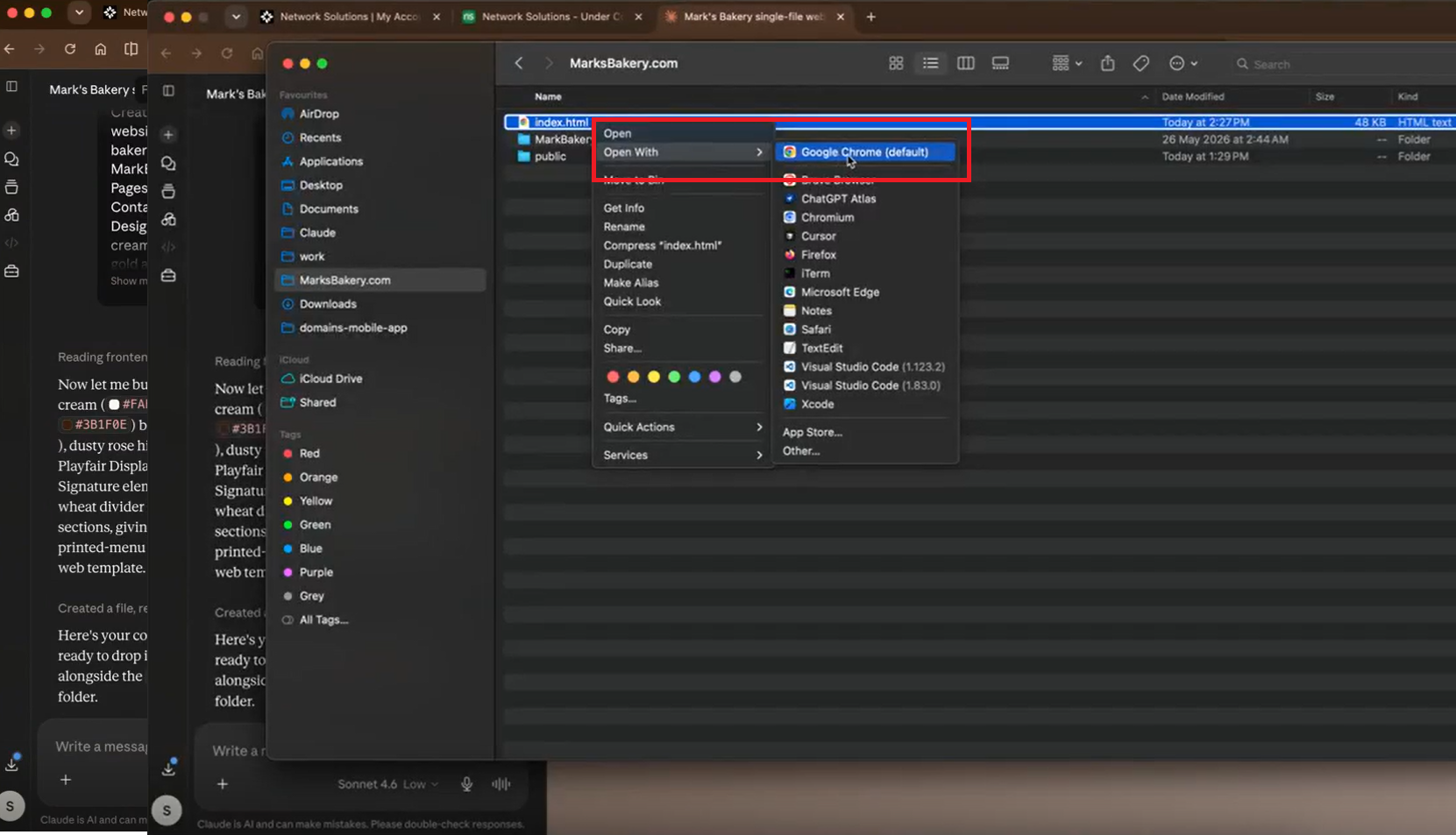
As you preview the site, check:
- Layout
- Copy
- Buttons
- Links
- Images
- Forms
- Mobile responsiveness
- Navigation
- Contact details
- Calls to action
Don’t just look at the homepage on your desktop screen. Open the site on mobile if you can (or at leas resize your desktop browser screens to simulate smaller views). Click the buttons. Test the links. Read the copy out loud. Make sure the site is easy to understand from a visitor’s point of view.
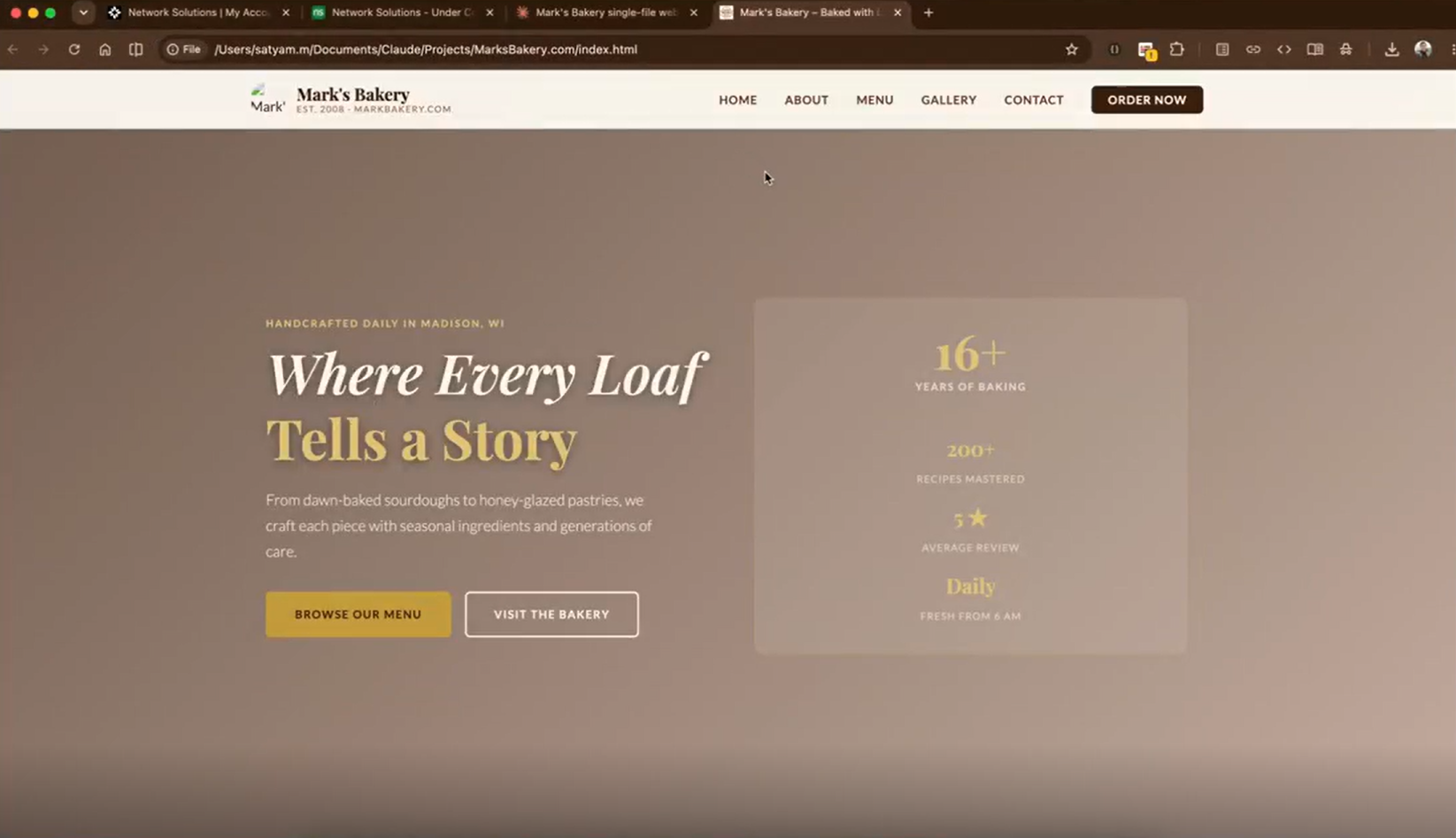
Note: Local preview is not the same as a live website.
A local preview is a version of your site that is only visible to you on your computer. It is useful for checking the design, copy, layout, and code before you publish.
But a local preview is not a live URL that customers can visit online. To make your site public, you need hosting, a domain, and SSL. Hosting gives your website a place to live online. A domain gives people an address to type into their browser. SSL helps secure the connection between your website and visitors.
Step 6: Ask Claude to improve the design, copy, and responsiveness
Your first Claude-built website is only a starting point. It may have the right structure, but it will likely need changes before it is ready to share.
This is one of the most useful parts of the process. You can keep asking Claude to improve specific parts of the site. Instead of saying, “Make it better,” point Claude toward the exact issue you want to fix.
Use these follow-up prompts:
- “Make this website fully responsive on mobile devices.”
- “Improve the hero section so the headline is clearer and the CTA stands out.”
- “Replace placeholder copy with business-friendly copy for a [business type].”
- “Review the code and suggest fixes for accessibility, page speed, and SEO.”
You can also try:
- “Add a dark mode option.”
- “Make the contact form easier to find.”
- “Make the design feel more modern without changing the brand colors.”
- “Fix this error message and explain what caused it in plain English.”
Readers can modify these prompts to match their preferences, website type, brand, and comfort level. A personal website may need a stronger bio. A landing page may need a clearer offer. A service business may need stronger trust signals, such as testimonials, service areas, or before-and-after examples.
After each major change, preview the site again. Test the buttons, links, images, forms, mobile layout, and animations. This helps you catch small issues before they become bigger problems on the live site.
Step 7: Choose and connect your domain name
Once the first working version makes sense, choose your domain name. Your domain should be:
- Short
- Easy to spell
- Easy to remember
- Relevant to your brand or business
- Flexible enough for future growth
For example, a freelancer may use a personal name as their domain. A bakery may use its shop name. A local service provider may include the service or location if it makes the domain clearer.
If you want your own custom domain, you need to register it and connect it to your “hosted” website before it becomes accessible on the internet. This is what turns your site from a local project or temporary preview into something visitors can find through a branded web address.
Use our domain search to check if your preferred domain is available.
Find the perfect domain
Ready to register a domain name? Check domain availability and get started with Network Solutions today.
Once you’ve registered your domain, you can access your account dashboard:
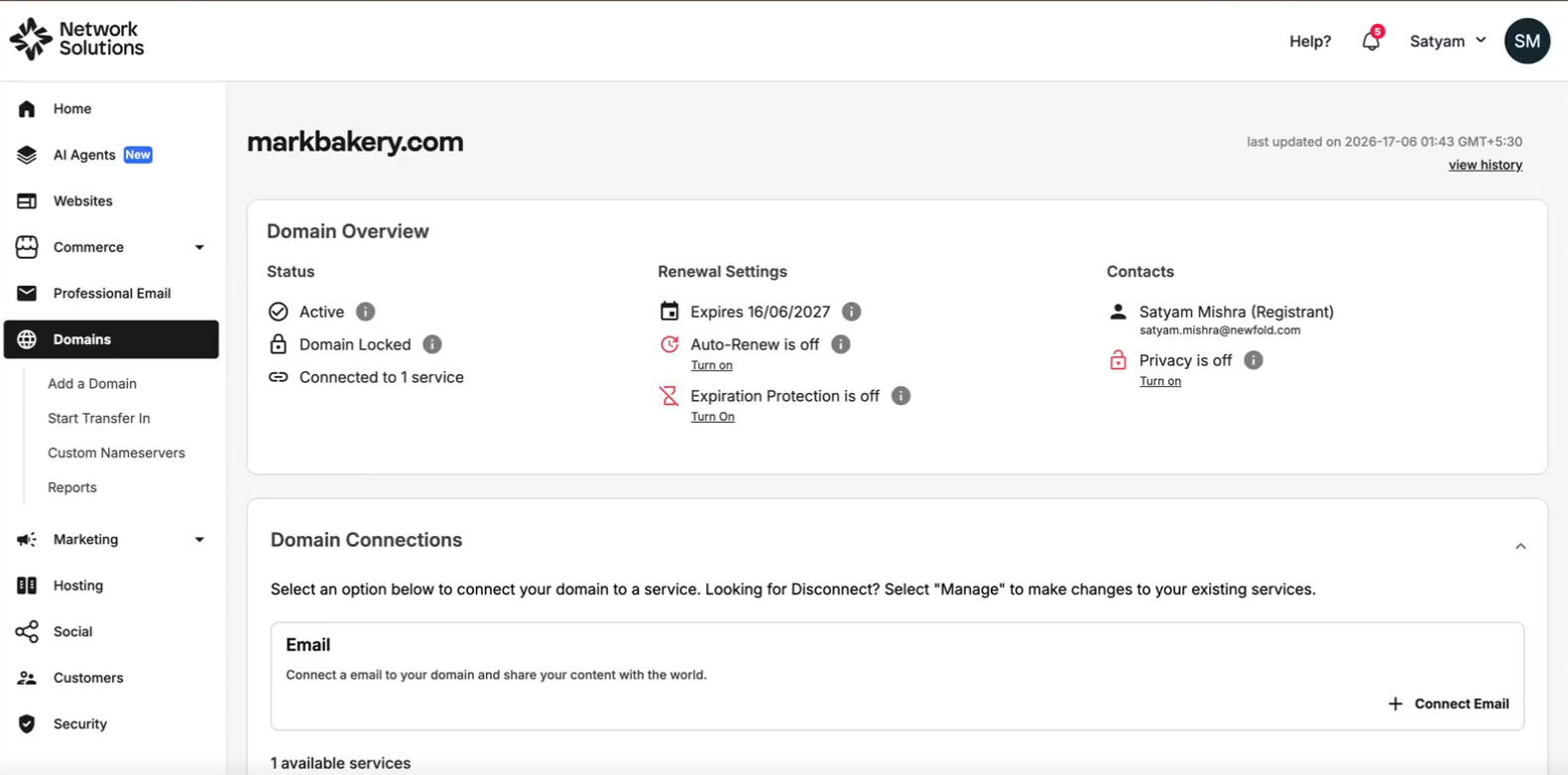
If you are still deciding on a name, the Network Solutions AI Domain Name Generator can help you explore ideas based on your business, keywords, or website concept.
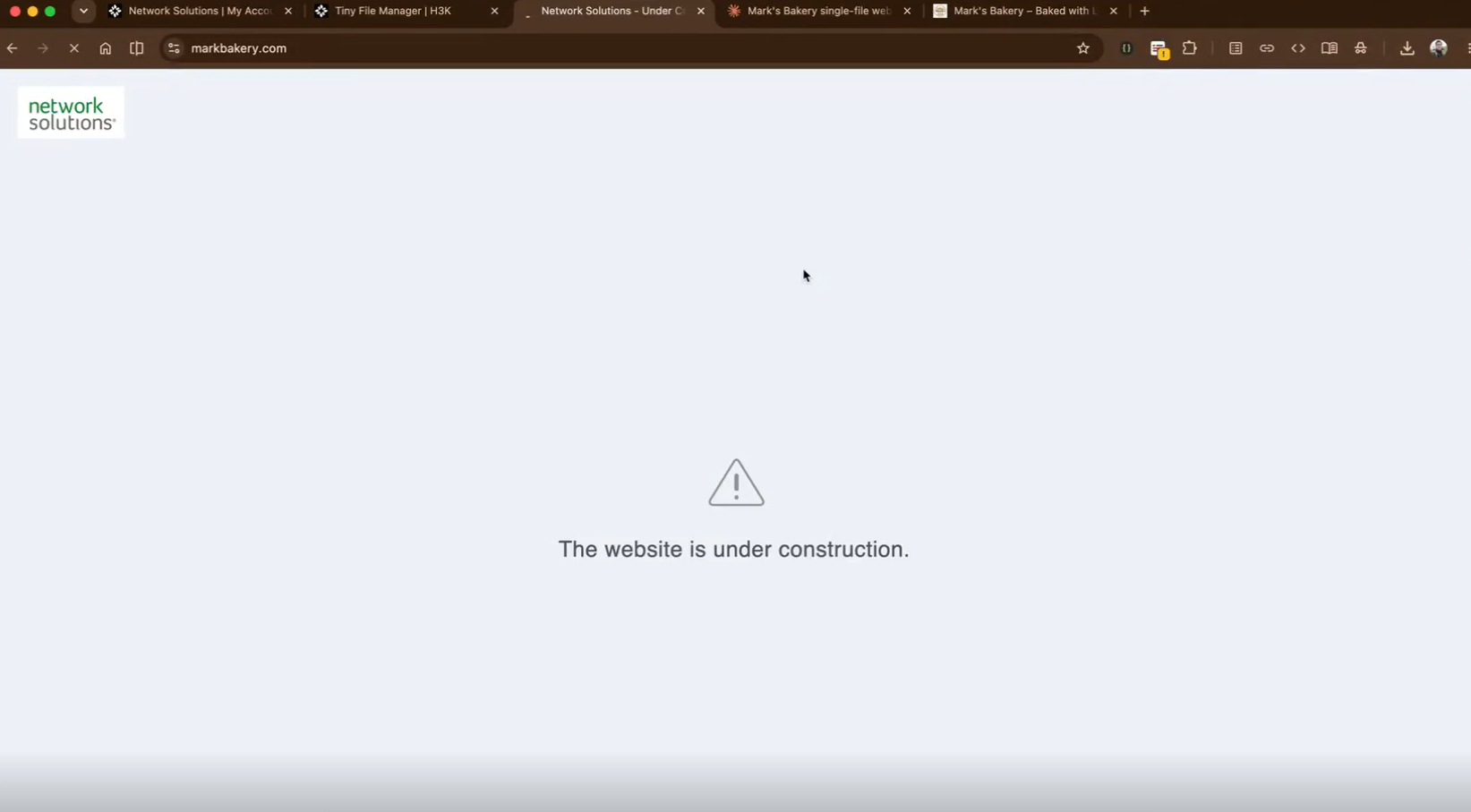
At this point, your domain may show a default “Under Construction” page or a placeholder page from your hosting provider. That is normal. It usually means the domain and hosting are active, but your finished website files have not been uploaded yet.
Step 8: Publish the website with hosting
Publishing means putting your website files somewhere other people can access them online. Before this step, your site will only work on your computer. Basically, your website files need a place to live, your domain needs to point to that “home address” (your live domain/URL) so visitors can access it.
There are a few ways to publish a Claude-built website, depending on how the site was created:
- Use hosting: Best for simple HTML, CSS, JavaScript, and image files that you can upload and connect to your domain.
- Use a Git-based platform: Best for developer-style projects that use GitHub, Vercel, Cloudflare Pages, previews, or auto-deploy updates.
Note: If you want a more guided, no-code way to edit and publish your site while still using Claude for copy, page ideas, and structure, then we advise using a website builder instead. Network Solutions has a drag-and-drop website builder to speed up the process.
Mishra recommends, “If someone is completely uncomfortable with any kind of file management — uploading files, organizing folders — a drag-and-drop website builder might be an easier starting point. But here’s the thing: Claude is still useful either way. Even if you’re using a no-code builder, you can use Claude to write your homepage copy, draft your About page, come up with a tagline, or plan your page structure. Claude isn’t just a code tool. It’s a thinking partner for your website.”
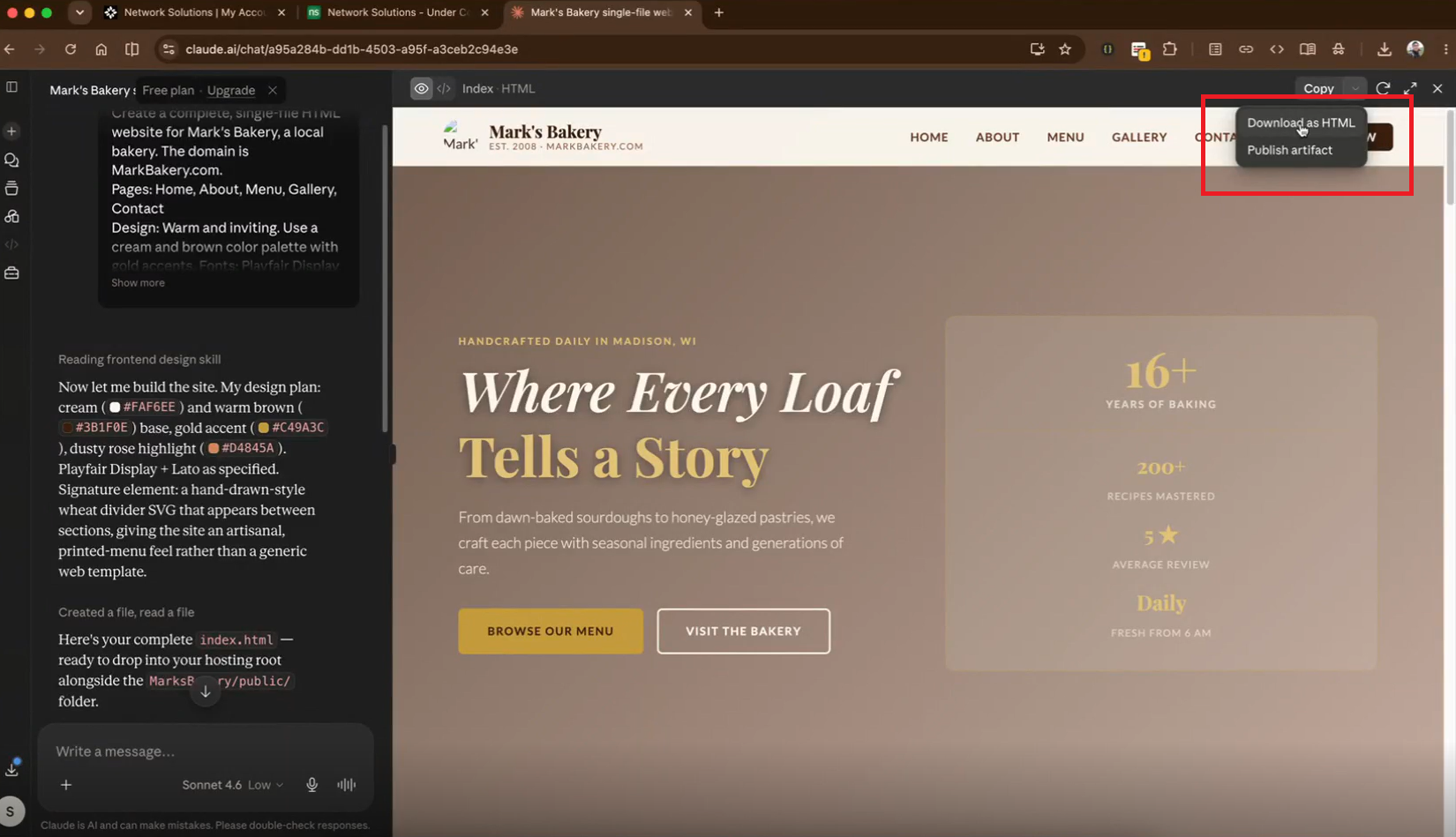
For a simple HTML website, publishing your Claude-created website may look like this:
- Log in to your hosting account: In Network Solutions, this may mean going to your Account Manager, opening Hosting, and selecting the File Manager.
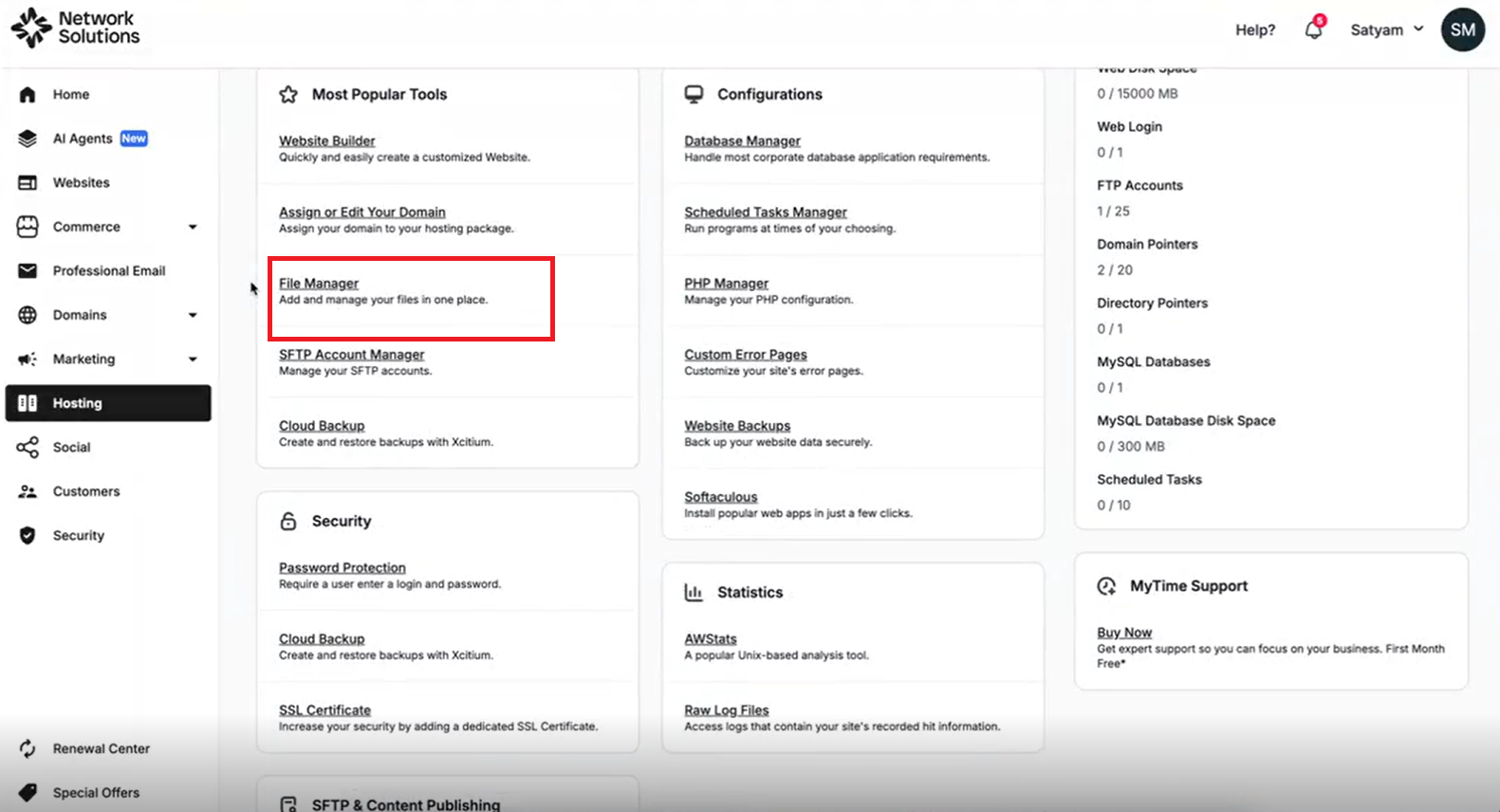
2. Open the main website folder: In some hosting setups, this folder may be called htdocs. Exact folder names can vary, so follow the instructions in your hosting account.
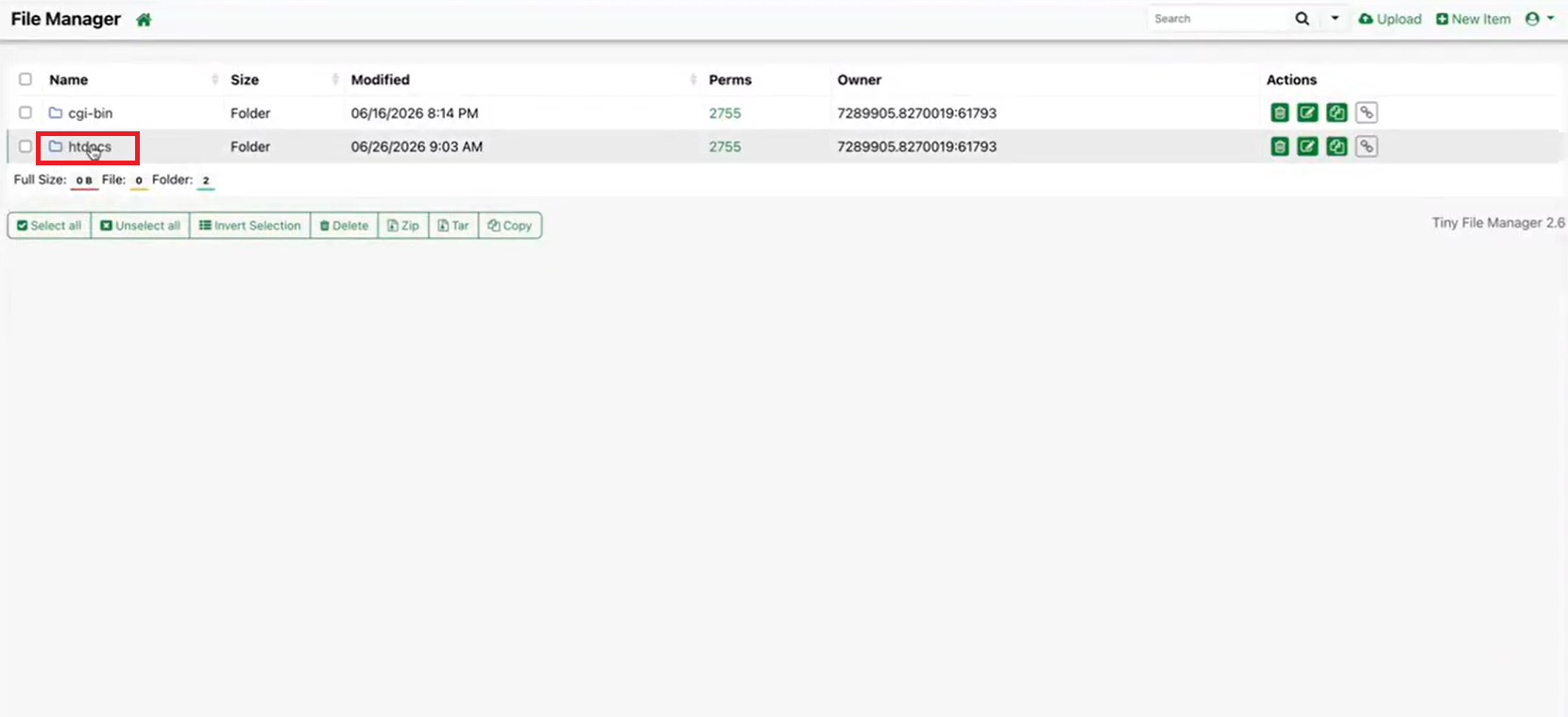
3. Back up or rename the existing homepage file: If there is already an index.html file, you may want to rename it first, so you have a backup.
4. Upload your new index.html file: This replaces the default “Under Construction” page or placeholder homepage.
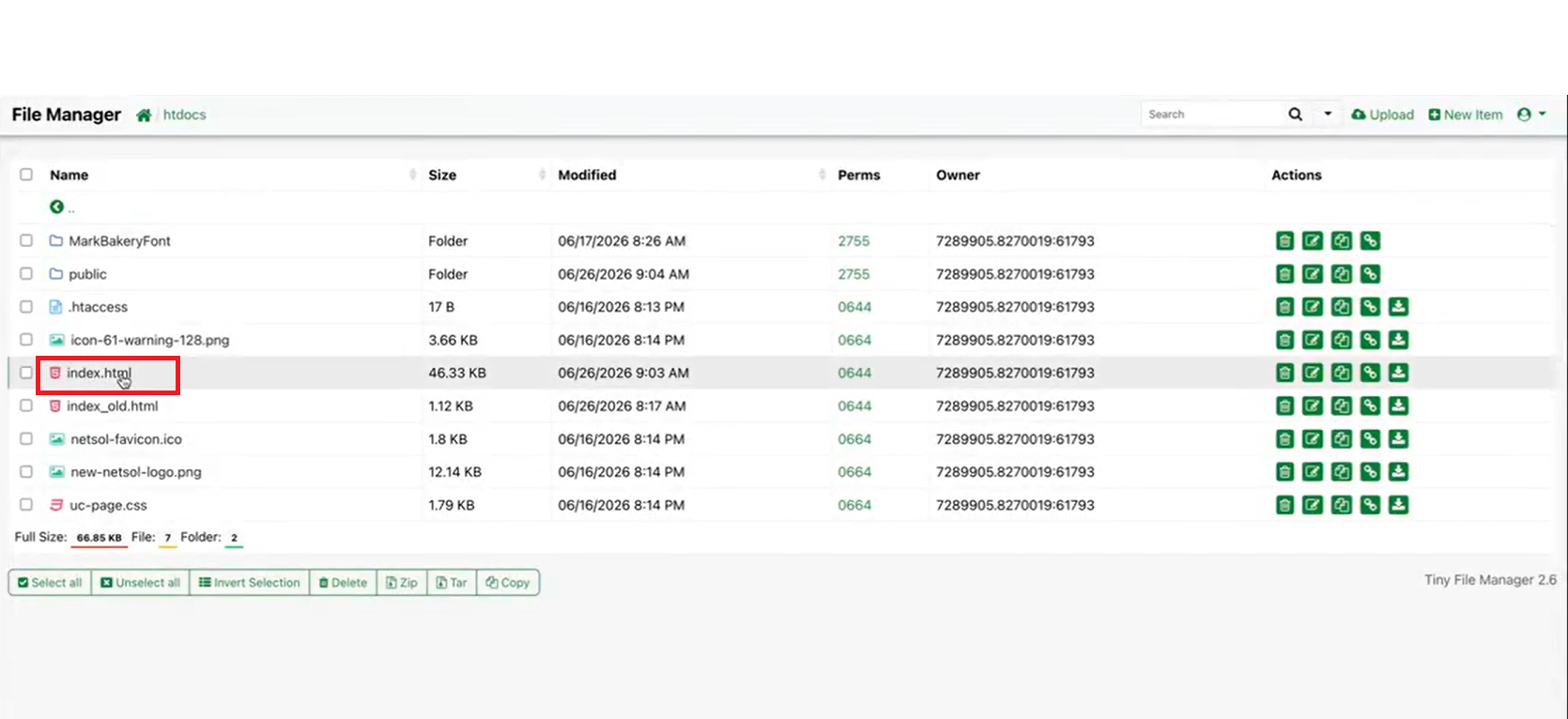
5. Upload your images and logo: Add any files your website uses, such as logo.png, image1.jpg, or other image files.
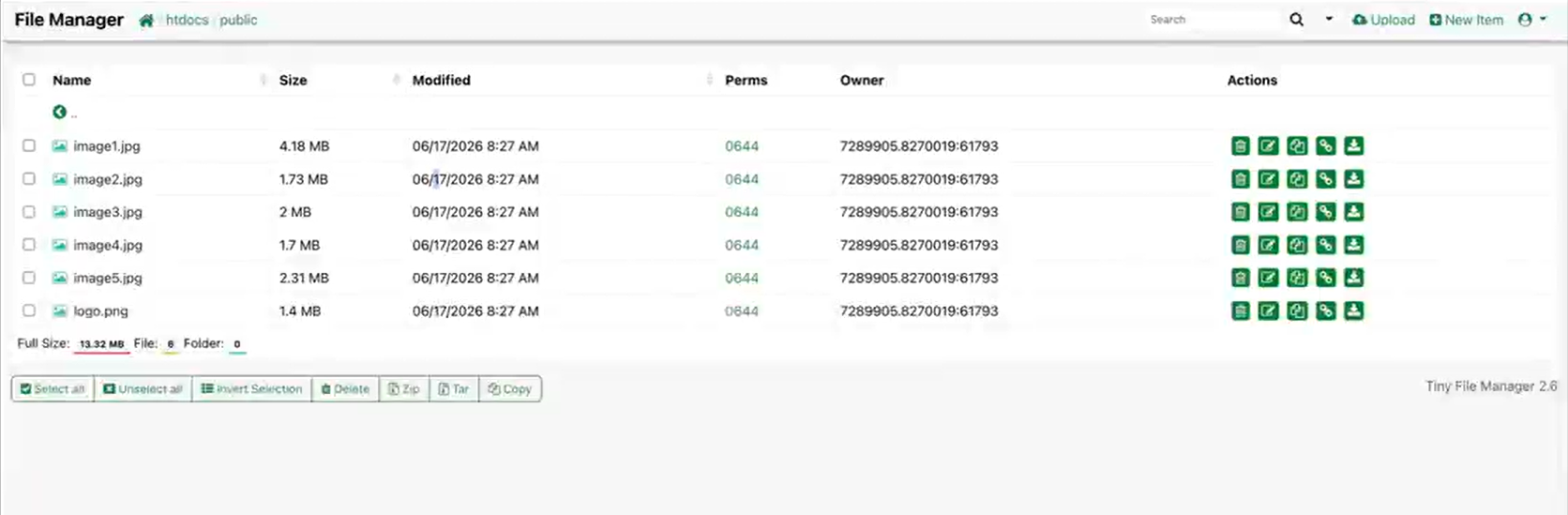
6. Check that file paths match: If an image does not appear, make sure it is uploaded to the same folder referenced in your HTML file.
7. Visit your domain: Open your website address in a browser, refresh the page, and check that the new site appears. Note that it can take several minutes for this process to take effect.
In simple terms: generate the website with Claude, download the HTML, upload the HTML and images to hosting, then refresh your domain to see the live site.
Mishra adds, “Network Solutions takes the guesswork out of getting your site live. Once Claude generates your HTML file, you simply log into your Network Solutions account, upload the file through the hosting file manager, and your site is live on your domain. There’s no complicated server setup, no technical configuration. It’s a straightforward upload and you’re done. For someone doing this for the first time, that simplicity is a big deal.”
Step 9: Add SSL before launch
Before you share your site publicly, make sure SSL is set up. Secure Sockets Layer (SSL) helps secure the connection between your website and its visitors.
You’ll usually see SSL as HTTPS in the browser. Many visitors also look for the padlock icon before they trust a site, especially when filling out a contact form, quote request, appointment request, or any form that asks for personal information.
SSL helps protect information as it moves between the visitor and the website. It also supports trust. A browser warning or missing HTTPS connection can make users hesitate, even if the site itself looks professional.
Before launch, open your website in a browser and check that the secure connection works. If the domain and hosting are connected but HTTPS is not showing correctly, fix that before promoting the site.
Our SSL certificates can help secure your website and give your visitors more confidence when they browse.
Secure your website before you share it
Help visitors browse with confidence with Network Solutions SSL certificates.

Step 10: Run a launch-readiness checklist
Before you publish or promote your site, run through a final launch-readiness checklist. This step helps you catch problems that may not be obvious during the first preview.
Use this checklist before launch:
- Test all links.
- Test contact forms.
- Check the mobile layout.
- Compress large images.
- Confirm page titles.
- Confirm meta descriptions.
- Verify SSL.
- Make sure the domain points to the right site.
- Check buttons and calls to action.
- Review your business name, phone number, email, and address.
- Remove placeholder text.
- Check spelling and grammar.
- Open the site in more than one browser.
- Ask Claude to review accessibility, SEO, and page speed.
- Ask Claude to explain any error message in plain English.
You can also ask Claude:
“Review this website before launch. Check for broken links, unclear calls to action, accessibility issues, SEO basics, page speed concerns, and anything that may confuse users.”
Claude can help review the site, explain issues, and suggest fixes. But you should still test the site yourself. Click every button. Submit the contact form. Open the site on your phone. Make sure the whole process feels clear from a visitor’s point of view.
What if you do not want to use GitHub, Vercel, or the terminal?
Many Claude Code tutorials use tools like GitHub, Vercel, terminal commands, GitHub repos, and auto-deploy workflows. These tools help site builders save code, track changes, preview updates, and publish new website versions more efficiently after Claude creates or edits the files.
But while it’s useful for developers and experienced coders, GitHub, Vercel, or terminal setup can be confusing for most people. Many beginners just want to build a website, edit the content, and publish it without dealing with too much technical stuff.
A website builder may be a better option if you want:
- No-code editing
- Guided setup
- Easier content changes
- Built-in tools
- A simpler way to manage pages
Network Solutions’ DIY Website Builder gives you an easier and more guided way to create and update a website. But you can still use Claude for the planning and writing parts, such as:
- Homepage copy
- Page structure
- Brand messaging
- CTA ideas
- SEO-friendly page titles
- Meta descriptions
- Blog post ideas
Basically, you can use Claude to shape the content and use a website builder to make editing and publishing easier.
Want a more guided way to build your website?
Create your website with Network Solutions DIY Website Builder. No coding needed.
Why it is important to launch your Claude-built website the right way
Claude can help you move quickly, but the launch still matters. It’s not enough that your site looks good in preview. It should be easy to find, secure to visit, and simple to use. Let’s break down why:
- A working preview is not enough
- Your brand still needs human direction
- Security and maintenance matter after launch
A working preview is not enough
A working preview shows that your website project is coming together, but it’s not the same as a live website. If the site only opens on your computer, users cannot find it on the internet.
To finish the process, you need a live URL, hosting, a domain, and SSL. Hosting stores your site online, the domain gives people an address to use, while SSL helps secure the connection.
Your brand still needs human direction
AI can suggest copy, layouts, a color palette, a design system, and page sections. But you know your customers, tone, services, and story best.
“Claude can write copy and generate a design, but only you know if it actually sounds like your business. Does the tagline feel right? Do the colors match your brand? Is the tone too formal or too casual for your customers?” Mishra reminds, “That final judgment — does this feel like me? — is something only the business owner can answer. AI gets you 80% of the way there. Your instincts close the gap.”
Real business details make websites feel more trustworthy. Add your actual service descriptions, team photos, testimonials, location, contact details, and offers.
The more detail you give Claude, the better the final site will feel. This is especially important because AI-generated websites can look generic when they don’t have enough brand direction.
Security and maintenance matter after launch
After launch, your website still needs care. A website isn’t something you build once and forget. Even a simple Claude-built site can run into issues over time, such as broken links, outdated information, slow-loading pages, expired SSL, form errors, or security risks.
Regular maintenance helps keep your site working the way visitors expect. If someone clicks a broken button, lands on outdated service information, or sees a security warning in their browser, they may leave before contacting you. Search engines also rely on working pages, clear content, and a smooth user experience to understand and surface your website.
Keep an eye on:
- SSL
- Backups
- Malware protection
- Software or plugin updates
- SEO
- Professional email
- Broken links
- Contact forms
- Page speed
- Outdated business information
- Mobile performance
Just consider it as regular upkeep. Claude can help you write updates, check copy, understand error messages, or spot areas to improve, but your website also needs the right tools behind it. A well-maintained site is easier for users to trust, easier for search engines to understand, and easier for your business to grow over time.
How Network Solutions helps after Claude builds your website
Claude can help create the first version of your site, but that first version still needs the right setup before it can support your business. A website needs a clear address, a place to live online, a secure connection, and tools that help people find, trust, and contact you.
As Mishra mentioned, “Claude handles the creation side, such as writing the code, structuring the pages, generating content. Network Solutions handles everything that comes after — hosting the site, connecting it to your domain, and keeping it live and secure. For new site owners, the tools that matter most are the hosting file manager for uploading your site, the domain management panel for connecting your domain, and Network Solutions’ SSL certificate to make sure the site is secure from day 1.”
Here’s a breakdown on how Network Solutions can help turn a Claude-built draft into a complete online presence:
- Start with your domain: Your domain is the web address people use to find your website online. Our domain name search can help you check available names, while the AI domain name generator can help you explore ideas if you are not sure what to choose yet.
- Put your website online with hosting: Hosting gives your site a place to live online so users can access it through your domain. If Claude generated website files, you need a hosting setup that lets you upload, connect, or manage those files so they become a real website.
- Secure the site with SSL: SSL helps protect the connection between your website and its visitors. It also helps your site display HTTPS in the browser, which visitors often expect before they share information through a contact form or inquiry page. Network Solutions SSL certificates can help make your site feel more secure and trustworthy.
- Use a website builder if you want a guided option: If managing code files feels too technical, Network Solutions DIY Website Builder can give you a more guided way to create and update your site. You can still use Claude to write copy, plan pages, create messaging, and brainstorm calls to action, then use the builder to edit and publish with less code.
- Set up professional email: After your site is live, a domain-matching email address can make your business feel more credible. Google Workspace through Network Solutions can help you create a professional email address that matches your domain.
- Improve visibility with SEO tools: A live website still needs visibility. Network Solutions SEO Tool can help you work on search basics, such as page titles, descriptions, keywords, and content improvements, so more people can find your website over time.
- Protect your website with security tools: Your website also needs ongoing protection. SiteLock can help protect your site from online threats, while regular monitoring and maintenance help keep your website accessible, trusted, and ready for visitors.
What to do after your Claude-built website is live
Once your website is live, the next step is turning it into a real business tool. These post-launch steps can help you build trust, stay visible, and connect with visitors:
- Set up professional email
- Add ways for visitors to connect
- Improve visibility over time
Set up professional email
A domain-matching email address uses your website’s domain after the @ symbol. For example, if your domain is yourbusiness.com, a matching email could be [email protected].
This matters because it connects your email directly to your website and brand. Anthony Matera, Senior Director, Email Products, explains, “An email address tied to your domain significantly boosts professionalism, trustworthiness, and brand recognition compared to generic addresses.” When customers see a domain-matching email address, it is easier for them to recognize who the message is from and trust that it belongs to your business.
Match your email to your new website
Pair your Claude-built site with professional email through Google Workspace and Network Solutions
A generic email address can still work, but it may feel less polished, especially when you are sending quotes, invoices, customer updates, or service details.
You can also get Google Workspace so you can create domain-matching email addresses while also giving your team access to familiar business tools like Gmail, Calendar, Drive, and Docs.
Add ways for visitors to connect
Once your website is live, make it easy for visitors to take the next step. Many customers will not be ready to buy, book, or request a quote the moment they land on your site. They might want to ask about pricing, availability, service areas, timelines, product details, or whether your business can meet their specific needs.
Simple connection points can include:
- Contact forms
- Click-to-call buttons
- Quote request forms
- Appointment links
These tools help turn your website from a static page into a business tool. For example, a contact form can capture inquiries, a Link in Bio page can send social media visitors to the right place, and Customers App can help you keep track of customer details and follow-ups after someone reaches out. Email marketing can also help you stay connected with visitors after they leave your site.
The goal is to give users a clear path forward. If someone is interested in your business, they should know exactly where to click, how to reach you, and what happens next.
Improve visibility over time
Publishing your website is only the beginning. After your site is live, keep improving it so it gets more visibility.
SEO helps search engines understand what your website is about so they can show it to the right people. For a new website, this matters because publishing the site does not automatically mean customers will find it.
Start with SEO basics:
- Clear page titles
- Helpful meta descriptions
- Fast-loading images
- Useful content
- Internal links
- Simple navigation
- Updated business details
Our SEO Tool can help you improve organic search visibility over time. Claude can also help you draft new copy, create blog post ideas, and rewrite page descriptions.
Frequently asked questions
Yes. Claude can help you build a website by planning pages, writing copy, creating code, and helping you revise the design. It works best for simple websites, landing pages, portfolios, and business pages. To launch the site publicly, you still need hosting, a domain, and SSL.
No. Claude chat can help with planning, copy, prompts, and basic code. Claude Code is better if you want Claude to work directly inside a project folder and create or edit real website files.
You don’t need deep code knowledge for a simple site, but basic understanding of files, folders, previews, and publishing steps helps. Claude can explain code in plain English. If you want to avoid code completely, using a website builder may be easier.
A local preview of your website opens in a browser on your own computer and is only visible to you. A live website is published online through hosting and connected to a domain, so people can access it on the internet.
Yes. You can use your own custom domain with a Claude-built website. You need to register the domain and connect it to wherever your website is hosted.
Yes. Claude can help explain an error message and suggest a fix. Copy the exact error message into Claude and explain what you were doing when it appeared. After Claude suggests a fix, test the change before publishing.
No. GitHub and Vercel are common developer-style tools, but they are not required for every website. Some users use a GitHub account, a GitHub repo, and an auto-deploy setup. Others use hosting providers or website builders instead.
Stay in control of your Claude-built website
Claude can help you move from idea to first draft quickly. With the right prompt, brand direction, and project folder, you can create a basic website in under 30 minutes.
But that first version isn’t the whole process. Domain setup, hosting, SSL, content polishing, testing, and advanced features take more time.
Mishra concludes with this final insight, “Building a website is no longer a barrier. You don’t need a developer, you don’t need a big budget, and you don’t need technical skills. What you need is clarity about your business and a willingness to try. Claude removes the technical wall, and Network Solutions removes the hosting complexity. Between the two, a small business owner has everything they need to get online and look professional.”
Launch with your website and let Network Solutions support you from publishing to growing your online presence. Start with a domain and web hosting.